
If your OnePlus Open battery is draining faster than you expected, you're not alone. The dual-screen design and large inner display are power-hungry, but there are several settings you can adjust to get more life out of a single charge. I'd start by checking what's actually using your power.
Check Battery Usage and Health
Open your Settings and go to Battery. Tap on Battery usage to see a detailed breakdown of which apps have been consuming power over the last 24 hours or week. This is the fastest way to spot a rogue app.
For a deeper look at your battery's condition, go to Settings > Battery > Battery health. This shows your current estimated battery capacity as a percentage. While it's normal for this to decrease slowly over time, a sudden drop or a capacity under 80% can explain rapid drain.
Adjust Display Settings for a Foldable
The inner 7.82-inch display is the biggest power draw on the Open. First, try lowering the overall brightness. You can do this quickly from the notification shade or in Settings > Display & brightness.
Next, enable Dark mode. Since both screens use OLED technology, displaying black pixels actually turns those pixels off, saving a significant amount of power. You can find this in Settings > Personalizations > Color & style > Dark mode.
Also, consider reducing the screen timeout. A shorter time before the screen sleeps saves power. Go to Settings > Display & brightness > Screen timeout and set it to 30 seconds or 1 minute.
Manage App Background Activity
Apps refreshing in the background are a major hidden drain. Go to Settings > Apps, select the app, and open its battery usage settings to manage battery optimization. Here, you can see which apps are optimized and manually set others to "Optimize" or "Restrict" to limit their background activity.
Pay special attention to location services. Go to Settings > Location and review which apps have recent access. For any app that doesn't genuinely need to know where you are, change its permission to "Allow only while using the app" or "Deny".
Control Connectivity Features
Turn off Bluetooth and Wi-Fi when you're not actively using them. The phone constantly scans for networks and devices, which uses battery. You can toggle these off from the quick settings panel.
If you're in an area with poor cellular signal, your phone works harder to maintain a connection, which drains the battery faster. In these situations, enabling Airplane mode or switching to Wi-Fi calling can help.
Update Your Software and Apps
Software updates often include battery performance improvements and bug fixes. Check for system updates in Settings > About device > OxygenOS version.
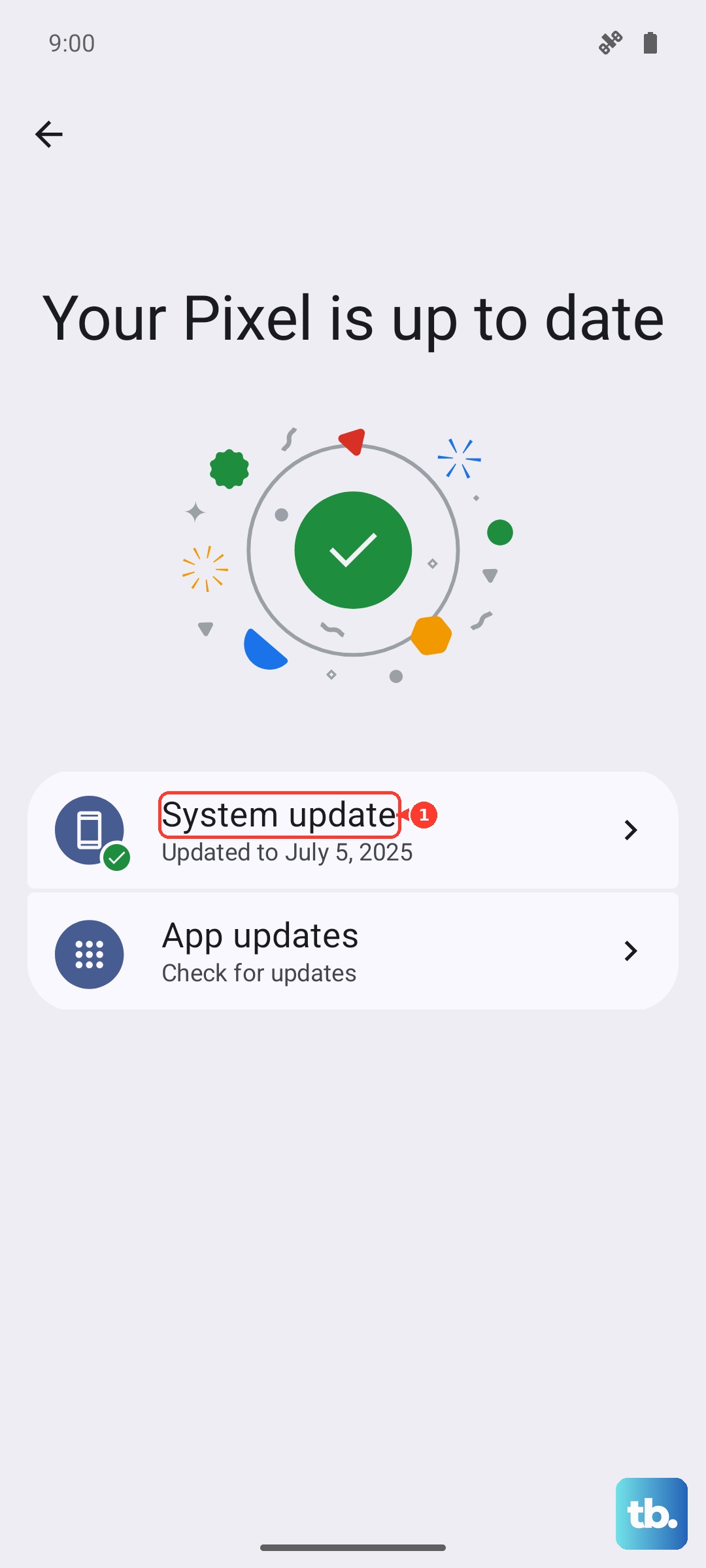
Outdated apps can also have bugs that cause excessive battery use. Open the Google Play Store, tap your profile icon, and go to Manage apps & device > Updates available to install all pending updates.
Utilize Built-In Battery Saving Features
The OnePlus Open has a dedicated Super Power Saving Mode for emergencies. This drastically limits functionality to essential apps but can extend battery life for hours when you're critically low. You can find it in Settings > Battery.
For a less aggressive option, the standard Power Saving Mode is useful. It restricts background activity and reduces visual effects. You can turn it on manually or schedule it in Settings > Battery > Power saving mode.
Reset All Settings
If you've tried everything and the drain started suddenly, a misconfigured setting might be the cause. You can reset all your system settings to their defaults without deleting your personal data.
Go to Settings > Additional settings > Back up and reset > Reset phone > Reset all settings. Confirm the action. You'll need to reconfigure things like Wi-Fi passwords and display preferences, but it can resolve obscure software glitches.
Consider Your Charging Habits
While the included 67W SUPERVOOC charger is incredibly fast, frequent top-ups from very low to full can stress the battery over the long term. If possible, try to keep your phone between 20% and 80% charge for daily use.
Also, make sure you're using the official charger and cable. While other USB-C chargers work, they won't enable the full 67W fast charging, and incompatible or low-quality chargers can sometimes lead to inefficient charging and heat, which impacts battery health.











