
You pick up your OnePlus 13 Pro and realize it's been silent for hours. No alerts for texts, no banners for emails, and your favorite apps aren't pinging you. When notifications suddenly stop on a new phone like this, it's usually a software hiccup rather than a hardware problem. I'd start by checking a few quick settings that often get toggled by accident.
The fastest thing to try is a force restart. This clears the phone's temporary memory and can knock loose any stuck processes. Press and hold the Volume Down button and the Power button together for about 10 seconds until you feel the device vibrate and the OnePlus logo appears.
Right after it reboots, pull down the notification shade twice to open the Quick Settings panel. Look for icons like a crescent moon or a bell with a line through it. These represent Do Not Disturb and Silent mode, which will silence all alerts. Tap them to make sure they're turned off.
Check App-Specific Notification Settings
OxygenOS gives you granular control over notifications for every app. Sometimes an app update can reset these permissions, or you might have accidentally turned them off. Open Settings > Notifications & Quick Settings (on vivo phones, go to Settings > Notifications > App settings) and select the app to manage its notifications.
You'll see a list of all your installed apps. Find the app that's not alerting you, like Gmail or WhatsApp, and tap on it. Make sure the "Allow Notifications" toggle at the top is enabled. Also, check that the specific notification categories underneath, like "New messages" or "Primary inbox," are turned on and set to make a sound or vibrate.
Review Battery Optimization and Background Restrictions
Android's battery saving features are aggressive and can prevent apps from checking for new messages in the background. For critical apps, you need to exempt them from these optimizations. Go to Settings > Battery > Battery Optimization.
Tap the dropdown menu at the top and select "All apps." Scroll to find the problematic app. If it's set to "Optimize," tap on it and choose "Don't optimize." This tells the system to let that app run freely in the background so it can fetch new notifications promptly.
Clear the Cache for the Problem App
Corrupted temporary data in an app's cache can break its notification system. Clearing this is safe and won't delete your login info or personal data within the app. Head to Settings > Apps > See all apps.
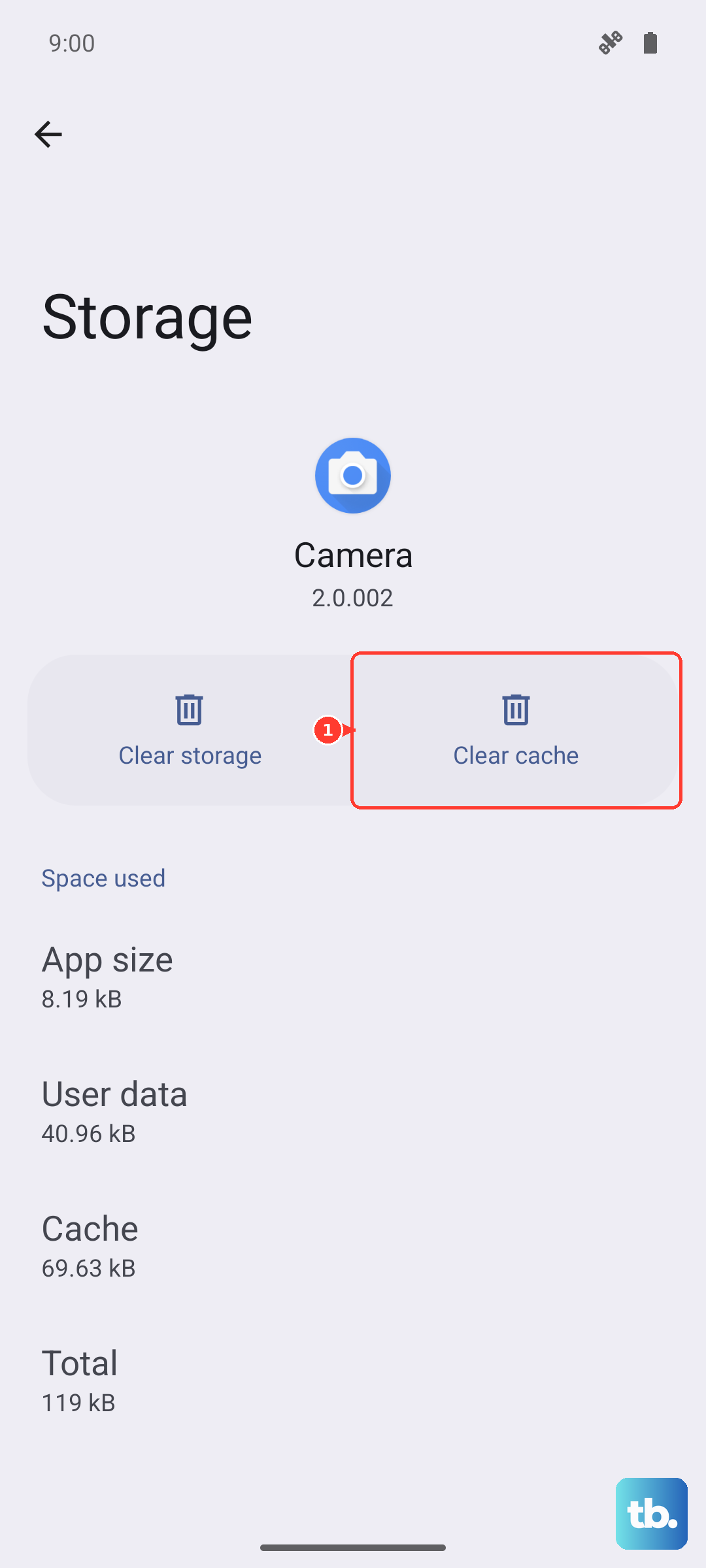
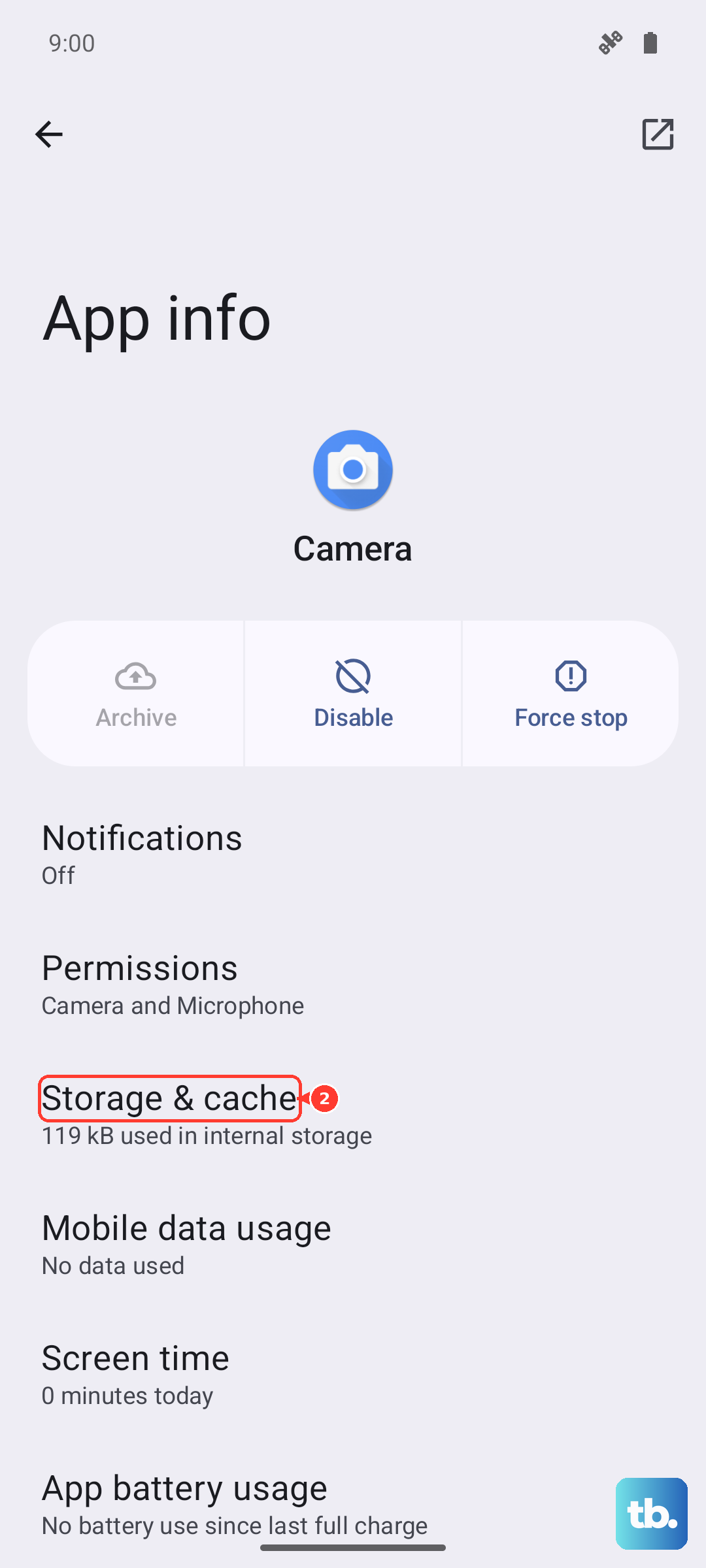
Find and select the app that's having issues. Tap on Storage & Cache, then tap "Clear Cache." After doing this, force close the app by swiping it away from the recent apps view, then open it again. This gives it a fresh start.
Verify System Notification Services
There are core system services that handle notifications. If one of these has crashed or has restricted data, it can affect everything. Go back to Settings > Apps > See all apps, then tap the three-dot menu in the top right and select "Show system."
Look for services named things like "Android System Intelligence," "Google Play services," or "Notification Manager." Select one, go to its Storage & Cache page, and clear its cache. Do this for a couple of the main system services, then restart your phone.
Check for Software Updates
Since the OnePlus 13 Pro runs OxygenOS 15 on Android 15, it's a very new software environment. Early updates often contain crucial bug fixes for notification delivery. Go to Settings > About device > OxygenOS version and tap on the icon to check for updates.
If an update is available, install it. It's a good practice to keep the device updated not just for new features, but for stability patches that resolve issues exactly like this.
Reset App Preferences (A Non-Destructive Reset)
This is a powerful step that resets all your app permissions, notification settings, and default app assignments back to their factory state. The key is that it doesn't delete any of your personal app data or accounts. You'll just need to re-grant permissions like camera or location access the next time you use an app.
To do this, navigate to Settings > Apps > See all apps. Tap the three-dot menu again and select "Reset app preferences." Confirm the action. After your phone resets, test your notifications. You'll likely get a pop-up from your messaging apps asking to allow notifications, be sure to say yes.
Ensure Network Connectivity Isn't the Culprit
Some notifications, especially for apps like WhatsApp or Slack, require a steady data connection. If you're on Wi-Fi, try toggling it off and using mobile data for a moment to see if alerts come through. You can also try turning on Airplane mode from the Quick Settings for 15 seconds, then turning it off to reset the radio connections.
For apps that rely on Google's services, like Gmail, ensure your Google account is syncing properly. Go to Settings > Accounts & Backup > Manage accounts, select your Google account, and make sure the sync toggle for Gmail or other services is enabled.











