
Seeing a "SIM Not Provisioned" error on your OnePlus 13 can stop you in your tracks. It usually means your phone can't properly connect to your carrier's network, which blocks calls, texts, and mobile data.
The good news is this is almost always a fixable software or account hiccup, not a hardware problem with your phone itself.
Restart Your OnePlus 13
This is the universal first step for a reason. A simple restart clears out temporary glitches in the system software, including network connection errors. Just press and hold the power button, then tap "Restart" on the screen.
If the phone is unresponsive, you can perform a force restart. Press and hold the Volume Down button and the Power button together for about 10 seconds until you feel the device vibrate and the OnePlus logo appears.
Check Your SIM Card Activation and Account Status
If this is a brand new SIM card, it might not be activated yet. Even if it's an old SIM, your service could have been suspended. This is the most common cause of this error.
Contact your carrier directly. They can check if your line is active, confirm the SIM is provisioned correctly on their network, and see if there's an outstanding balance on a prepaid plan that needs to be paid.
Reinsert the SIM Card
Over time, the SIM card or the tray's contacts can get a bit dusty, or the card might shift slightly and lose a solid connection. Power your OnePlus 13 off completely first.
Use the SIM ejector tool that came in the box to pop out the tray. Gently remove the SIM card, give the gold contacts a quick visual inspection for any obvious dirt or damage, and blow any dust out of the tray. Re-seat the card firmly, slide the tray back in, and power the phone on.
Toggle Airplane Mode
This trick forces your phone's radio to disconnect from all networks and reconnect fresh. Swipe down from the top of your screen twice to open the full Quick Settings panel.
Tap the airplane icon to turn it on, wait about 15-20 seconds, then tap it again to turn it off. You should see the network signal bars disappear and then return as it searches again.
Update Your Software and Carrier Services
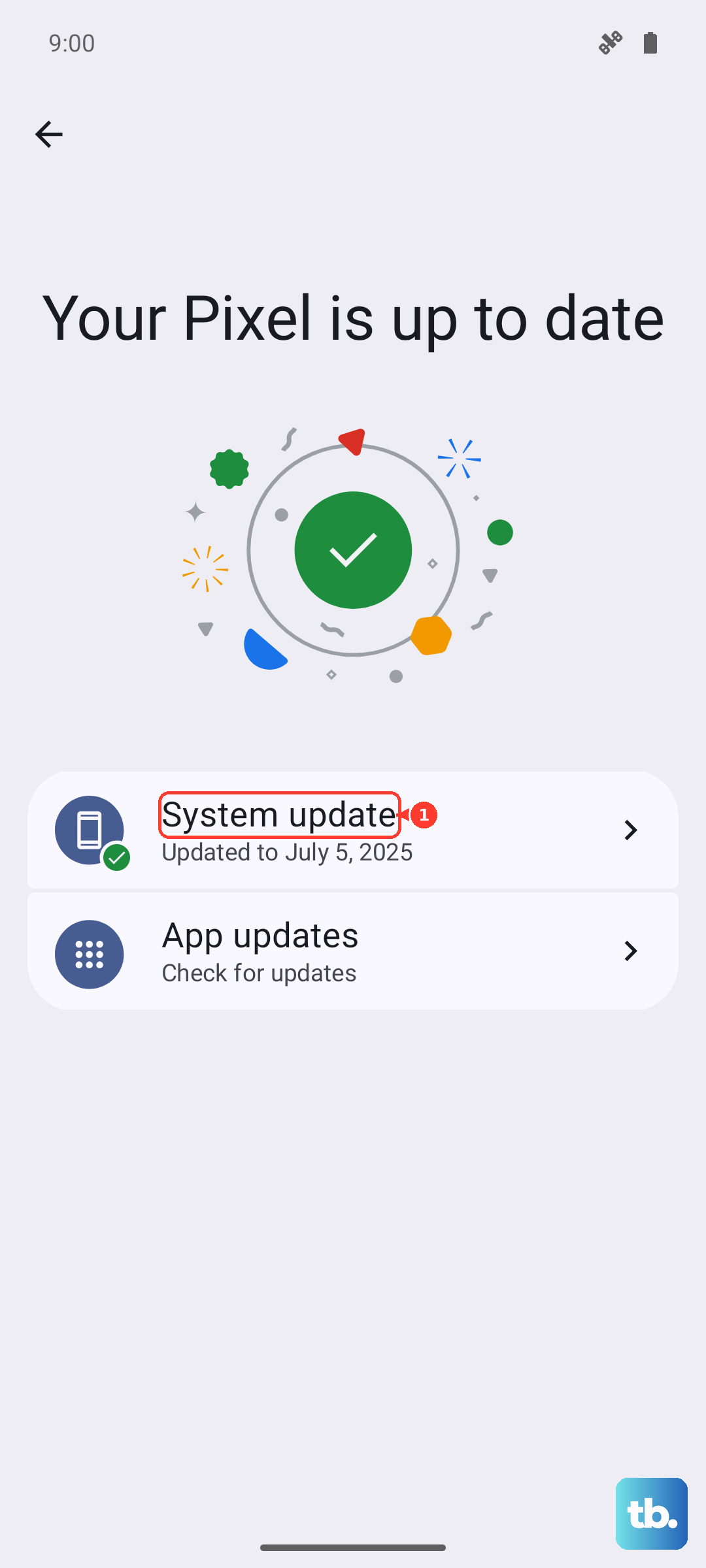
Running outdated software can lead to network compatibility bugs. Go to Settings > About device > OxygenOS version to check for a system update.
Also, open the Google Play Store, tap your profile icon, go to Manage apps & device, and look under "Updates available" for an app called "Carrier Services." Updating this can resolve provisioning issues.
Manually Select Your Network Operator
Sometimes the automatic network selection gets confused, especially if you're near a border or in an area with spotty coverage. You can manually tell it which carrier to use.
Go to Settings > Mobile network. Tap on your SIM card (like "SIM 1"), then select Network operators. The phone will search. When the list appears, choose your specific carrier's name instead of leaving it on "Select automatically."
Reset Your Network Settings
This is a more thorough step that will wipe all saved Wi-Fi networks, Bluetooth pairings, and cellular network preferences, forcing everything to start fresh. It doesn't delete your personal data like photos or apps.
Navigate to Settings > Additional settings > Back up & reset. Tap on Reset phone, then select Reset Wi-Fi, mobile & Bluetooth. Confirm the action and your phone will reboot. Afterward, you'll need to reconnect to Wi-Fi and re-pair Bluetooth devices.
Check for a Carrier Settings Update
Carriers occasionally push small configuration updates directly to phones on their network. These settings help with things like network provisioning and data speeds.
On your OnePlus 13, go to Settings > Mobile network. Tap on your SIM, then look for an option like Carrier settings update or Access Point Names (APN). If an update is available, you'll usually be prompted to install it here.
Try the SIM Card in Another Phone
This test tells you where the problem actually lies. If you have access to another unlocked phone, power it off, insert your OnePlus 13's SIM card, and turn it on.
If the SIM works perfectly in the other phone, then the issue is likely with the software or network settings on your OnePlus 13. If the "Not Provisioned" error follows the SIM to the other device, then the problem is definitely with the SIM card or your carrier account.
Contact Your Carrier for a Replacement SIM
If you've tried everything else and the SIM still doesn't work in another phone, the physical SIM card itself may be faulty or have reached its end of life. SIM cards can degrade over many years.
Your carrier can deactivate the old SIM and provision a new one for you, often for a small fee or sometimes for free. They can usually activate it while you're on the phone with them, or you might need to visit a store.











