
If your OnePlus 12 is feeling sluggish, you're not alone. Even with its powerful Snapdragon 8 Gen 3 chip, things can slow down. The good news is that a few simple tweaks can usually get it back up to speed.
Lag on the OnePlus 12 often comes from a few common places. Too many apps running in the background, storage getting full, or a software hiccup can all be the culprit. I'd start with a simple restart and work through these steps.
Force Restart Your OnePlus 12
This is the quickest fix and clears out any temporary glitches. Just press and hold the power button for about 10 to 15 seconds. You'll feel a vibration and see the phone reboot. It's a fresh start that solves a lot of random slowdowns instantly.
Close Recent Apps Properly
Swiping away apps from the recent menu doesn't always fully close them on Android. To make sure they're not running in the background, open your recent apps view. Then, instead of just swiping up, tap the three-dot menu in the top-right corner and select "Close all." This ensures everything is truly shut down.
Check for Software Updates
OnePlus regularly releases OxygenOS updates that include performance optimizations and bug fixes. Go to Settings > About device > OxygenOS version and tap on the top banner to check for an update. If one is available, install it. I've seen updates specifically target lag and thermal management on recent models.
Free Up Storage Space
When your internal storage gets too full, everything slows down. Head to Settings > Storage to see what's taking up space. The "Clean up storage" tool is helpful for finding large files, duplicate photos, and app cache you can delete. Aim to keep at least 10-15% of your storage free for the system to breathe.
Manage Background App Activity
Some apps are notorious for running processes in the background, even when you're not using them. You can control this by going to Settings > Apps > App management. Select a specific app, then tap "Battery usage." Here, you can set its background usage to "Restricted" to prevent it from draining resources.
For a broader setting, check Settings > Battery > More battery settings. Look for options like "Sleep standby optimization" and make sure they're enabled to help the system manage background tasks intelligently.
Clear App Cache for Problem Apps
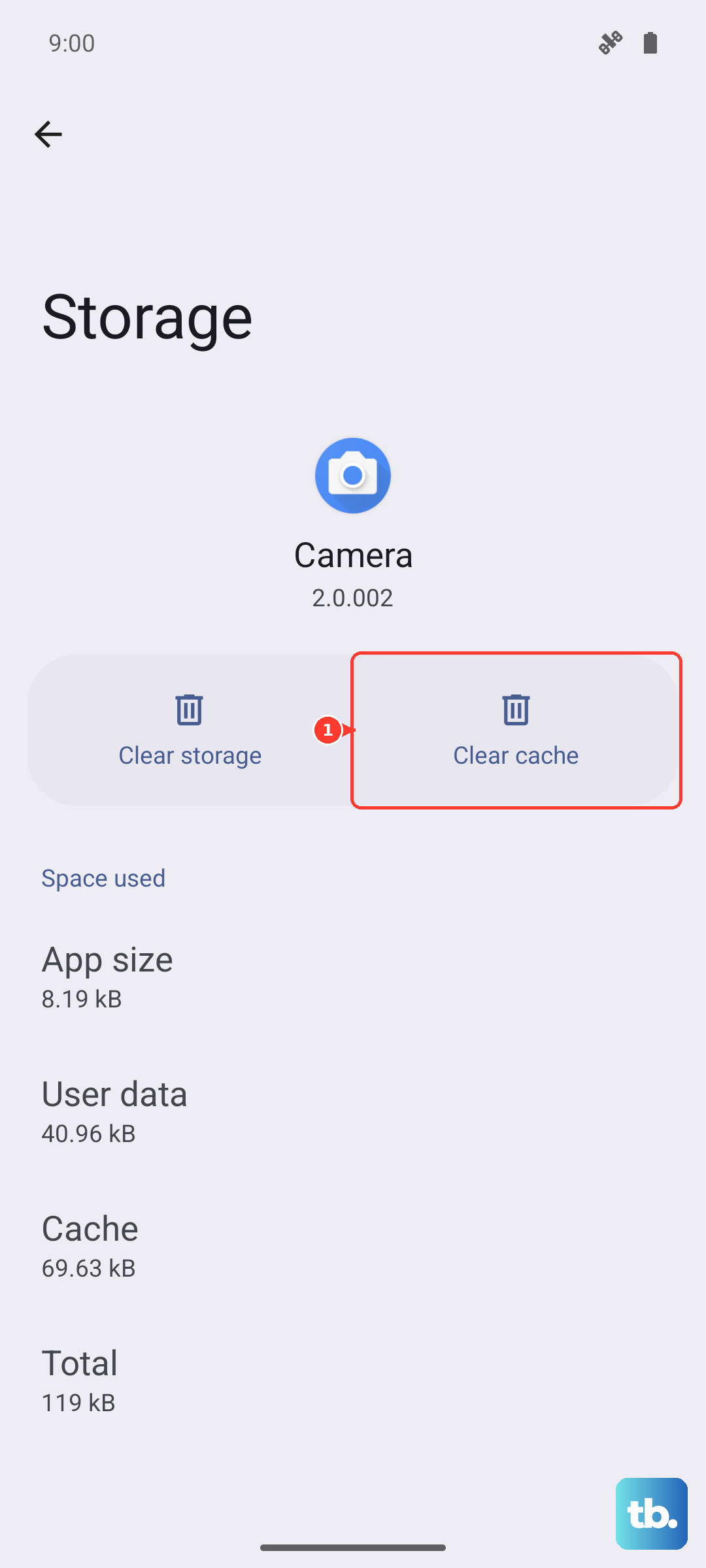
If a specific app is lagging, its cached data might be corrupted. Go to Settings > Apps > App management, find the problematic app, and tap on it. Select "Storage usage" and then tap "Clear cache." This deletes temporary files without touching your login info or saved data.
Review Your Home Screen Layout
Live wallpapers, widgets that constantly update, and cluttered home screens can use more processing power than you think. Try switching to a static wallpaper for a day to see if it helps. Also, consider removing widgets you don't actively use by long-pressing them and dragging them to "Remove."
Disable or Reduce Animations
The smooth animations in OxygenOS look great, but toning them down can make the phone feel snappier. You'll need to enable developer options first. Go to Settings > About device and tap "Version" 7 times until you see a message saying you're a developer.
Then, go back to Settings and find "Developer options." Scroll down to the "Drawing" section. Look for "Window animation scale," "Transition animation scale," and "Animator duration scale." Try changing each from 1x to 0.5x. This makes UI transitions faster.
Check for Rogue Apps in Safe Mode
If the slowdown started after installing a new app, booting into Safe Mode can help you confirm. Press and hold the power button until the power menu appears. Then, long-press the "Power off" option on your screen. Tap "OK" when prompted to reboot to Safe Mode.
In Safe Mode, all third-party apps are disabled. If your phone runs smoothly here, a recently installed app is likely the problem. Restart normally and try uninstalling apps one by one to find the culprit.
Perform a Soft Reset of Settings
If you've tried everything and the phone is still laggy, resetting your system settings can help. This won't delete your personal data like photos or messages, but it will reset Wi-Fi passwords, Bluetooth pairings, and custom preferences. Go to Settings > Additional settings > Backup and reset > Reset phone.
Here, select "Reset all settings (network & app settings only)." Enter your lock screen PIN or password to confirm. After the phone reboots, you'll need to reconnect to Wi-Fi and re-pair Bluetooth devices, but it often clears up persistent software-related lag.











