
When your OnePlus 13 Pro's GPS stops locking on, it can leave you stranded mid-navigation. This is usually a quick software hiccup in OxygenOS 15, but it's worth methodically checking a few things. I'd start with the simplest fix first, as it often does the trick.
Pull down the Quick Settings panel from the top of your screen and tap the Location icon to turn it off. Wait about ten seconds, then tap it again to turn it back on. This simple refresh of the location service can clear up a temporary glitch. If that doesn't work, the next step is to give your phone a fresh start.
Perform a Force Restart
A standard restart is good, but a force restart is better for clearing stubborn system processes. For the OnePlus 13 Pro, press and hold the Volume Down button and the Power button simultaneously. Keep holding them for about ten seconds until you feel the device vibrate and the screen goes black, then release as it boots up.
This forces a hard reboot without deleting any of your data. It's different from a normal restart and can resolve deeper software conflicts that might be affecting the GPS radio.
Verify Your Location Mode and Permissions
OxygenOS has a few different location accuracy modes. If you're using a battery-saving mode, it might be limiting GPS functionality. Open Settings and go to Location. At the top, make sure the main Location toggle is on.
Then, tap on Location services. You'll want to select High accuracy mode. This uses GPS, Wi-Fi, and mobile networks together to get the fastest, most precise lock. Also, check individual app permissions by going to Settings > Apps > [App Name] > Permissions to ensure your navigation app has location access allowed.
Disable Battery Optimization for Navigation Apps
Android's aggressive battery management can sometimes interfere with apps that need constant location updates in the background. To prevent this for an app like Google Maps, go to Settings > Battery > Battery optimization.
Tap the dropdown menu and select All apps. Find your navigation app in the list, tap on it, and choose Don't optimize. This tells the system not to restrict the app's background activity, which can help maintain a stable GPS connection during trips.
Update Your Apps and OxygenOS
An outdated version of Google Maps, Waze, or your system software can have bugs that break GPS functionality. Head to the Google Play Store, tap your profile icon, and go to Manage apps & device. Check for updates there, specifically for your navigation apps.
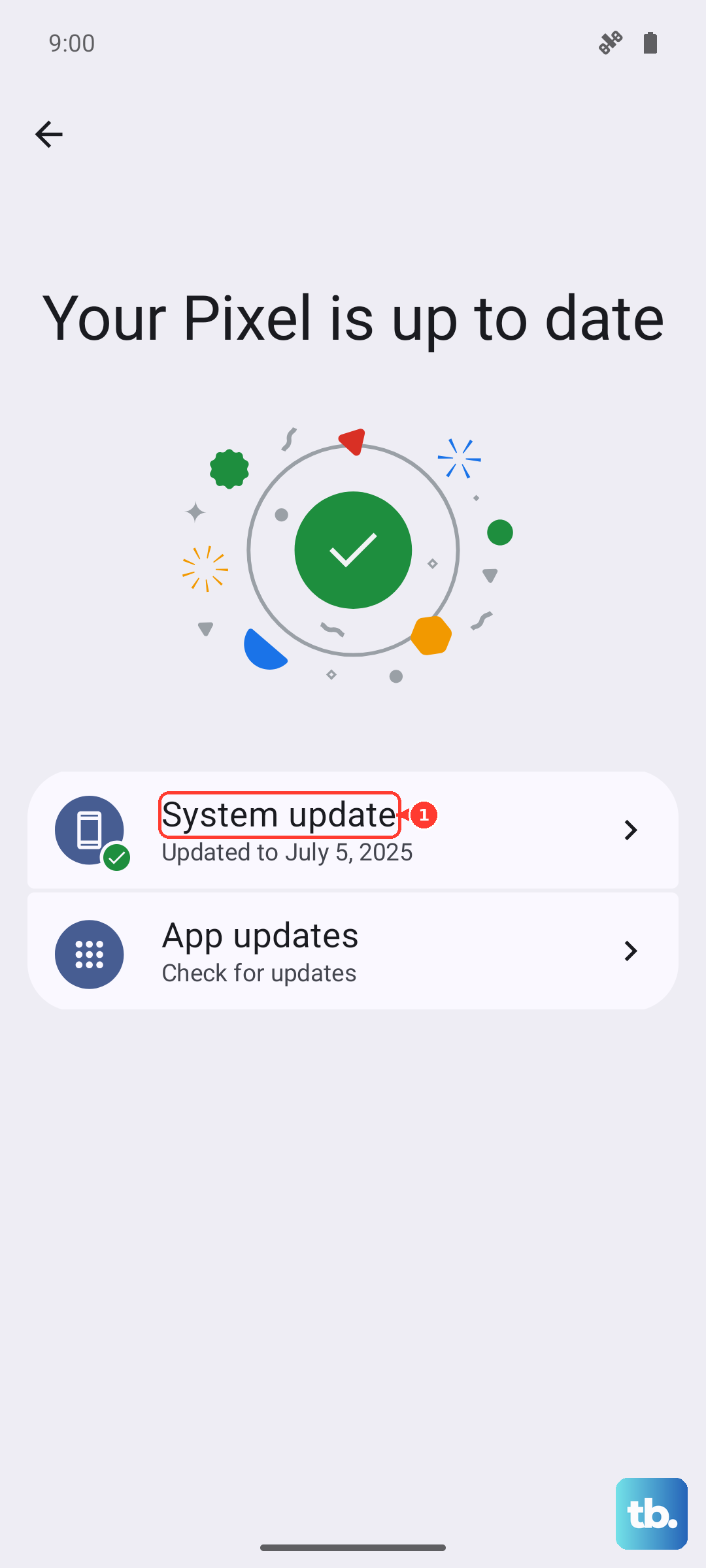
Next, check for a system update. Go to Settings > About device > OxygenOS version and tap on the top banner to check for updates. Installing the latest OxygenOS update is crucial, as it often contains fixes for connectivity and performance issues.
Clear the App Cache and Data
If a specific app is having trouble, its stored cache data might be corrupted. Go to Settings > Apps, find the problematic app (like Google Maps), and tap on it. Select Storage & cache and then tap Clear cache.
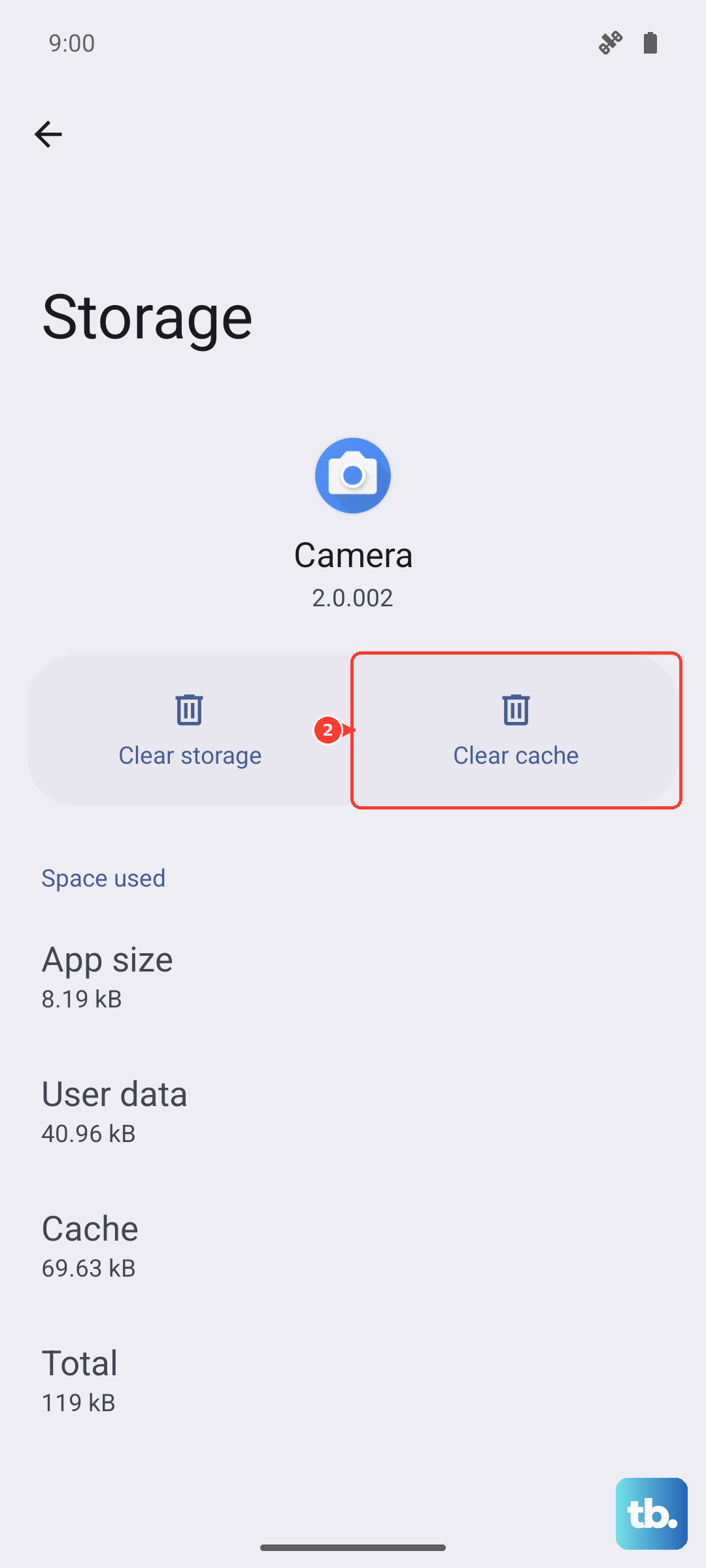
This doesn't delete your saved places or settings. If the problem persists, you can go back and tap Clear storage or Clear data. Be warned, this will reset the app to its default state, so you'll need to sign back in and reset any preferences.
Check for Physical and Environmental Interference
GPS signals are line-of-sight and can be blocked by all sorts of things. A thick metal phone case, especially a MagSafe-compatible one with a ring of magnets, can potentially interfere with the internal antenna. Try removing your case temporarily to see if the GPS lock improves.
Your environment plays a huge role too. Being inside a building, in a dense urban area with tall buildings, or under heavy tree cover can weaken or block signals. For the best results, step outside to an open area with a clear view of the sky.
Use Airplane Mode to Reset Radios
This is a classic trick that resets all your device's wireless connections at once. Swipe down for the Quick Settings panel and tap the Airplane Mode icon to enable it. Wait for 15-20 seconds to let all radios fully power down.
Then, tap the icon again to disable Airplane Mode. Your phone will re-establish connections to mobile networks, Wi-Fi, and Bluetooth. This process can clear up conflicts between the different radios that might be preventing the GPS from working properly.
Test in Safe Mode
If you've installed a new app recently and the GPS problems started around the same time, a third-party app could be the culprit. Booting into Safe Mode temporarily disables all apps you've installed. To enter Safe Mode on the OnePlus 13 Pro, press and hold the Power button until the power menu appears.
Then, tap and hold the Power off option on your screen. A prompt will appear asking if you want to reboot to Safe Mode. Tap OK. Once in Safe Mode, test your GPS with a mapping app. If it works perfectly, you know a downloaded app is causing the issue. Restart normally to exit Safe Mode.
Wipe the Cache Partition
This is a deeper system-level fix that clears temporary files from OxygenOS itself, not your personal data. First, power off your OnePlus 13 Pro completely. Once it's off, press and hold the Volume Down and Power buttons together until the OnePlus logo appears, then release.
You'll enter recovery mode. Use the volume buttons to navigate to Wipe data and cache and select it with the power button. On the next screen, choose Wipe cache and confirm. Once it's done, select Reboot. This can resolve persistent system glitches affecting various functions, including GPS.
If you've tried all these steps and your GPS is still completely dead, even in open sky with a GPS testing app, it could point to a rare hardware fault. Before considering that, a factory reset is the absolute last resort. Make sure you have a full backup in Google One or on your computer. Then, go to Settings > Additional settings > Backup & reset > Erase all data (factory reset).











