
When your OnePlus 13 Pro's email stops syncing or sending, it can throw a real wrench in your day. Missing important messages or getting stuck with a sending error is a common headache on Android. The fixes are usually pretty straightforward once you know where to look.
Before you dive deep, run through these quick checks. Make sure you have a solid internet connection, either over Wi-Fi or your mobile data. It's also worth a quick web search to see if your email provider (like Gmail or Outlook) is having a widespread outage. Finally, double-check that you're using the correct email address and password.
Restart the Email App
This is the digital equivalent of turning it off and on again, and it works surprisingly often. A fresh start can clear out temporary glitches that are preventing your emails from loading or sending properly.
To force close the app, swipe up from the bottom of your screen and hold to enter the recent apps view. Find your email app, whether it's Gmail, Outlook, or the built-in OnePlus Email app, and swipe it up off the screen to close it. Wait a moment, then tap the app icon to reopen it and see if the problem is resolved.
Check Your Sync and Fetch Settings
Your phone controls how often it checks for new emails to save battery. If these settings are too restrictive, you might not get messages in real-time.
For Gmail, open the app, tap your profile picture in the top right, and go to Settings. Select your account and look for "Data usage" or "Sync frequency" to ensure it's set to sync automatically. For other accounts in the OnePlus Email app, you'll find these options under Settings > Accounts > [Your Account] > Sync settings.
Toggle Airplane Mode
This quickly resets all your radio connections, cellular, Wi-Fi, and Bluetooth. It's a fast way to clear up any network hiccups that could be blocking your email.
Swipe down from the top of your screen twice to open the full Quick Settings panel. Tap the airplane icon to enable Airplane Mode, wait about 15-20 seconds, then tap it again to turn it off. Your phone will reconnect to your networks, and you can try your email again.
Switch Between Wi-Fi and Mobile Data
Sometimes the issue is with one specific type of connection. Your home Wi-Fi might have a firewall rule blocking email ports, or your cellular data might be experiencing congestion.
Try turning off mobile data and using only Wi-Fi, or vice versa. You can toggle mobile data from the Quick Settings panel. If email works on one but not the other, you've found the culprit and can focus on fixing that specific connection.
Verify Your Email Login Credentials
Passwords expire, accounts get locked, or you might have simply typed something wrong. The quickest way to check is to try logging into your email account through a web browser on a computer or another device.
If you can't log in there, you'll need to reset your password through your email provider's website. Once you have the new password, update it in your phone's account settings to get everything back in sync.
Enable Background Data for the Email App
Android can restrict background data usage to conserve your mobile data allowance. If this is turned off for your email app, it won't check for new messages unless you have the app open.
Go to Settings > Apps and find your email app. Tap on it, then go to Mobile data & Wi-Fi. Make sure "Allow background data usage" or a similar option is enabled. This lets the app sync even when you're not actively using it.
Check for App Updates
Outdated apps can have bugs that break functionality. App developers regularly release updates to fix these issues, including problems with sending, receiving, or syncing email.
Open the Google Play Store, tap your profile picture, and go to Manage apps & device. Look under "Updates available" for your email app. If you see it listed, tap "Update" to install the latest version.
Clear the App's Cache and Data
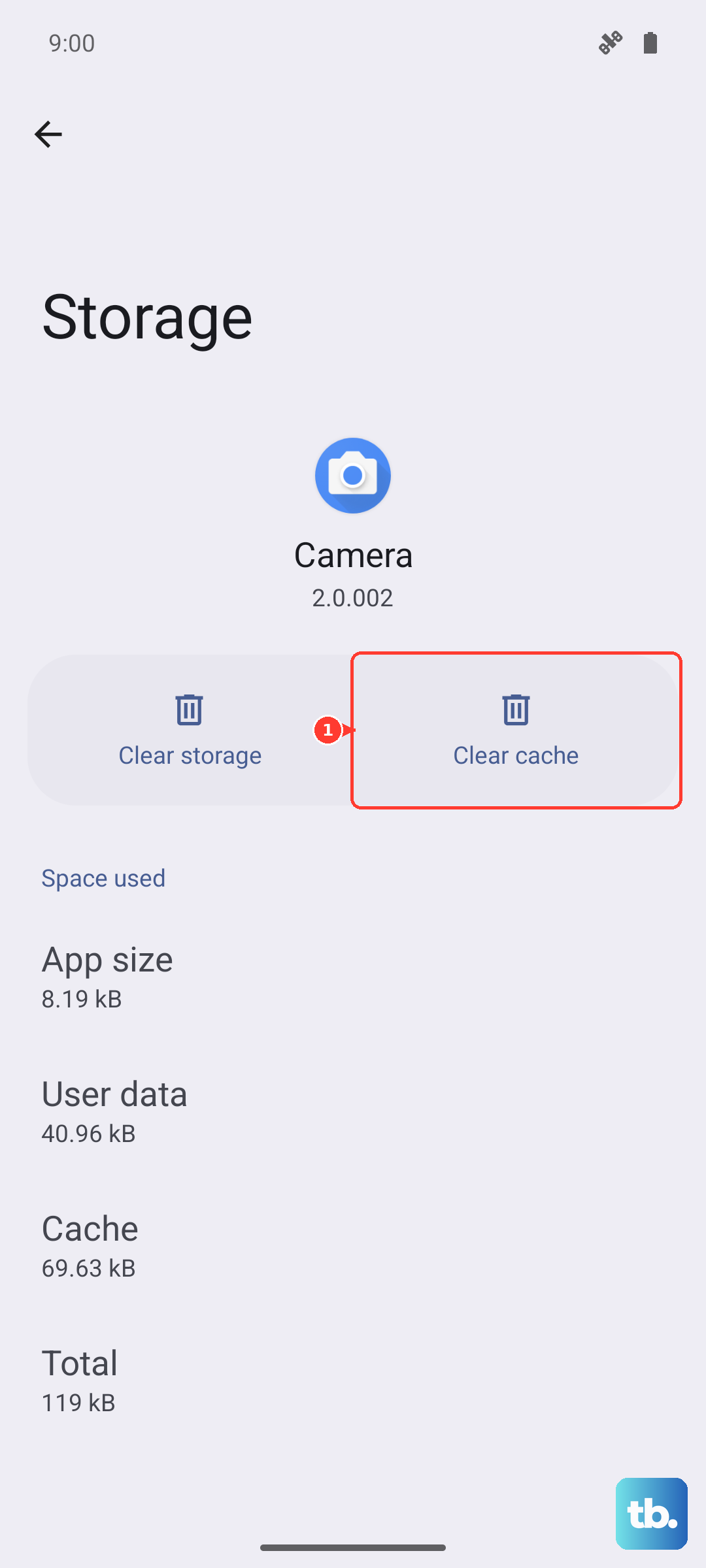
The cache is temporary storage that can sometimes become corrupted. Clearing it is safe and won't delete your emails or account. Clearing data is more drastic, it will remove the account from the app, so you'll have to sign back in.
I'd start with the cache. Go to Settings > Apps, select your email app, then tap Storage & cache. Tap "Clear cache." If that doesn't work, you can try "Clear storage" or "Clear data" next. Just remember you'll need to set the account up again afterward.
Review Your Notification Settings
If emails are arriving but you're not getting any sound or banner alerts, the issue is with notifications, not the email service itself. Android's notification controls are very granular.
Go to Settings > Notifications & status bar > App notifications. Find your email app in the list and tap on it. Make sure notifications are turned on for that app. You can also check the specific notification categories within the app to ensure alerts for new messages are enabled.
Disable Any Active VPN
While great for privacy, VPNs can sometimes interfere with the specific ports and protocols that email services use. If you're connected to a VPN, try disabling it temporarily to see if your email starts working.
You can usually turn off a VPN from its own app icon in your notification shade or by going to Settings > Network & internet > VPN and toggling it off. Test your email with the VPN off to rule it out as the cause.
Remove and Re-add Your Email Account
This is a more thorough reset for the account connection on your phone. It clears out any incorrect configuration that might have been stored and establishes a fresh link to the mail server.
Go to Settings > Accounts & sync. Find your email account in the list and tap on it. Tap Remove account or the three-dot menu for a removal option. Confirm, then go back and add the account again through the "Add account" option. You'll need your email address and password handy.
Ensure Automatic Date & Time is On
Email security relies heavily on accurate timestamps. If your phone's clock is off by a significant amount, it can cause authentication failures with the email server, preventing sync.
Go to Settings > Additional settings > Date & time. Make sure "Use network-provided time" or "Set time automatically" is switched on. This ensures your phone's clock is always correct.
Restart Your OnePlus 13 Pro
A full system restart can clear out system-level software gremlins that simpler app restarts can't touch. It's a good step before trying anything more drastic.
Press and hold the Volume Down button and the Power button simultaneously for about 10 seconds. You'll feel the device vibrate and see the OnePlus logo as it reboots. This force restart method works even if the screen is frozen.
Update OxygenOS
System updates from OnePlus often include bug fixes and improvements for core services, which can include connectivity and app framework issues affecting email.
Go to Settings > About device > OxygenOS version. Tap on the icon at the top to check for updates. If an update is available, make sure your phone is charged above 50% and connected to Wi-Fi, then follow the prompts to download and install it.











