
When your OnePlus 13's voice assistant stops responding, it can feel like you've lost a helpful companion. Whether it's Google Assistant or the built-in OnePlus voice features, getting them working again is usually straightforward. Let's walk through the most effective fixes.
Verify Your Voice Assistant is Enabled
First, let's make sure the voice assistant is actually turned on. Open your Settings app and look for the Google section. Tap on it, then find the "Settings for Google apps" menu.
Select Search, Assistant & Voice, then Google Assistant. Scroll down to the "Hey Google" section and ensure "Hey Google" is toggled on. If it's off, turn it on and follow the prompts to retrain your voice model.
Check for Microphone Access and Interference
Your phone needs to hear you clearly. Go to Settings > Apps > See all apps and find Google. Tap Permissions and make sure the Microphone permission is set to "Allow only while using the app" or "Allow all the time."
Also, check if any other app is actively using the microphone, like a voice recorder or a call. This can block the assistant from listening. A quick restart can clear this up, just press and hold the Volume Down and Power buttons together for about 10 seconds until the phone vibrates and reboots.
Retrain Your Voice Model
If the assistant activates for others but not for you, it might not recognize your voice well anymore. You can fix this by retraining it. Go back to the "Hey Google" settings in the Google app.
Tap on Voice Match and look for an option to retrain the voice model. You'll be asked to say "Hey Google" and "Ok Google" a few times in a quiet room. This helps the phone learn the specific tone and cadence of your voice.
Update OxygenOS and the Google App
Early software builds can have bugs. Keeping your system updated is crucial. Head to Settings > About device > OxygenOS version to check for an update. Install any available system updates.
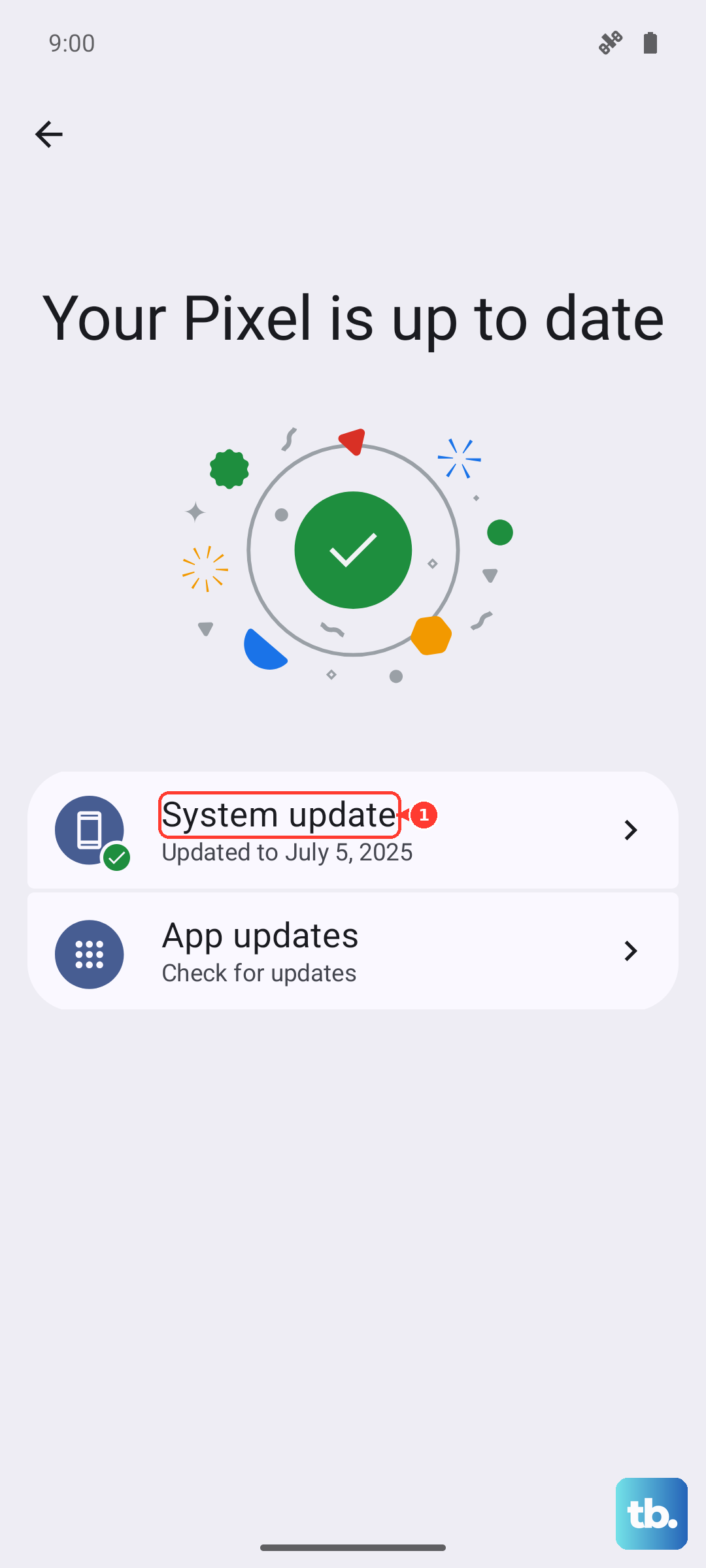
Next, open the Google Play Store, tap your profile icon, and go to Manage apps & device. Look for updates, specifically for the "Google" app. An outdated app version is a common culprit for assistant issues on new phones like the OnePlus 13.
Check Your Network Connection
While many basic commands process on the device, more complex requests need the internet. Make sure you're connected to Wi-Fi or have a strong mobile data signal. Try asking a simple question like "What's the weather?" to test if it's a connectivity issue.
If you're on mobile data, ensure the Google app has permission to use it. Go to Settings > Apps > Google > Mobile data & Wi-Fi and check that "Allow background data usage" is enabled.
Disable Battery Optimization for the Assistant
OxygenOS's aggressive battery saving can sometimes put the listening service to sleep. To prevent this, go to Settings > Battery > Battery optimization.
Tap the dropdown menu and select All apps. Find "Google" in the list and tap on it. Choose "Don't optimize" and confirm. This tells your phone to always keep the necessary background processes for "Hey Google" active.
Clear the Google App's Cache and Data
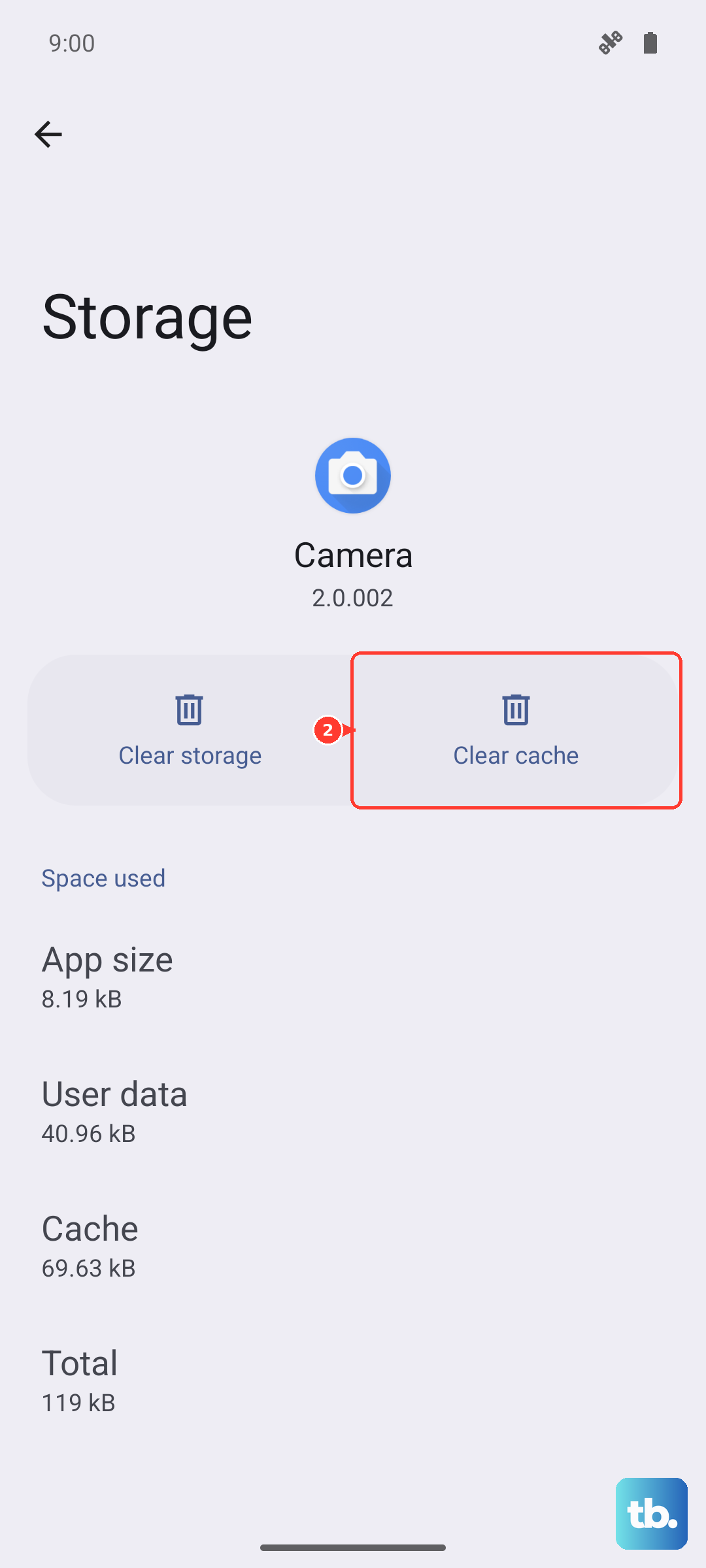
Corrupted temporary files can break functionality. This step won't delete your personal data, but it will reset the app's settings. Go to Settings > Apps > See all apps > Google > Storage & cache.
Tap "Clear cache" first and test the assistant. If it still doesn't work, go back and tap "Clear storage" or "Manage space," then "Clear all data." You'll need to set up "Hey Google" again afterward, but this often resolves persistent glitches.
Inspect for Physical or Audio Issues
Take a look at the top and bottom edges of your OnePlus 13. The primary microphone is usually at the bottom. Make sure it's not blocked by a phone case, lint, or debris. Gently clean the small microphone port with a soft, dry brush.
Also, check your audio settings. If your phone is in Silent or Do Not Disturb mode, the assistant might still listen but won't give audible replies. You can adjust this in the Google Assistant settings under "Assistant voice and sounds."
Reset App Preferences or System Settings
If you've installed many new apps, one might have changed a critical system permission. You can reset all app permissions without losing app data. Go to Settings > System > Reset options and tap "Reset app preferences."
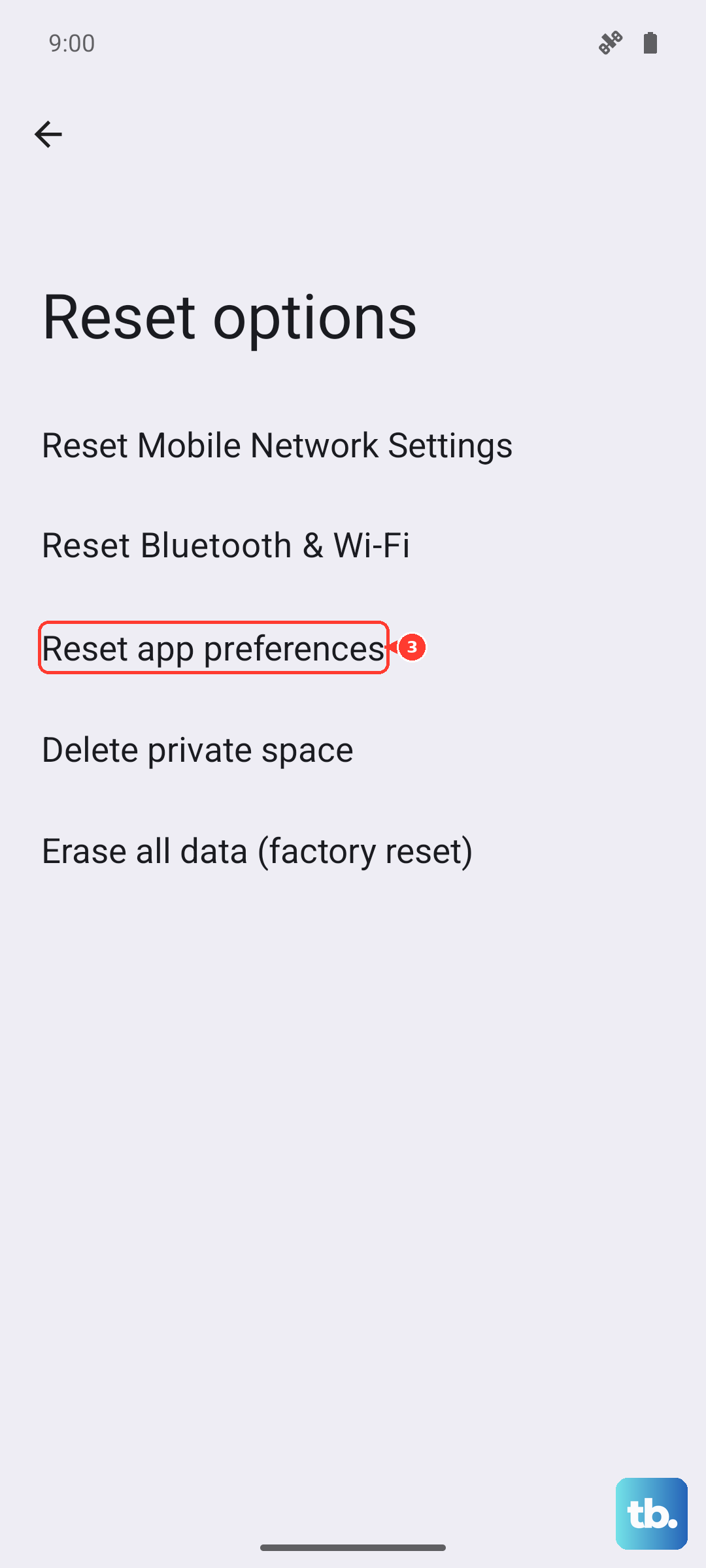
For a more thorough reset that won't touch your photos or messages, you can try resetting all system settings. In the same Reset options menu, select "Reset all settings." You'll need to reconfigure things like Wi-Fi passwords and ringtones, but it can clear out a deeper software conflict.











