
Before you start turning everything off, take a quick look at your battery health. Head to Settings > Battery > Battery health. This screen shows your battery's current capacity and charging habits. If the capacity is significantly below 100%, it's a sign the physical battery is aging. For the OnePlus 13, I'd start to notice a real impact on daily life once it dips below 90%.
More importantly, check what's actually using your power. Go to Settings > Battery and tap on "Battery usage by app." This will show you exactly which apps have been draining your battery over the last 24 hours. If you see a social media, gaming, or navigation app at the top with a huge percentage, you've found your likely culprit.
Manage Your Display Settings
The screen is almost always the biggest battery drain. On the OnePlus 13's bright display, lowering the brightness even a little can make a big difference. Pull down the quick settings shade and adjust the slider, or go to Settings > Display & brightness.
Also in that menu, set a shorter screen timeout. Changing Screen timeout to 30 seconds or 1 minute means your display turns off faster when you're not using it. It's a simple change that adds up over a day.
Enable Dark theme. Since the OnePlus 13 uses an OLED display, black pixels are actually turned off. Using a dark background and dark mode in apps can save a meaningful amount of power, especially if you use your phone a lot.
Control Background Activity
Apps refreshing in the background are a major hidden drain. Go to Settings > Apps, select the app, and open its battery usage settings to manage battery optimization. You can see which apps are optimized and tap on any app to change its setting to "Optimize." This restricts its background activity.
For more granular control, head to Settings > Apps > [App Name] > Battery. Here, you can set apps to "Restricted" to severely limit their background work. Be careful with messaging apps here, as you might delay notifications.
Location services are another big one. Go to Settings > Location. You can turn it off entirely when not needed, or tap "App location permission" to review each app. Change apps you don't need tracking you to "Allow only while using the app."
Connectivity and Performance Tweaks
Turn off Bluetooth, Wi-Fi, and Mobile data when you don't need them. The quick settings panel is the fastest way to do this. If you're in an area with a weak cellular signal, your phone works harder to maintain a connection, which drains the battery faster. Switching to Wi-Fi or even Airplane mode in a dead zone can help.
The OnePlus 13 is a powerful phone, but you don't always need all that performance. Consider using the "High performance" mode only when gaming or using intensive apps. For general use, the standard or "Power saver" profile in Settings > Battery is more efficient.
Disable "Always-on display" if you have it on. While it's handy, keeping a portion of the screen lit 24/7 does use extra battery. You can find this in Settings > Display & brightness > Always-on display.
Update and Reset
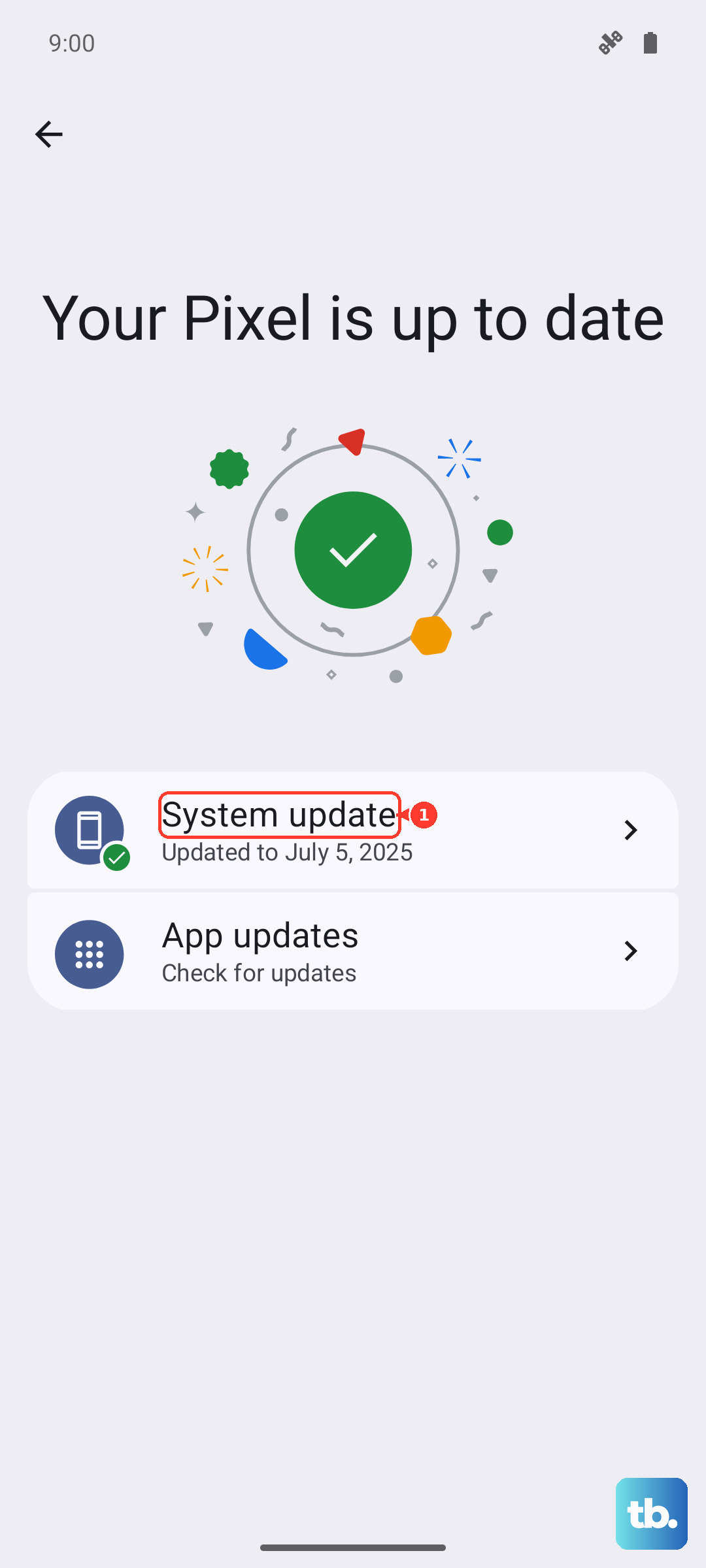
Make sure your phone is running the latest software. Early builds of OxygenOS 15 might have bugs that hurt battery life. Go to Settings > System > System updates to check. Keeping your apps updated through the Google Play Store is also important, as updates often include efficiency improvements.
If you've tried everything and the drain started suddenly, a misbehaving app might be the cause. Try booting into Safe Mode. Press and hold the power button, then long-press the "Power off" option on your screen and tap "Safe Mode." If the battery life is normal in Safe Mode, a recently installed app is likely to blame.
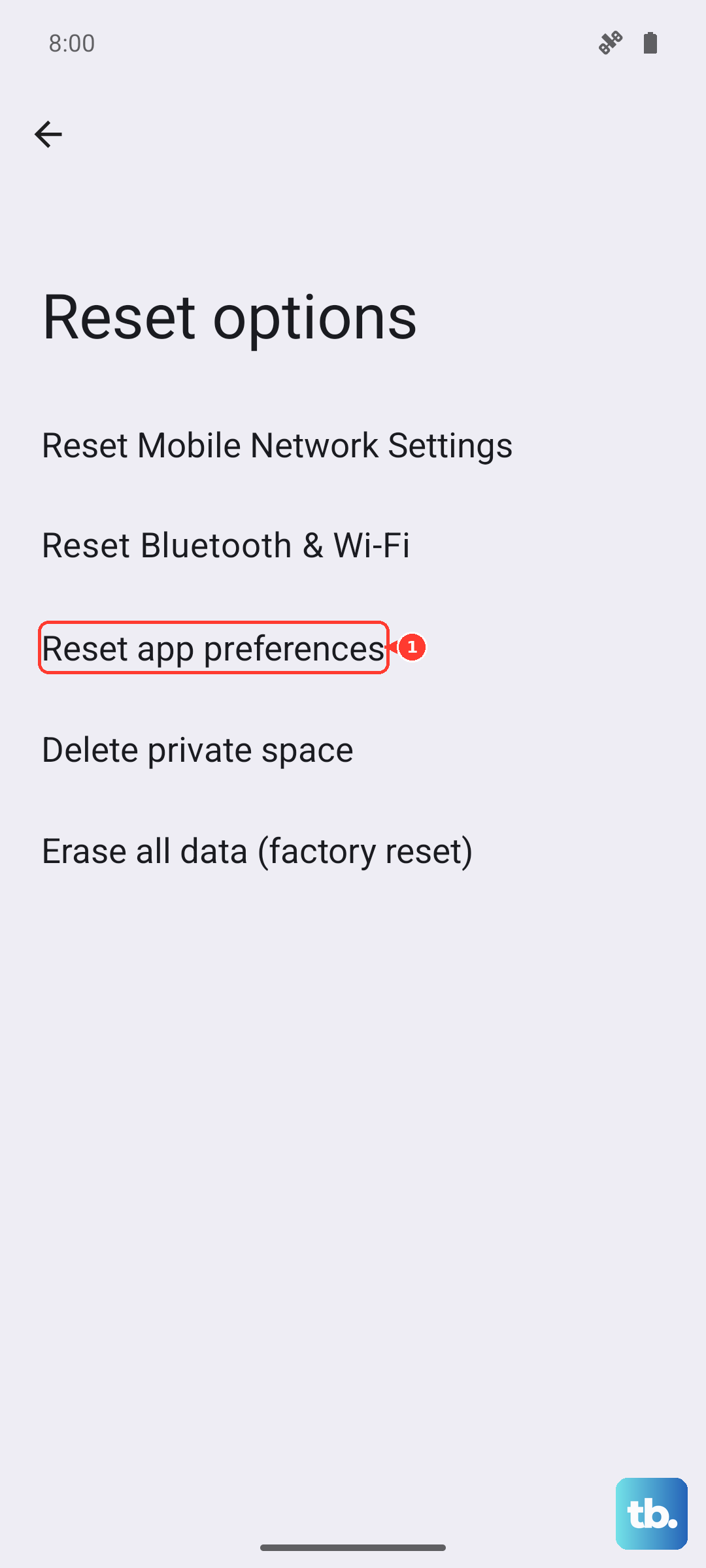
As a last resort, you can reset your phone's settings. This won't delete your photos or apps, but it will reset Wi-Fi passwords, Bluetooth connections, and system preferences. On OnePlus, go to Settings > Additional settings > Back up and reset > Reset phone > Reset all settings; Pixel, Motorola, Nothing, and ASUS phones have no Reset all settings option, so go to Settings > System > Reset options and use Reset app preferences or Reset Bluetooth & Wi-Fi instead. This can clear out any software glitches causing abnormal drain.
Charging Habits for Long-Term Health
For the fastest and safest charging, use the original OnePlus 100W charger and cable. While other USB-C chargers work, they might not enable the full SuperVOOC speeds and could generate more heat, which is bad for the battery.
If you're using wireless charging, a compatible Qi2 or MagSafe charger will give you the best results, up to 50W. Non-certified chargers often charge much slower and less efficiently. Try to avoid letting your battery drop to 0% regularly. Similarly, constantly charging to 100% and leaving it plugged in can stress the battery over time.
The OnePlus 13 has a built-in feature to help with this. Go to Settings > Battery > More settings > Optimized charging. Turn this on, and your phone will learn your routine and slow down charging past 80% overnight, finishing to 100% just before you wake up. This reduces wear on the battery.