
If your iPad's battery is draining faster than it should, check its overall health if your model supports it. Head to Settings > Battery > Battery Health. This screen shows information about your battery's capacity and health. If Battery Health isn't there, your iPad model doesn't support this feature.
Battery life varies with use and settings, so check how you're using your iPad as well as its battery health. If the battery needs service, contact Apple or an Apple Authorized Service Provider.
While you're in the Battery menu, check Daily Usage, then tap View All Battery Usage and choose a day to see app and system activity over the last eight days. This can help explain what's using your battery. If you see one app using a disproportionate amount of power, you've found a great place to start.
Manage Screen and Display Settings
The display is one of the biggest power draws on any iPad. A simple but effective fix is to reduce the screen brightness. You can do this quickly from Control Center, or set it lower in Settings > Display & Brightness.
Also in that menu, shorten the Auto-Lock timer. Setting it to 2 minutes helps the screen turn off quickly when you're not using it. Every little bit helps when you're trying to stretch that charge.
If your iPad Pro has a ProMotion display, go to Settings > Accessibility > Motion and turn on Limit Frame Rate to cap the display at 60 frames per second. Low Power Mode (Settings > Battery > Low Power Mode) also limits the refresh rate to 60 frames per second. Either way, you'll lose the super-smooth scrolling.
Control Background Activity
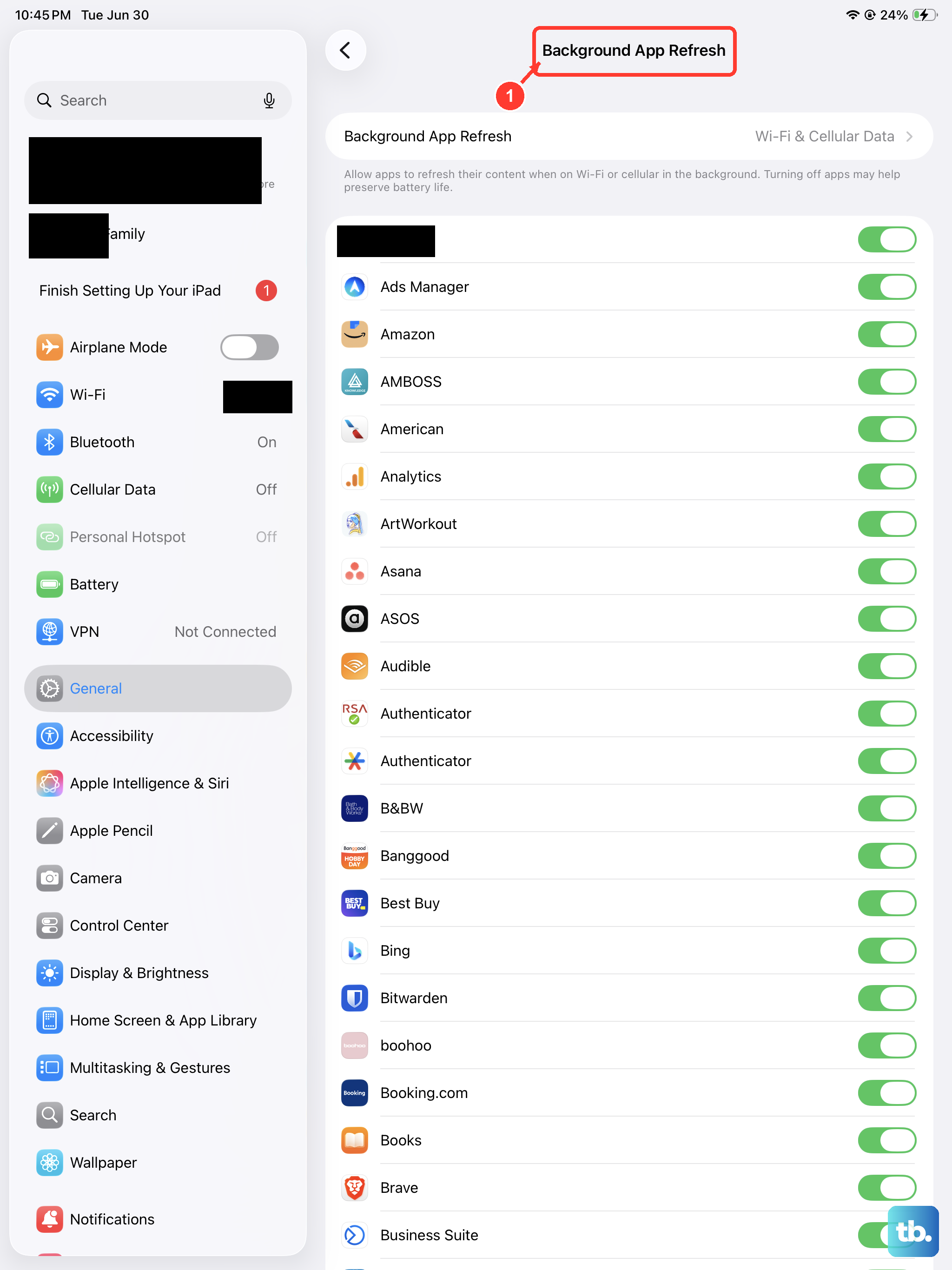
Apps refreshing in the background are a major, silent battery killer. Go to Settings > General > Background App Refresh. You can turn this off entirely or, more selectively, disable it for apps that don't need live updates.
Location Services is another big one. Navigate to Settings > Privacy & Security > Location Services. Review the list and set apps to "While Using" or "Never" instead of "Always" unless it's absolutely necessary for the app to function.
For email, change how often your iPad checks for new messages. Go to Settings > Apps > Mail and tap Fetch New Data. If you don't see it there, look under Mail Accounts. Turning off Push and setting Fetch to "Hourly" or "Manually" prevents constant background communication with mail servers.
Update Your Software and Apps
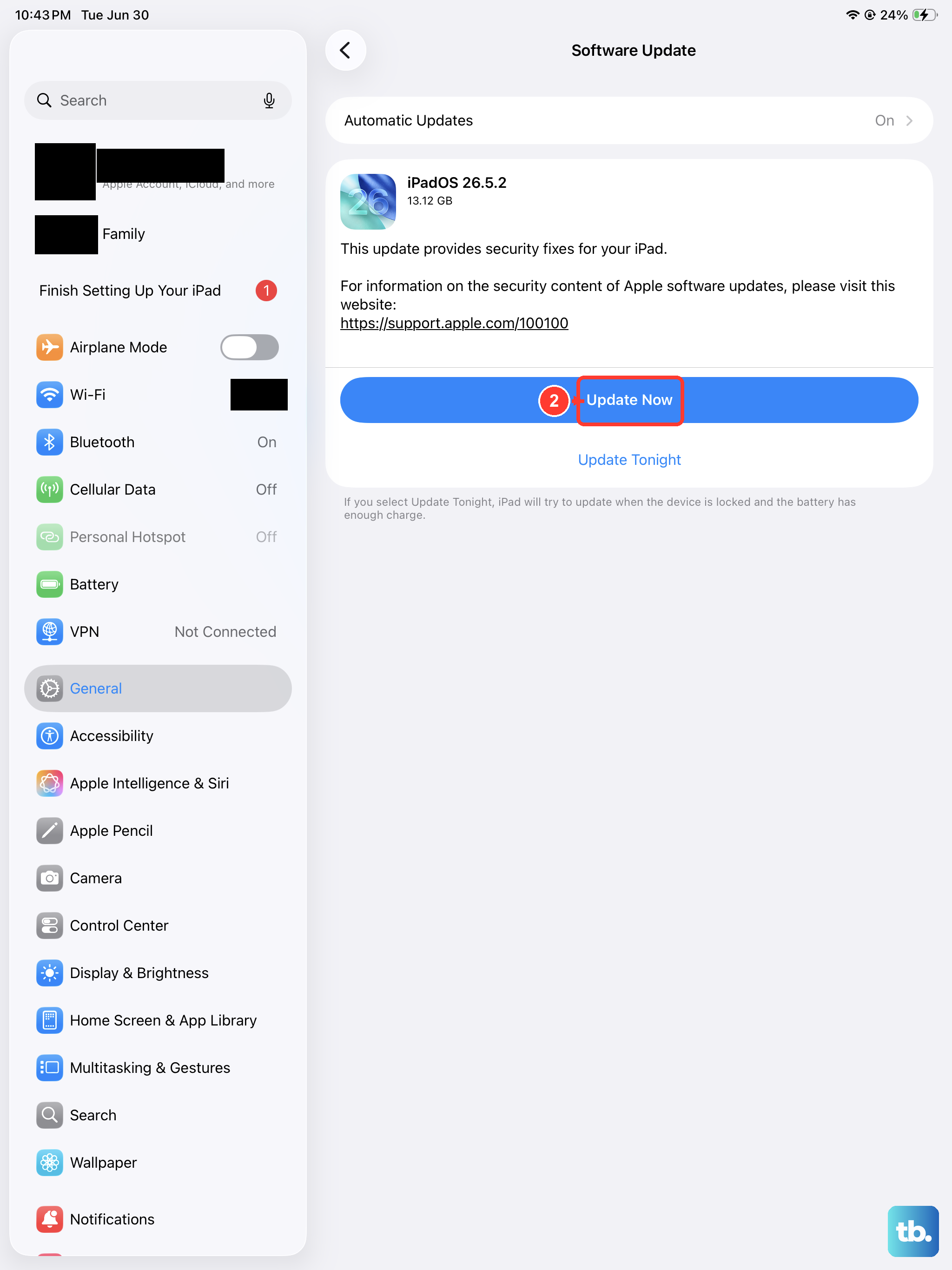
An outdated version of iPadOS can sometimes contain bugs that lead to poor battery management. It's always worth checking for a system update. Go to Settings > General > Software Update to see if one is available.
The same goes for your apps. Developers frequently release updates that include performance and battery optimizations. Open the App Store, tap your profile icon, tap App Updates, then tap Update All.
I've seen more than a few cases where a single buggy app update was the sole cause of sudden battery drain. If you noticed the problem start after installing a specific app, try deleting it temporarily to see if the situation improves.
Review Connectivity and Notifications
If you're not using them, you can turn off Wi-Fi and Bluetooth in Settings > Wi-Fi and Settings > Bluetooth. The Control Center buttons only disconnect them. On Wi-Fi + Cellular models, use Wi-Fi when possible for internet access, since it uses less battery power than cellular networks.
Take a look at your notifications. Every time your screen lights up for an alert, it uses battery. Go to Settings > Notifications and turn off notifications for non-essential apps.
Consider disabling "Hey Siri" if you don't use it often. You can find Siri settings in Settings > Siri.
Use Low Power Mode and Reset Settings
iPadOS includes a Low Power Mode, similar to the iPhone. When enabled, it reduces background activity like mail fetch and automatic downloads. You can turn it on in Settings > Battery. It's a great tool when you know you'll be away from a charger for a long time.
If you've tried everything and the drain persists, a settings reset can help. This won't delete your data, but it will revert all system settings to their defaults. Back up your iPad first if you want to be able to restore your previous settings. Go to Settings > General > Transfer or Reset iPad > Reset, then choose Reset All Settings.
Before you reset settings, try restarting your iPad: go to Settings > General > Shut Down, drag the slider, then hold the top button to turn it back on.
If your iPad isn't responding and you can't restart it normally, try a force restart. For iPads without a Home button, quickly press and release the volume button nearest to the top button, then the volume button farthest from it, then hold the top button until the Apple logo appears. For iPads with a Home button, hold the Home and top buttons together until the logo appears, then release both buttons.