If your Motorola Razr Plus (2024) battery is draining faster than you expected, the unique folding design and powerful cover screen can sometimes be the culprits. The good news is, a few quick adjustments can usually get you back to a full day's use. I'd start by checking what's actually using your power.
Check Battery Usage and Health
Open your Settings and tap on Battery. Here, you'll see a breakdown of which apps have been using the most power over the last 24 hours. Look for any app that seems disproportionately high, especially social media, games, or navigation apps.
Scroll down a bit further and tap on "Battery Saver" to see the battery health estimate. This gives you a percentage of your battery's original capacity. If this number is significantly below 100%, it means your battery's overall lifespan is reduced, which can explain faster drain.
Manage the Cover Screen and Folding Behavior
The large external screen is a fantastic feature, but it can drain battery if it's constantly active. Head to Settings > Display > Cover screen. Here, you can shorten the screen timeout and disable "Always-on display" if you don't need it.
Also, consider which apps you allow on the cover screen. Having too many, or resource-intensive ones like games, running on the smaller display can use more power than you'd think. Review the list and remove any you don't frequently use from the cover screen panel.
Optimize Your Connectivity Settings
Go to Settings > Network & internet. If you're in an area with a weak cellular signal, your phone works harder to maintain a connection, which drains the battery quickly. Toggling on Airplane mode in these situations can help, or just rely on Wi-Fi if it's available.
Also, tap on "Internet" and then the gear icon next to your Wi-Fi network. Make sure "Turn on Wi-Fi automatically" is off if you don't need it constantly searching. For Bluetooth, go to Settings > Connected devices and turn it off when you're not using headphones or a smartwatch.
Control Background Activity and Location
Android is good at managing apps, but some still run in the background. In Settings > Apps, tap on any app that's showing high battery usage in the Battery menu. Look for a "Battery" section within the app's settings and restrict background activity if you don't need live updates from it.
Location services are a major drain. Go to Settings > Location. You can turn it off entirely here, or better yet, tap on "App location permissions" to set individual apps to "Allow only while using." This stops apps like social media from tracking your location constantly in the background.
Adjust Display and Performance Settings
The main internal display is beautiful but power-hungry. Lowering the brightness from the quick settings panel makes a big difference. You can also enable the adaptive brightness feature so it does this automatically for you.
Consider reducing the screen refresh rate. Go to Settings > Display > Advanced and look for "Refresh rate." Switching from 165Hz to a standard 60Hz can save a substantial amount of battery with only a slight difference in smoothness for everyday tasks.
Update Your Software and Apps
Software updates often include optimizations for battery life. Check for the latest system update by going to Settings > System > System update. Install any available updates.
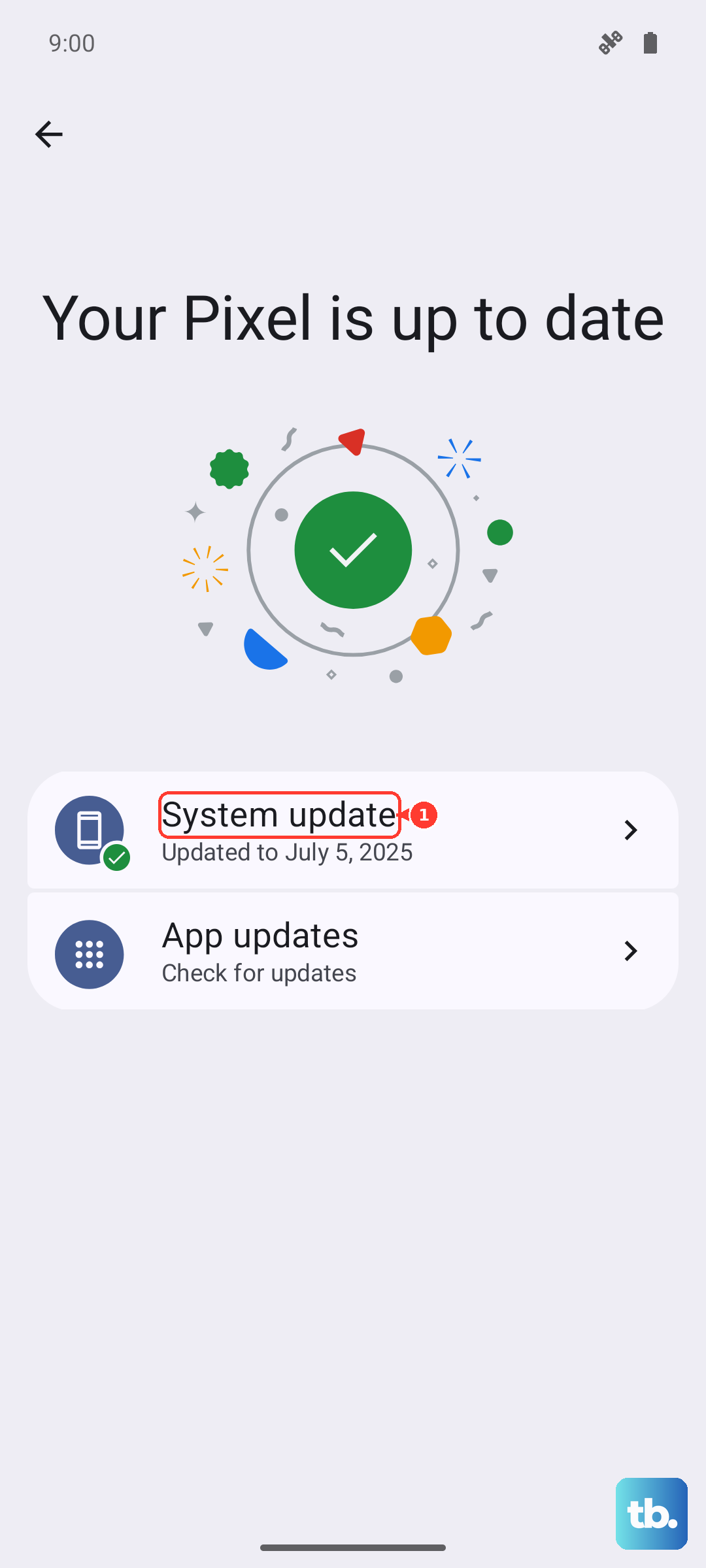
Outdated apps can also have bugs that cause excessive battery drain. Open the Google Play Store, tap your profile icon, and go to "Manage apps & device." Apply any pending updates listed under "Updates available."
Use Battery Saver and Adaptive Charging
Don't hesitate to use the built-in Battery Saver mode. You can turn it on manually from the quick settings shade, or set it to activate automatically at a certain battery level in Settings > Battery > Battery Saver. It limits background data and reduces some visual effects.
For long-term battery health, enable Adaptive Charging. Find it in Settings > Battery > Adaptive preferences. This feature learns your charging routine and slows down charging to 100% until just before you typically wake up, which is better for the battery's lifespan.
Be Mindful of Charging Habits
Because of the folding design, it's best to charge the phone while it's unfolded. Closing the phone with a cable plugged in can crimp the cable against the hinge, which isn't good for the cable or the port. It can also trap heat.
If the phone feels warm while charging, close any apps running on the cover screen. Using the official 45W TurboPower charger will give you the fastest speeds, but a standard USB-C charger works fine for overnight charging, which is gentler on the battery.
Perform a Force Restart
If your battery life suddenly plummeted after a specific event or update, a simple restart can clear out any temporary software glitches. Just press and hold the Power button for about 10 to 15 seconds until you feel a vibration and the Motorola logo appears on screen.
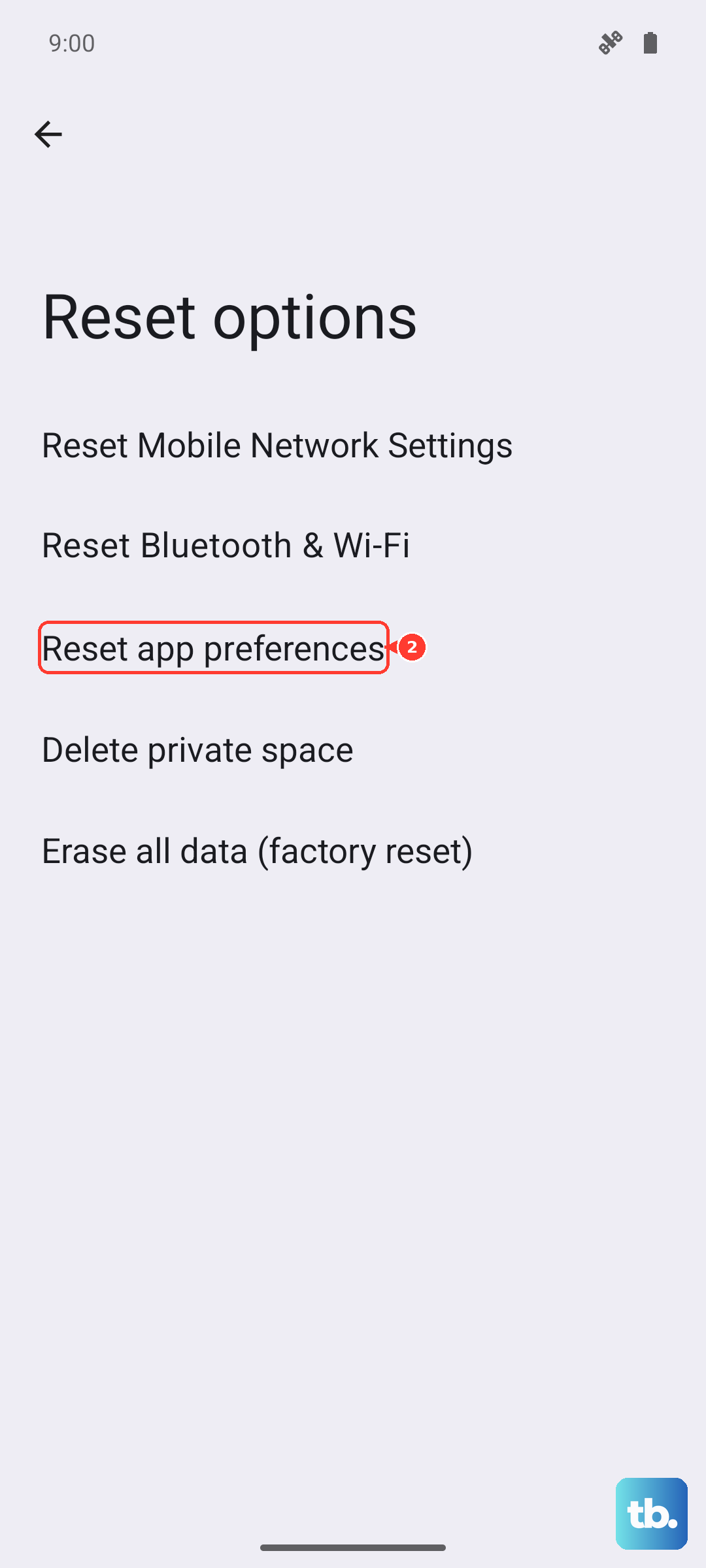
Reset App Preferences
This is a less drastic step than a full reset. Go to Settings > System > Reset options. Tap on "Reset app preferences." This won't delete any app data, but it will reset notification permissions, background restrictions, and default apps, which can sometimes stop a misbehaving app from draining power.