
If your Google Pixel 10 Pro's battery seems to vanish faster than it should, you're not imagining things. I've seen this happen a lot, and it's almost always something you can fix yourself without much hassle. Let's start with the most common culprit and work our way through the settings.
Check What's Actually Using Your Battery
Before you start turning things off, take a quick look at the built-in battery stats. This tells you exactly which apps or services are the power hogs. Go to Settings > Battery > Battery usage.
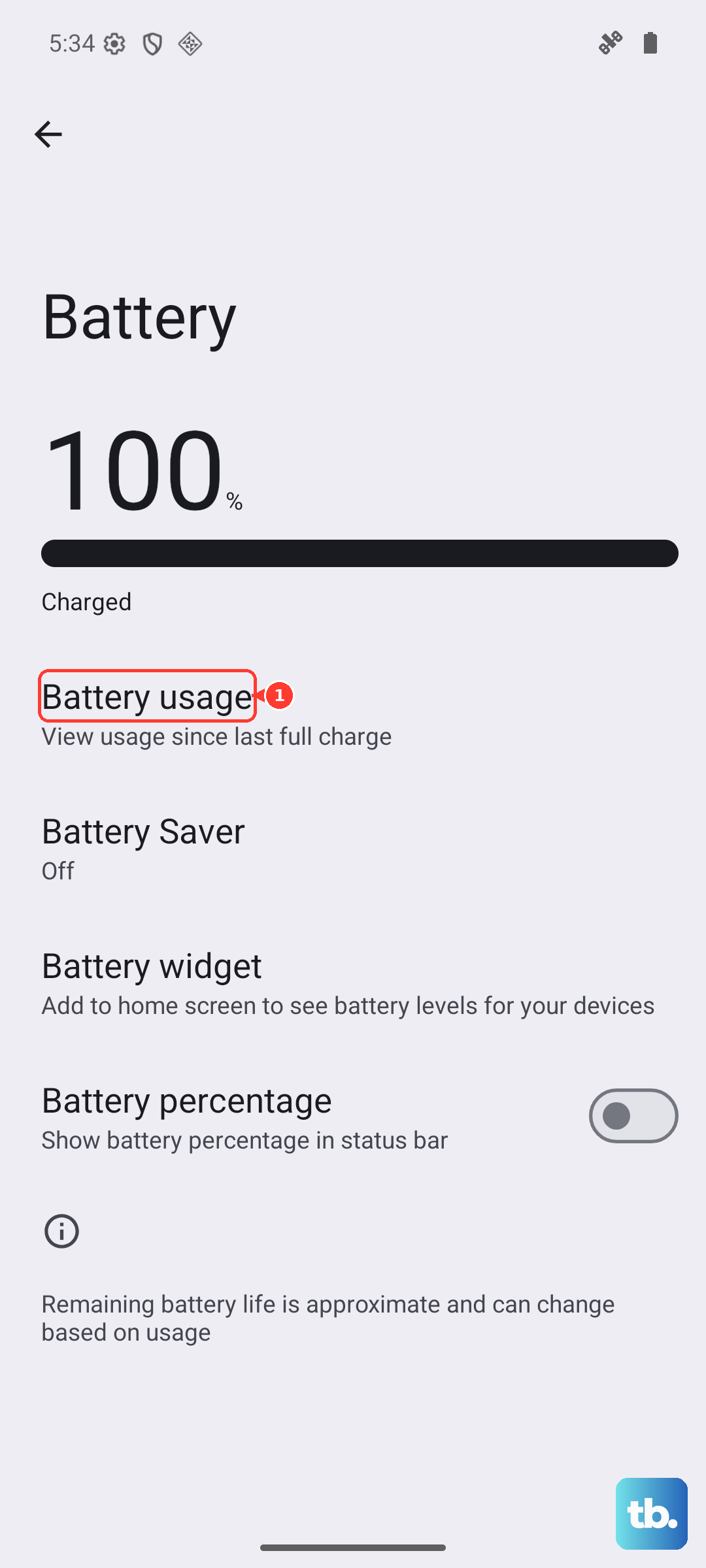
You'll see a breakdown for the last 24 hours. Look for any app using a surprisingly high percentage, especially if it's running a lot in the background. This is your first clue and can save you from disabling features you actually use.
Manage App Background Activity
Android 16 gives you a lot of control over what apps can do when you're not actively using them. If you see an app draining battery in the background, head to Settings > Apps > [select the app] > Battery.
Here, you can set the battery restriction. For apps that don't need constant updates, like a notes app, choose Restricted. This can make a huge difference for social media, news, or messaging apps that love to refresh constantly.
Turn Off Adaptive Connectivity
This is a Pixel-specific feature that tries to smartly switch between 5G/4G and Wi-Fi to save battery. Sometimes, it gets a bit too eager and causes more drain. You can find it in Settings > Network & internet > Adaptive connectivity.
Try turning it off for a day and see if your battery life improves. If you're mostly on stable Wi-Fi, you probably won't miss it, and your phone will stop scanning for optimal networks so often.
Adjust Your Screen Settings
The display is always the biggest battery user. The Pixel 10 Pro has a fantastic 120Hz refresh rate, but you can dial it back. Go to Settings > Display > Smooth display and toggle it off to lock the refresh rate to 60Hz.
It's less fluid, but it saves a noticeable amount of power. Also, make sure your screen timeout is set reasonably. A 30-second or 1-minute timeout under Settings > Display > Screen timeout prevents it from staying on unnecessarily.
Review Location Permissions
Apps constantly pinging GPS is a major drain. You don't need your weather app tracking you every minute. Go to Settings > Location to see which apps have recent access.
Tap on any non-essential app and change the permission from Allow all the time to Allow only while using the app or Ask every time. This stops them from running location services in the background.
Disable "Hey Google" and Now Playing
These are handy Pixel features, but they require the phone to always be listening. To turn off "Hey Google," open the Google app, go to your profile > Settings > Voice > Voice Match, and toggle off Hey Google.
For Now Playing, which identifies music around you, go to Settings > Sound & vibration > Now Playing and toggle it off. You'll get a chunk of battery life back instantly.
Limit Widgets and Live Wallpapers
That beautiful live wallpaper or the widget constantly fetching your calendar events needs power to update. Switching to a static wallpaper is a simple fix. For widgets, consider removing any that pull data very frequently, like a detailed weather widget or a social media feed.
Long-press on the widget and tap Remove. You can always add it back later if you find you miss it.
Turn Off Bluetooth and Wi-Fi Scanning
Even with Bluetooth and Wi-Fi toggled off in your quick settings, your phone might still be scanning for networks to improve location services. To stop this, go to Settings > Location > Location services.
Tap on Wi-Fi scanning and Bluetooth scanning and turn them both off. This prevents two radios from doing unnecessary work all day long.
Update Your Apps and System Software
Outdated apps can have bugs that cause excessive battery use. Open the Play Store, tap your profile icon, and go to Manage apps & device > Updates available to install all pending updates.
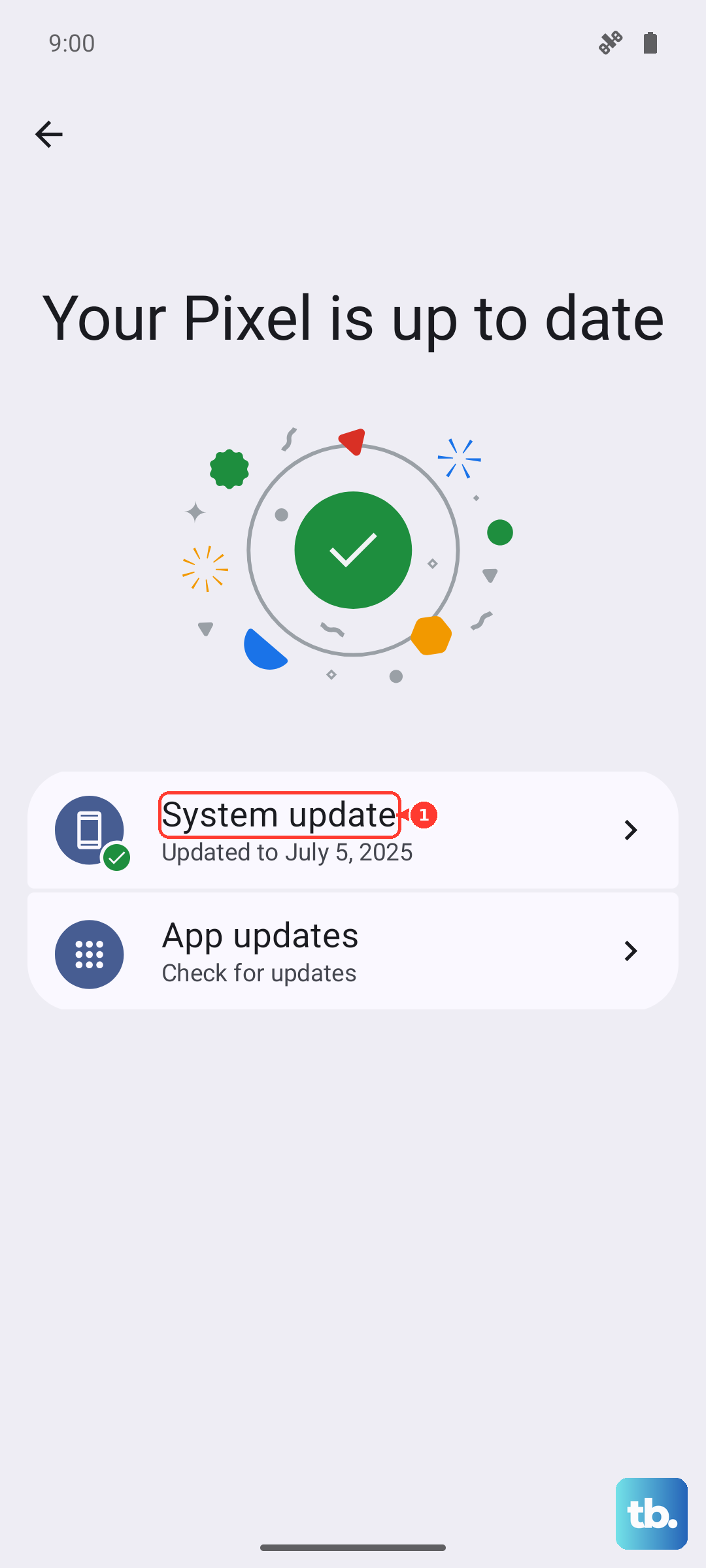
More importantly, check for a system update. Google often releases patches that improve power management. Go to Settings > System > System update to check.
Use Adaptive Battery and Charging
Make sure your Pixel's smart features are actually enabled. Adaptive Battery learns your app usage over time and restricts battery for apps you rarely use. You can check it at Settings > Battery > Adaptive Battery.
For long-term battery health, enable Adaptive Charging in the same Battery menu. It slows down charging when you plug in overnight, aiming to finish at 100% just before you wake up, which is better for the battery's lifespan.
Perform a Force Restart
If your battery started draining fast after a recent update or app install, a simple software glitch might be the cause. A force restart can clear it without deleting any data. Just press and hold the Power button and the Volume Up button together for about 10 seconds until the Google logo appears.
Let the phone reboot normally. This is a good first step if the battery stats look normal but the drain is still happening. It's the equivalent of giving the system a fresh start.











