If your Google Pixel 9's battery life has suddenly taken a nosedive, the first place to look is the battery usage menu. Head to Settings > Battery > Battery usage. This screen shows exactly which apps and services have been consuming power over the last 24 hours. I've found that a single misbehaving app, often after an update, is the most common culprit for sudden drain.
Look for any app showing an unusually high percentage, especially if it's something you haven't actively been using. Tapping on an app reveals more details, including background usage. If something looks off, your first move should be to force stop the app and check for an update in the Play Store.
Check for Adaptive Charging Confusion
A feature designed to help can sometimes cause worry. Adaptive Charging on the Pixel 9 learns your routine and will often hold the battery at around 80% overnight, only completing the charge to 100% just before your morning alarm. If you check your phone in the middle of the night, it might look like it's stuck.
You can check if this is active by going to Settings > Battery > Battery health > Charging optimization and choosing Adaptive Charging. If you see "Charging adaptively based on your routine," that's likely the explanation. To test if there's a real problem, try charging during the day when this feature isn't active.
Update Your Pixel 9
Google frequently releases updates that include battery optimization fixes. This is especially true after a major Feature Drop. A bug introduced in an update can sometimes be resolved by the next one.
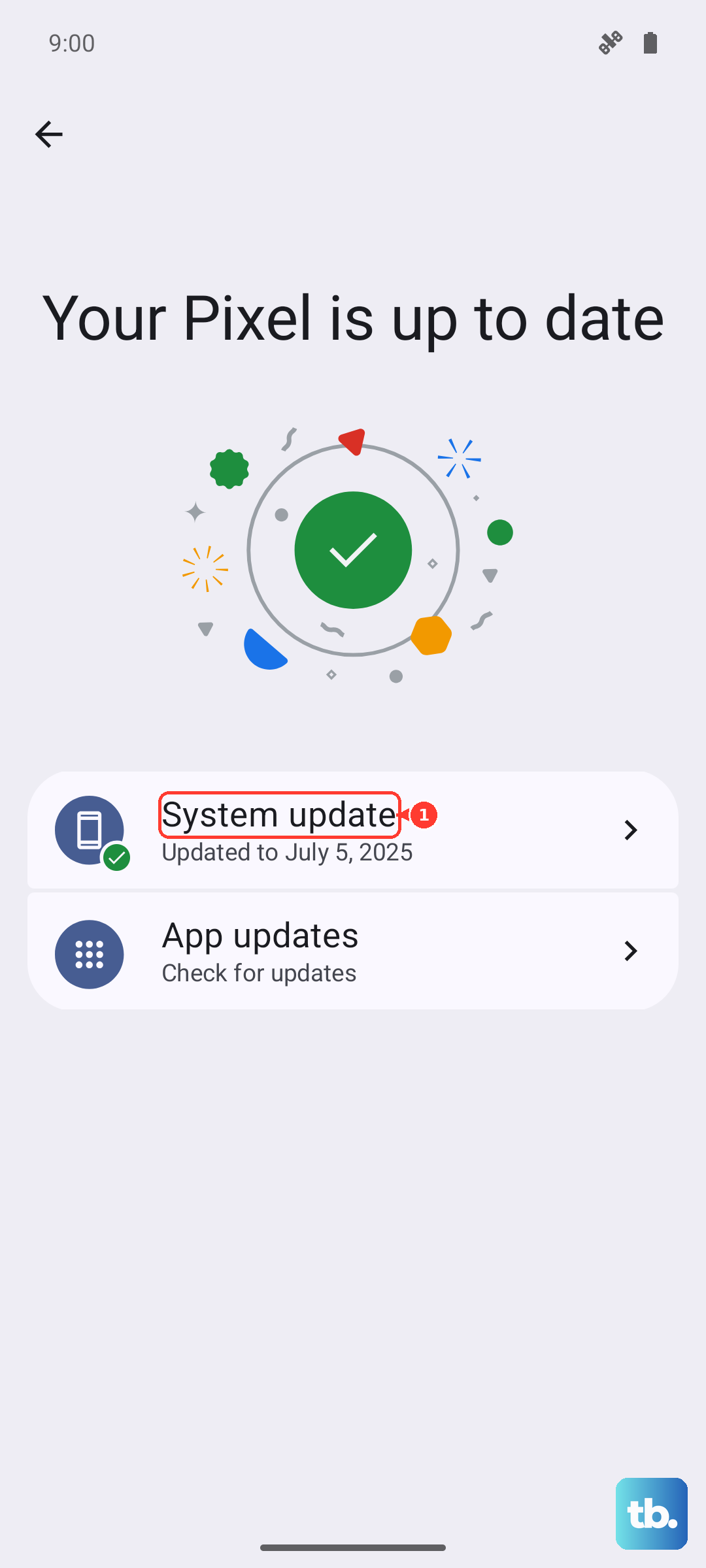
Go to Settings > System > System update and tap "Check for update." If an update is available, install it. It's a good idea to plug your phone in during the update process. After updating, give it a day or two for the battery usage to recalibrate and settle.
Manage Your Display Settings
The screen is almost always the biggest battery drain. On the Pixel 9, you have several tools to manage it. First, consider enabling Dark theme, which saves power on the OLED display. You can find it under Settings > Display > Dark theme.
Next, look at the screen brightness. While Adaptive Brightness is helpful, manually lowering it can make a significant difference. Also, reduce the screen timeout. Go to Settings > Display > Screen timeout and set it to 30 seconds or 1 minute to turn the display off faster when not in use.
Review App Permissions and Background Activity
Apps constantly running in the background are a major drain. Start with Location services. Go to Settings > Location. Review the list of apps and change permissions for non-essential apps to "Allow only while in use" instead of "Allow all the time."
You can also restrict background battery usage on a per-app basis. In Settings > Apps, select any suspicious app, then tap Battery. Change the background restriction setting to "Restricted" to prevent it from running when you're not actively using it.
Toggle Off Battery-Intensive Features Temporarily
Some of the Pixel's best features come with a battery cost. If you're trying to diagnose severe drain, try turning these off one by one to see if it helps. Start with the always-on display in Settings > Display > Lock screen. Next, consider disabling "Now Playing" automatic song recognition in Settings > Sound & vibration > Now Playing.
Also, check if you have Battery Share turned on. This feature lets you wirelessly charge other devices, but if it's enabled and looking for a device to charge, it can drain your battery. Swipe down twice from the top to open the full Quick Settings panel and make sure the Battery Share tile is off.
Examine Network and Connectivity Settings
Poor cellular signal forces your phone to work harder, draining the battery quickly. If you're in an area with weak signal, try switching to Airplane mode or Wi-Fi calling if available. You can also try toggling Mobile data off and on in your Quick Settings to re-establish a cleaner connection.
For Wi-Fi and Bluetooth, it's not just about having them on, but about them constantly scanning. Go to Settings > Location, then tap Location services at the bottom. Look for "Wi-Fi scanning" and "Bluetooth scanning" and turn them off if you don't need them.
Use Adaptive Battery and Extreme Battery Saver
Your Pixel 9 has built-in systems to help. Adaptive Battery uses machine learning to limit power for apps you rarely use. Make sure it's enabled in Settings > Battery > Adaptive Battery. For emergencies, Extreme Battery Saver is a much more aggressive tool that pauses most apps and limits functionality to the essentials.
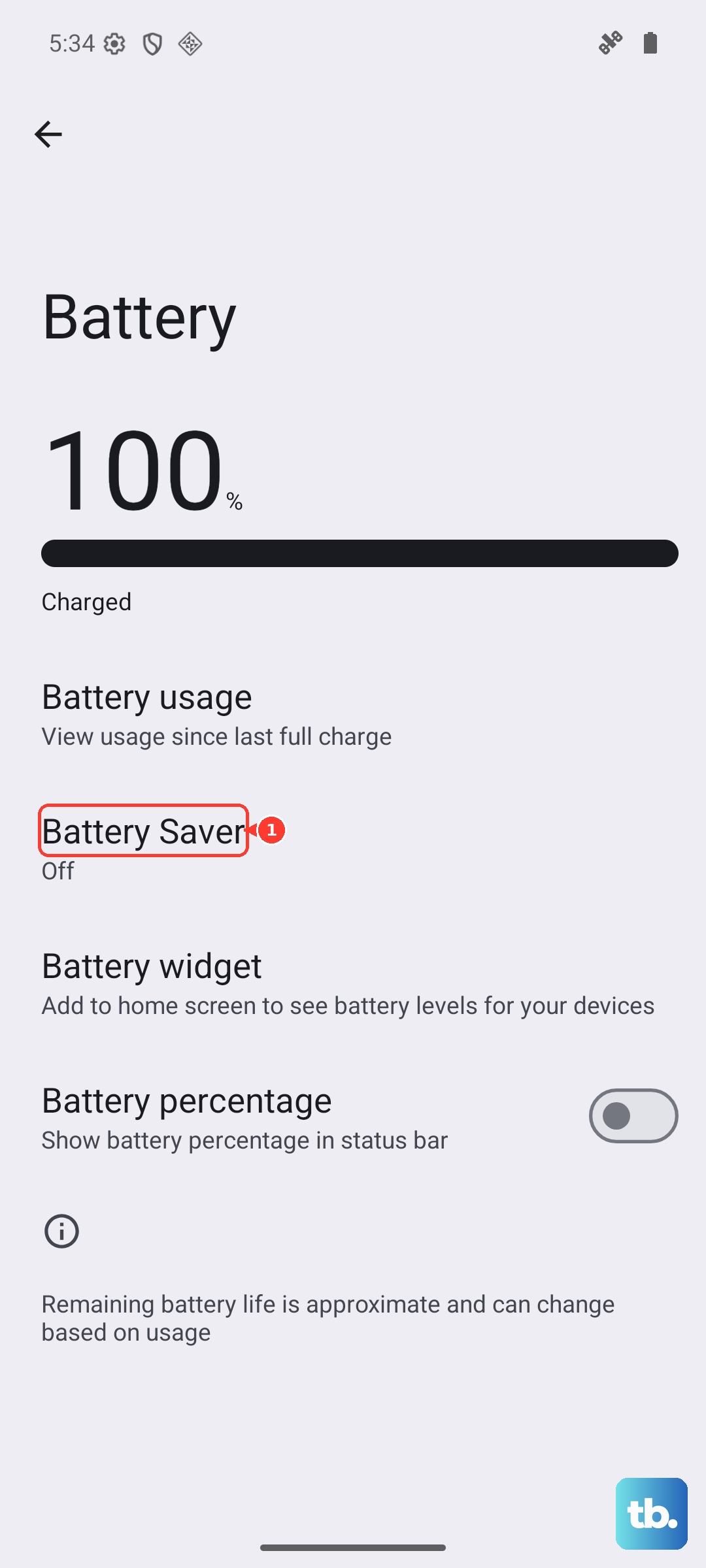
You can turn it on manually from the Battery settings or set it to activate automatically at a certain battery level. Be aware that when Extreme Battery Saver is on, some charging indicators might not update correctly until you turn the mode off.
Perform a Force Restart
If your Pixel 9 is acting sluggish and the battery is plummeting, a simple software glitch might be the cause. A force restart can clear this without deleting any data. Just press and hold the Power button for about 30 seconds until you feel a vibration and see the Google logo appear on the screen.
Check Your Charging Gear
Sometimes the issue isn't drain, but that the phone isn't charging properly. The Pixel 9 supports up to 27W wired charging, but it charges fastest with Google's official 30W USB-C charger. Using a low-power or damaged cable can result in very slow charging, making it seem like the battery is dying fast.
Inspect your USB-C port for any lint or debris. Gently clean it out with a dry toothpick or compressed air. Also, try a different charging cable and wall adapter to rule out a faulty accessory.
Reset All Settings
If you've tried everything and the drain persists, a deeper software issue might be at play. Resetting all your system settings can help. This won't delete your photos, apps, or personal data, but it will revert Wi-Fi passwords, Bluetooth pairings, and custom preferences back to default.
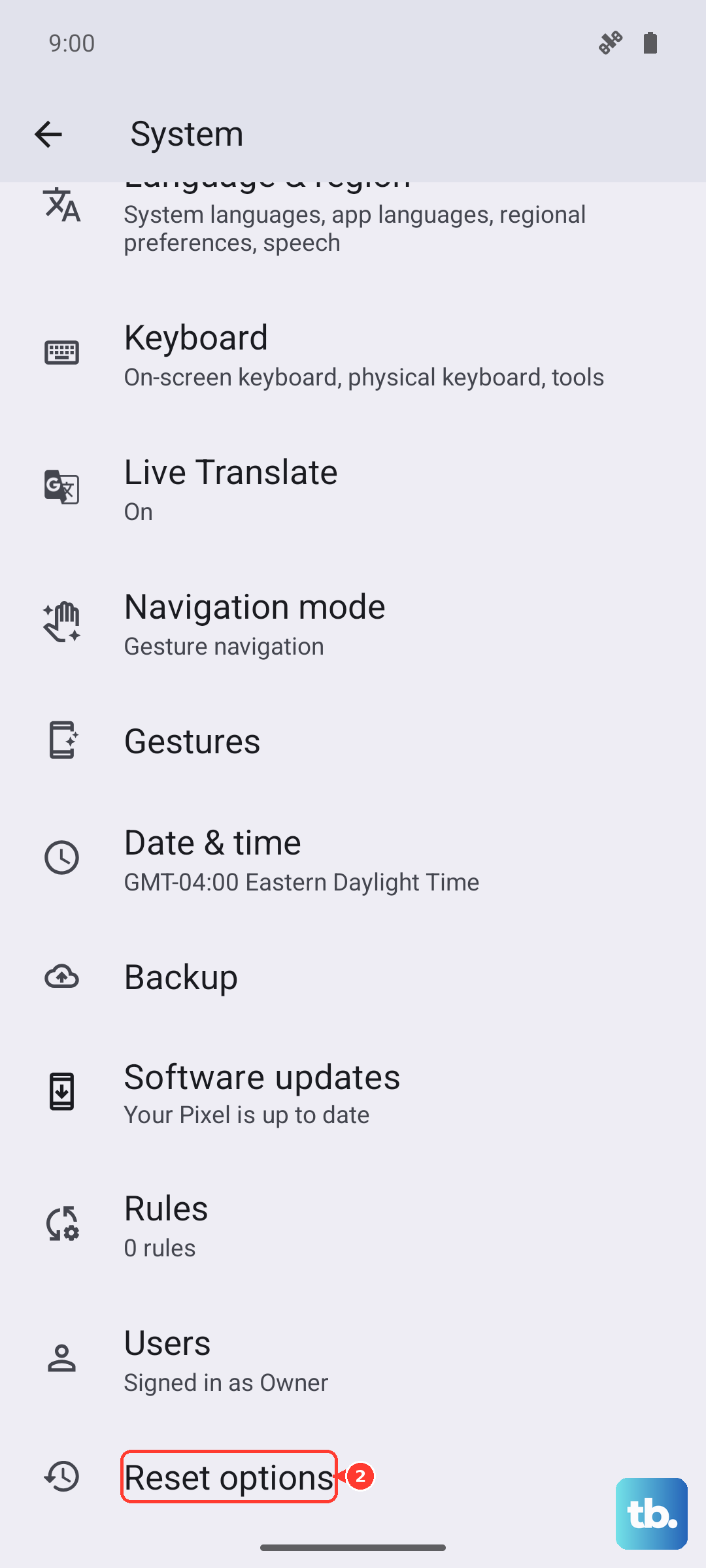
Go to Settings > System > Reset options. Tap Reset all settings and confirm. After the phone reboots, you'll need to reconfigure some things, but it often resolves persistent battery problems caused by a corrupted setting.