


If your iPad (11th generation) battery is draining faster than it should, the first place to look is the Battery Health section. Head to Settings > Battery > Battery Health. This will show your battery's maximum capacity as a percentage.
Apple suggests considering a replacement if it falls below 80%, but you might notice quicker drain once it dips under 85%. While you're there, tap back to the main Battery page and check the usage by app over the last 24 hours or 10 days. This can instantly point you to a power-hungry app that's causing the problem.
Manage Your Screen and Display Settings
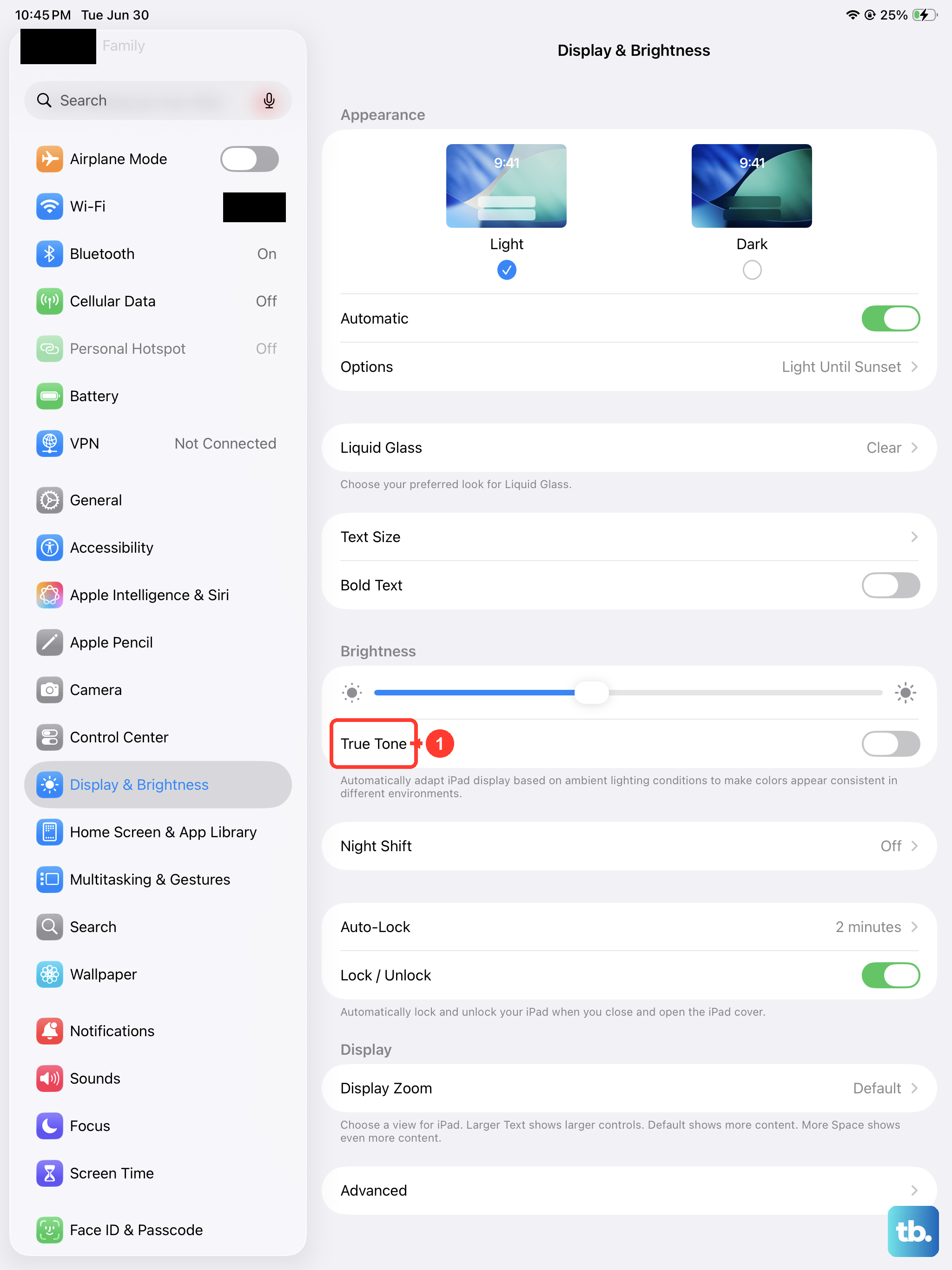
The large, beautiful display is one of the biggest battery users on any iPad. A simple but effective fix is to reduce the auto-lock time. Go to Settings > Display & Brightness > Auto-Lock and set it to 2 minutes or even 30 seconds if you frequently set the tablet down.
Also in the Display & Brightness settings, consider turning off True Tone. This feature adjusts the screen's color temperature based on your environment, which requires constant sensor input. While it's nice for reading, disabling it can save a bit of power. Manually lowering the brightness slider from the Control Center is another quick win for extending battery life throughout the day.
Control Background Activity
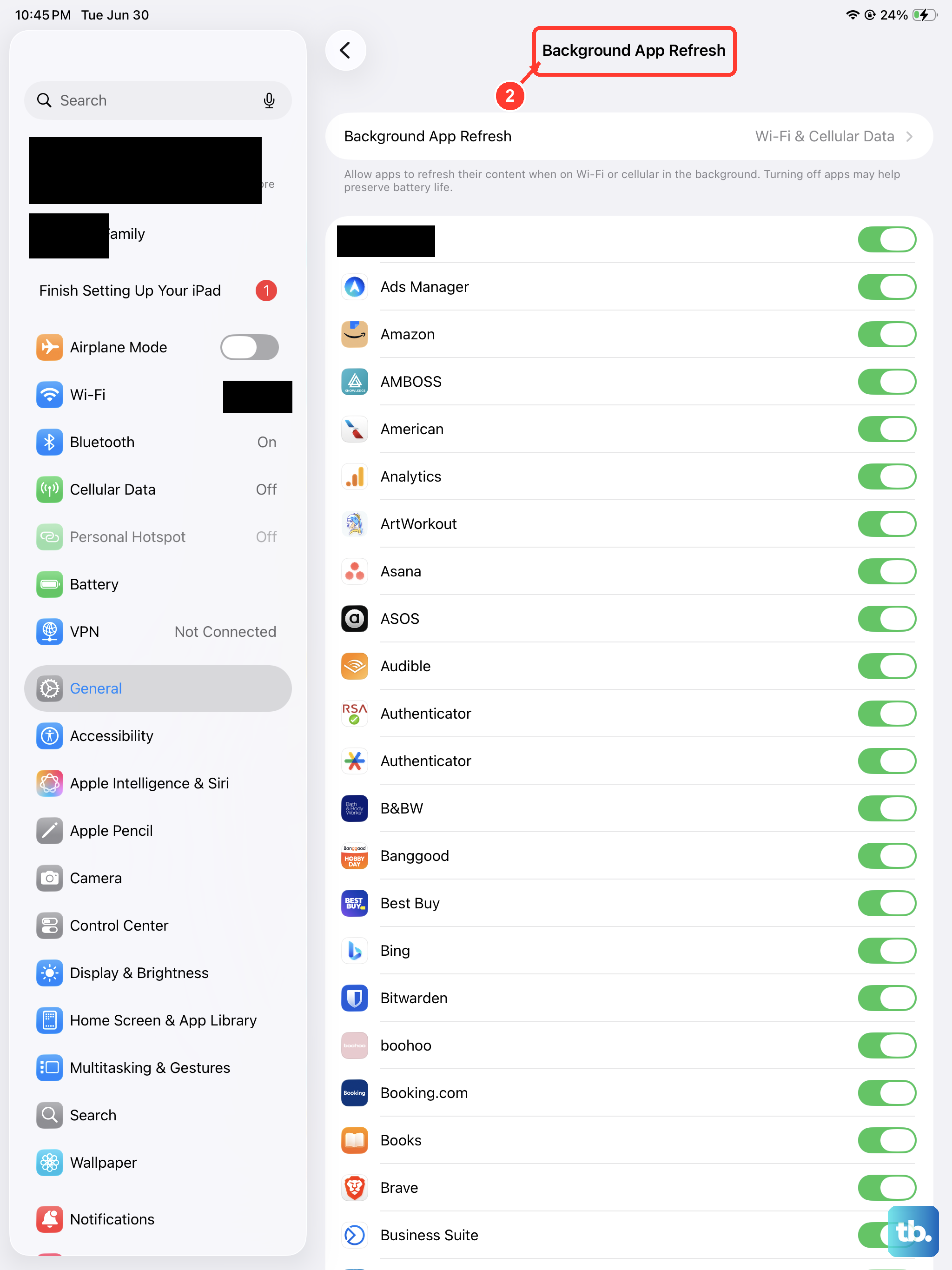
Apps refreshing in the background are a major, silent drain. You can manage this globally by going to Settings > General > Background App Refresh. Here, you can turn it off entirely or limit it to Wi-Fi only. For more granular control, you can disable it for individual apps you know don't need live updates.
Location Services is another common culprit. Navigate to Settings > Privacy & Security > Location Services. Review the list and set apps to "While Using" or "Never" instead of "Always" unless it's absolutely necessary. I'd also recommend going into the System Services section at the bottom and turning off options like iPhone Analytics and Routing & Traffic if you don't use them.
Optimize Connectivity Features
Your iPad is constantly searching for networks and devices, which uses power. If you're not using them, it helps to turn off Wi-Fi and Bluetooth directly from the Control Center. For Bluetooth, you can also go to Settings > Bluetooth and toggle it off there, which prevents it from waking up to scan.
While the 11th generation iPad doesn't have cellular data, if you use a personal hotspot or are in an area with poor Wi-Fi signal, your iPad will work harder to maintain a connection, draining the battery faster. Try to use it in areas with strong signal whenever possible. Also, consider disabling AirDrop when you don't need it by swiping into the Control Center, long-pressing the network settings card, and tapping on AirDrop to set it to "Receiving Off."
Review and Update Your Apps
Sometimes, a single misbehaving app is to blame. The Battery usage report in Settings is your best tool here. If you see an app using a surprisingly high percentage of battery, try force-closing it. If the problem continues, check the App Store for an update, as developers often release patches for battery drain bugs.
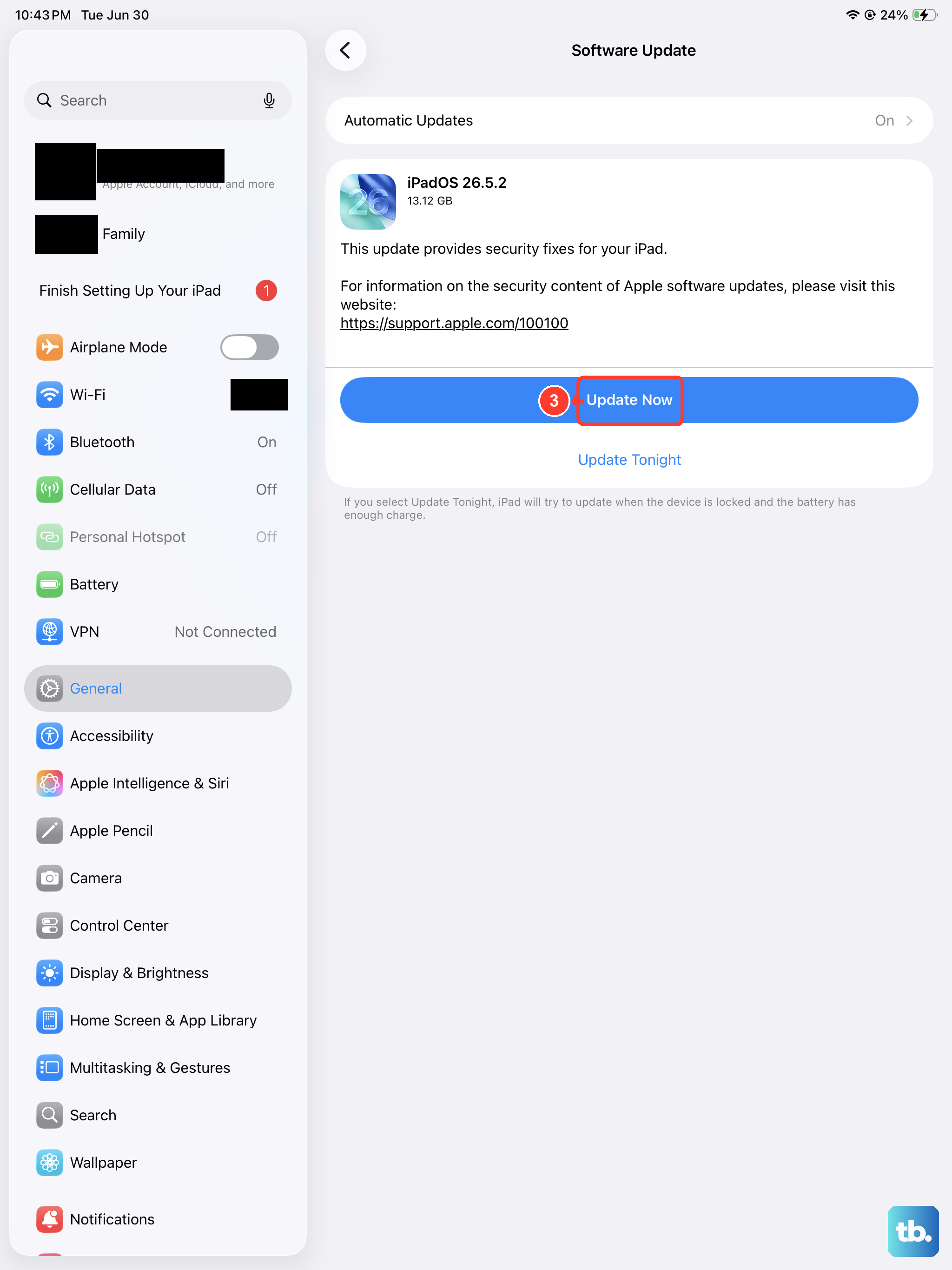
It's also a good habit to keep iPadOS itself updated. Apple frequently includes energy efficiency improvements in software updates. Go to Settings > General > Software Update to check for and install any available updates. Using Apple's official 20W USB-C power adapter ensures you're charging at the optimal speed, which can help maintain better battery health over time.
Use Built-in Battery Saving Features
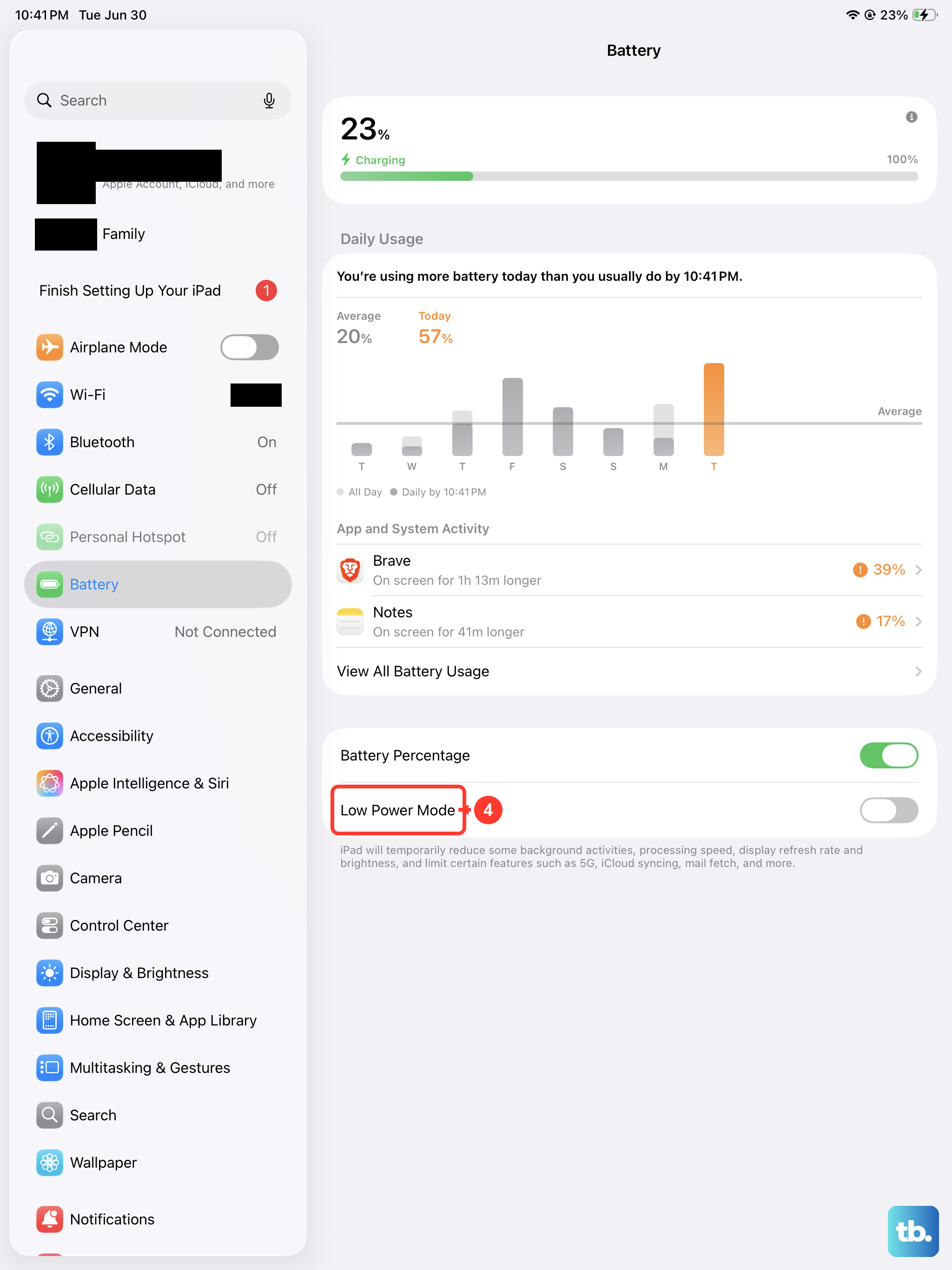
Don't overlook Low Power Mode. You can enable it in Settings > Battery. When activated, it reduces background activity like mail fetch and automatic downloads, and it can make a significant difference when you need to stretch your battery until you can get to a charger.
For a more permanent visual change that saves power, enable Dark Mode. You can find it under Settings > Display & Brightness. While the battery savings are more pronounced on OLED screens, using darker backgrounds and interfaces on the iPad's LCD can still reduce the overall power draw from the display, especially at higher brightness levels.
Reset and Restart
If you've tried the steps above and the drain persists, a software glitch might be the cause. Start with a force restart. On the iPad (11th gen), quickly press and release the Volume Up button, then quickly press and release the Volume Down button. Finally, press and hold the Top button until you see the Apple logo appear.
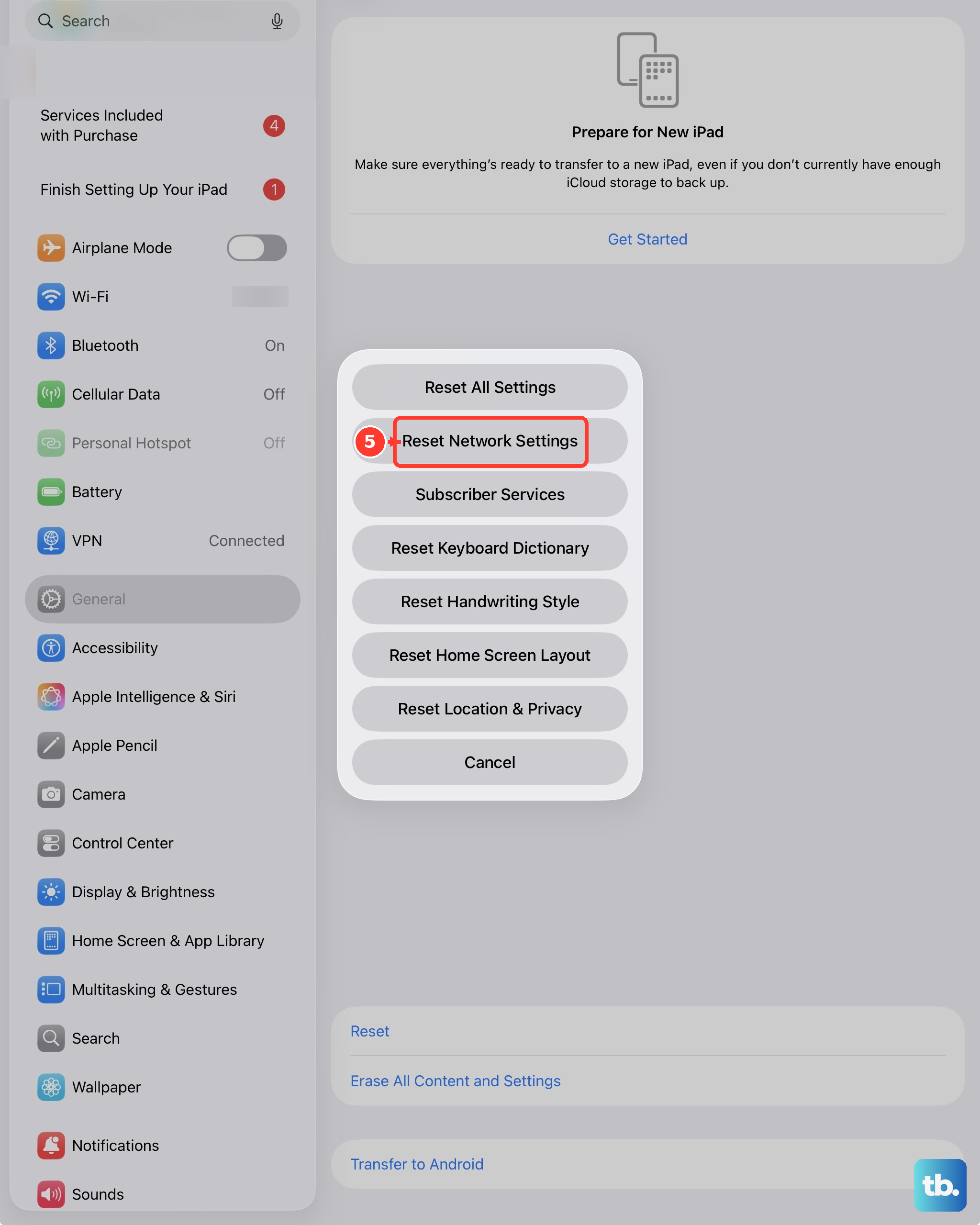
As a deeper fix, you can reset all settings. This won't erase your personal data like photos or apps, but it will reset network settings, wallpaper, and display preferences back to default. You can find this option under Settings > General > Transfer or Reset iPad > Reset All Settings. This often clears up odd battery drain caused by a corrupted system setting.