
If your iPad mini (7th generation) is running out of juice way too quickly, it's a frustrating problem that can stop you in your tracks. The good news is that there are several practical steps you can take to get your battery life back on track. I'd start by checking the battery health and usage stats, as that often points directly to the culprit.
Check Your iPad mini's Battery Health
Before you change any settings, it's smart to see the big picture. Head to Settings > Battery > Battery Health. This screen shows your battery's maximum capacity as a percentage.
Apple suggests considering a replacement if it falls below 80%, but you might notice faster draining once it dips under 85%. If you see a "Service" message here, the battery itself may be the core issue.
Identify Power-Hungry Apps
While still in the Battery settings, scroll down to see "Battery Usage By App." This breaks down exactly which apps are consuming power over the last 24 hours or 10 days. Look for any app using a surprisingly high percentage, especially if it's running heavily in the background.
This is often the fastest way to find the problem. A single misbehaving app, like a social media app with an auto-playing video feed or a buggy game, can be responsible for most of your drain.
Update iPadOS and Your Apps
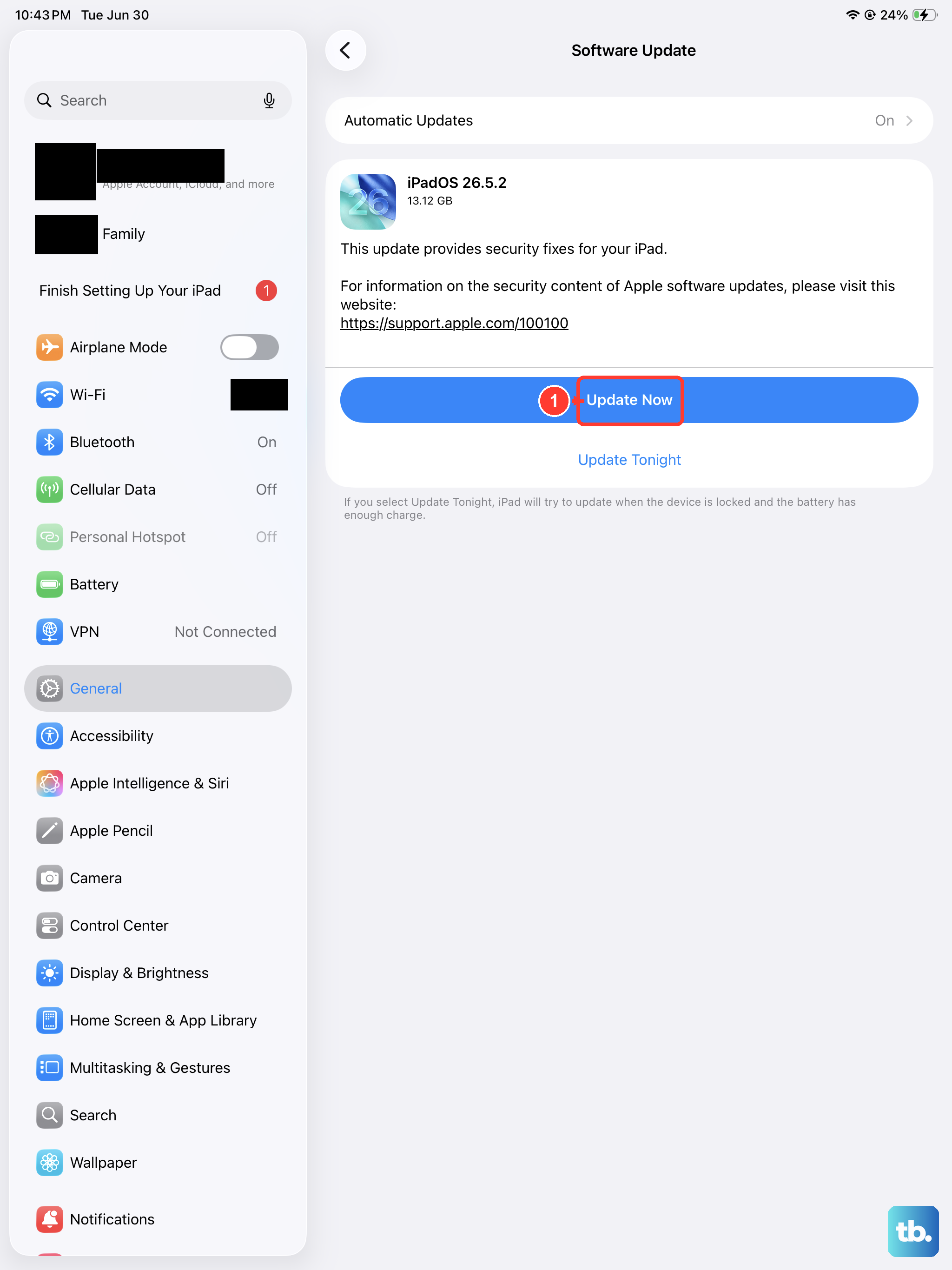
Software updates frequently include optimizations and bug fixes that improve battery efficiency. Go to Settings > General > Software Update to install the latest version of iPadOS.
Don't forget about your apps, too. Open the App Store, tap your profile icon, and update all your apps. Developers often release patches that fix background activity issues.
Manage Display and Motion Settings
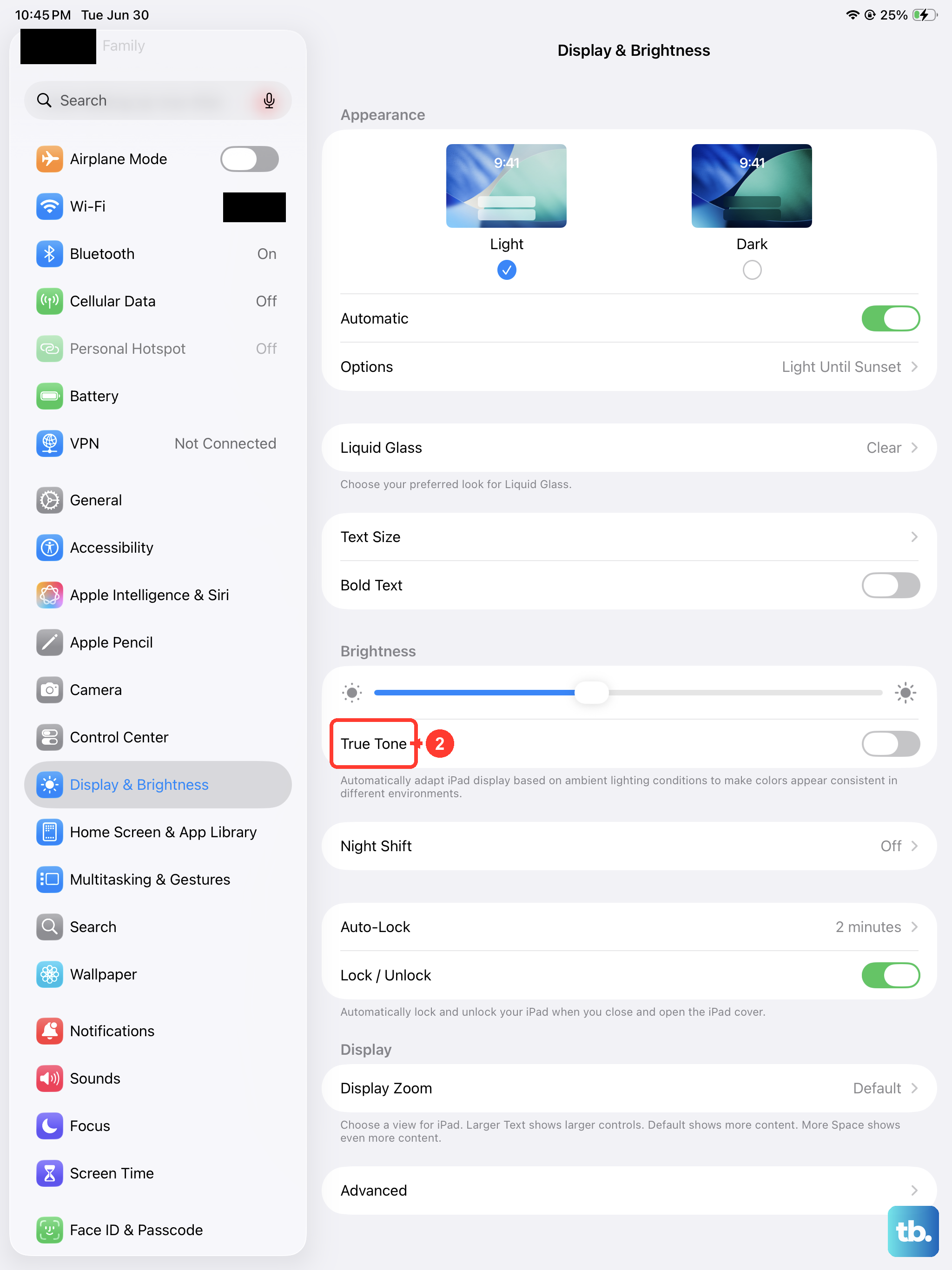
The display is one of the biggest battery users on any tablet. A few adjustments here can make a significant difference. First, consider lowering the screen brightness manually or ensuring Auto-Brightness is enabled in Settings > Accessibility > Display & Text Size.
Next, shorten the Auto-Lock timer. Go to Settings > Display & Brightness > Auto-Lock and set it to 2 minutes or even 30 seconds if you don't mind the screen turning off quickly.
You can also turn off features like True Tone, which adjusts the screen's color temperature. Find it in the same Display & Brightness menu. For a bigger saving, enable Dark Mode, which uses less power to light the pixels.
Control Background Activity
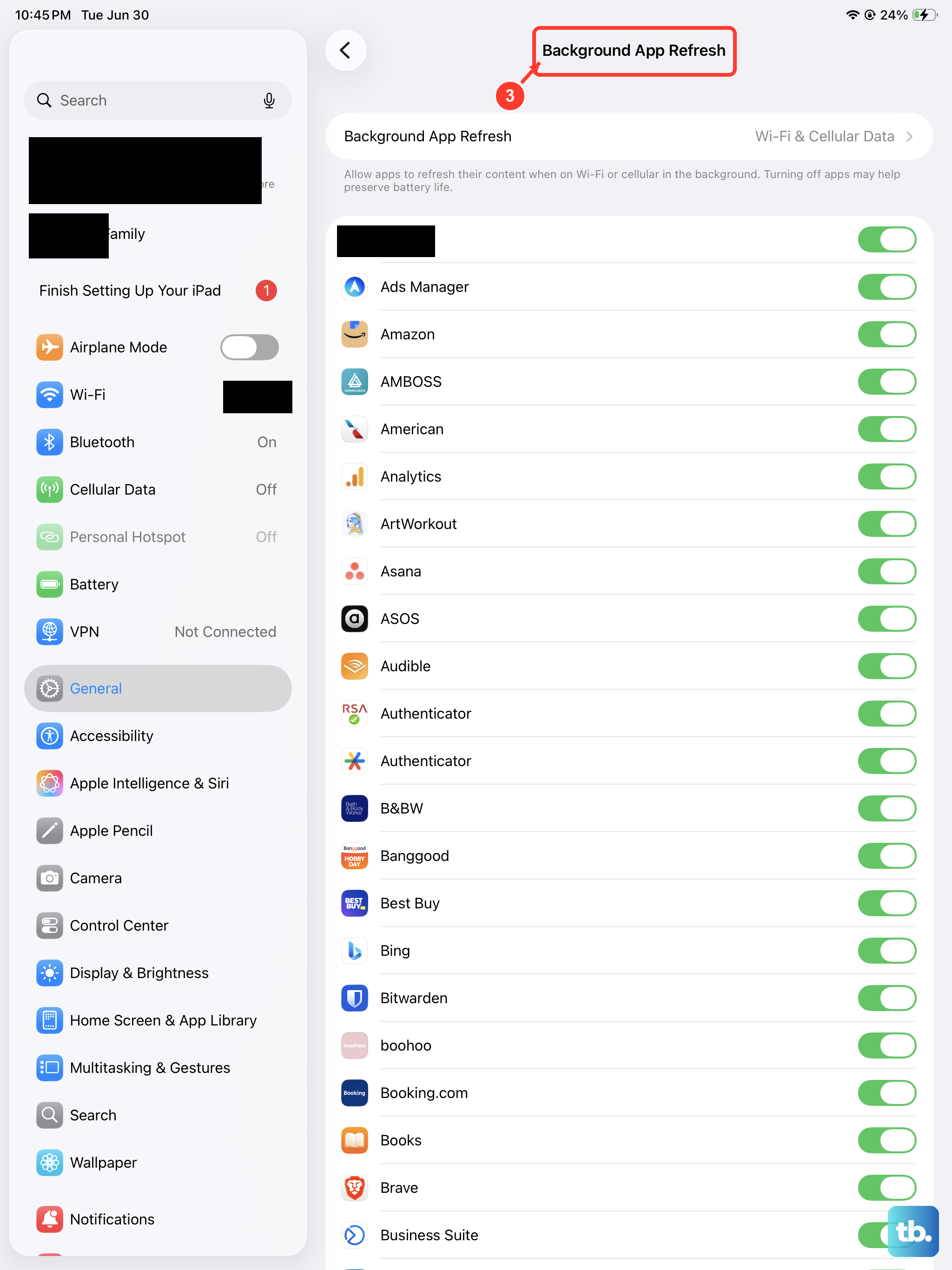
Apps refreshing content in the background are a major drain. You can limit this globally by going to Settings > General > Background App Refresh. You can turn it off entirely or just for specific apps you don't need updating constantly.
Location Services is another common culprit. Navigate to Settings > Privacy & Security > Location Services. Review the list and set apps to "While Using" or "Never" instead of "Always," unless it's absolutely necessary for the app to function.
Review Connectivity Features
If you're not using them, turn off Wi-Fi and Bluetooth. Your iPad mini will stop scanning for networks and devices, which conserves power. You can toggle these quickly from Control Center.
For cellular models, switching to Airplane Mode in areas with poor signal can save a lot of battery, as the modem won't work as hard to maintain a connection. Also, check your email fetch settings in Settings > Mail > Accounts > Fetch New Data and set it to fetch manually or at longer intervals instead of Push.
Enable Low Power Mode
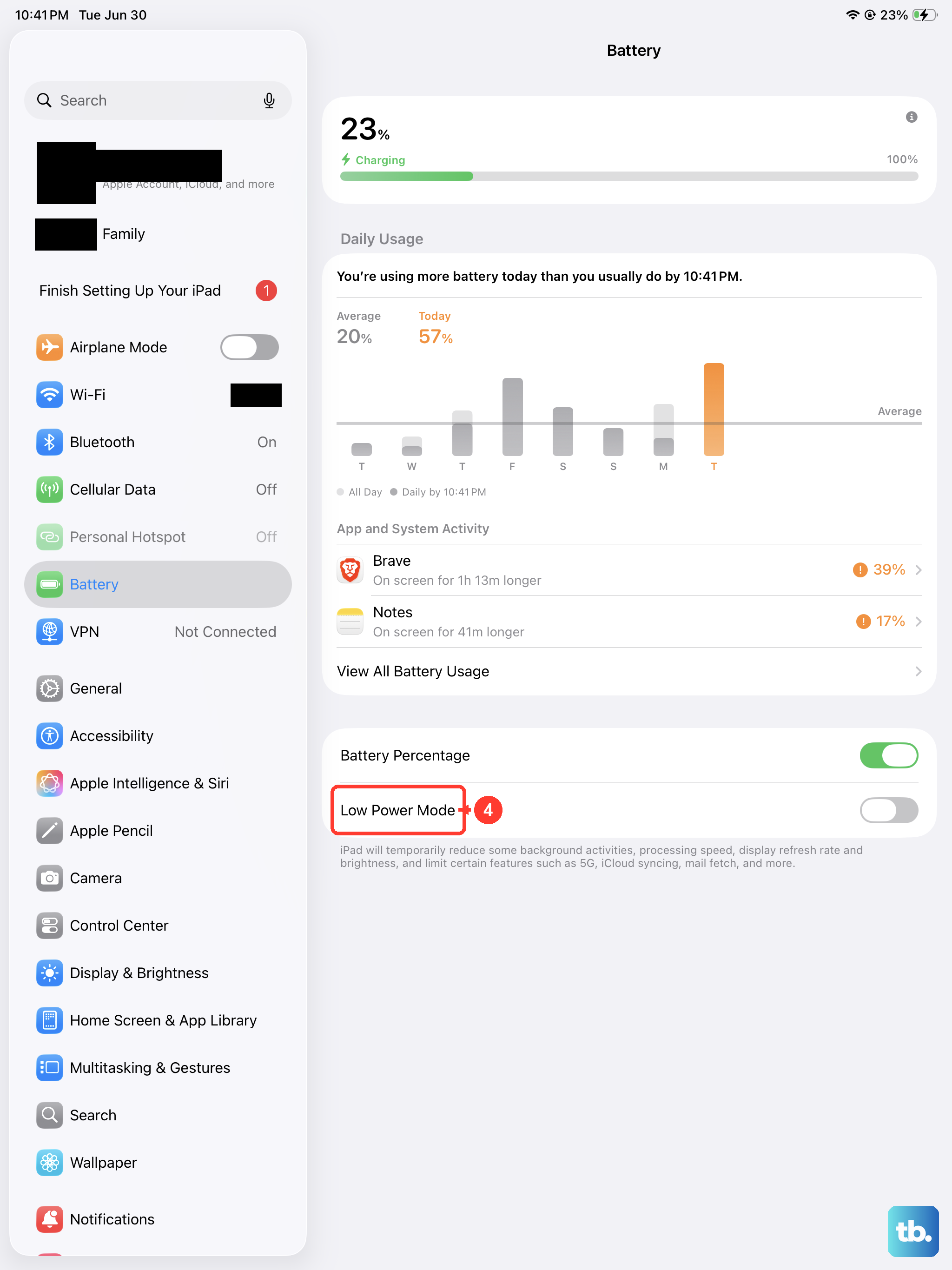
When you need to stretch your battery in a pinch, Low Power Mode is your best friend. It temporarily reduces background activity and visual effects. You can turn it on in Settings > Battery.
For convenience, you can also add it to Control Center. Go to Settings > Control Center and add the Low Power Mode toggle for quick access.
Reset All Settings
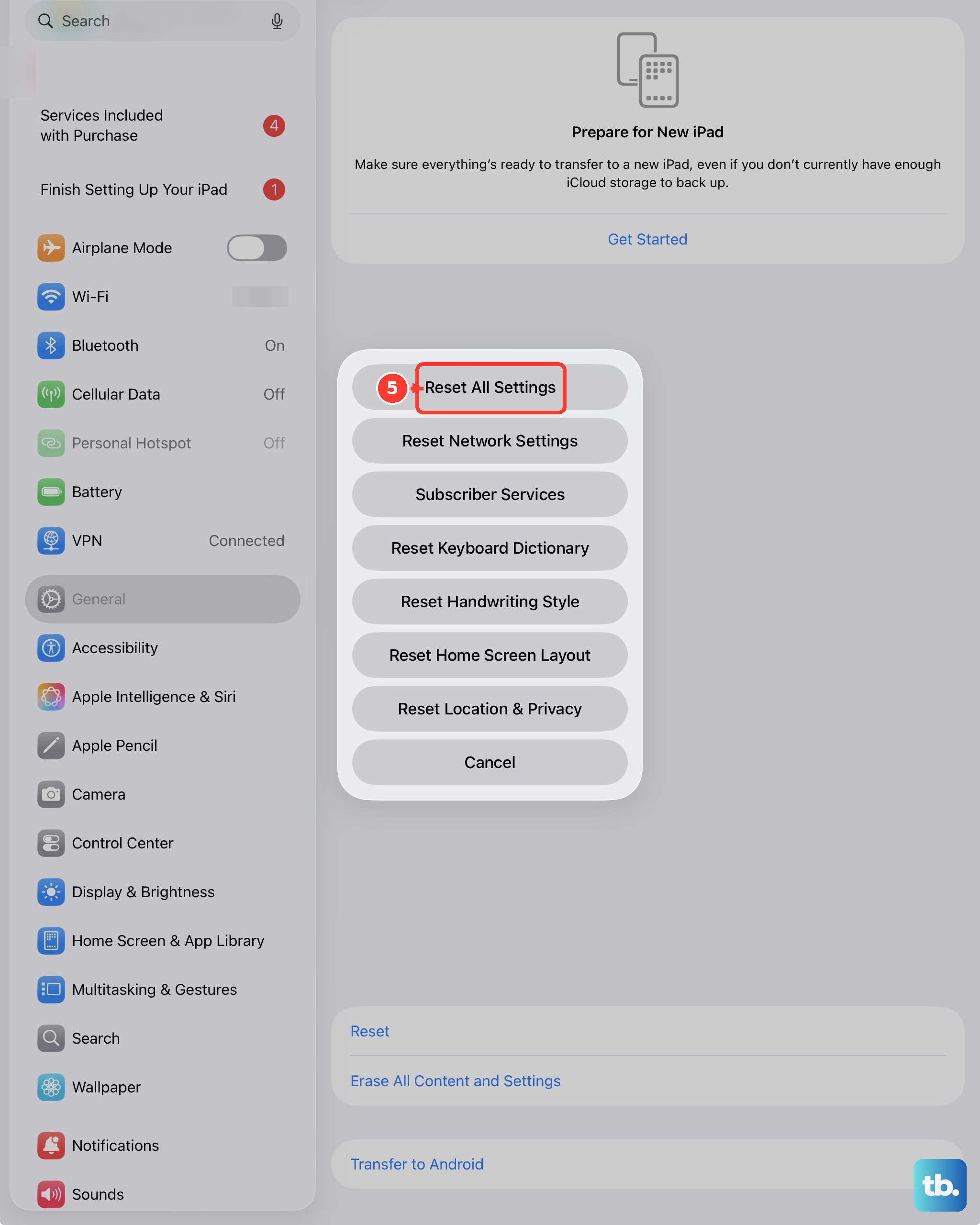
If you've tried everything and the drain persists, a misconfigured setting might be to blame. You can reset all settings without losing your personal data. Go to Settings > General > Transfer or Reset iPad > Reset and choose "Reset All Settings."
This will revert your network settings, wallpaper, and display preferences back to default, which can often clear up any software glitches causing abnormal battery use.
Force Restart Your iPad mini
Sometimes, a simple software hiccup is to blame. A force restart can clear this up. On the iPad mini (7th generation), press and quickly release the Volume Up button, then press and quickly release the Volume Down button. Finally, press and hold the Top button until you see the Apple logo appear on the screen.
Check Your Charging Habits and Hardware
Using the right charger matters. For optimal charging speed with your iPad mini's USB-C port, use an official Apple 20W or higher USB-C power adapter. Avoid cheap, uncertified chargers, as they can charge inefficiently.
Also, keep an eye on the physical charging port. Lint and debris can accumulate over time, preventing a solid connection. Gently clean the port with a dry, soft-bristled brush, like a clean toothbrush, to remove any blockages.
Remove Unnecessary Widgets and Apps
Take a look at your Home Screen and Today View. Widgets that update frequently, like weather or news widgets, can use background resources. Remove any you don't actively need by entering jiggle mode and tapping the minus (-) sign.
Similarly, go through your apps and delete any you haven't used in months. Not only does this free up storage, but it also prevents potential background processes from apps you've forgotten about.