
If your iPhone 17 isn't ringing or showing missed calls, it's a problem that needs fixing right away. This can happen for a bunch of reasons, from a simple setting you forgot about to a software or network problem. Start with the quick checks first.
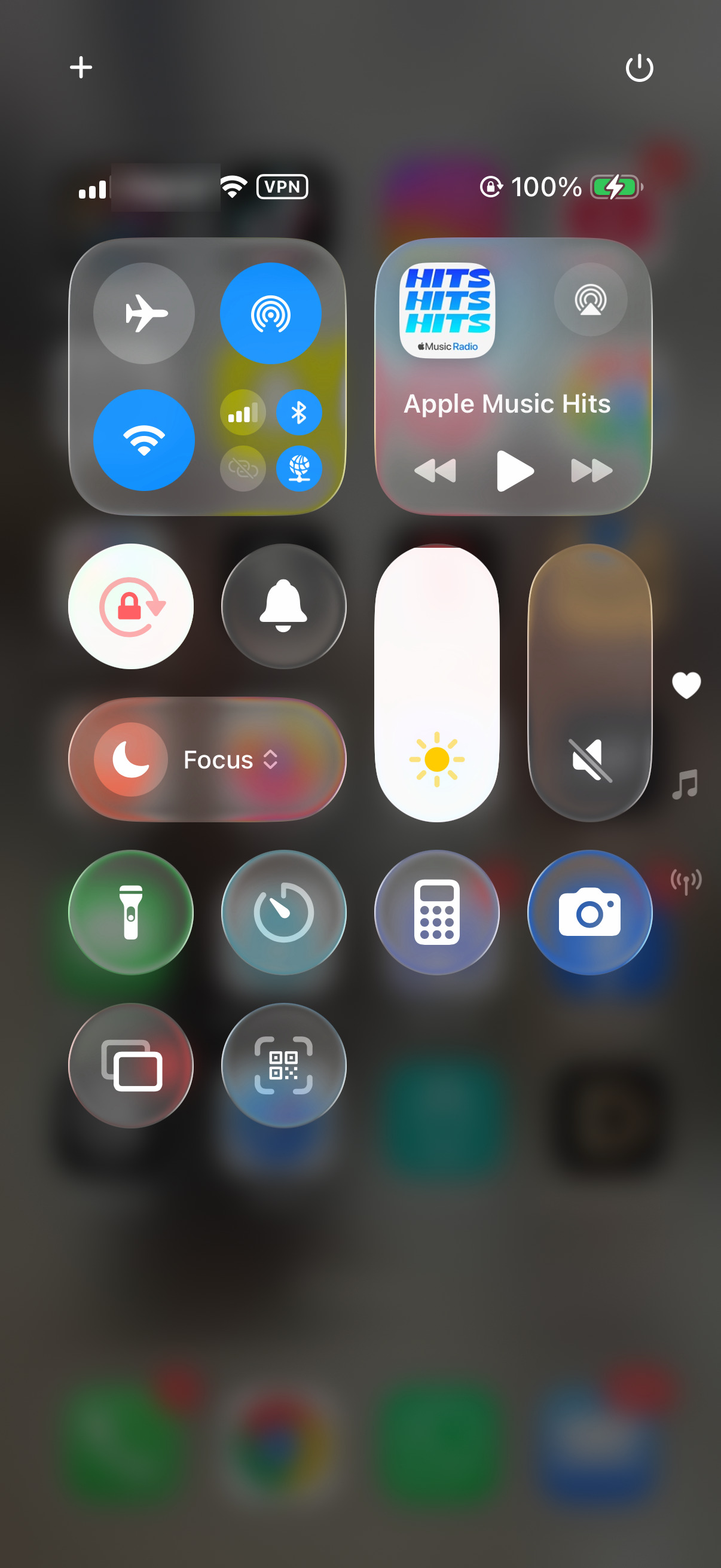
First, pull down from the top-right corner to open Control Center and make sure the crescent moon icon isn't highlighted. That's Do Not Disturb, and it can silence calls. Also, check that Airplane Mode is off, the airplane icon should not be orange. A quick force restart can clear out temporary software bugs, too. Just press and quickly release the Volume Up button, press and quickly release the Volume Down button, then press and hold the Side button until you see the Apple logo.
Check Your Focus Modes
Focus modes can silence calls and notifications. Open the Settings app and tap on Focus, then Do Not Disturb. Under "Allow Notifications," add the people you want to hear from while using Do Not Disturb. If it keeps turning on automatically, scroll down to "Set a Schedule" and check for active schedules to turn off.
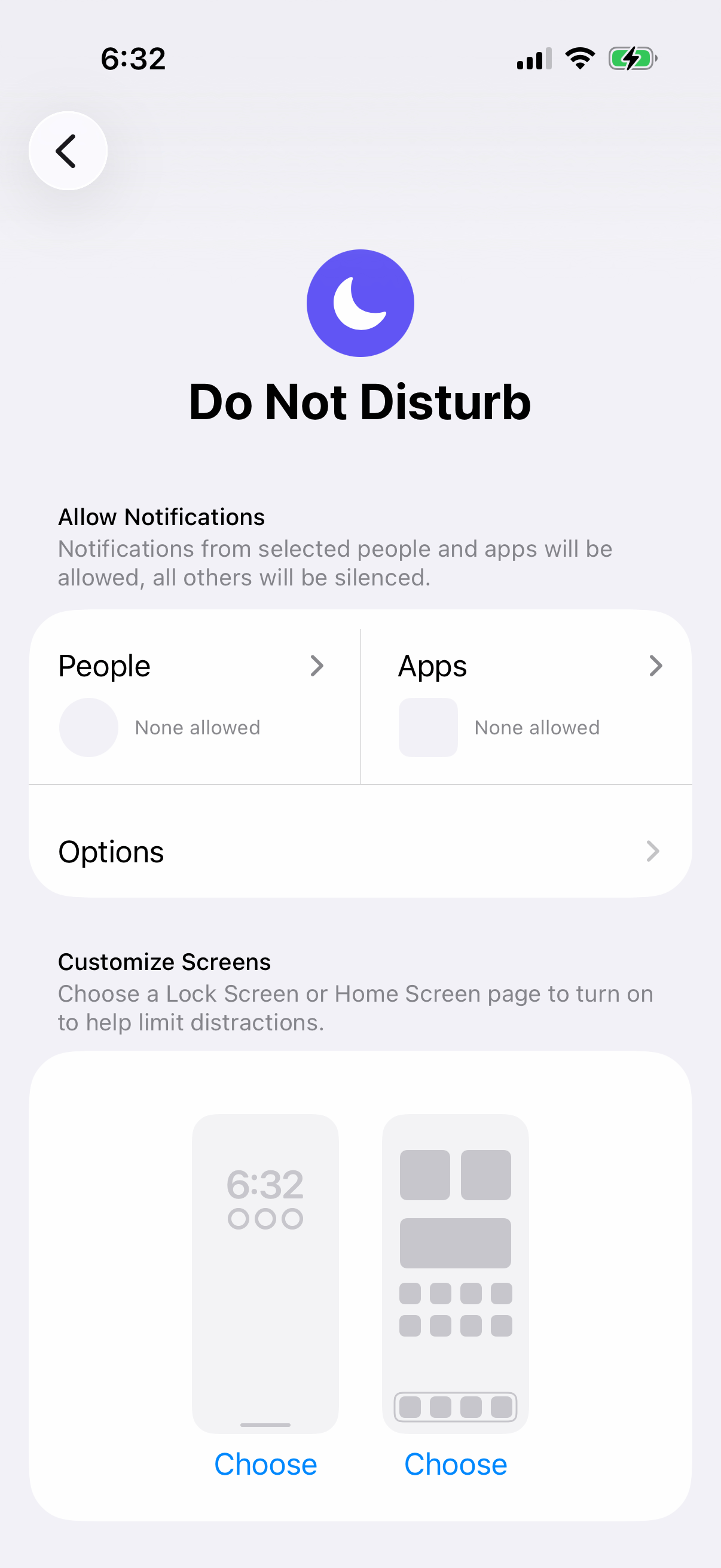
Do the same for any other Focus you use, such as Personal, Sleep, or Work. Go to Settings > Focus, choose the Focus, and tap People. From there you can allow calls from certain groups of people and allow repeated calls, which lets a second call from the same person within three minutes ring through.
You can also check this quickly from Control Center. Swipe down from the top-right corner and tap the Do Not Disturb icon on the Focus button to turn it off. If another Focus is active, tap its icon instead. Check whether calls ring with the Focus turned off.
Review Call Blocking & Identification
Apple's spam call filtering and any third-party apps you've installed might be blocking calls silently. Go to Settings, tap Apps, then tap Phone. Tap on "Call Blocking & Identification." Here, you'll see a list of apps that can block calls.
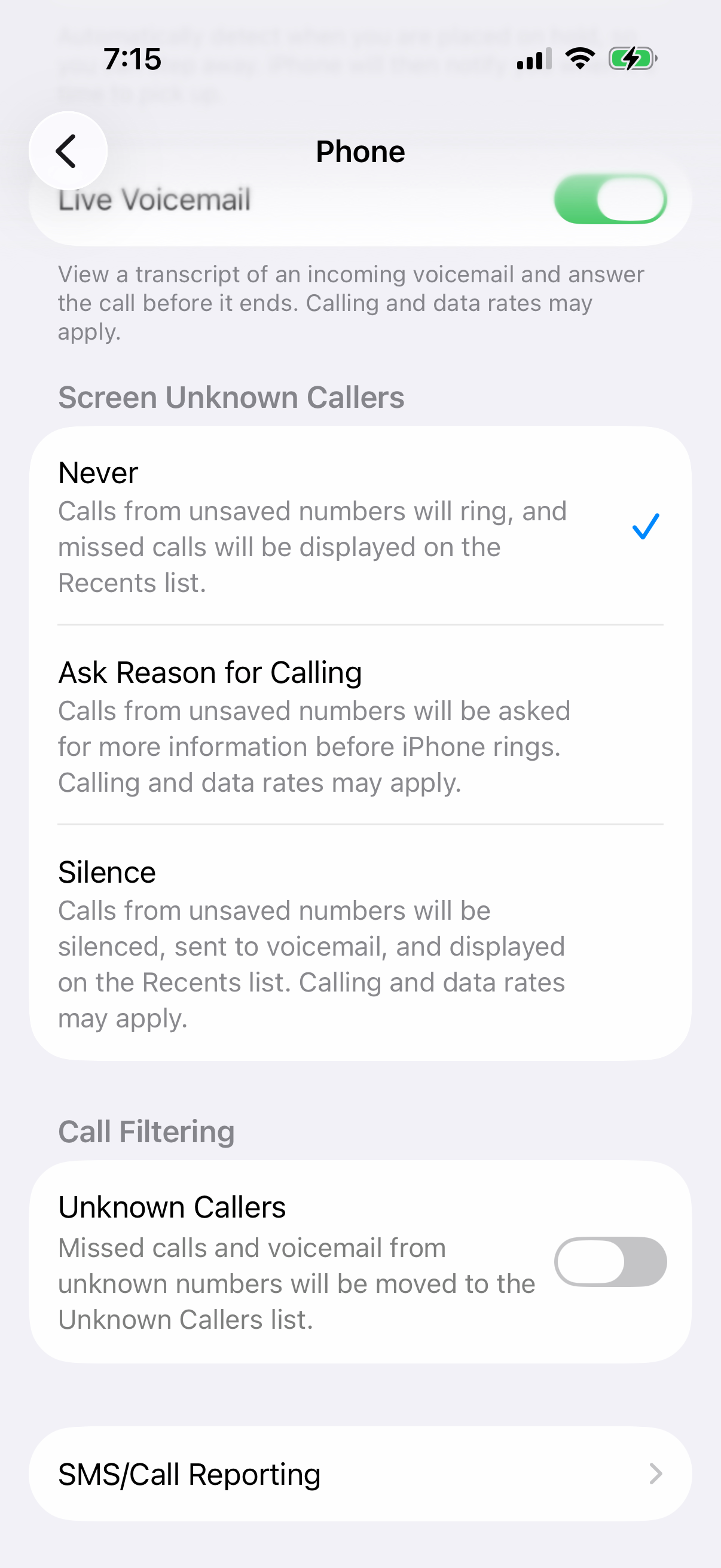
If you have any call-blocking apps enabled, try turning them off temporarily to see if your calls come through. Also, look at "Screen Unknown Callers" in the Phone settings and select "Never" to let calls from unsaved numbers ring normally. "Ask Reason for Calling" screens these calls before your phone rings, while "Silence" sends them to voicemail. If you're expecting a call from a new doctor's office or delivery person, select "Never" or add their number to Contacts.
Ensure Your SIM or eSIM is Active
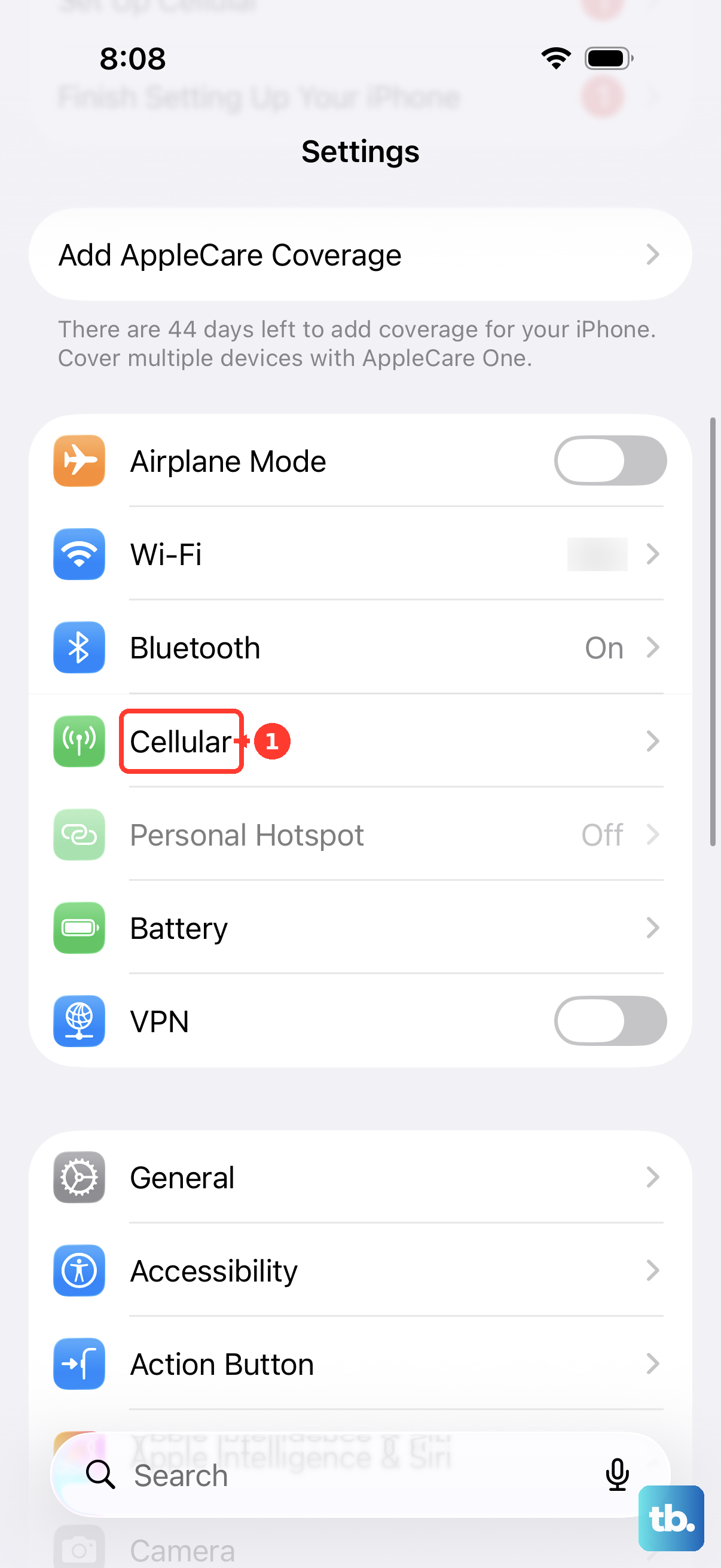
A problem with your SIM card, or more commonly on the iPhone 17, your eSIM profile, can cause call reception issues. Go to Settings > Cellular. Make sure your primary line is turned on. If you see "No Service" or are searching for a signal, there might be a carrier problem.
Try turning Airplane Mode on, waiting five seconds, and then turning it off again. Test whether you can receive a call afterward. If you're using a physical SIM card, you can try removing it, gently cleaning the gold contacts with a soft cloth, and reinserting it. For eSIM issues, contact your carrier to check that your account is set up to use your iPhone and that there are no service outages or billing-related blocks.
Disable Call Forwarding
Call forwarding could be sending all your calls to another number without you realizing it. To check, open Settings, tap Apps, then Phone. Tap "Call Forwarding" and make sure it's off. Test whether you can receive calls after changing the setting.
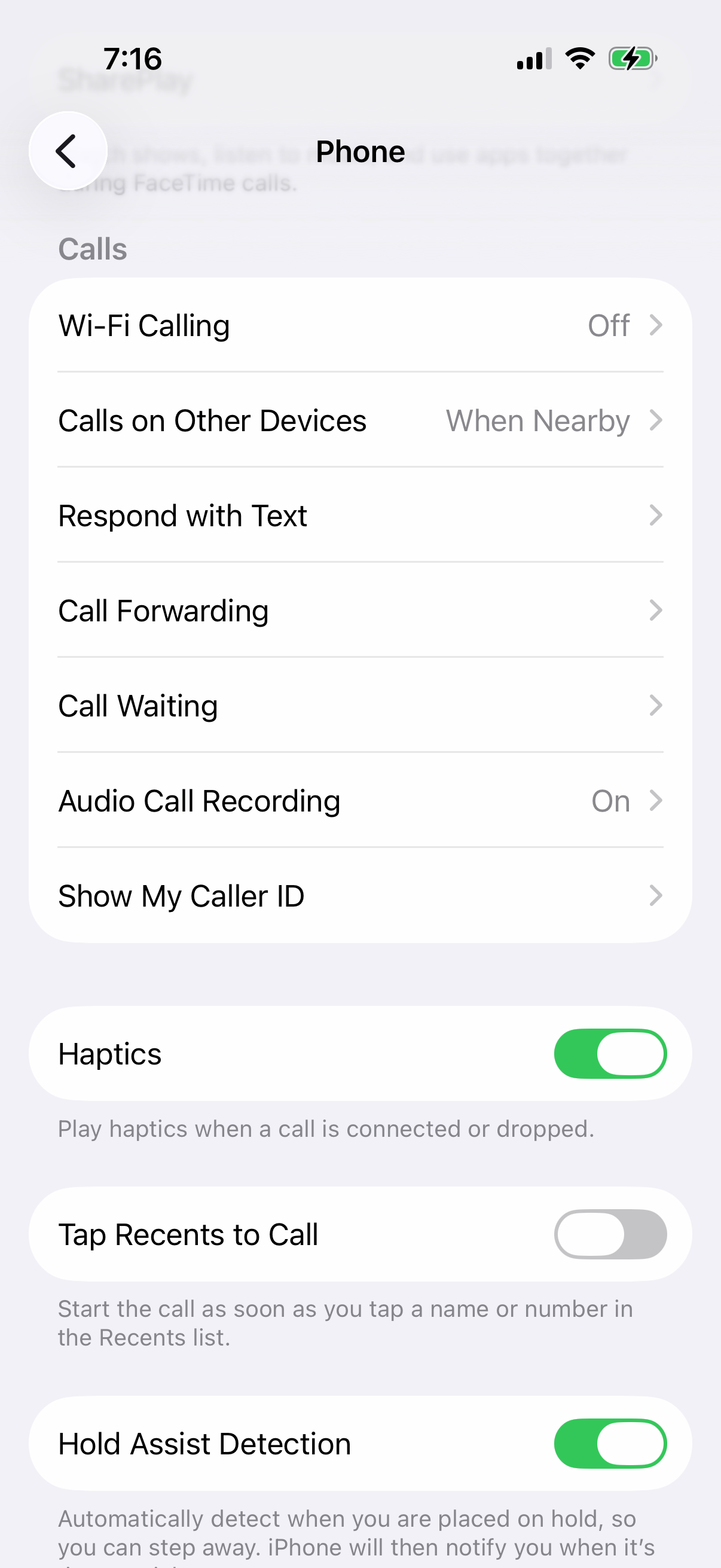
If calls still aren't coming through, try receiving a call in another location. Contact your carrier if the problem continues so they can check for local service outages or errors affecting calls on their system.
Reset All Network Settings
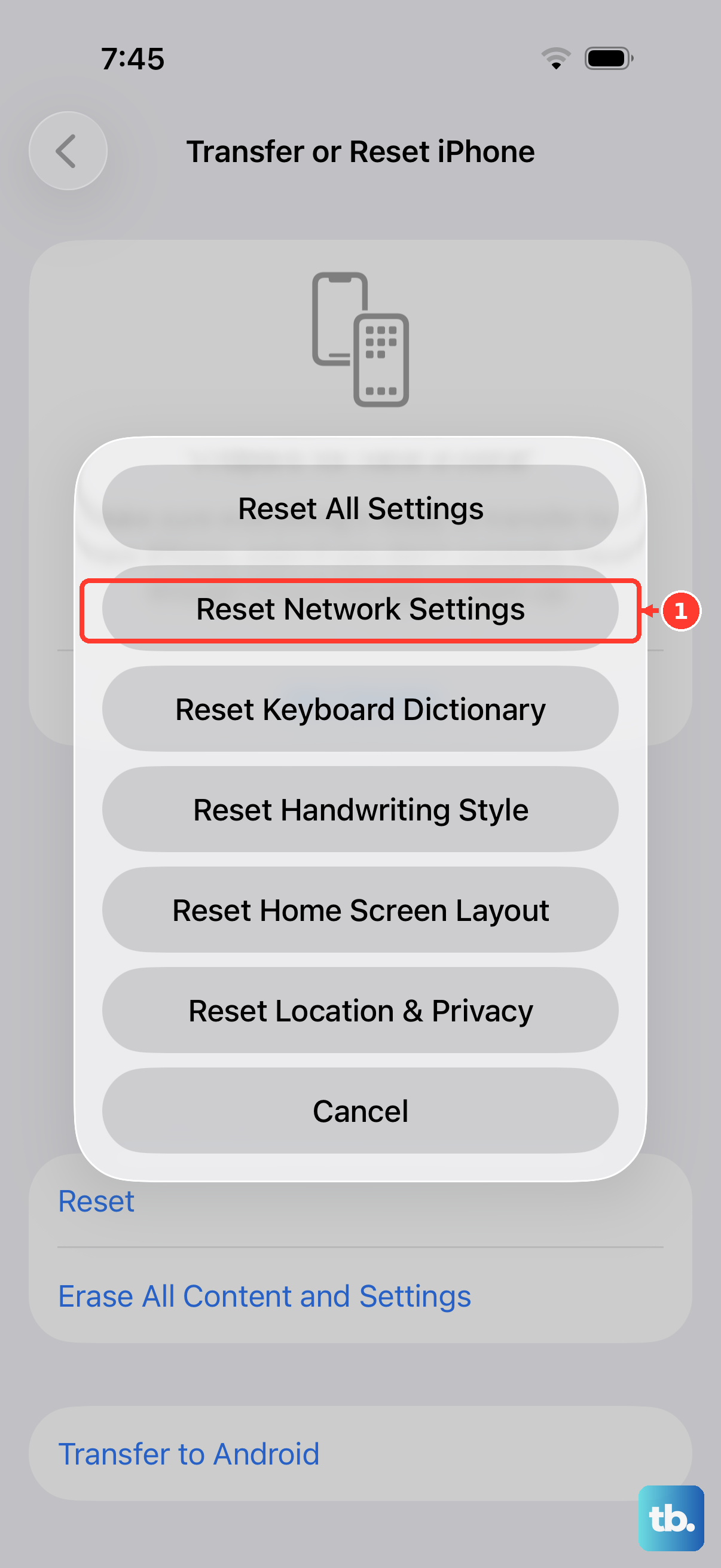
If the other checks haven't helped, this step clears saved network settings and can help with persistent calling and data issues. Go to Settings > General > Transfer or Reset iPhone. Tap on "Reset" at the bottom, and then choose "Reset Network Settings."
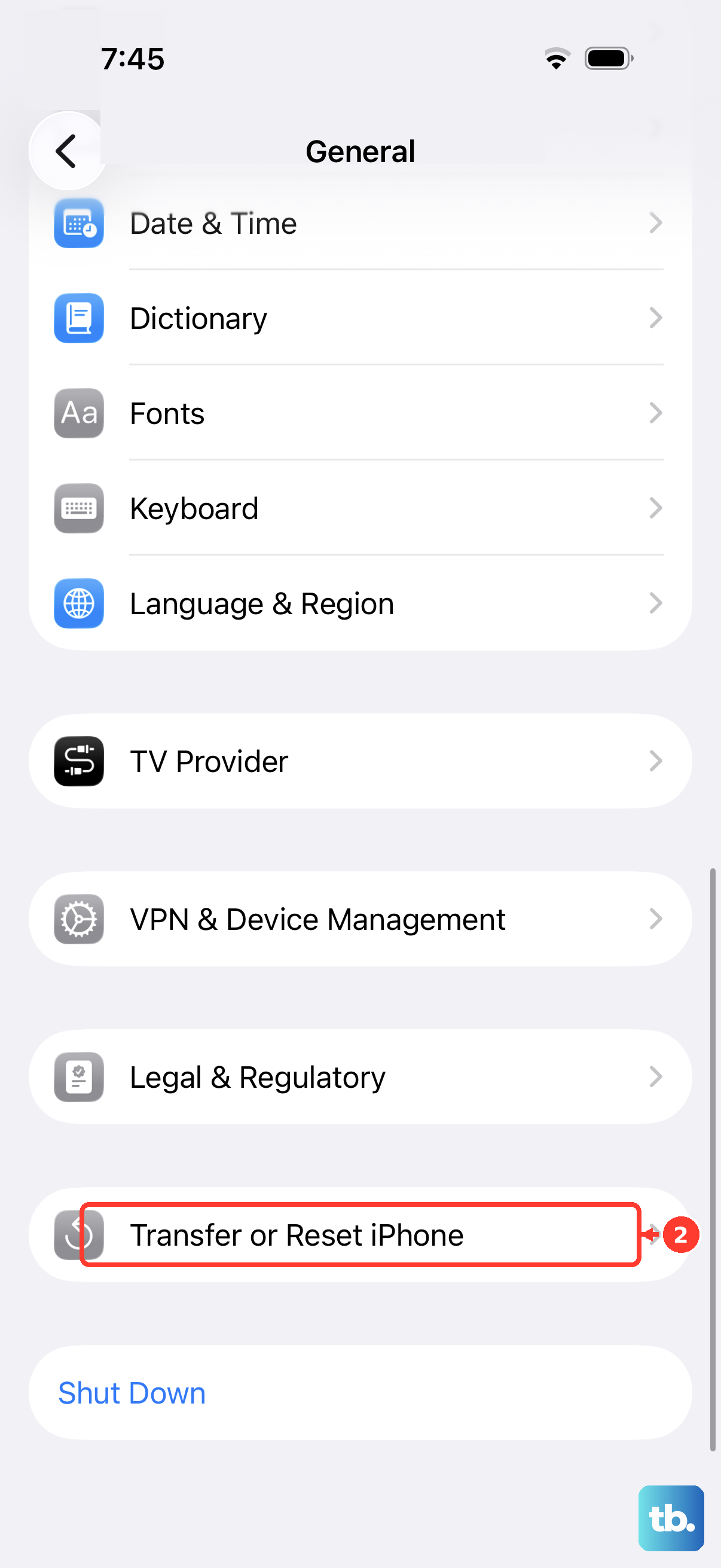
You'll need to enter your passcode to confirm. Be aware this will erase saved Wi-Fi networks and passwords, cellular settings, and VPN and APN settings, including home, work and school network configurations. You'll have to reconnect to Wi-Fi afterward. Test whether your iPhone 17 can receive calls once the reset is complete.
Update iOS to the Latest Version
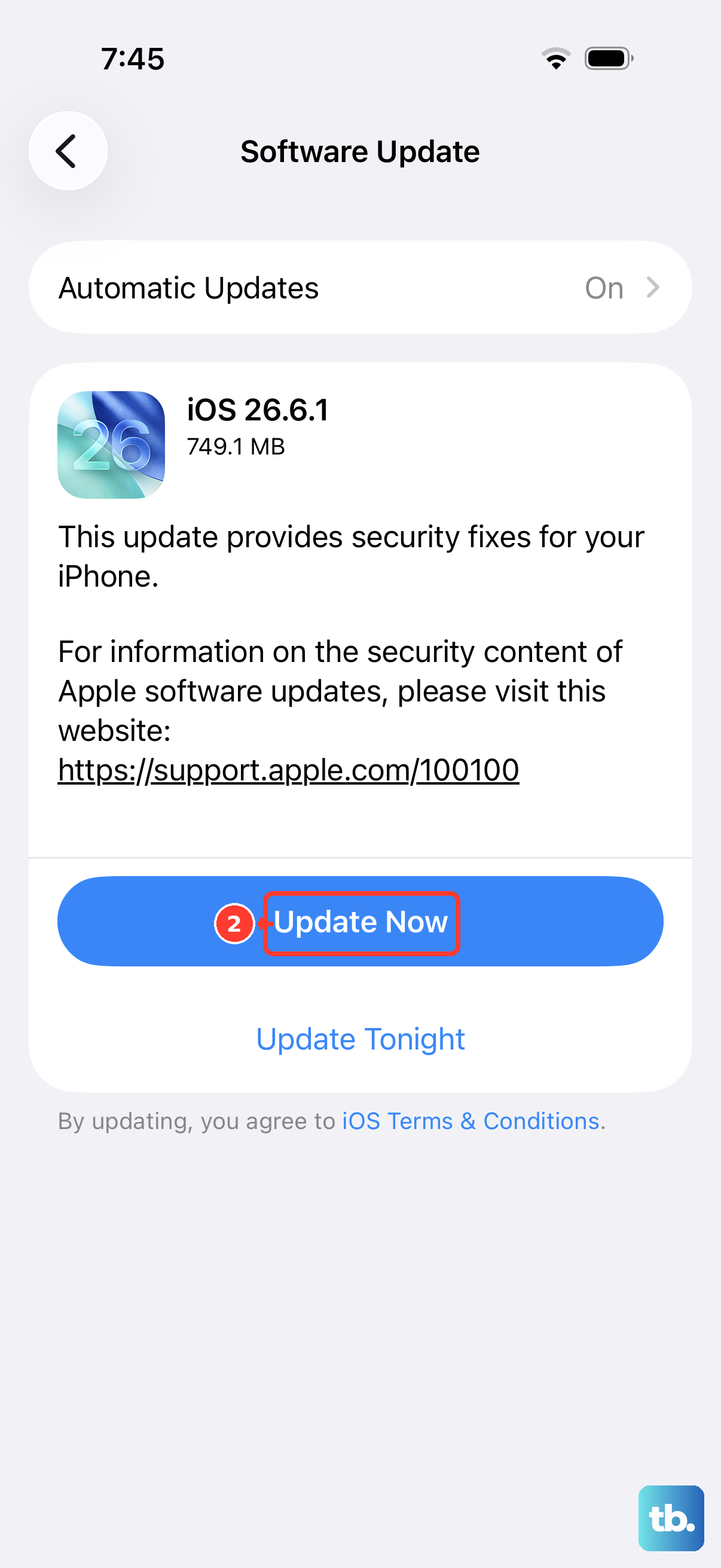
Outdated software can contribute to problems making or receiving calls. Check for an iOS update as part of troubleshooting. Connect your iPhone to Wi-Fi and go to Settings > General > Software Update.
If an update is available, tap "Download and Install." Back up your iPhone before updating, and keep it connected to power and Wi-Fi during the update. Keeping your software current is one of the best ways to ensure all features, especially core ones like calling, work correctly.
Check for a Carrier Settings Update
Separate from iOS updates, your carrier pushes small configuration files to your phone to improve network connectivity. To check for one, go to Settings > General > About. If a carrier settings update is available, a pop-up notification will appear on this screen.
You usually just need to tap "Update" when prompted. If calls still fail after checking for an update, try making or receiving a call in another location. These updates can fix calling issues specific to your mobile provider.
Get Help With Your Cellular Plan (eSIM)
If you're using an eSIM and still can't receive calls, contact your carrier to check your line before making changes to your cellular plan. Ask them to confirm that your account is set up to use your iPhone and that your calls don't have errors on their system.
You can also download the latest version of the Apple Support app to run additional diagnostics that may help identify the problem. Test calls after each troubleshooting step, and tell your carrier whether the issue happens everywhere or only in one location.
Contact Your Carrier
If you've tried everything here, the issue might be on your carrier's end. They can check for outages in your area, verify your account is in good standing, and ensure all call features are properly provisioned on your line.
Explain that your iPhone 17 is not receiving calls. Ask them to check for errors affecting calls on their system and any billing-related block on your account. Tell them which checks you've already tried and whether calls work in another location so they can investigate the problem.