
Your iPhone Air getting stuck on the Apple logo is one of those moments where you start mentally preparing for a trip to the Apple Store. The logo just hangs there, sometimes with a progress bar that never seems to move. This usually happens after an interrupted iOS update, a corrupted software install, or even after the battery fully drains and the phone won't come back properly. Here's how to push past it.
Wait It Out
Give the phone some time before you panic. After a major iOS update, the iPhone Air can sit on the Apple logo for a while as it finishes optimizing apps and completing the install. If you see a progress bar under the logo, it is still working. Plug it into power and wait at least 15-20 minutes before trying anything else.
Force Restart the Phone
If the logo has been stuck for 20 minutes with no visible progress, do a force restart. Quickly press and release the Volume Up button, then quickly press and release the Volume Down button, then press and hold the Side button until the screen goes black and the Apple logo shows up again. This breaks the boot loop and is the single most effective fix for a stuck logo screen. It clears minor software glitches without erasing anything.
Is a Dead Battery the Culprit?
The iPhone Air has a known issue where it becomes completely unresponsive after the battery drains to zero. Plugging it into a USB-C charger sometimes does nothing because the battery is too depleted to register the connection. If this sounds familiar, grab a magnetic battery pack (MagSafe or Qi2) and attach it to the back of the phone. The wireless charging can wake the battery enough that the phone starts responding again. After a few minutes, connect a wired USB-C charger and try the force restart as soon as the screen comes on.
Check Your USB-C Charging Setup
Damaged or uncertified USB-C cables and adapters are a common cause of charging issues on the iPhone Air, and a dead battery can lead straight to a stuck logo when the phone tries to boot with low power. Use an Apple-certified USB-C cable and a 20W or higher adapter. If you have a different cable handy, swap it out and see if the phone responds differently. Even if the phone isn't completely dead, a bad cable can prevent it from booting properly.
Boot into Recovery Mode
If a force restart brings you right back to the stuck logo, recovery mode is your next option. Connect the iPhone Air to a computer using a USB-C cable. Open Finder on a Mac or iTunes on Windows. Then do the force restart sequence: Volume Up, Volume Down, then hold the Side button until you see the recovery mode screen (a cable pointing at a computer icon). Your computer will detect the phone and give you two choices: Update or Restore. Always try Update first. It reinstalls iOS while keeping your data intact and takes about 15-20 minutes.
Try DFU Mode
When recovery mode fails to get the job done, DFU (Device Firmware Update) mode is the nuclear option. Connect the iPhone Air to your computer. Press Volume Up, then Volume Down, then hold the Side button for 10 seconds. While still holding Side, press and hold Volume Down for 5 seconds. Release the Side button but keep holding Volume Down for 10 more seconds. The screen should stay completely black. Your computer will detect the phone in DFU mode and offer to restore it. This wipes everything and reinstalls the firmware from scratch, so only use it if nothing else works.
Free Up Storage for the Next Update
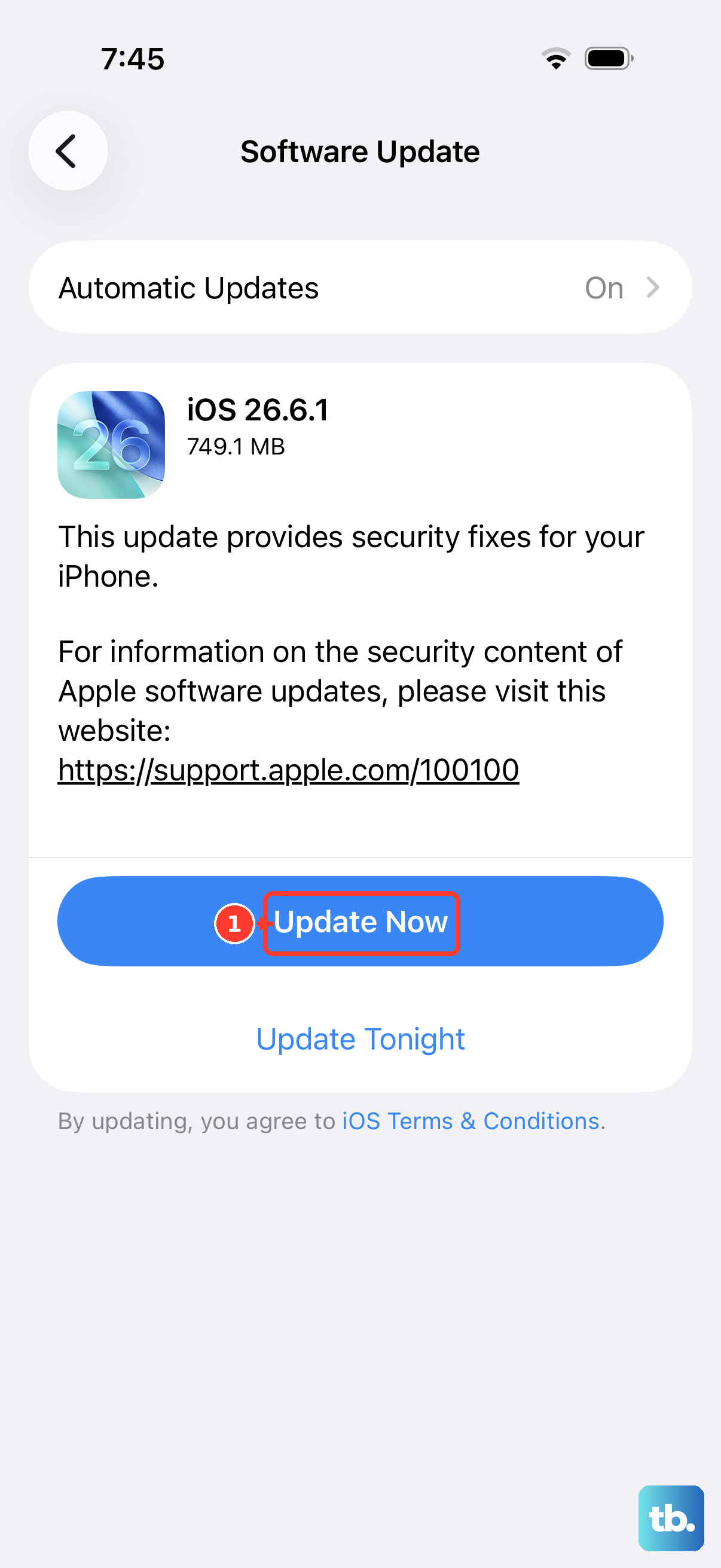
The stuck logo often traces back to a software update that ran out of storage space mid-install. If you manage to get the phone working again after a force restart, immediately check your storage and clear at least 5-6 GB. Delete unused apps, offload photos to iCloud, or remove old messages. Running low on storage is an easy trigger for boot loops the next time iOS tries to update.
Restore from a Backup
If you had to use Restore in recovery mode or DFU mode and lost all your data, you can get it back from a backup. During the initial setup after the restore, choose Restore from iCloud Backup or Restore from Mac/PC depending on where you keep your backups. Regular backups make this situation a lot less painful, so turn on iCloud backup now if you haven't already.