
When your iPhone 17 Pro won't send texts, it's incredibly frustrating. You might see a red exclamation point, a message stuck on "Sending," or no error at all. The fixes are usually straightforward, and we'll start with the quickest one.
First, try a force restart. It's the single most effective step for clearing temporary software glitches that can block messages. On your iPhone 17 Pro, press and quickly release the Volume Up button, then quickly press and release the Volume Down button. Finally, press and hold the Side button until you see the Apple logo appear, then let go.
Check Your Cellular and Internet Connection
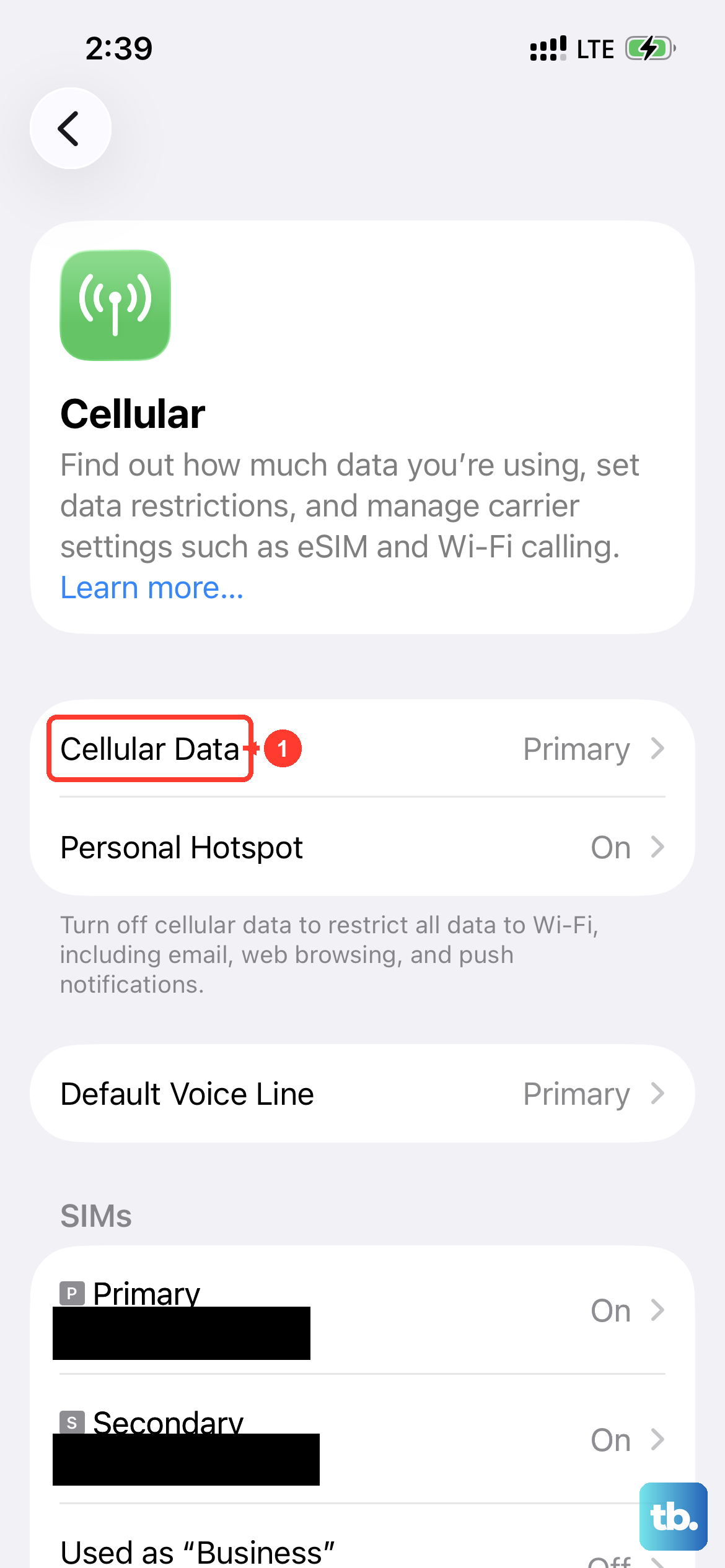
Texts need a path to travel. For iMessages (blue bubbles), you need Wi-Fi or cellular data. For SMS/MMS (green bubbles), you need a cellular signal. Look at the top of your screen. If you have no bars or the data icon isn't lit up, your message has nowhere to go.
Try toggling Airplane Mode on and off from the Control Center. This resets all your radios at once. Turn it on, wait about 10 seconds, then turn it off. Watch for the signal bars to return. If you're on Wi-Fi, try turning it off temporarily to force iMessage to use your cellular data, or vice versa.
Verify Apple's iMessage Service Status
Sometimes the problem isn't on your end. If you're only having trouble with blue iMessage bubbles, Apple's servers might be down. Open Safari and go to apple.com/support/systemstatus. Look for iMessage in the list. If there's a yellow or red indicator, you'll just have to wait for Apple to fix it.
While you wait, you can send as a regular text. Press and hold the failed blue message bubble and tap "Send as Text Message." It will turn green and send via your carrier's SMS network. You can also go to Settings > Apps > Messages and turn off "iMessage" temporarily to send everything as SMS.
Refresh Your iMessage Registration
Your phone needs to be properly registered with Apple's servers. Go to Settings > Apps > Messages and toggle the iMessage switch off. Wait a full minute, then turn it back on. You might see a brief "Activating" message. This often clears up sending failures that a simple restart didn't fix.
While you're in the Messages settings, scroll down and make sure your phone number and Apple ID email addresses are checked under "Send & Receive." If your number is missing, that's the problem. Tap on your Apple ID at the top and choose "Sign Out," then sign back in to refresh everything.
Reset Your Network Configuration
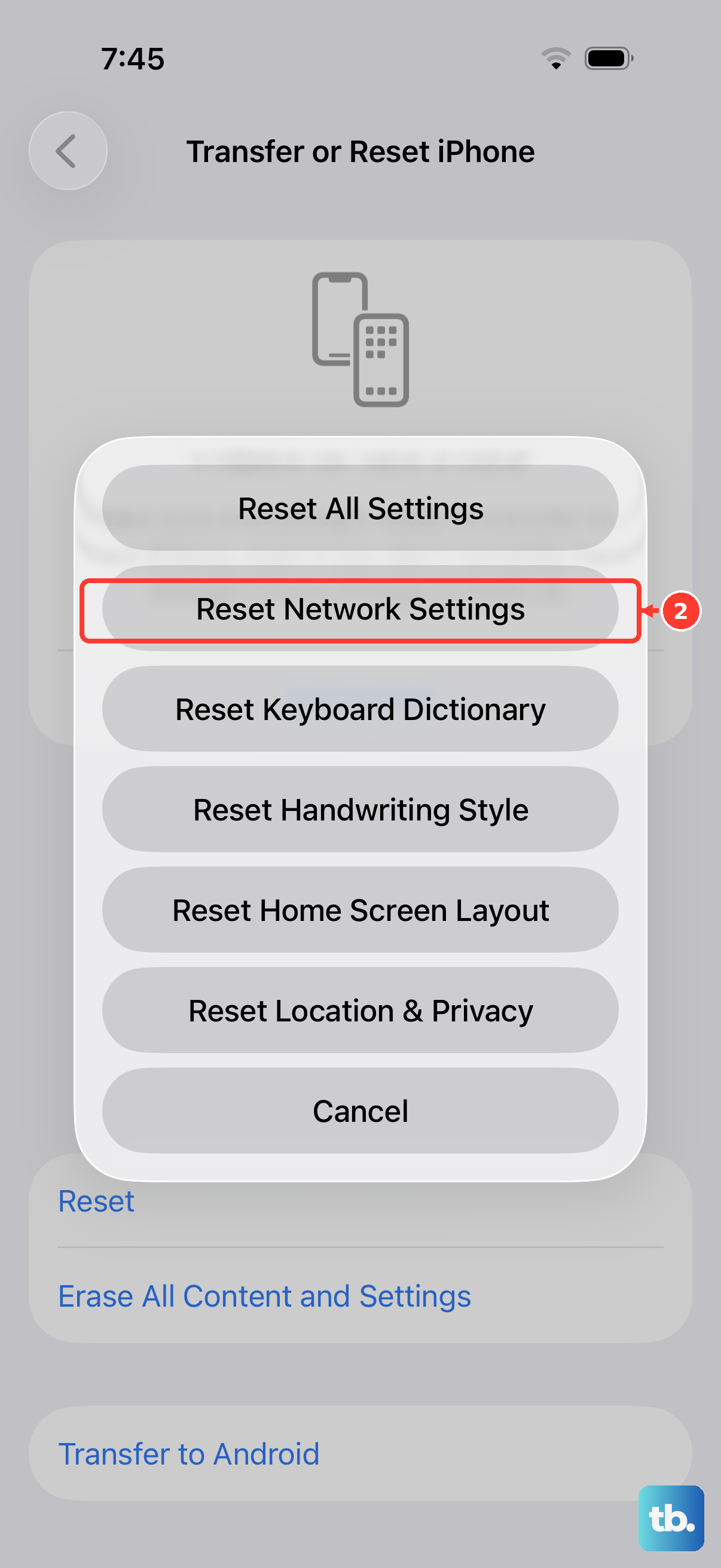
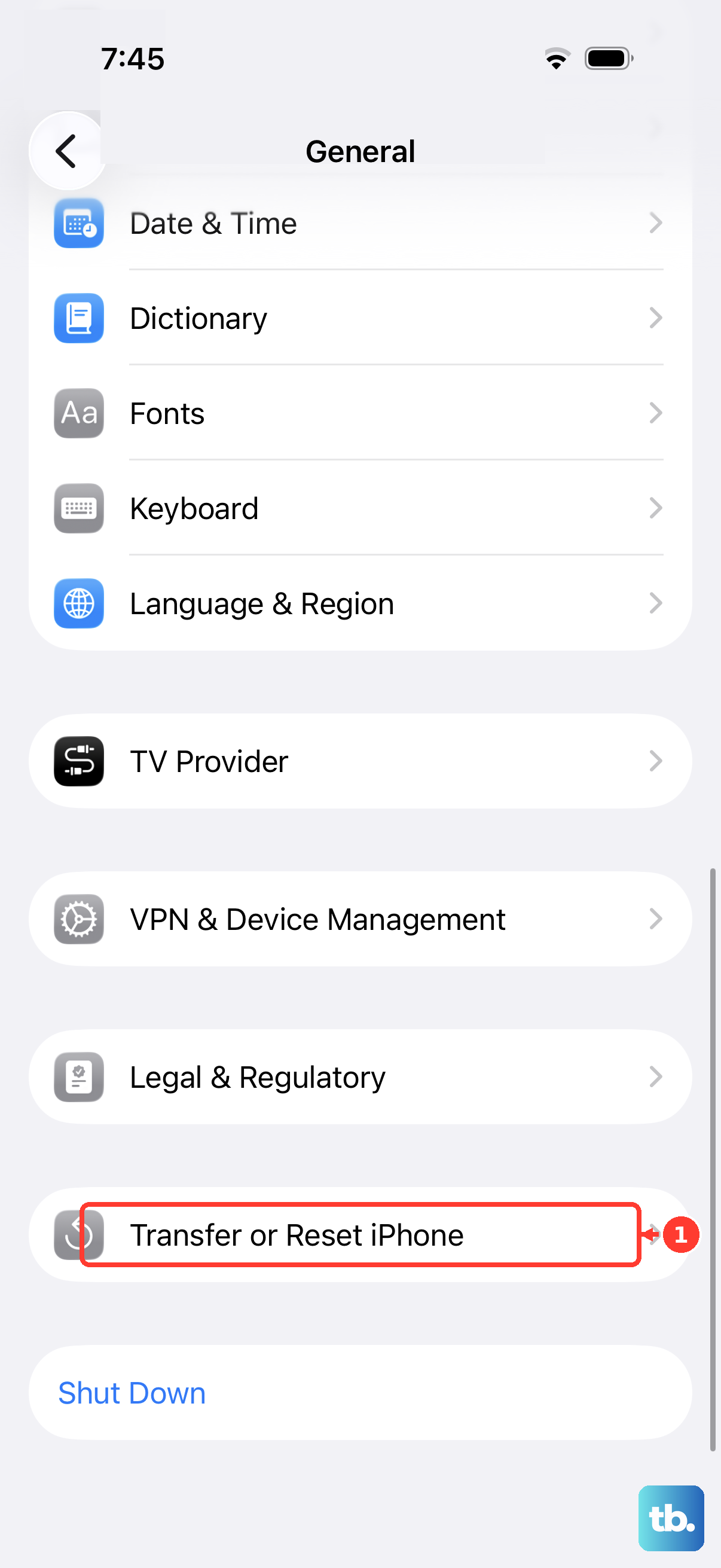
This is a deeper fix for persistent issues, especially if you're also having trouble with cellular data or making calls. Go to Settings > General > Transfer or Reset iPhone > Reset. Tap Reset Network Settings. You'll need to enter your passcode to confirm.
This will erase all saved Wi-Fi networks, passwords, VPN settings, and cellular preferences. Your iPhone 17 Pro will reboot. Afterward, you'll need to reconnect to Wi-Fi and re-pair any Bluetooth devices, but it often resolves stubborn messaging problems tied to a corrupted network profile.
Check Your Carrier Settings and SIM
Your carrier pushes small updates to help your phone work better on their network. Go to Settings > General > About. If a carrier settings update is available, a pop-up will appear. Let it install. If you're using a physical SIM card, try removing it.
Turn off your iPhone 17 Pro first. Use the SIM eject tool to pop out the tray, remove the SIM, wait 30 seconds, and put it back in. Power your phone on. If you're using an eSIM, you can try turning it off in Settings > Cellular, waiting a moment, and turning it back on.
Review Message-Specific Settings
Some settings can block messages from sending. Go to Settings > Apps > Messages and ensure "MMS Messaging" is on if you're trying to send photos or group texts with non-iPhone users. Also, make sure "Send as SMS" is enabled so messages can fall back when iMessage fails.
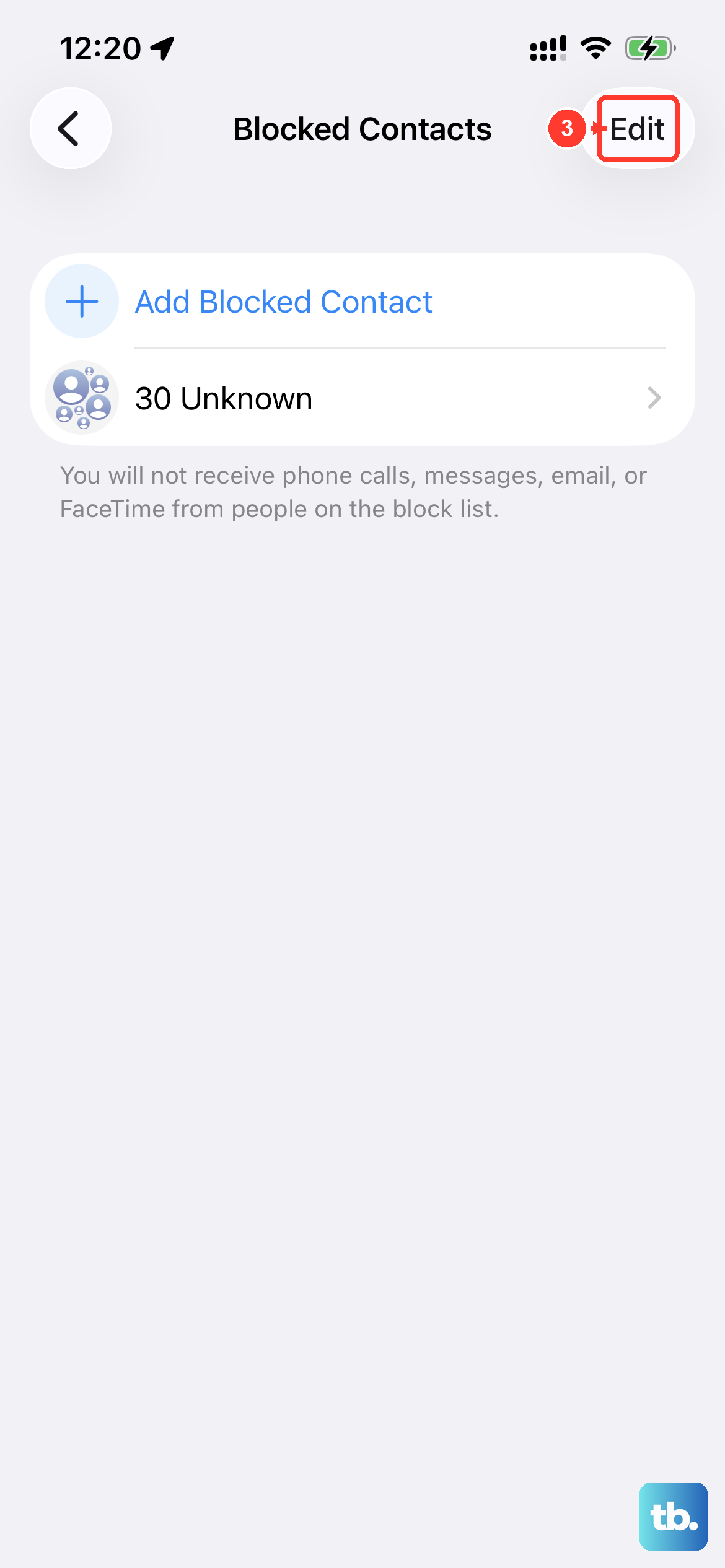
If messages fail to just one contact, check your blocked list. Go to Settings > Apps > Messages > Blocked Contacts. If they're listed, swipe left to unblock them. Also, check for any Focus modes in the Control Center that might be silencing notifications from that person, which can sometimes interfere.
Finally, if you've tried all these steps, it's time to contact your cellular carrier. There might be an issue with your account provisioning, a temporary outage in your area, or a block on SMS/MMS services. They can check your line from their end and often resolve it with a quick network refresh.