
A frozen iPhone Air that won’t respond to taps, swipes, or button presses can feel like a brick. The screen might be stuck on an app, the lock screen, or the Apple logo. Most freezes are software-related and fixable without losing your data.
Force Restart Your iPhone Air
This is the fix for nine out of ten frozen screens. Quickly press and release the Volume Up button, then quickly press and release the Volume Down button, then press and hold the Side button until you see the Apple logo. Don’t let go early keep holding for 15 20 seconds even if nothing seems to happen. You won’t lose any data.
Wake It Up With a Magnetic Battery Pack
If your iPhone Air became unresponsive after the battery drained completely, it might not respond to a cable at first. This is a known issue with this model. Attach a magnetic battery pack (Qi2 or MagSafe) to the back of the phone. That can give the screen enough juice to wake up. Once it’s responsive, plug in a USB‑C cable and let it charge normally. Then try the force restart above.
Wait 10 Minutes
Sometimes the phone is busy processing something a large update, photo indexing after a restore, or a stuck app. If it feels warm to the touch, it’s still working. Give it five to ten minutes before force restarting. Opening the camera quickly can also confirm the phone isn’t truly hard frozen.
Close the Frozen App
If only one app is stuck but you can still switch to other apps, swipe up from the bottom and hold to open the app switcher. Swipe up on the frozen app to close it. Reopen it and see if it behaves. If that app keeps freezing, check for an update in the App Store or delete and reinstall it.
Free Up Storage Space
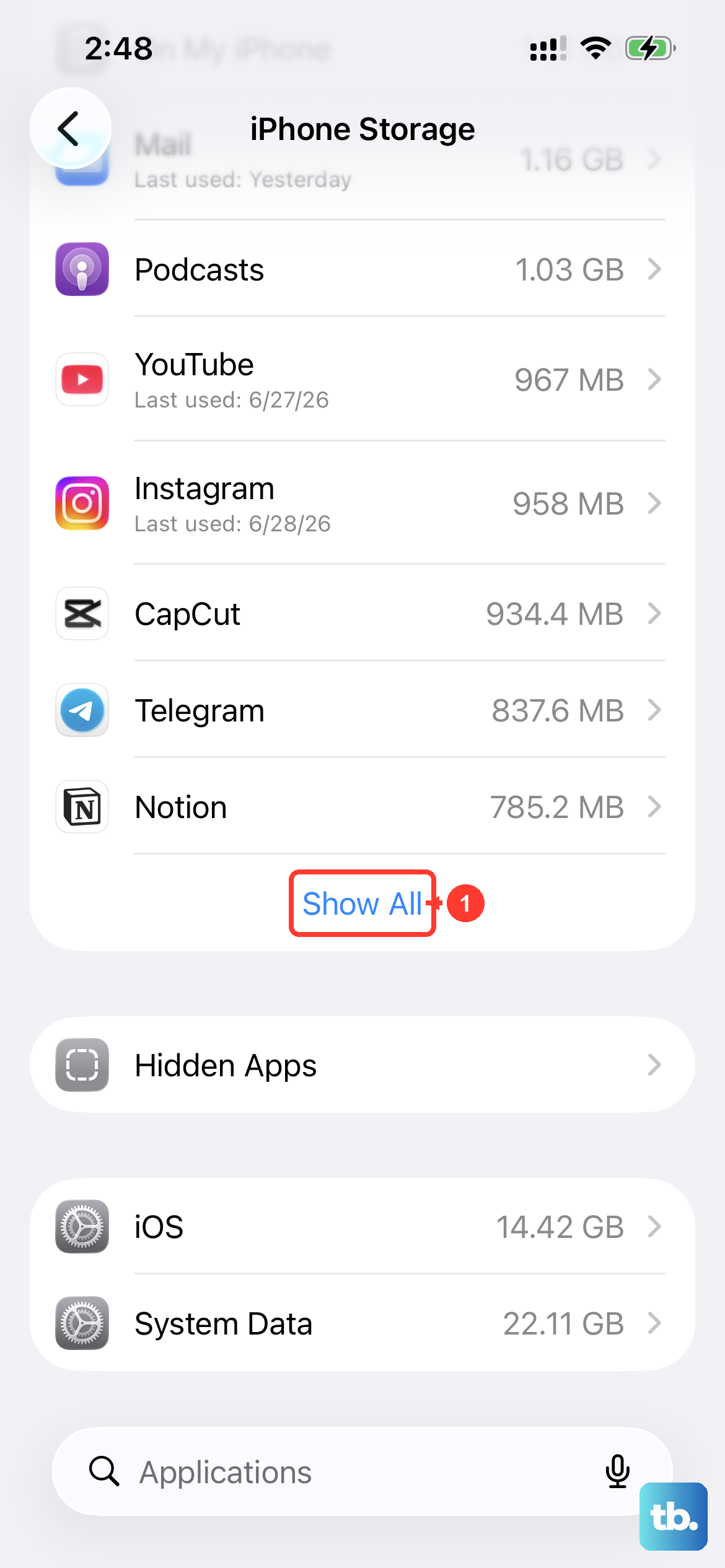
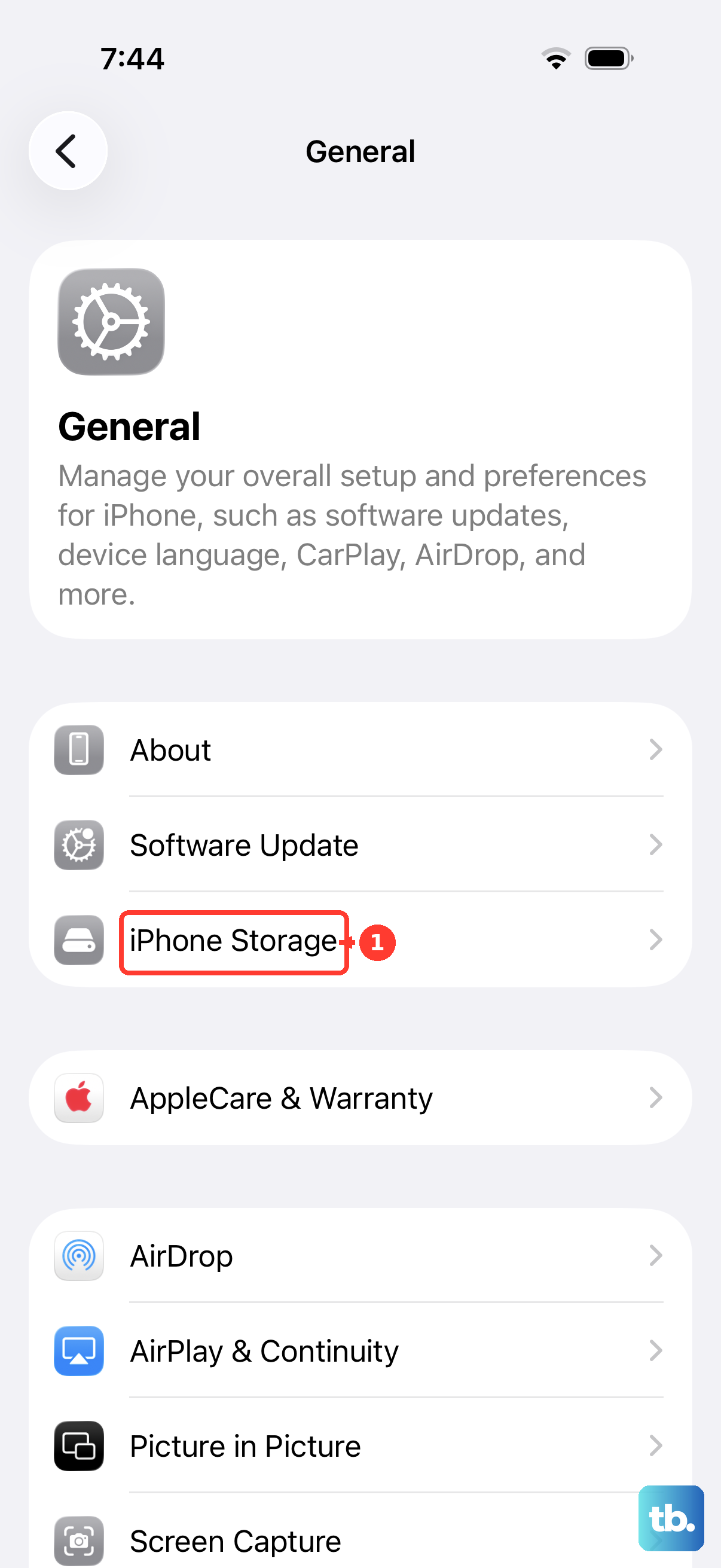
The iPhone Air can freeze when storage is critically low because the system has no room for temporary files. If you can still navigate to Settings, go to Settings > General > iPhone Storage. Delete old photos, unused apps, or large messages. Aim for at least 2 3 GB free to prevent repeated freezes.
Update iOS to the Latest Version
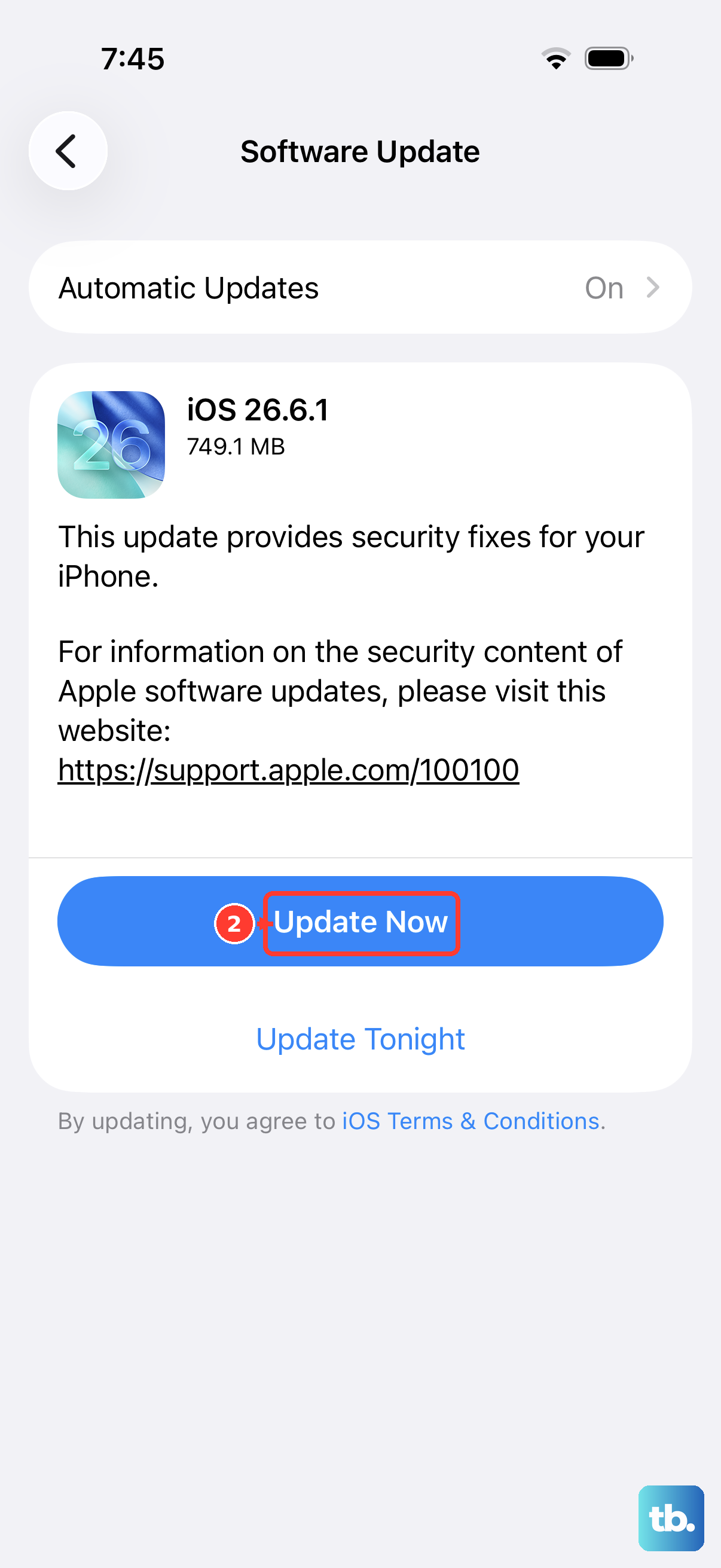
Apple has acknowledged a firmware issue in iOS 26.4.2 that can cause intermittent freezing or charging problems. After restarting, go to Settings > General > Software Update and install any available update. If the phone freezes during setup, connect it to a Mac or PC and update through Finder or iTunes instead.
Reset All Settings Without Erasing Data
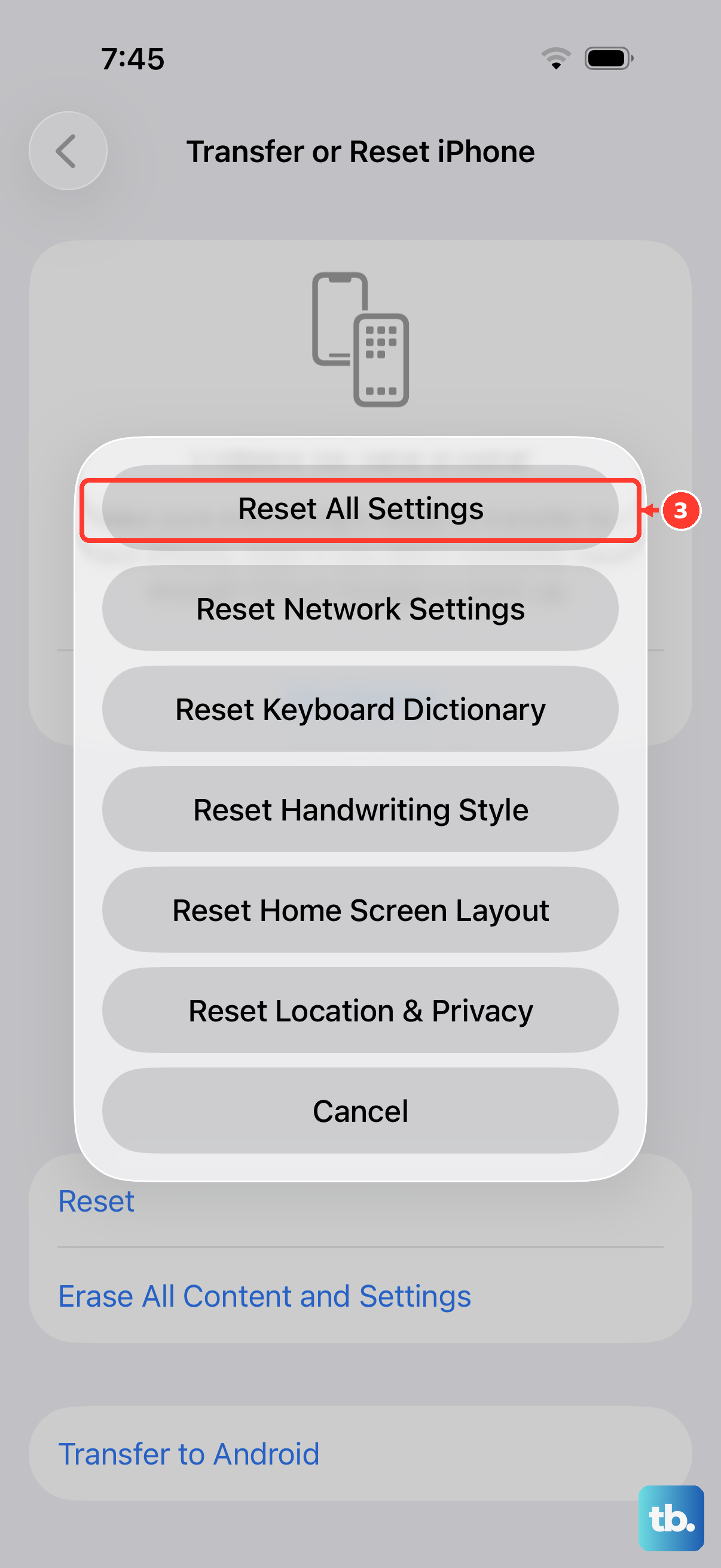
Corrupted system preferences can cause repeated freezes. Go to Settings > General > Transfer or Reset iPhone > Reset > Reset All Settings. This resets network settings, display preferences, and privacy settings without deleting your photos or apps. It often clears up software glitches that force restarts alone can’t fix.
Restore With a Computer
If the iPhone Air is permanently stuck and won’t force restart, connect it to a Mac or PC. Open Finder or iTunes and quickly press Volume Up, then Volume Down, then hold the Side button until you see the recovery mode screen. Choose Update first that reinstalls iOS without removing your data. If that fails, choose Restore (this erases everything).
Let It Cool Down
An overheating iPhone Air will freeze to protect the internal components. If the phone feels hot to the touch, remove it from direct sunlight and pop off any case that traps heat. Let it cool for 15 20 minutes. Avoid charging or using wireless charging while it’s still hot that only makes things worse.