
If your iPhone Air battery is draining noticeably faster than it did a few weeks ago, you're not imagining things. The iPhone Air is a slim device with a relatively compact battery, so any background activity or software quirk can eat through the charge quicker than you'd expect. Let me walk you through the most effective fixes, starting with the one that usually works immediately.
Check Your Battery Health First
Before you start tweaking settings, see what iOS 26 says about your battery. Open Settings > Battery > Battery Health and look at the Maximum Capacity number. If it's below 80%, the battery itself is likely the reason you're running low so fast.
A "Service" message means it's time to visit Apple, but anything below 85% can cause noticeably shorter runtimes. While you're on that screen, scroll down to Battery Usage by App to see if something like a video-streaming app or a VPN is hogging power. If one app is over 30%, that's your first place to focus.
Turn On Low Power Mode for an Instant Boost
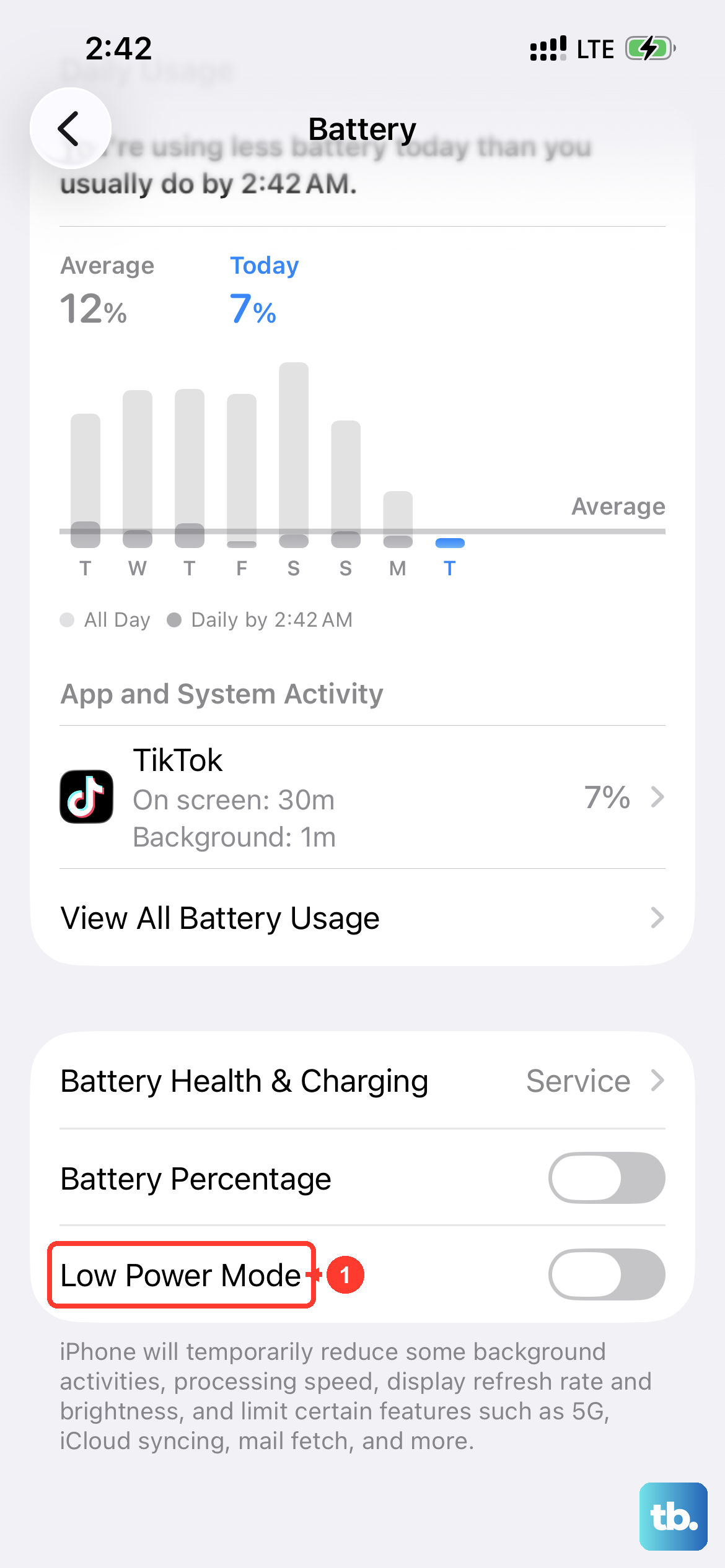
This is the quickest fix on the list. Settings > Battery > toggle Low Power Mode on. It throttles background tasks, mail fetch, and visual effects to stretch every remaining percent. On the iPhone Air, this alone can buy you an extra hour or two.
You can also add it to Control Center for one-tap access. Go to Settings > Control Center and add Low Power Mode to your included controls.
Kill Background App Refresh
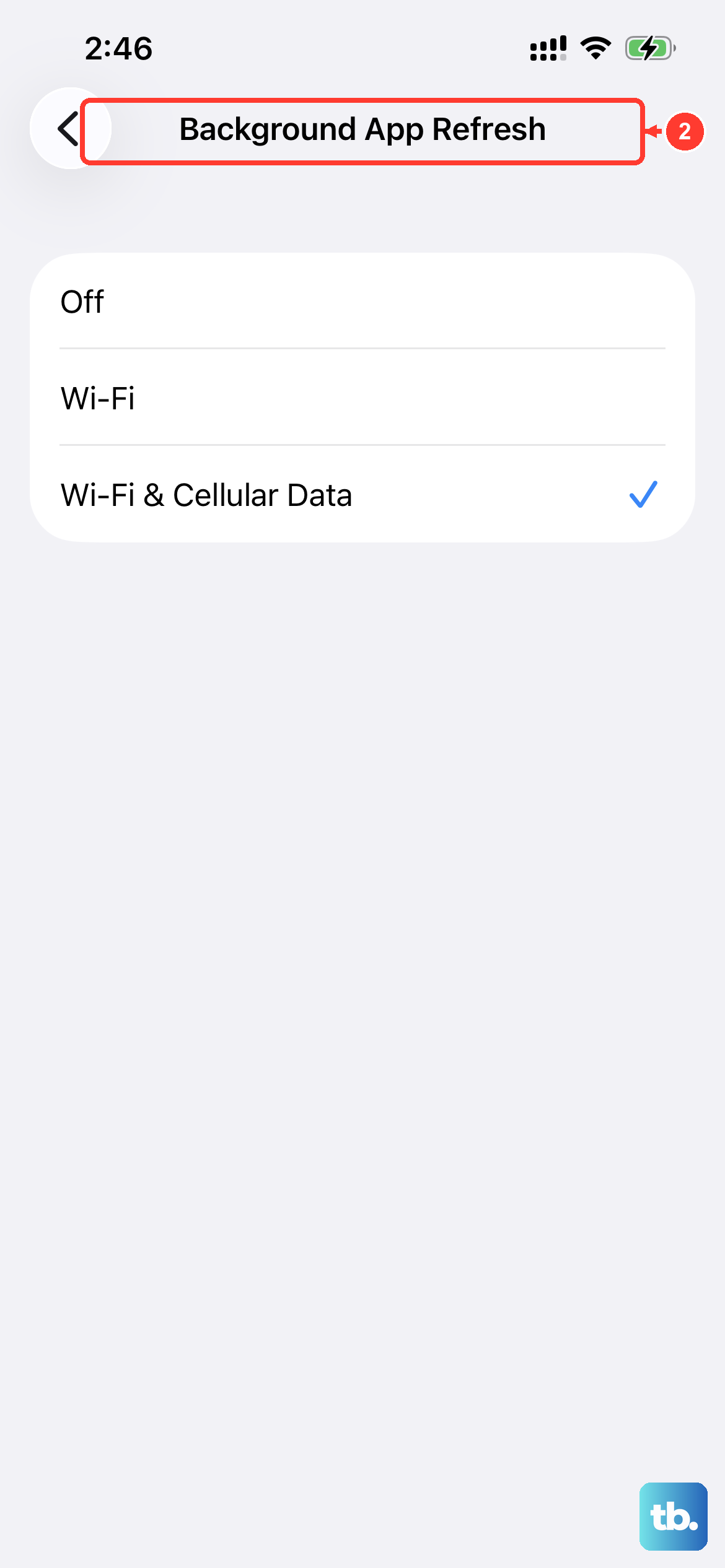
This is one of the biggest hidden drains on any iPhone, and the iPhone Air is no exception. Go to Settings > General > Background App Refresh and either turn it off entirely or limit it to Wi-Fi only. I personally switch it to Wi-Fi only because it stops cellular data from refreshing apps in the background but still lets them update when you're on a trusted network.
If you want to be more surgical, leave it on but toggle it off for individual apps you don't need updating constantly. Facebook, Instagram, and most news apps are safe to disable.
Disable Unused Location Services
Location tracking is another constant power user. Open Settings > Privacy & Security > Location Services and audit which apps have access. Set anything you don't need to "Never" or "While Using the App."
Also tap System Services at the very bottom and turn off anything you don't actively use, like Location-Based Suggestions, iPhone Analytics, and Routing & Traffic. These run silently in the background and the iPhone Air's smaller battery feels every bit of it.
Turn Off Raise to Wake and Reduce Screen Time
The iPhone Air's display is gorgeous, but lighting it up every time you pick the phone up adds up fast. Go to Settings > Display & Brightness and toggle Raise to Wake off. You can still check the time with a tap or by pressing the side button.
While you're there, reduce your Auto-Lock to 30 seconds. There's no reason for the screen to stay on for a full minute after you set the phone down. If you don't need the highest brightness, drag the slider down a few notches too.
Enable Dark Mode
The iPhone Air uses an OLED display, which means black pixels are literally turned off. Dark Mode saves real battery on this screen. Go to Settings > Display & Brightness and select Dark under Appearance. You'll see the difference most at higher brightness levels.
While you're there, turn on Dark Appearance Dims Wallpaper in Settings > Wallpaper to keep the background from fighting the power savings.
Update to the Latest iOS 26
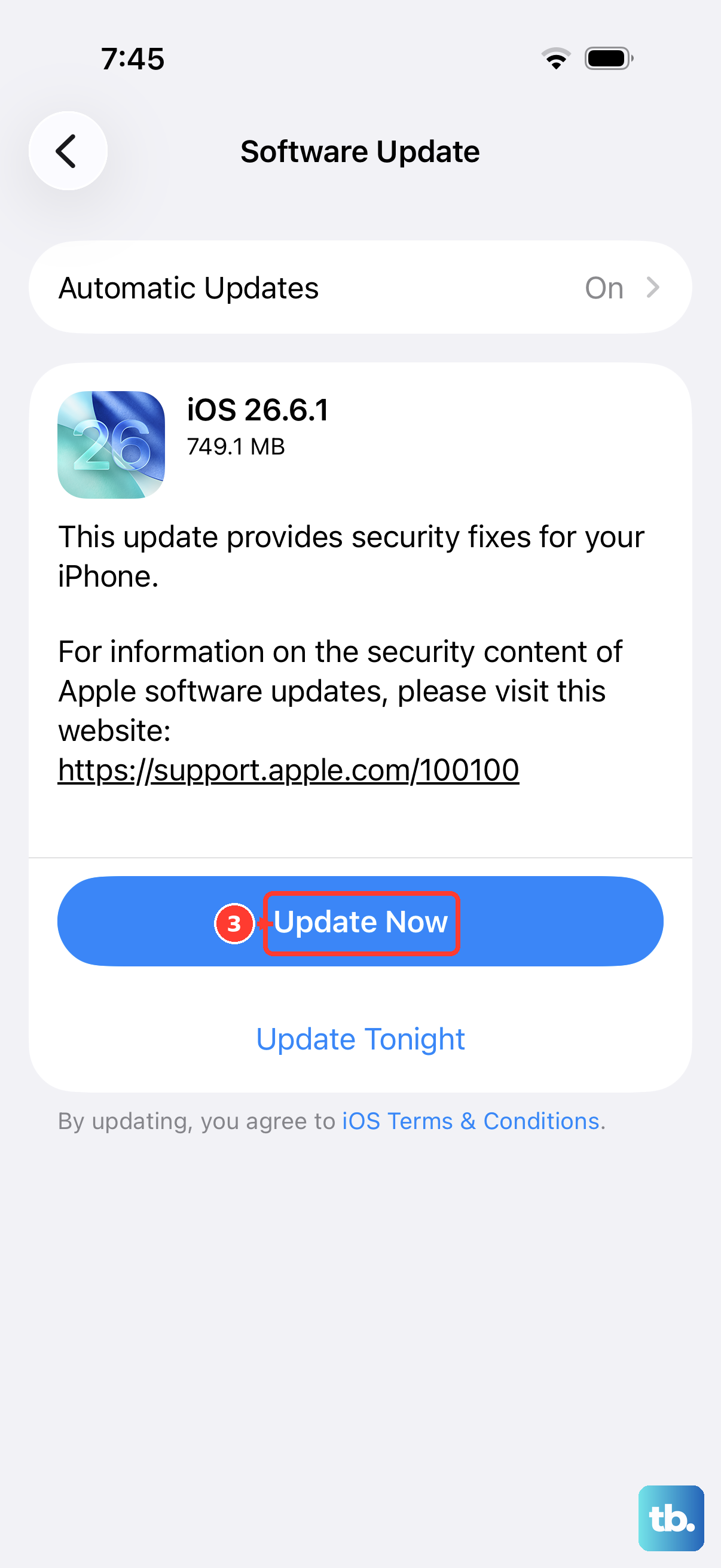
There's a known firmware issue with the iPhone Air that causes intermittent charging failures and odd battery behavior, and it wasn't fully resolved in iOS 26.4.2. Go to Settings > General > Software Update and check if a newer version is available. Apple tends to push fixes for the iPhone Air quickly since it's their latest model.
If you see an update, download and install it before trying anything else drastic. A lot of mysterious drain issues are just software bugs that get patched quietly.
Force Restart After Charging Anomalies
If your phone became unresponsive after the battery died, or if it stopped charging properly, a force restart often clears the glitch. Here's the sequence for the iPhone Air: quickly press and release the Volume Up button, then quickly press and release the Volume Down button, then press and hold the Side button until the Apple logo appears.
This doesn't erase any data, it just resets the hardware state. I'd try this before anything else if your phone isn't charging or seems stuck after a deep discharge.
Use Only Certified USB-C Cables
The iPhone Air charges over USB-C, and it's picky about what you plug into it. A cheap third-party cable or adapter can cause slow charging or no charging at all, which makes the battery seem like it's draining fast when it never filled up properly.
Stick to Apple-certified USB-C cables and a 20W or higher adapter for wired charging. The iPhone Air supports up to 40W wired, so a fast charger can top it up in under 30 minutes. For wireless, use a Qi2 or MagSafe charger rated at 20W or higher.
Try the Magnetic Battery Pack Trick
If your iPhone Air won't charge after the battery completely died and you're getting a black screen, grab a magnetic battery pack. Attach it to the back of the phone to wake the battery management system up, then try plugging in a cable charger after a minute or two. This has revived plenty of iPhone Air units that seemed completely dead.
It works because the battery management controller needs a tiny amount of power to initialize before it accepts higher-current charging. A MagSafe pack gives it exactly that.
Reset All Settings (Last Resort)
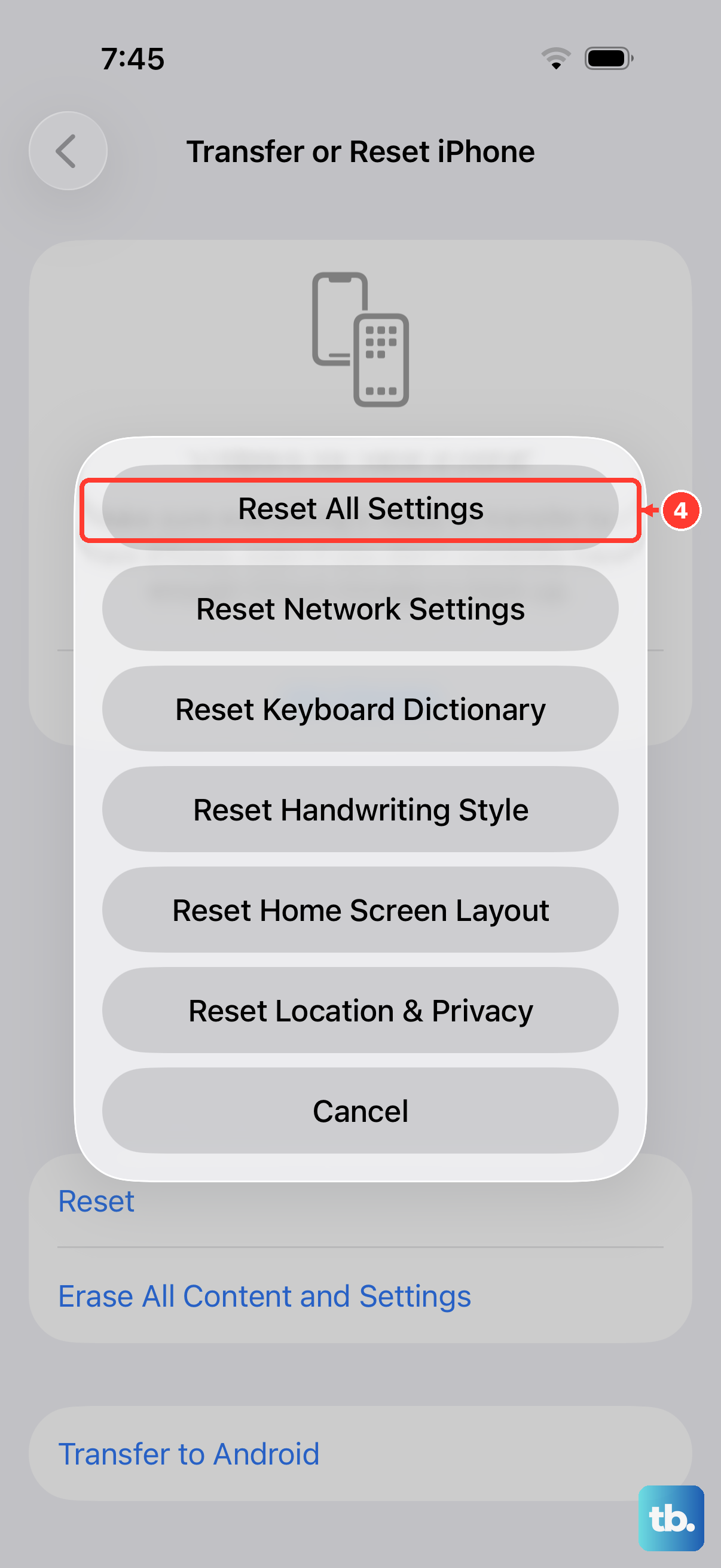
If you've tried everything and the drain continues, reset the system settings without deleting your personal data. Go to Settings > General > Transfer or Reset iPhone > Reset > Reset All Settings. This clears Wi-Fi passwords, wallpaper, and preferences, but your photos, messages, and apps stay intact.
After the reset, set up your key preferences again. In many cases, a corrupted settings file is the hidden cause of rapid drain on the iPhone Air.