
Seeing your iPhone 17 Pro frozen on the Apple logo is a stressful experience. The screen just sits there, sometimes with a progress bar that refuses to budge. This boot loop typically occurs after a failed iOS 26 update, a software corruption, or a storage issue. The good news is you can almost always get it working again.
Give It Time to Finish
Before you panic, plug your phone into power and wait. Major iOS updates, especially on newer hardware like the iPhone 17 Pro, can take a long time to finalize. The phone might be optimizing apps or completing a file system check in the background. I'd give it a solid 20 minutes if you see any progress bar at all. Interrupting it now could make the problem worse.
Perform a Force Restart
If the logo is completely static after 20 minutes, a force restart is your first real fix. On the iPhone 17 Pro, you press and quickly release the Volume Up button, then quickly press and release the Volume Down button. Immediately after, press and hold the Side button.
Keep holding the Side button until you see the Apple logo appear and then disappear again. Release the button and let the phone try to boot normally. This simple reboot clears the temporary memory and often kicks the system out of its stuck state.
Enter Recovery Mode
When a force restart just brings you back to the same frozen logo, you need to use recovery mode. Grab your USB-C cable and connect your iPhone 17 Pro to a Mac or a Windows PC with iTunes installed. On a Mac with macOS Sequoia or later, a Finder window will open.
With the phone connected, quickly press Volume Up, then Volume Down. Now, press and hold the Side button. Don't let go when you see the Apple logo. Keep holding until you see the recovery mode screen, which shows a USB-C cable pointing at a computer icon.
Your computer will then prompt you with an option to Update or Restore. You must choose Update first. This downloads a fresh copy of iOS 26 and installs it over your existing software, which usually fixes the corruption without touching your personal data. The process takes about 15 minutes.
Use DFU Mode as a Last Resort
If the recovery mode update fails or the computer doesn't recognize the phone, DFU mode is the deepest restore available. Connect to your computer first. Press Volume Up, then Volume Down. Now, press and hold the Side button for exactly 10 seconds.
After 10 seconds, without letting go of the Side button, also press and hold the Volume Down button. Hold both for 5 seconds. Then, release only the Side button while continuing to hold Volume Down for another 10 seconds.
If done correctly, your iPhone 17 Pro's screen will remain completely black. Your computer will chime and detect a device in recovery. This mode allows a full firmware restore, which is the most thorough software fix possible from your end.
Ensure You Have Enough Storage
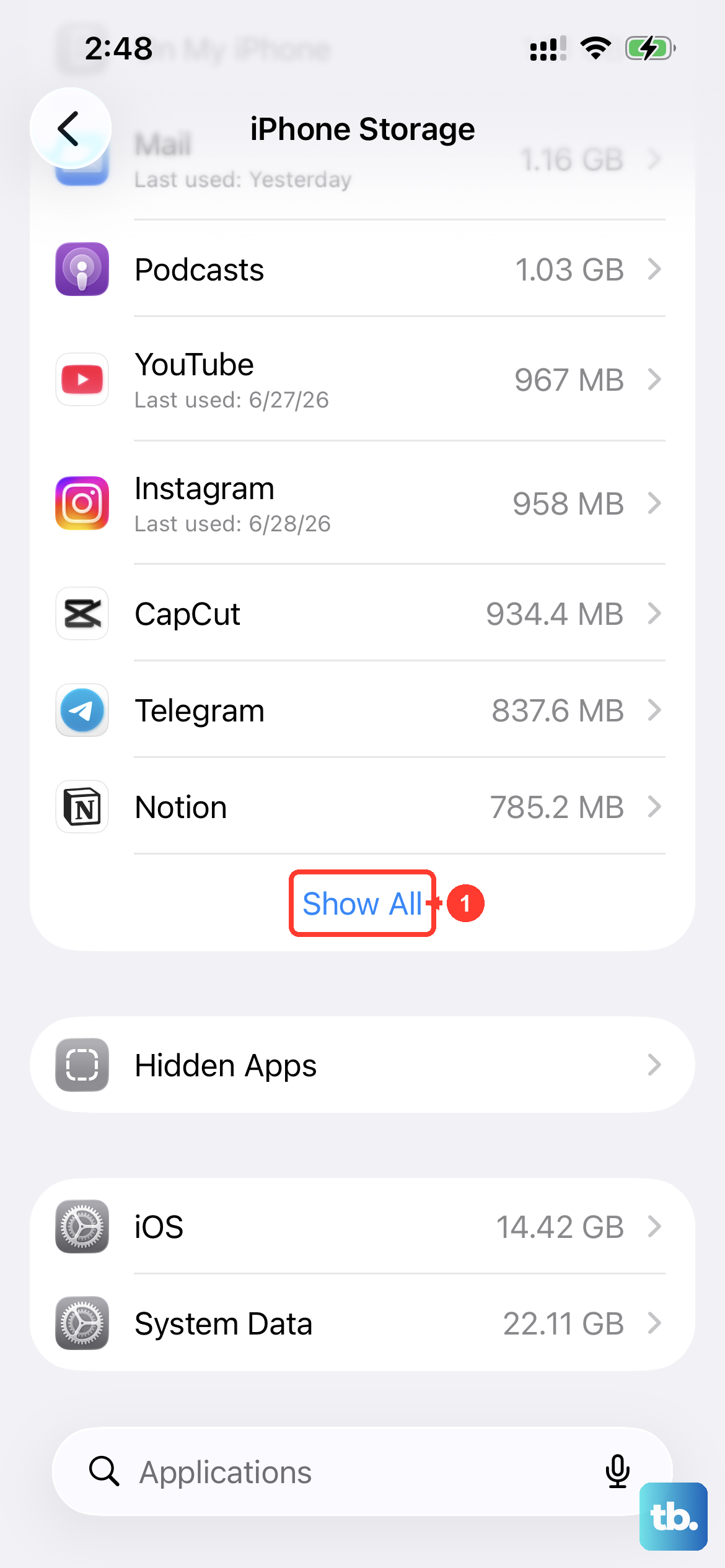
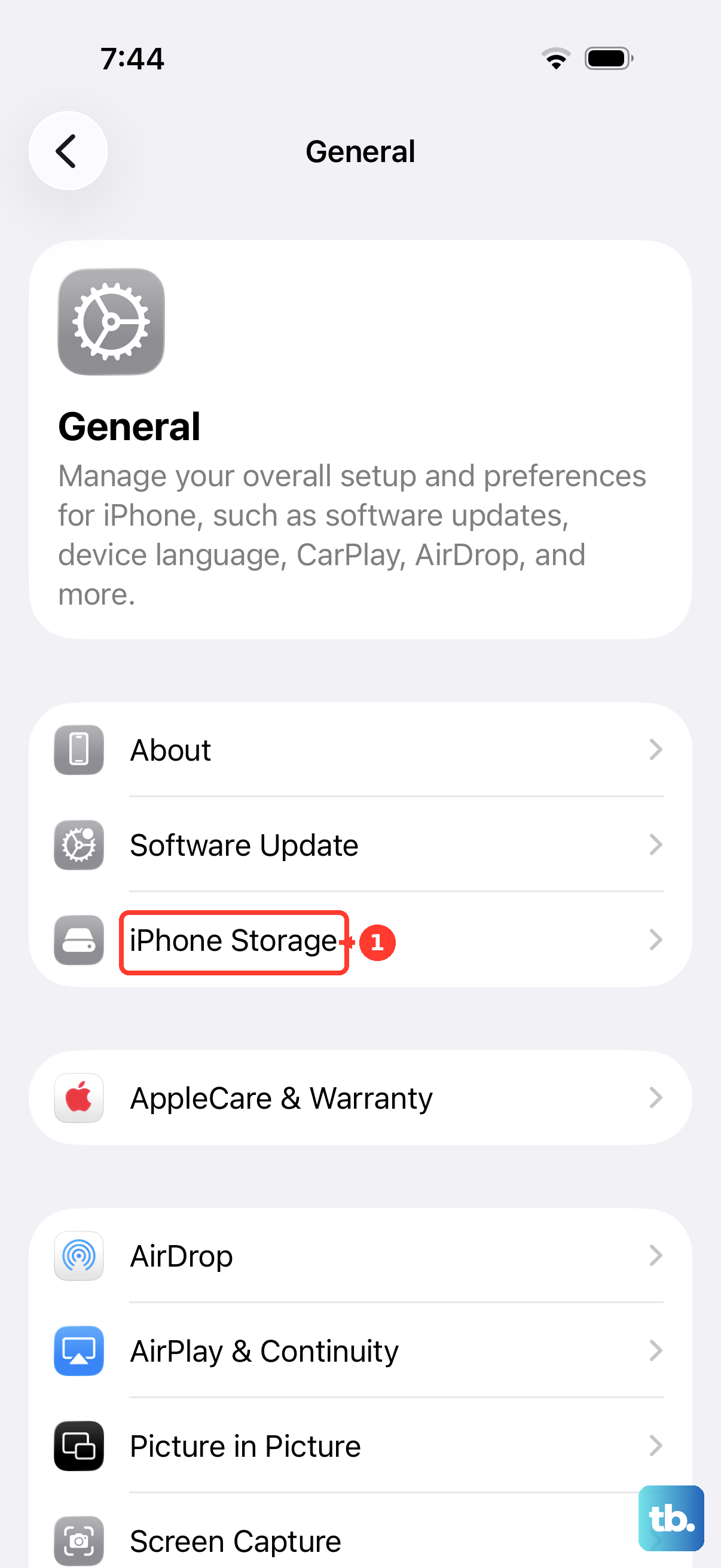
A common trigger for this issue on the iPhone 17 Pro is attempting an iOS update without enough free space. The installation can fail partway through, corrupting the boot files. If you get your phone working again, immediately check your storage in Settings > General > iPhone Storage.
You should aim for at least 10GB of free space before trying another update. Offload large apps or use iCloud Photos to clear room. Managing this proactively can prevent the boot loop from happening again.
Verify Your Connection to the Computer
Recovery and DFU modes require a solid connection. If your computer isn't recognizing the phone, the cable is the first suspect. Try a different USB-C cable, preferably the one that came with your phone or an Apple-certified model.
Also, try a different USB port on your computer. Avoid using hubs or docks for this process, as they can be unreliable. On Windows, make sure you have the latest version of iTunes from the Microsoft Store.
Restore Your Data from a Backup
If you were forced to choose "Restore" in recovery mode, your iPhone 17 Pro will be erased. After it restarts, you'll go through the setup process. When you reach the "Apps & Data" screen, select Restore from iCloud Backup or Restore from Mac to get your photos, messages, and settings back.
This is why regular iCloud or encrypted Finder/iTunes backups are so important. They turn a catastrophic software failure into a minor inconvenience, letting you pick up right where you left off.