
Seeing your iPhone 17 Pro Max frozen on the Apple logo is a stressful moment. The screen just sits there, sometimes with a progress bar that refuses to budge. This boot loop is almost always a software hiccup, often triggered by a failed iOS 26 update, a corrupted app, or a system file error. The good news is you can almost always fix it yourself.
Give It Time to Finish
Before you panic, plug your phone into a charger and wait. The iPhone 17 Pro Max has a large, complex system to initialize. After a major update, it can legitimately sit on the logo screen for 15 to 20 minutes while it completes installation and optimization in the background. If you see any progress bar at all, it's still working. Interrupting it now can make the problem worse.
Perform a Force Restart
If the logo is completely static for over 20 minutes, a force restart is your first real fix. This simple action clears the phone's temporary memory and breaks the boot loop. On the iPhone 17 Pro Max, you quickly press and release the Volume Up button, then quickly press and release the Volume Down button, then press and hold the Side button.
Keep holding the Side button until you see the Apple logo appear and then disappear again. Release the button and let the phone try to boot normally. I've seen this fix the issue more than half the time, especially if the problem was caused by a minor software glitch.
Enter Recovery Mode
When a force restart just brings you back to the same stuck logo, you need to use recovery mode. Grab your USB-C cable and connect your iPhone to a Mac or a Windows PC with iTunes installed. On a Mac, a Finder window will open. On a Windows PC, open iTunes.
Now, with the phone connected, perform the force restart button sequence again. This time, keep holding the Side button even after you see the Apple logo. Hold it until you see the recovery mode screen, which shows a USB-C cable pointing at a computer icon.
Your computer will then pop up a message. It will give you the option to Update or Restore. You must choose Update first. This downloads a fresh copy of iOS 26 and reinstalls it over your existing system without touching your personal data. The process takes about 15 minutes and requires a stable internet connection.
Use DFU Mode as a Last Resort
If the recovery mode update fails or the computer doesn't recognize the phone, DFU mode is the deepest restoration tool. DFU mode puts the phone's firmware in a state where it can be completely rewritten. Connect the phone to your computer with the USB-C cable.
Quickly press and release Volume Up, then quickly press and release Volume Down. Now, press and hold the Side button for 10 seconds. After 10 seconds, while still holding the Side button, also press and hold the Volume Down button. Hold both for 5 seconds.
Now, release only the Side button, but keep holding the Volume Down button for another 10 seconds. If done correctly, the screen will remain completely black. Your computer should chime and detect the phone in recovery mode, allowing you to perform a full restore. This will erase all data on the device.
Free Up Storage Space
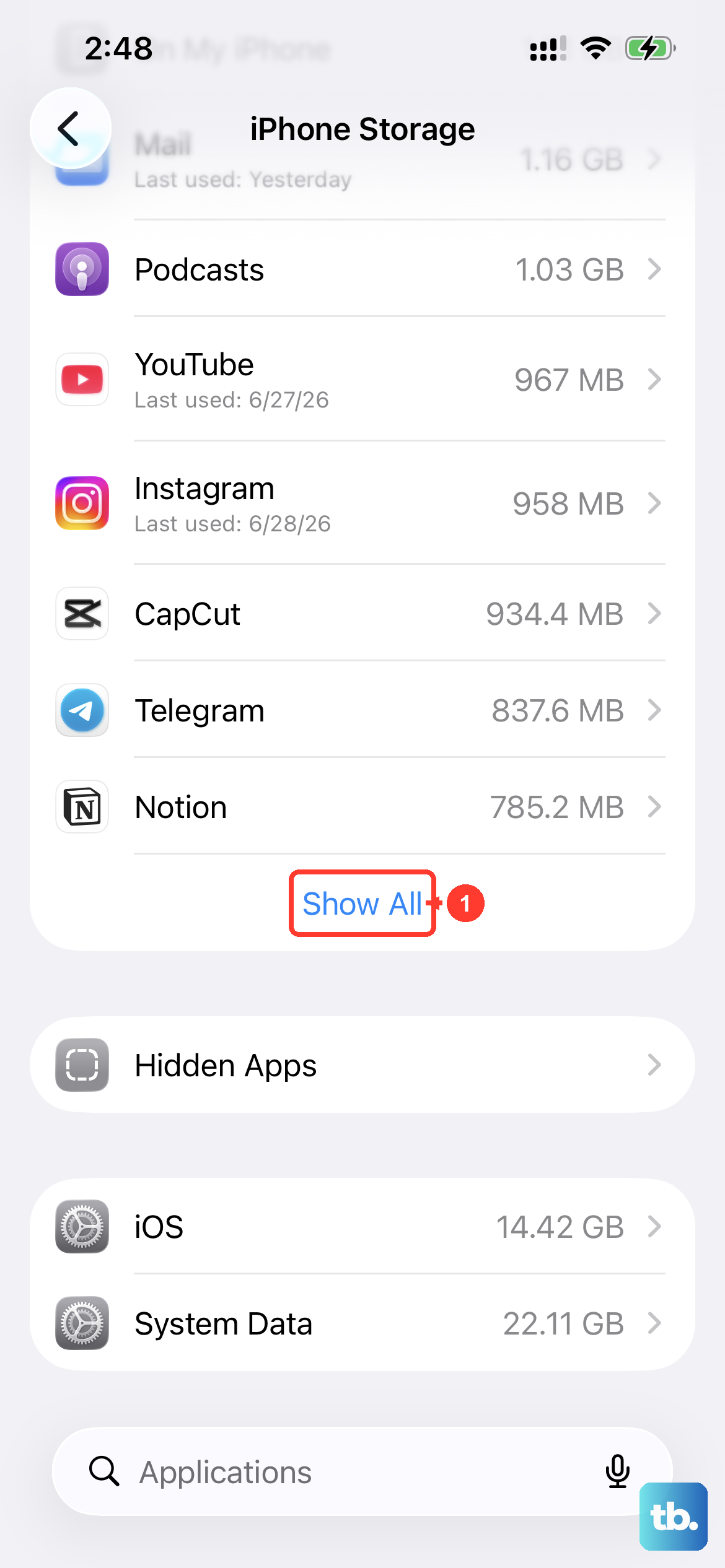
A common trigger for this issue is attempting a software update without enough free space. The installation fails partway through, corrupting the system. If you get your phone booting again after a force restart, immediately check your storage. Go to Settings > General > iPhone Storage.
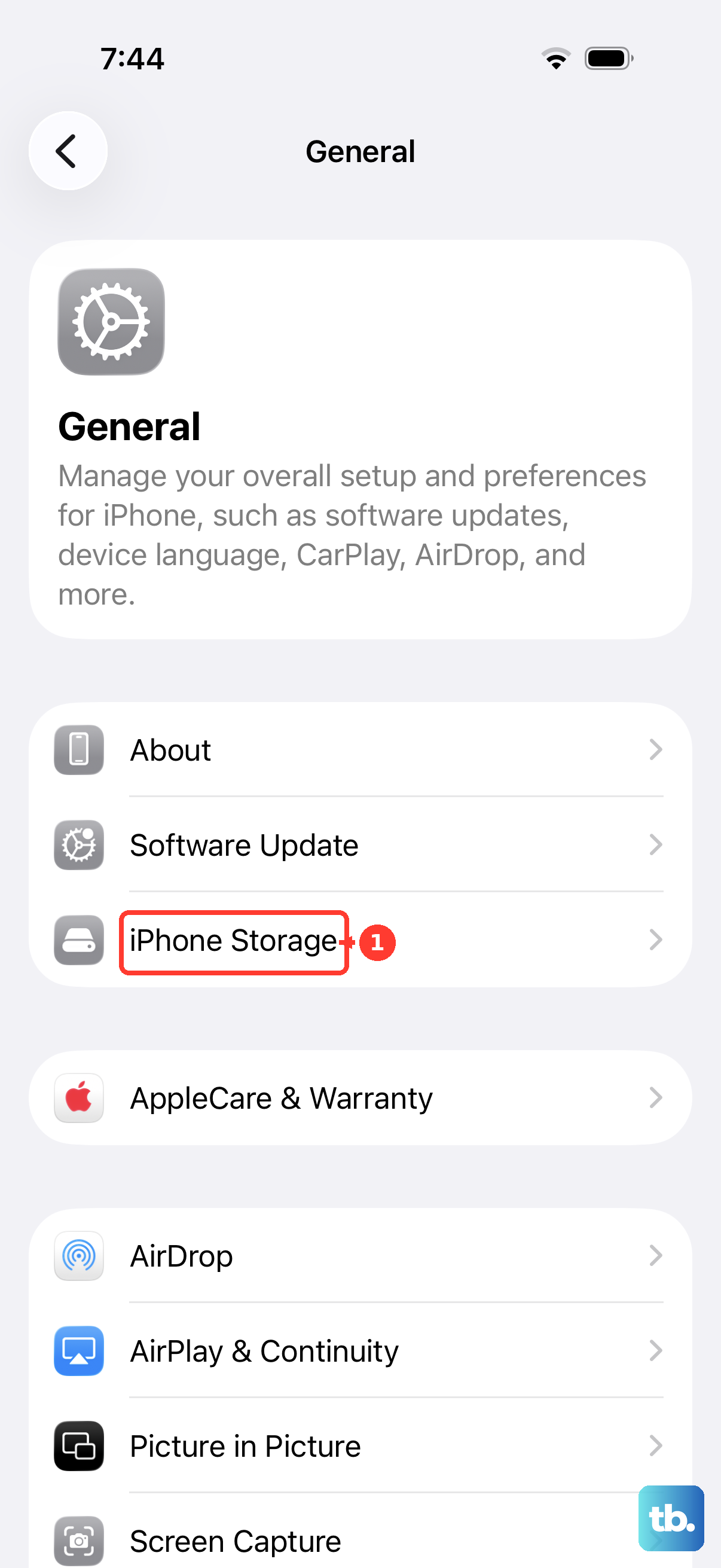
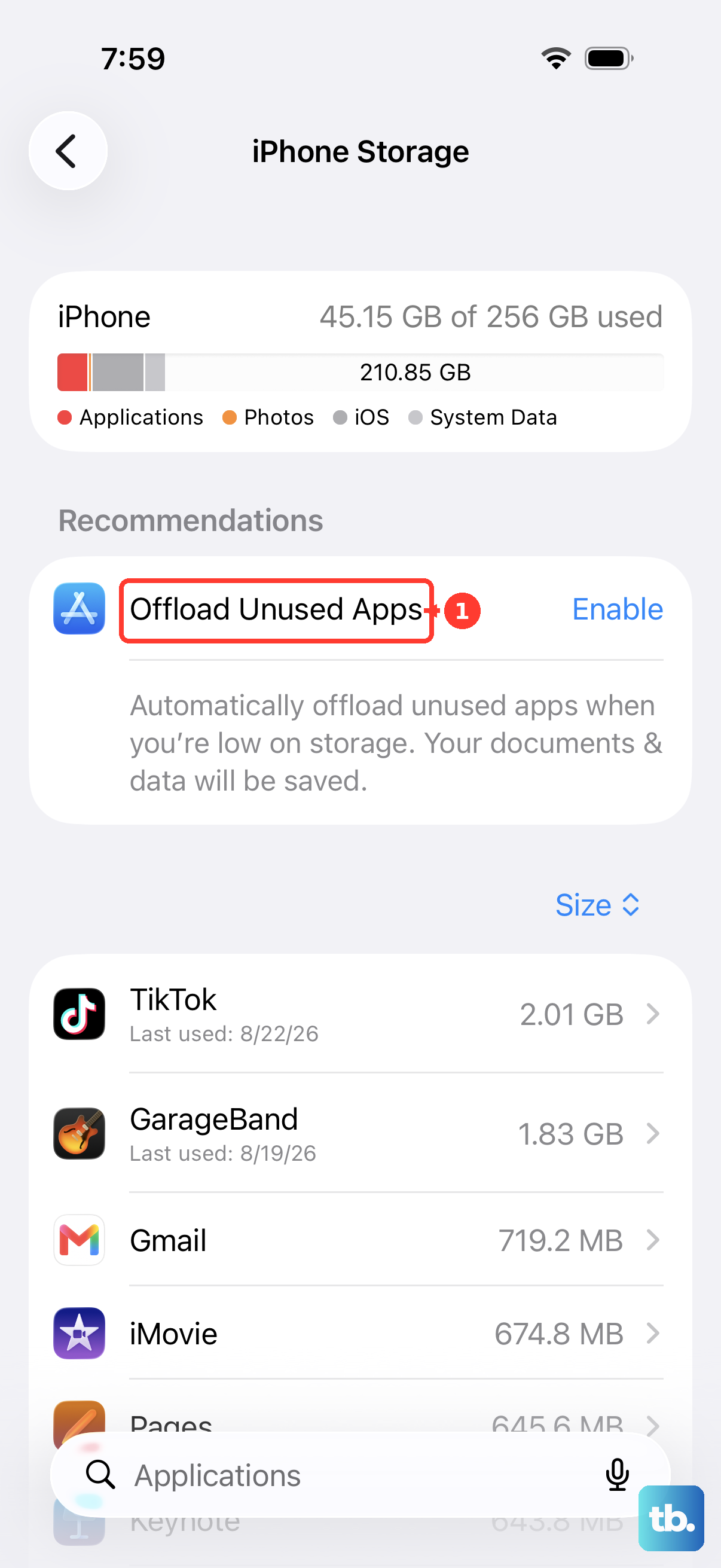
You'll want to free up at least 10-15 GB before trying another update. The iPhone 17 Pro Max's system files are large. You can offload unused apps, delete old message threads, or move photos to iCloud. This preventative step can save you from repeating the whole frustrating process.
Check Your Connection Hardware
If your computer fails to recognize the phone in recovery or DFU mode, the problem might be your gear. First, try a different USB-C cable. Not all cables support data transfer, and a damaged cable is a frequent culprit. I'd recommend using the cable that came with your phone or another Apple-certified one.
Also, try plugging into a different USB port on your computer, preferably one directly on the machine rather than a hub. On a Mac, you might need to grant Finder permission to access the phone if a prompt appears.
Restore Your Data from a Backup
If the only solution was to choose Restore in recovery mode, your phone will be wiped clean. Once it boots to the initial setup screen, you can get your life back. Choose Restore from iCloud Backup or Restore from Mac when prompted.
This is why maintaining recent backups is so critical. You can set up iCloud Backup to run automatically when your phone is charging, on Wi-Fi, and locked. It's a set-it-and-forget-it safety net for exactly this kind of situation.