
Keeping your iPhone 17 Pro Max on the latest version of iOS is the best way to ensure it runs smoothly and securely. Apple's updates bring everything from major new features to small bug fixes and critical security patches. Here's how to handle them on your specific device.
Update Over Wi-Fi
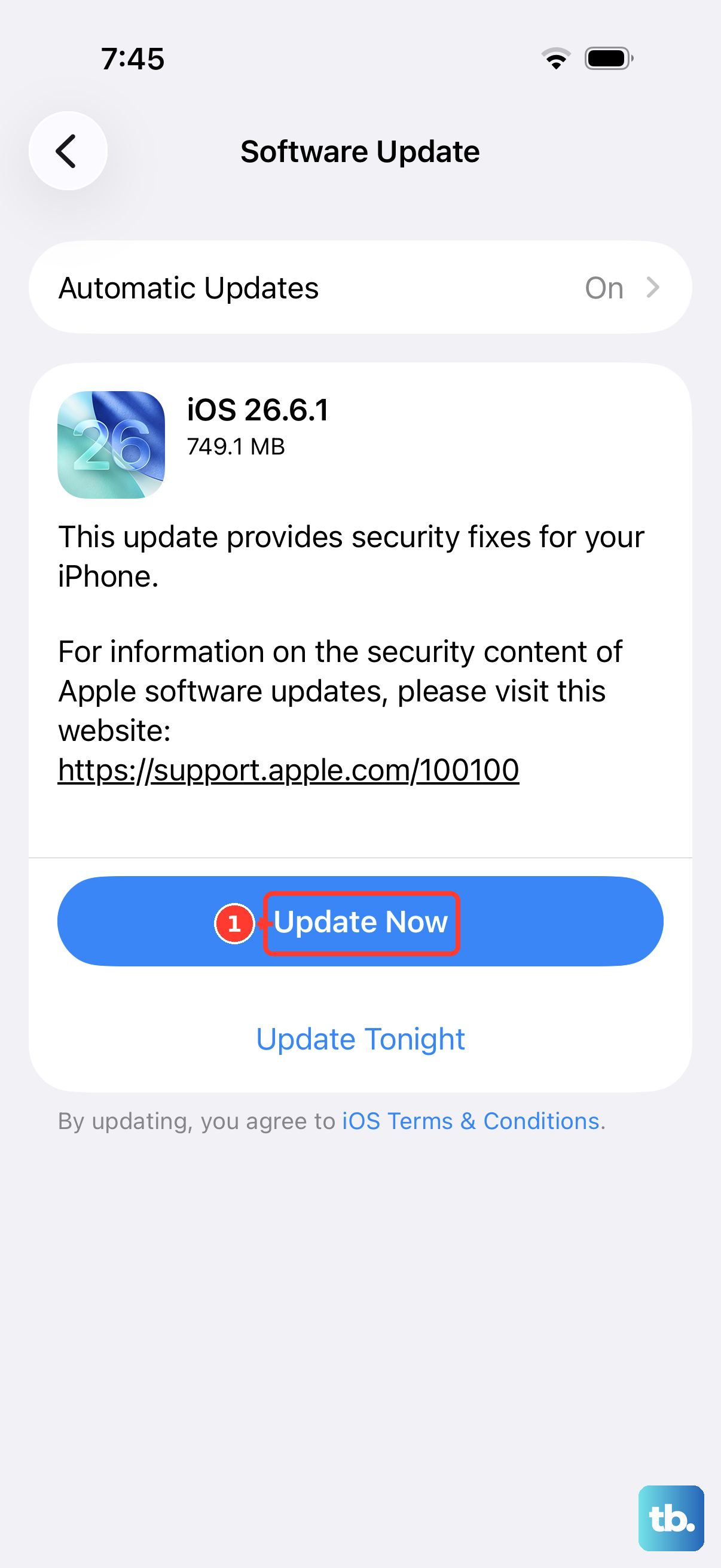
This is the simplest method for most people. Open Settings > General > Software Update on your iPhone 17 Pro Max. The phone will check for any available updates. When one appears, you'll see details about what's included. Tap Download and Install to begin.
Make sure your phone is connected to a strong Wi-Fi network and has at least 50% battery, or better yet, plug it in. The download can be large, especially for major iOS releases, so be patient.
Enable Automatic Updates
If you prefer a hands-off approach, let your phone handle it. Go to Settings > General > Software Update > Automatic Updates. Turn on both Automatically Download and Automatically Install. With these enabled, your iPhone 17 Pro Max will download updates in the background.
It will then install them overnight when the phone is connected to a charger and Wi-Fi. You'll still get a notification before the installation happens, giving you a chance to delay it if needed.
Update Using a Mac or PC
If an over-the-air update fails or your phone is low on storage, updating via a computer is a reliable alternative. Connect your iPhone 17 Pro Max to your computer using a USB-C cable. On a Mac with macOS Catalina or later, open Finder. On a Windows PC, open the Apple Devices app.
Select your device in the sidebar, then click Check for Update. If an update is found, click Download and Update. This method helps when your phone is short on space, because the computer downloads the update.
Restart After a Failed Update
Sometimes an update can get stuck. If your iPhone 17 Pro Max is frozen on the Apple logo or a progress bar, a force restart will usually kick it back into gear. Quickly press and release the Volume Up button, then quickly press and release the Volume Down button.
Immediately after, press and hold the Side button. Keep holding it until you see the Apple logo appear, then let go. If the problem persists, the computer update method described above is your next best step to recover the device.
Check Your iOS Version
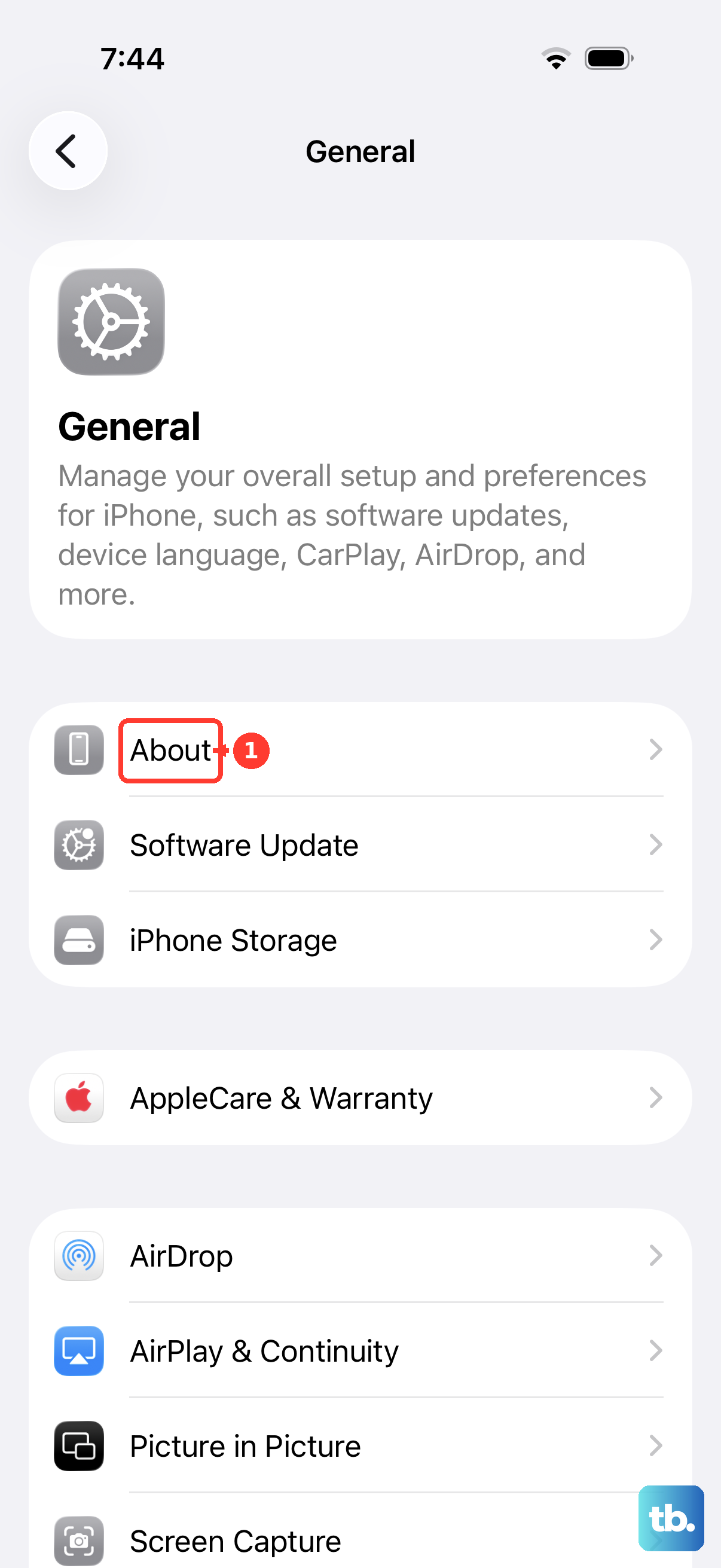
It's useful to know exactly which build you're running. To check, go to Settings > General > About. Look for the "iOS Version" entry near the top of the screen. This number tells you if you're on the latest public release or a specific beta version.
Back Up Before You Update
Always back up your iPhone 17 Pro Max before installing any significant update. The easiest way is via iCloud. Go to Settings > [Your Name] > iCloud > iCloud Backup and tap Back Up Now.
Ensure the backup completes by checking the time stamp. This gives you a safety net. If anything goes wrong during the update process, you can restore your phone and all your data from this backup without losing anything.
Manage Storage for Updates
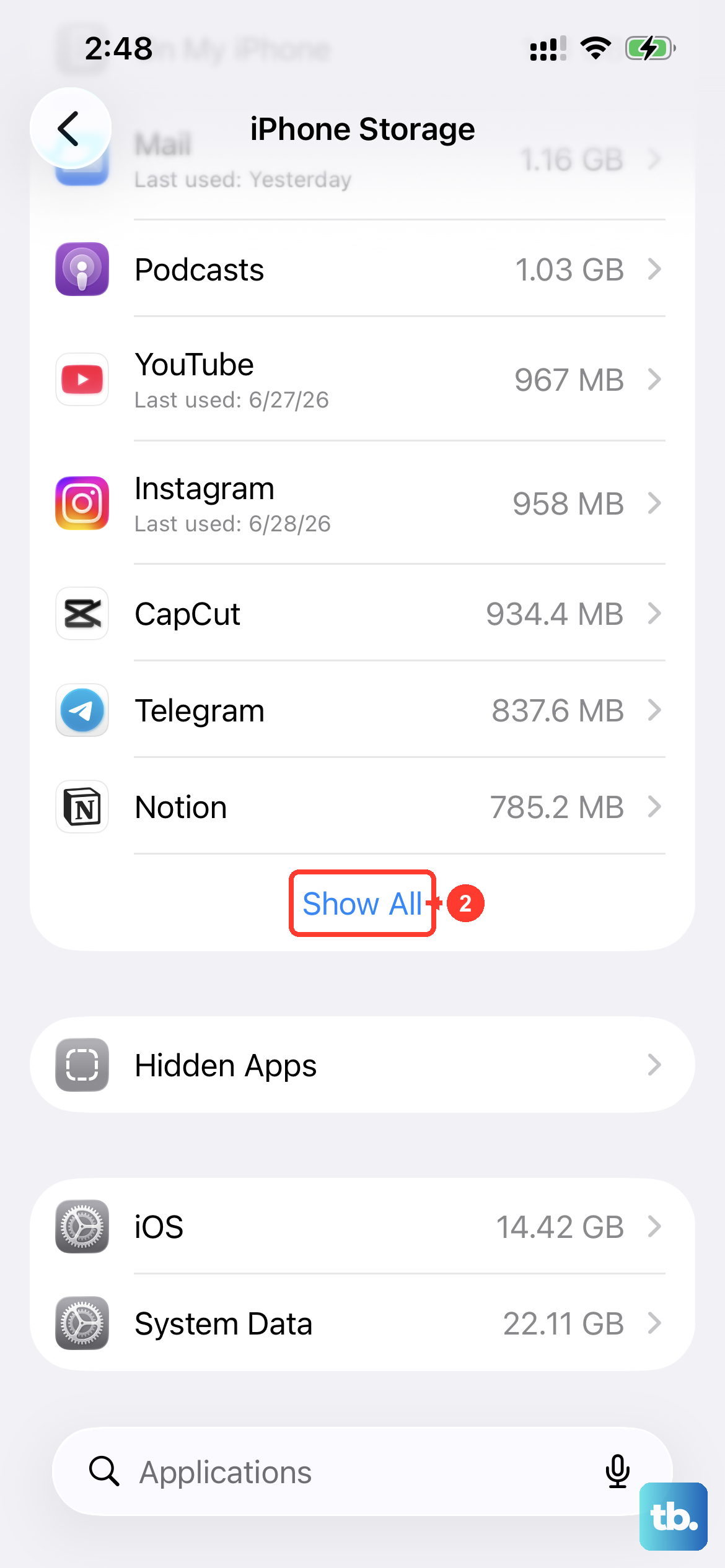
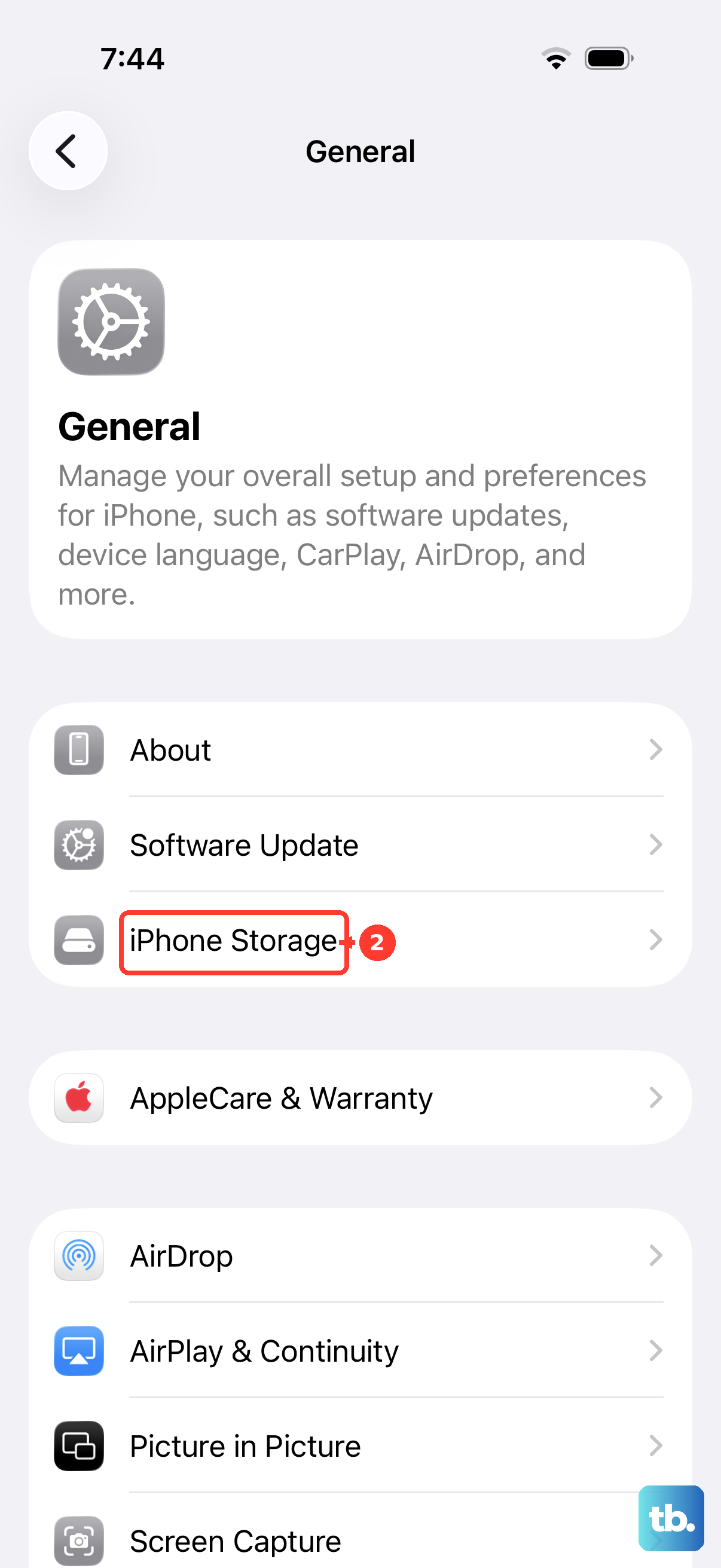
Major iOS updates require several gigabytes of free space. If you get a warning about insufficient storage, you can free some up directly. Go to Settings > General > iPhone Storage. The system will offer recommendations for offloading unused apps or reviewing large attachments.
You can also manually delete old videos or apps you no longer need. If you still don't have enough space, update with a computer instead, as described above.
Understand Update Benefits
Every update for your iPhone 17 Pro Max includes vital security patches that protect your personal information. Beyond that, updates can bring performance improvements and bug fixes.
They also enable new features that take advantage of the phone's hardware. Staying current ensures you get the most out of your device.