
Is your iPhone Air stuck in portrait mode even when you tilt it sideways? This is a common annoyance, but it usually comes down to a simple setting or a minor software hiccup. I've seen this happen across several iPhone models, and the fixes are almost always quick and painless.
Before you panic about broken sensors, try these eight troubleshooting steps in order. The first one solves most cases.
Toggle the Rotation Lock in Control Center
The rotation lock is the most frequent culprit. It's really easy to accidentally enable it without realizing. When it's on, the phone locks the screen orientation, ignoring your tilt.
Swipe down from the top-right corner of the screen to open Control Center. Look for the rotation lock icon, it looks like a circular arrow with a padlock. If it's highlighted red or white (depending on your theme), tap it to unlock. The icon should turn gray, and you'll feel a slight haptic confirmation.
Try rotating your phone again. If the screen flips to landscape, you're done. This fix takes about two seconds.
Give It a Normal Restart
Sometimes the software just needs a quick kick. A standard restart clears temporary glitches that might be confusing the orientation sensor.
Press and hold the Side button and either Volume button until the power-off slider appears. Drag the slider, wait about 30 seconds, then press and hold the Side button again until the Apple logo appears. Once it boots up, test rotation in the Photos app or Safari.
Force Restart the iPhone Air
If a normal restart didn't do the trick, a force restart can clear deeper software hang-ups. This doesn't erase any of your data.
Quickly press and release the Volume Up button, then quickly press and release the Volume Down button. Right after that, press and hold the Side button until you see the Apple logo. Keep holding even if the screen goes black, just wait for the logo. This should work on any iPhone Air running iOS 26.
Check App-Specific Orientation Support
Not every app supports both portrait and landscape modes. If rotation works in one app but not another, it's the app itself, not your phone.
Test rotation in a few different apps like Safari, YouTube, or Photos. If it works everywhere except, say, the Settings app, that's normal, many utility apps only support portrait. If a specific third-party app isn't rotating, check if it has its own orientation lock in its settings, or try updating it from the App Store.
Disable Display Zoom (If You Changed It)
The iPhone Air supports Display Zoom, which essentially changes the Home screen grid size. When Display Zoom is set to "Zoomed" mode (larger icons), the Home screen stays locked in portrait. Only the "Standard" view allows the Home screen to rotate to landscape.
Go to Settings > Display & Brightness > View (or Display Zoom). If you see "Zoomed" selected, tap "Standard" and tap "Use Standard View". Your phone will restart briefly. Once it's back, see if your Home screen now rotates.
This doesn't affect rotation inside apps, just the Home screen itself.
Update iOS to the Latest Version
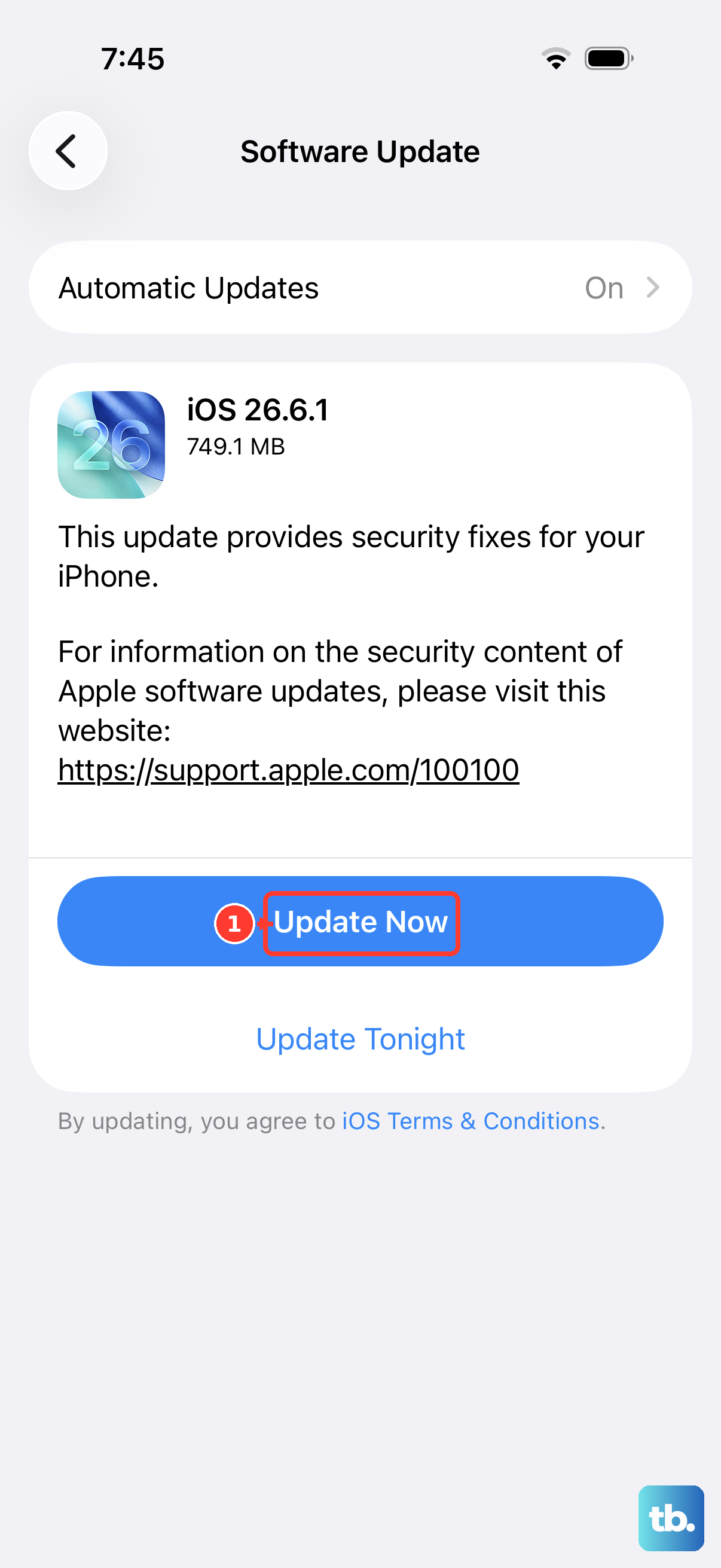
Apple occasionally releases software updates that fix bugs related to sensors and orientation. If you're running an older build of iOS 26, a pending update might contain the fix you need.
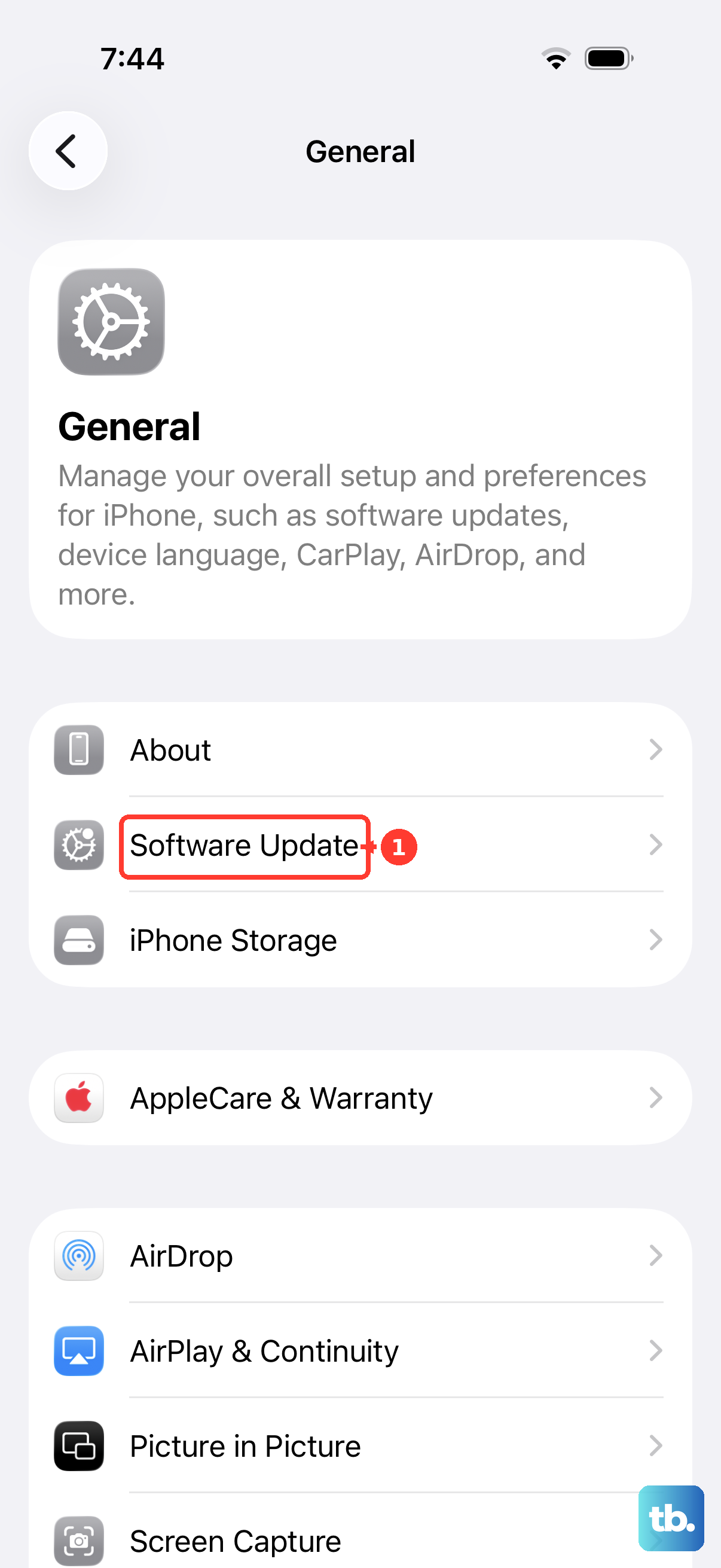
Open Settings > General > Software Update. If there's an update available, tap "Download and Install". Make sure your phone is plugged into power or has at least 50% battery, or leave it on the charger overnight.
Test the Gyroscope and Accelerometer
You can check whether the motion sensors are functioning without any special tools. The iPhone includes a built‑in Level tool in the Compass app and a Measure app that can give you feedback.
Open the Compass app, then tap the little level icon (it looks like a bubble level). Place the phone on a flat surface and watch the angle values change as you tilt it. If the numbers don't move at all, the sensors might be dead. Another quick test: open the Measure app and move your phone around, if the scene tracks movement, the gyro is alive.
If neither app responds to motion, you're probably looking at a hardware issue.
Remove Cases and Screen Protectors Temporarily
Some magnetic cases or metal‑reinforced cases can interfere with the iPhone Air's internal magnetometers and gyroscope. The phone uses these sensors to detect orientation, and a strong magnet nearby can confuse them.
Take off any case or folio, especially ones with magnets, and try rotating your phone again. Also remove any thick screen protectors that might be pressing against the edges. If rotation suddenly works without the case, you've found the culprit.
If none of these steps restore rotation, it's likely a hardware fault. At that point, you'd want to contact Apple Support for service options. But try these first, the vast majority of rotation lock issues are fixed by toggling Control Center or a simple restart.