
When your brand new iPhone Air suddenly refuses to download apps, it can be seriously annoying. You tap Get or the cloud icon, and nothing happens, or the download just spins forever. This is a pretty common issue on iOS devices, including the iPhone Air, and it usually has a straightforward fix.
Let me walk you through the most effective ways to get apps downloading again on your iPhone Air.
Check Your Internet Connection First
This might sound obvious, but it's the most common reason apps won't download. Pull down Control Center and make sure Wi-Fi or cellular data is actually on and connected. If you see the Wi-Fi icon but apps still won't download, try toggling it off and back on.
A quick way to test your connection is to open Safari and load any webpage. If it doesn't load, your connection is the problem, not the App Store. Try switching between Wi-Fi and cellular data to see which one works.
Force Restart the iPhone Air
Sometimes the App Store or the download manager gets stuck in a weird state that a normal restart won't fix. A force restart clears that out without deleting any of your data.
Here's exactly how to do it on the iPhone Air running iOS 26: Quickly press and release Volume Up button, then quickly press and release Volume Down button, then press and hold Side button until Apple logo appears. Keep holding until you see that Apple logo, then let go. Your phone will boot back up normally.
After it restarts, try downloading an app again. In my experience, this fixes the problem more often than you'd expect.
Sign Out and Back Into the App Store
Your Apple ID connection to the App Store can sometimes get out of sync. Signing out and back in forces a fresh connection, which usually clears up download issues.
Open the App Store and tap your profile icon in the top right corner. Scroll down and tap Sign Out. Don't worry, this only signs you out of the App Store, not your entire phone. Then tap Sign In and enter your Apple ID credentials. Try downloading an app right after.
Check Your Available Storage
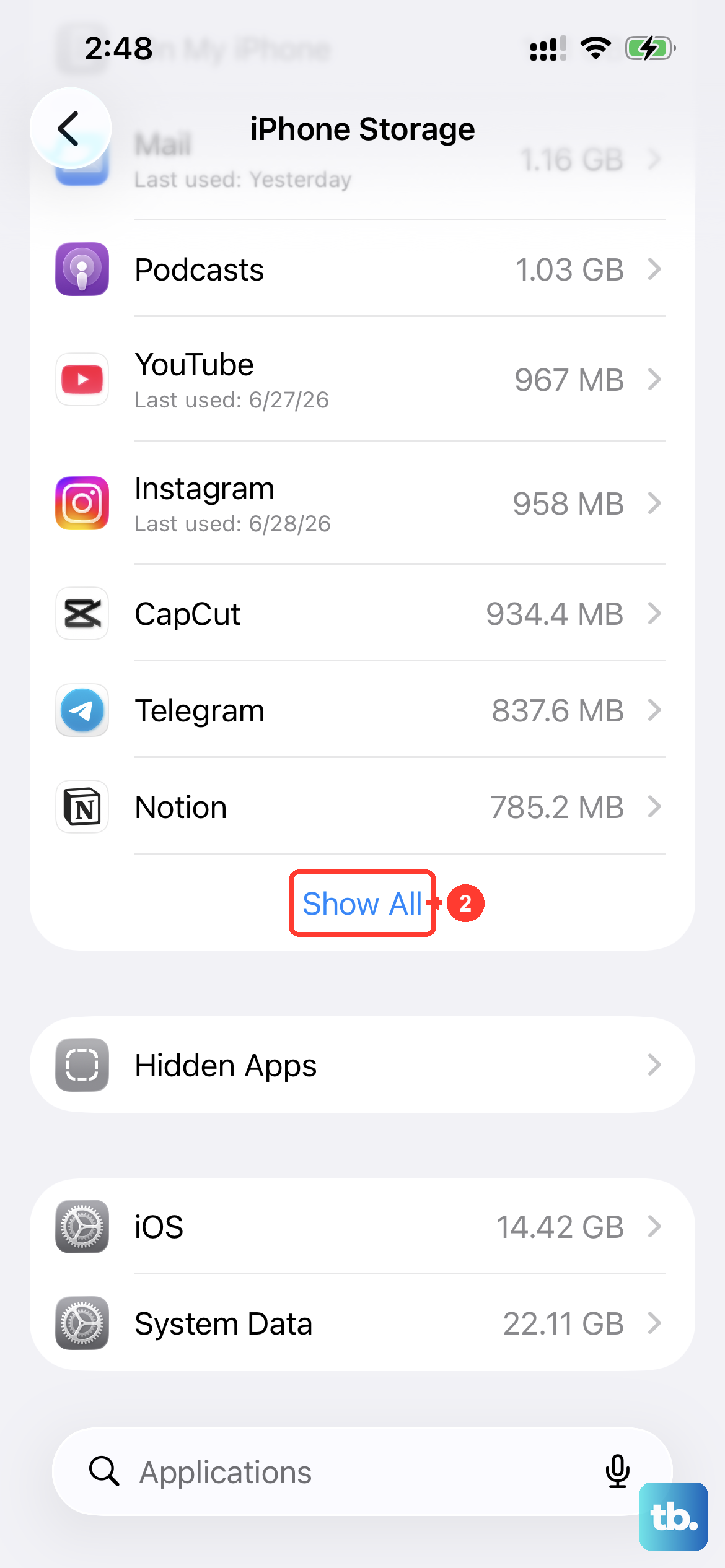
If your iPhone Air is running low on space, new app downloads will fail. This is especially true for larger apps and games that need more room to install.
Go to Settings > General > iPhone Storage. You'll see a bar showing how much space is used and how much is free. If you're close to full, tap Offload Unused Apps to automatically remove apps you don't use often while keeping their documents and data. You can also manually delete old photos, videos, or apps you no longer need.
Make Sure Date and Time Are Correct
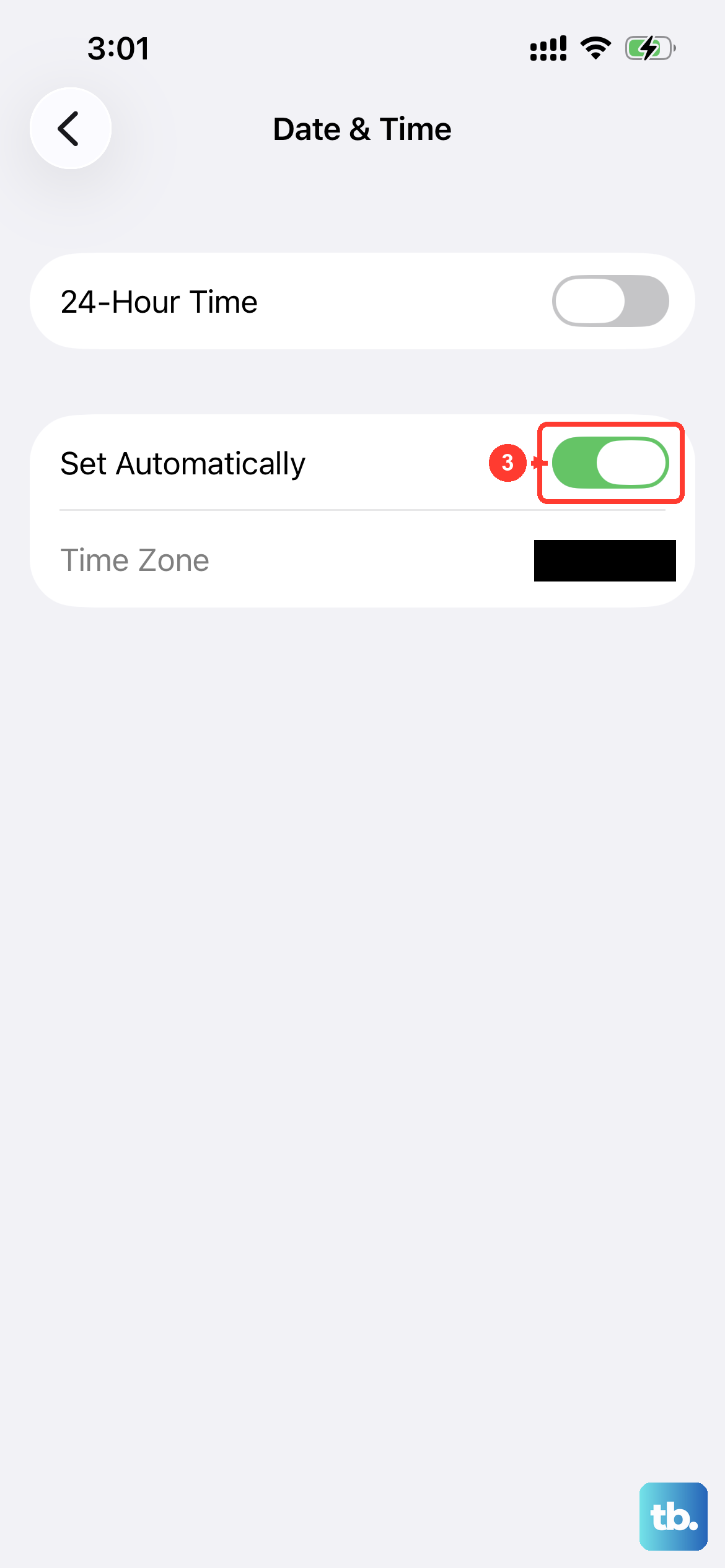
The App Store uses your device's date and time to verify your connection to Apple's servers. If these settings are wrong, app downloads can fail.
Go to Settings > General > Date & Time. Make sure Set Automatically is toggled on. This lets your iPhone Air get the correct time from your cellular network or Wi-Fi. If it's already on, toggle it off, wait a few seconds, then toggle it back on.
Check Content and Privacy Restrictions
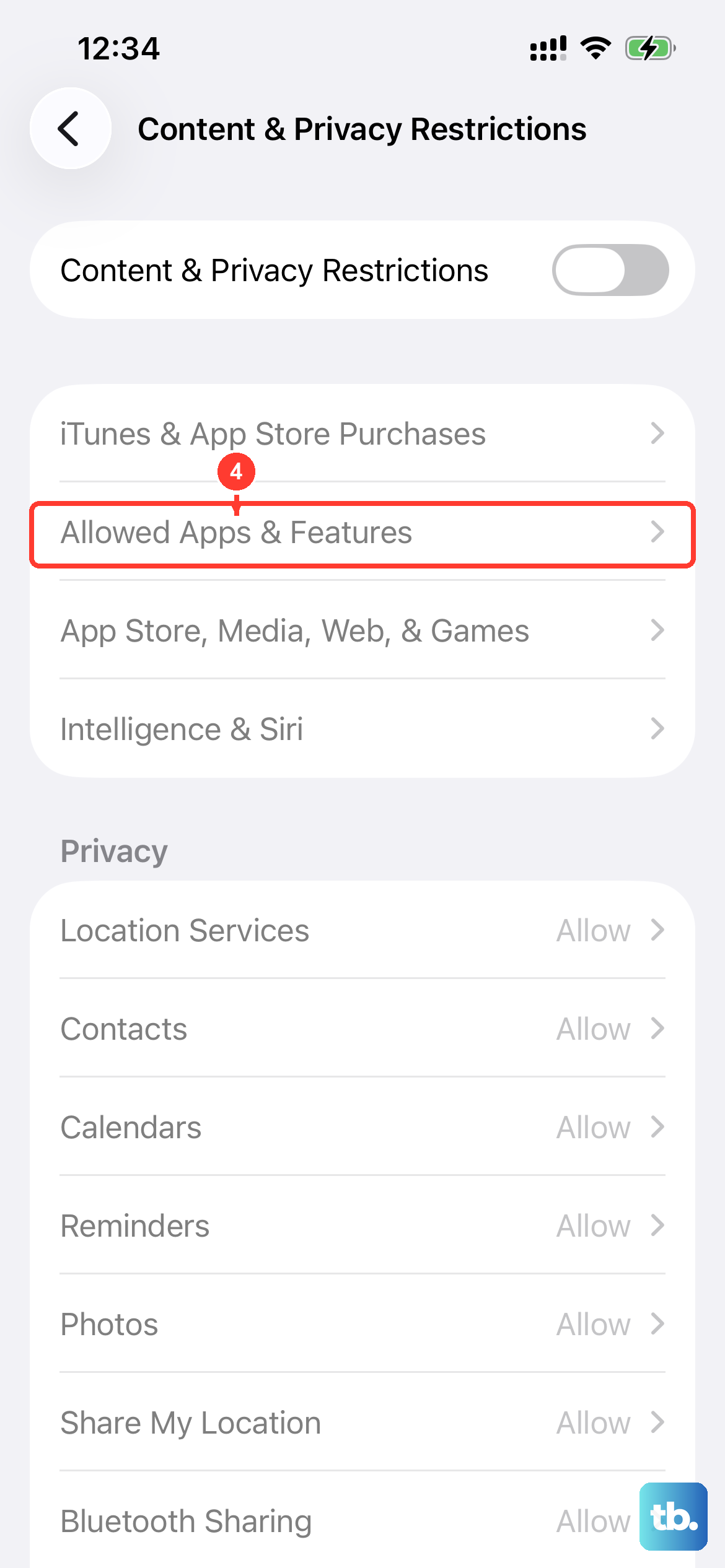
If you've set up Screen Time or Family Sharing restrictions, they might be blocking app downloads. This is surprisingly common and easy to overlook.
Go to Settings > Screen Time > Content & Privacy Restrictions. If this is enabled, tap iTunes & App Store Purchases and make sure Installing Apps is set to Allow. While you're here, also check that the App Store itself isn't restricted under Allowed Apps.
Update iOS to the Latest Version
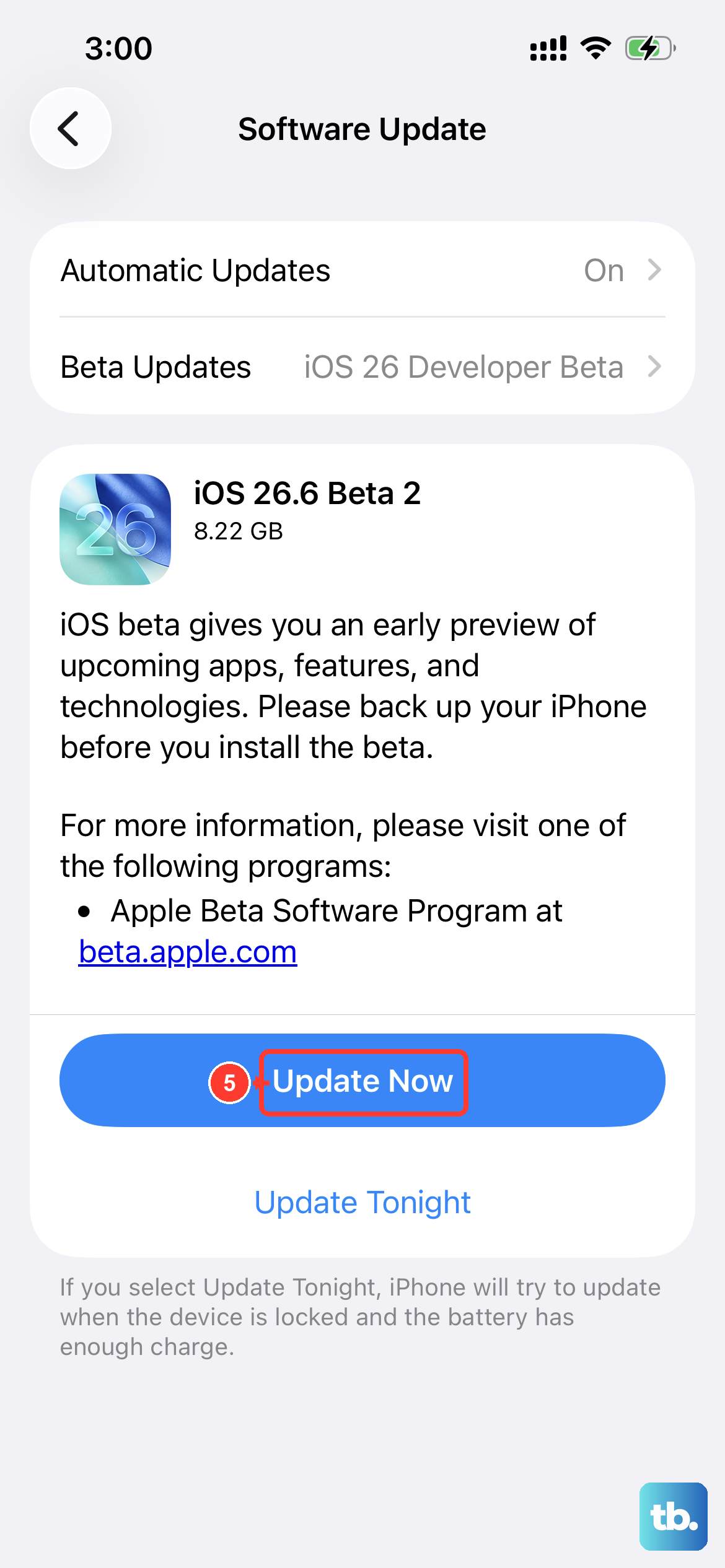
Some app download issues are caused by bugs in iOS that Apple fixes in software updates. The iPhone Air shipped with iOS 26, and there have been updates since then.
Go to Settings > General > Software Update. If an update is available, tap Download and Install. Your phone will restart during the process. After the update finishes, try the App Store again. I'd recommend keeping automatic updates on to avoid this issue in the future.
Reset Network Settings
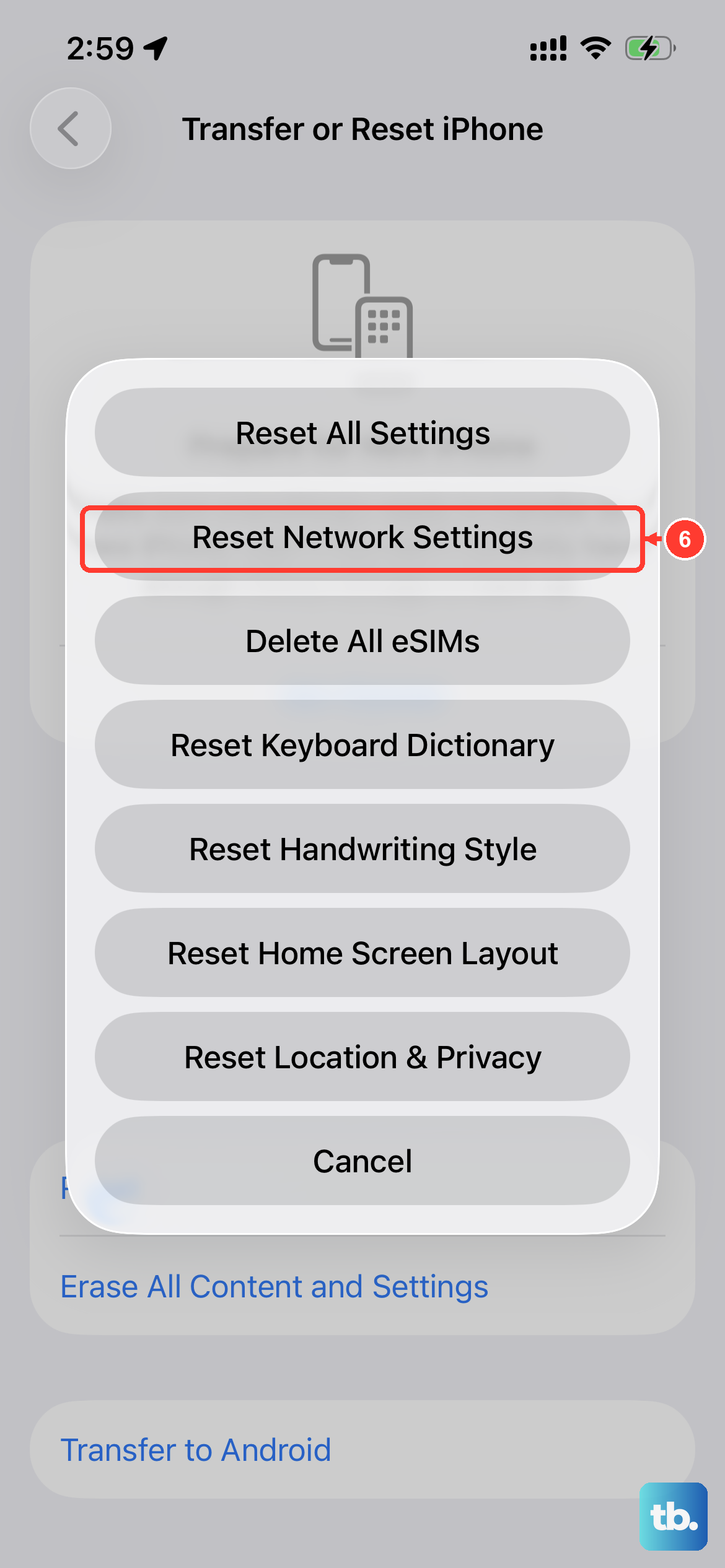
If the problem only happens on a specific network, or if none of the above fixes worked, your network settings might be corrupted. This resets saved Wi-Fi networks, Bluetooth connections, and cellular settings without touching any of your personal data.
Go to Settings > General > Transfer or Reset iPhone > Reset > Reset Network Settings. Your phone will restart, and you'll need to reconnect to Wi-Fi networks afterward. Test the App Store once you're back online.
Check Apple System Status
Sometimes the problem isn't on your end at all. Apple's services occasionally go down, which would prevent app downloads for everyone.
Open Safari and go to Apple's System Status page. You can also just try downloading a free app that you know is available. If you see that the App Store or Apple ID services are listed as having an issue, you'll need to wait until Apple fixes it on their end.
Try Offloading and Reinstalling the App Store
The App Store app itself can have corrupted cache files. Since you can't delete the App Store the way you can with third-party apps, offloading is the next best option.
Go to Settings > General > iPhone Storage. Scroll down and find App Store. Tap it, then tap Offload App. This removes the app but keeps its documents and data. Then tap Reinstall App. Your App Store icon will reappear on the home screen. Sign back in if needed and try downloading something.
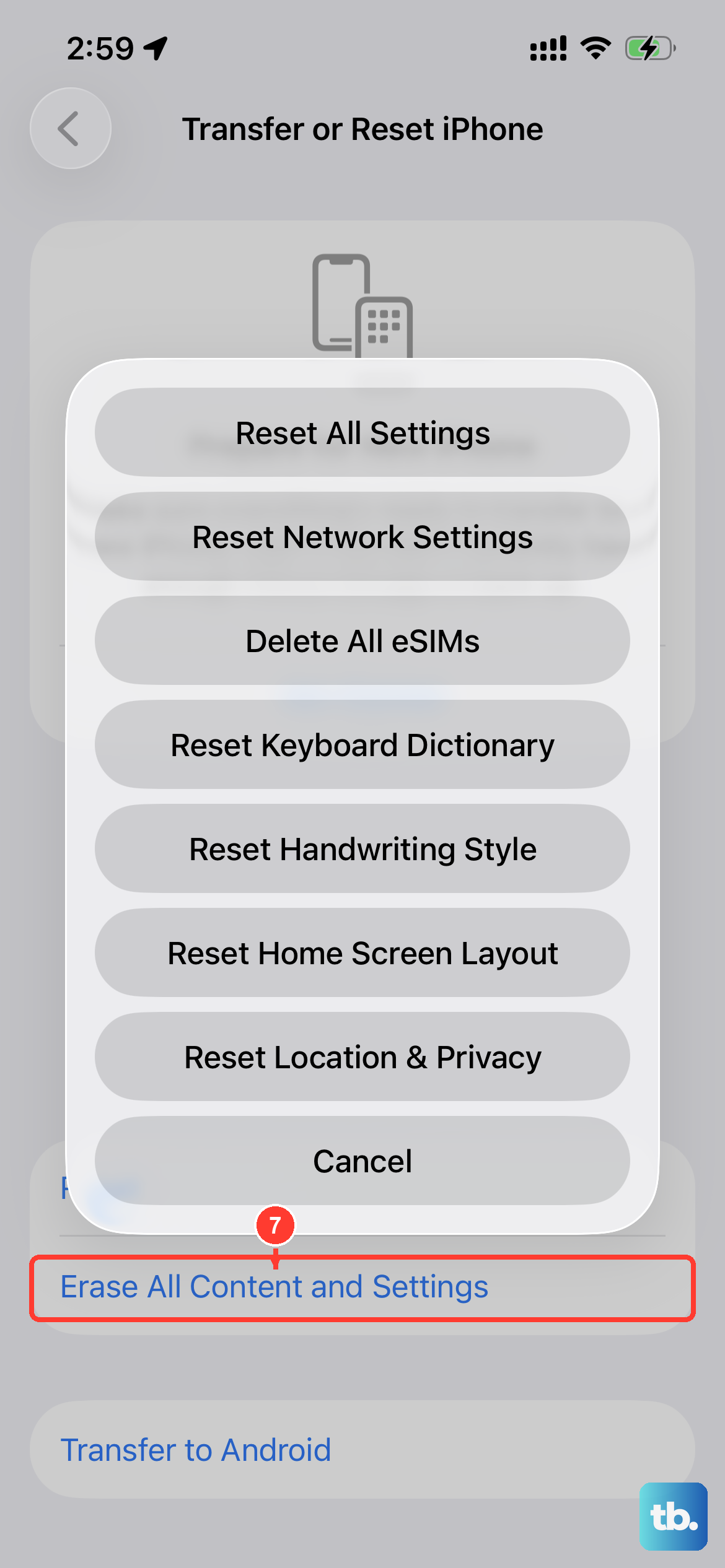
If none of these steps worked, you can back up your data and try a full factory reset through Settings > General > Transfer or Reset iPhone > Erase All Content and Settings. But honestly, in most cases, one of the earlier fixes will get your iPhone Air downloading apps again without needing to go that far.