
When your iPhone Air stops receiving calls, it's easy to assume the worst. But in most cases, the fix is something simple you can do in under a minute. Let’s run through the most common reasons and what to try first.
Start With the Quick Checks
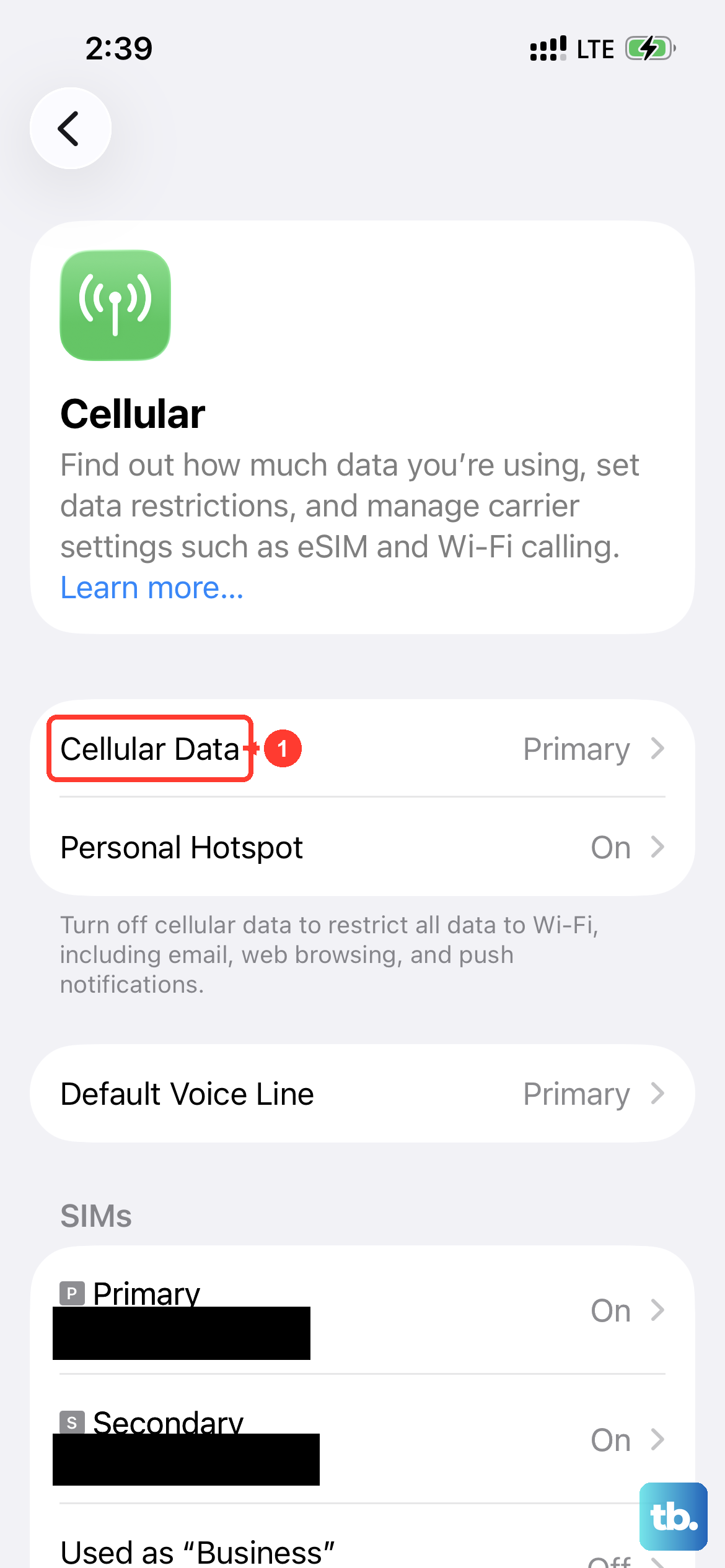
Before digging into settings, make sure the basics are covered. Swipe down from the top-right to open Control Center and check that Airplane Mode is off. Also verify that the Silent switch on the left side isn’t set to mute, it doesn’t block calls on its own, but it’s easy to miss if you’re expecting a ring.
Toggle mobile data off and back on by going to Settings > Cellular > Cellular Data. A fresh connection can clear up temporary network hiccups.
Disable Do Not Disturb and Focus Modes
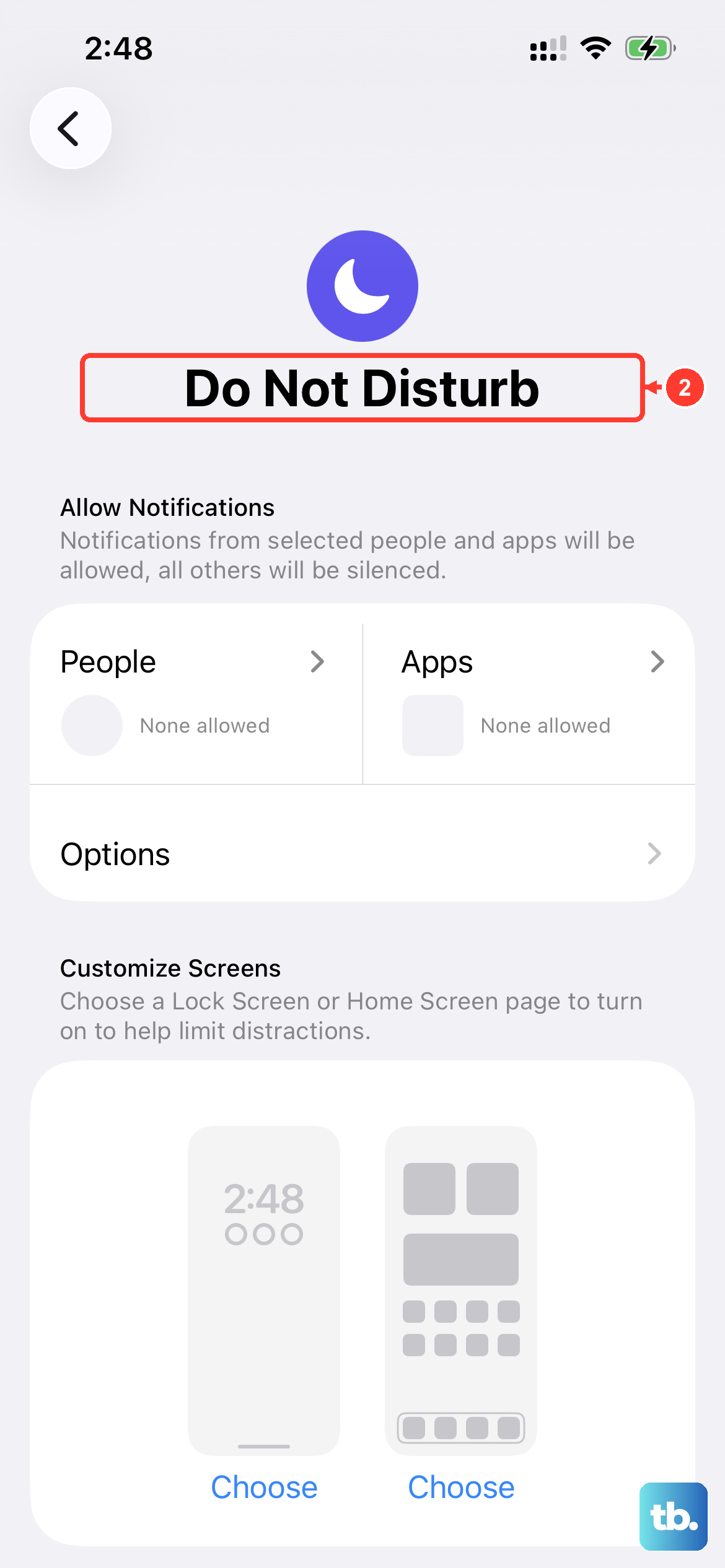
iOS 26 has a Focus system that can silently block incoming calls. Go to Settings > Focus and check if any Focus is active. Tap it and turn it off, or adjust which contacts and apps are allowed through.
If you’re using Do Not Disturb, you can also swipe into Control Center and tap the Focus tile to disable it instantly. Some people accidentally schedule a Focus without realizing it.
Turn Off Silence Unknown Callers
This is one of the biggest culprits. iOS has a feature that sends calls from unknown numbers straight to voicemail. Open Settings > Apps > Phone and scroll to Silence Unknown Callers. Make sure it’s toggled off unless you specifically want that behavior.
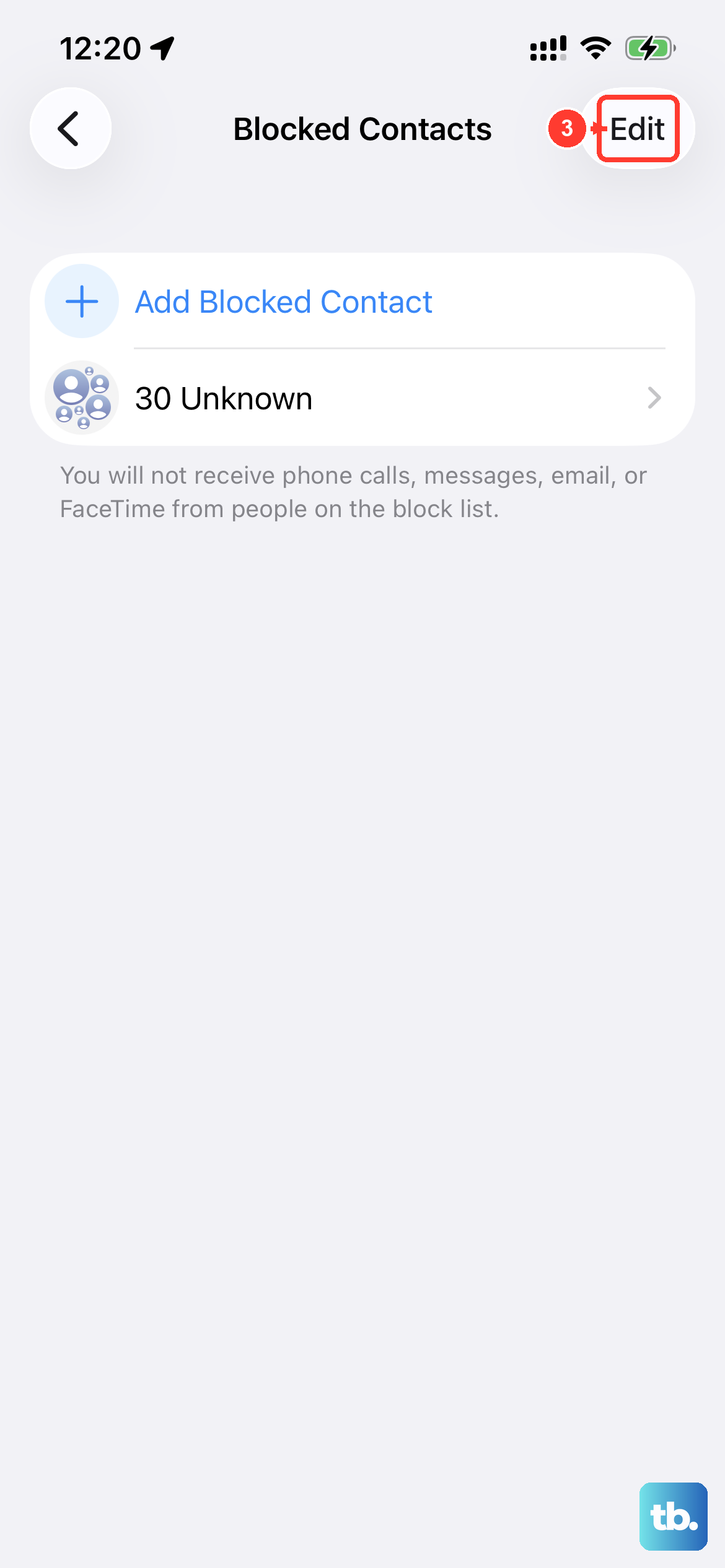
If you’ve recently blocked someone, check your blocked list in the same Phone settings menu, Blocked Contacts, to see if a number you need is on it.
Check Call Forwarding Settings
Call forwarding can redirect all incoming calls to another number without your knowledge. Go to Settings > Apps > Phone > Call Forwarding and make sure it’s toggled off. If it’s on and you don’t recognize the destination number, turn it off immediately.
While you’re there, tap Call Waiting to confirm it’s enabled, if it’s off, some calls may get a busy signal.
Reseat the SIM Card
Even on a brand-new iPhone Air, a loose or dirty SIM card can cause network registration problems. Use the SIM eject tool (or a paperclip) to pop out the tray on the left side. Remove the card, inspect the gold contacts for any grime, and wipe them gently with a dry microfiber cloth.
Reinsert the SIM firmly until it clicks into place. Then go to Settings > Cellular and confirm that the carrier name appears. If you see "No Service" instead, try the SIM in another phone to rule out a carrier issue.
Update Carrier Settings
Carrier settings updates are small configuration files that your network provider pushes to your phone. They can fix call routing problems. Connect to Wi-Fi, then go to Settings > General > About. If an update is available, a pop-up will appear, tap Update.
You can also check for an iOS update at the same time: Settings > General > Software Update. Apple releases bug fixes for call issues regularly, especially on newer models like the iPhone Air.
Force Restart the iPhone Air
A force restart clears temporary software glitches without erasing any data. On the iPhone Air, quickly press and release the Volume Up button, then quickly press and release the Volume Down button, then press and hold the Side button until the Apple logo appears. Let go when you see the logo, the phone will boot up normally.
This is particularly useful if your phone became unresponsive after a battery drain. Some users have reported that attaching a magnetic battery pack to the back of the iPhone Air reawakens the display first, then a force restart resolves lingering network issues.
Reset Network Settings
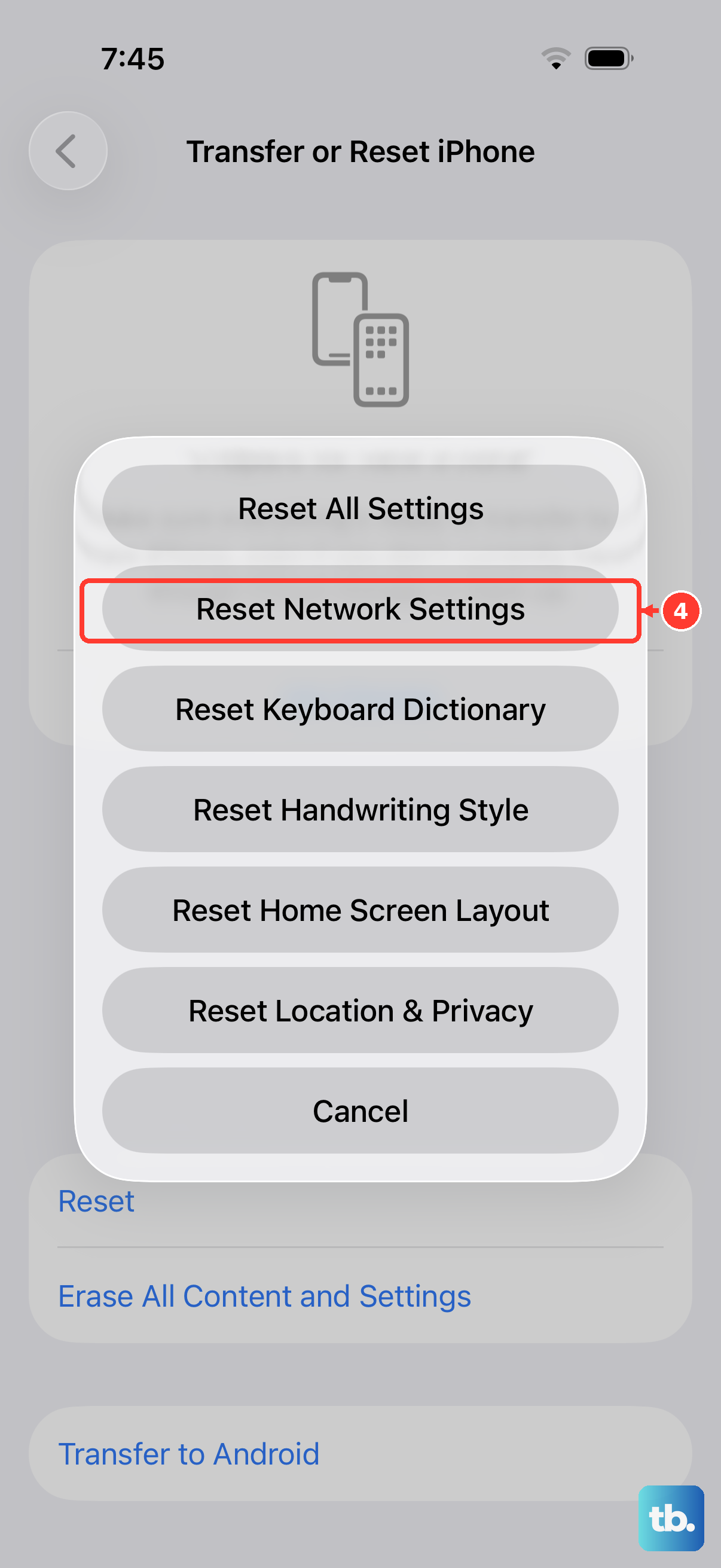
If calls still don’t come through, a network settings reset can clear corrupted Wi-Fi, Bluetooth, and cellular data. Go to Settings > General > Transfer or Reset iPhone > Reset > Reset Network Settings. You’ll lose saved Wi-Fi passwords and paired Bluetooth devices, but no personal data is affected.
After the reset, the phone will restart. Reconnect to your Wi-Fi and test incoming calls.
Disable Third-Party Call Blocking Apps
Apps like Truecaller or Hiya can interfere with the native Phone app. Go to Settings > Apps > Phone > Call Blocking & Identification and toggle off any third-party apps. Try removing them entirely if the issue started after installing one.
You can also check if you accidentally added a call-blocking profile under Settings > General > VPN & Device Management. Remove any configurations you don’t recognize.
Reset All Settings (Before Factory Reset)
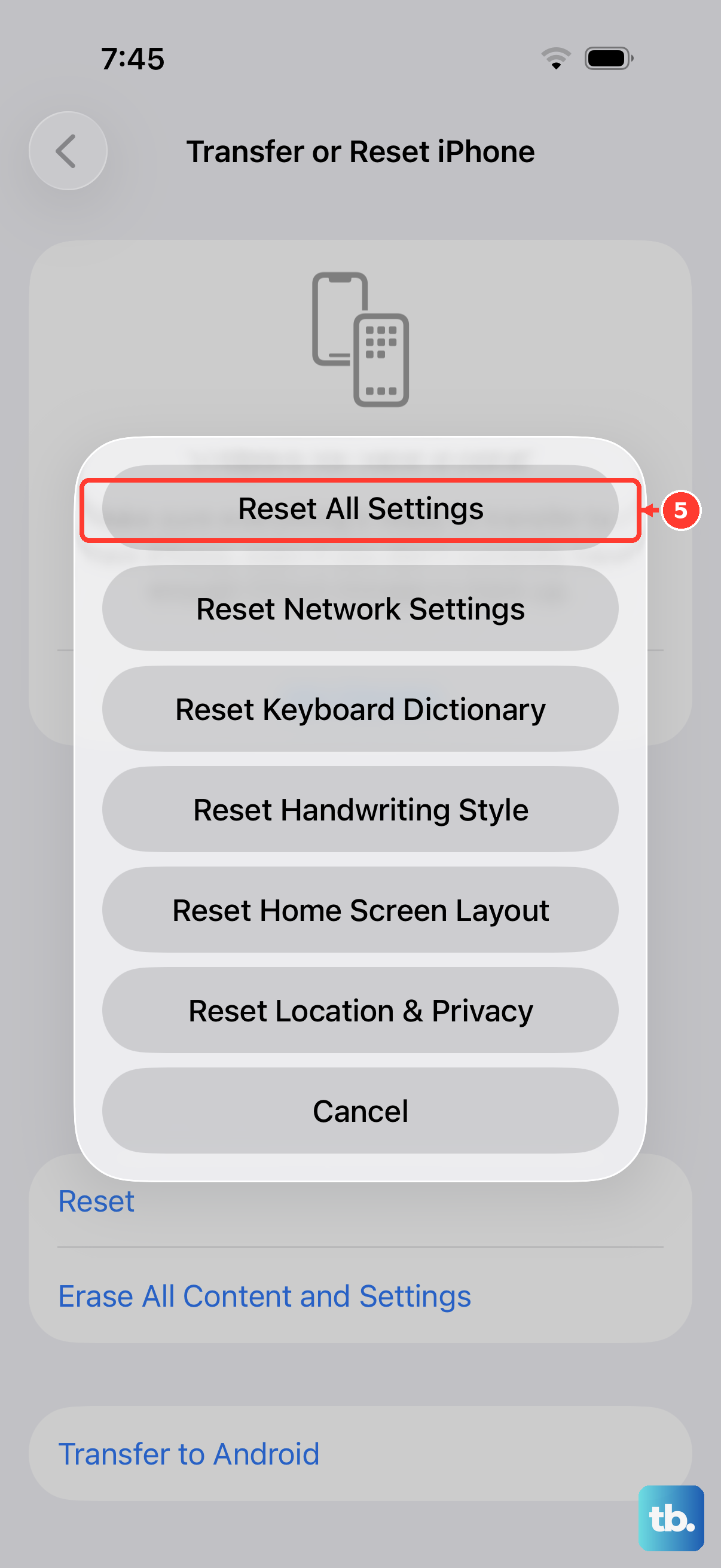
This is a middle ground between a network reset and a full wipe. Go to Settings > General > Transfer or Reset iPhone > Reset > Reset All Settings. It resets system preferences like wallpapers, display settings, and privacy permissions, not your data, photos, or messages.
If calls start working after this, the culprit was a misconfigured system setting you probably wouldn’t have found otherwise. A full factory reset is only necessary as a last resort, and you should back up everything first.