
If videos on your iPad Pro (M4) are stuttering, freezing, or dropping frames, it can really break the experience on that beautiful display. The M4 chip is incredibly powerful, so when lag happens, it's usually a software or settings hiccup that's fairly easy to sort out.
Free Up Storage Space on Your iPad
This is the most common culprit. The iPad Pro (M4) handles massive video files, and when your storage is nearly full, the system struggles to read and write data smoothly. This causes dropped frames and choppy playback, especially with high-resolution files.
Head to Settings > General > iPad Storage to check your available space. I'd recommend keeping at least 10-15GB free for the system to operate without hiccups. If you're low, start by offloading large apps you don't use often or moving your photo library to iCloud.
Check Your Internet Connection for Streaming
If you're watching videos from streaming apps or cloud services, a weak Wi-Fi signal is often to blame. The iPad Pro's advanced Wi-Fi hardware needs a stable connection to stream high-bitrate 4K or HDR content without constant buffering.
Try switching between Wi-Fi and cellular data (if your model has it) to see if the problem is network-specific. For Wi-Fi, a simple router restart can sometimes clear up congestion that's causing the lag.
Update iPadOS and Your Apps
Running an outdated version of iPadOS 26 can lead to compatibility issues with video codecs or specific apps. Apple frequently releases updates that include performance optimizations for media playback.
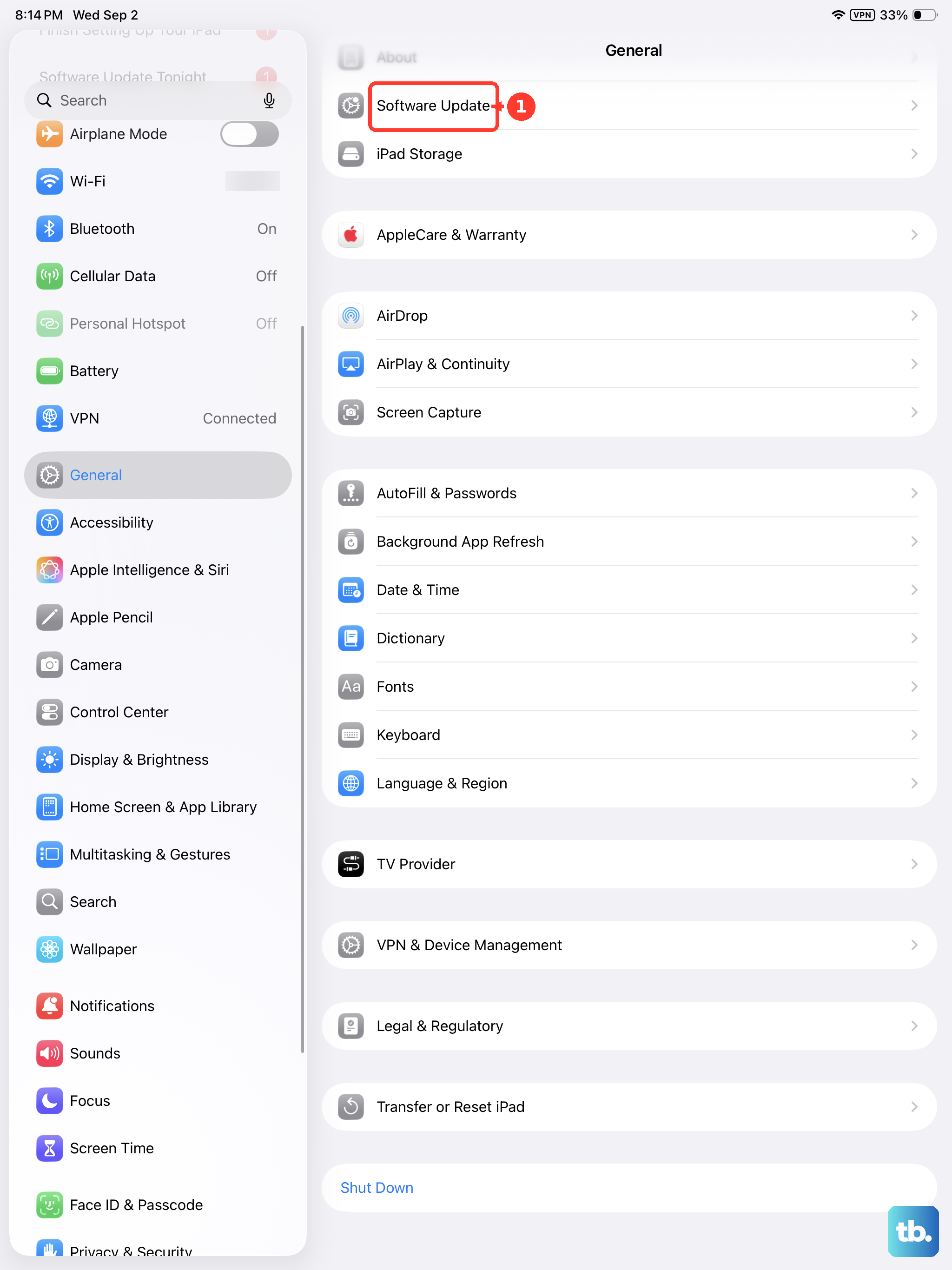
Go to Settings > General > Software Update to install any available updates. Also, check the App Store for updates to the specific video app you're using, whether it's YouTube, Netflix, or the native Photos app.
Close Background Apps and Restart
Too many apps running in the background can consume the M4 chip's resources, even if it seems like it should handle it. This can affect video decoding performance. Swipe up from the bottom of the screen and pause in the middle to enter the app switcher, then swipe up on apps to close them.
Then, give your iPad a fresh start. Press and quickly release the Volume Up button, press and quickly release the Volume Down button, then press and hold the Power button until you see the Apple logo. This force restart clears out any temporary glitches.
Check for Overheating
While the M4 chip is efficient, prolonged intensive tasks or using your iPad in direct sunlight can cause it to throttle performance to cool down. This thermal management can lead to video lag. If the back of your iPad feels unusually warm, let it cool down for a few minutes away from heat sources.
Also, remove any thick cases or MagSafe accessories that might be trapping heat while you're troubleshooting the video issue.
Reset All Settings
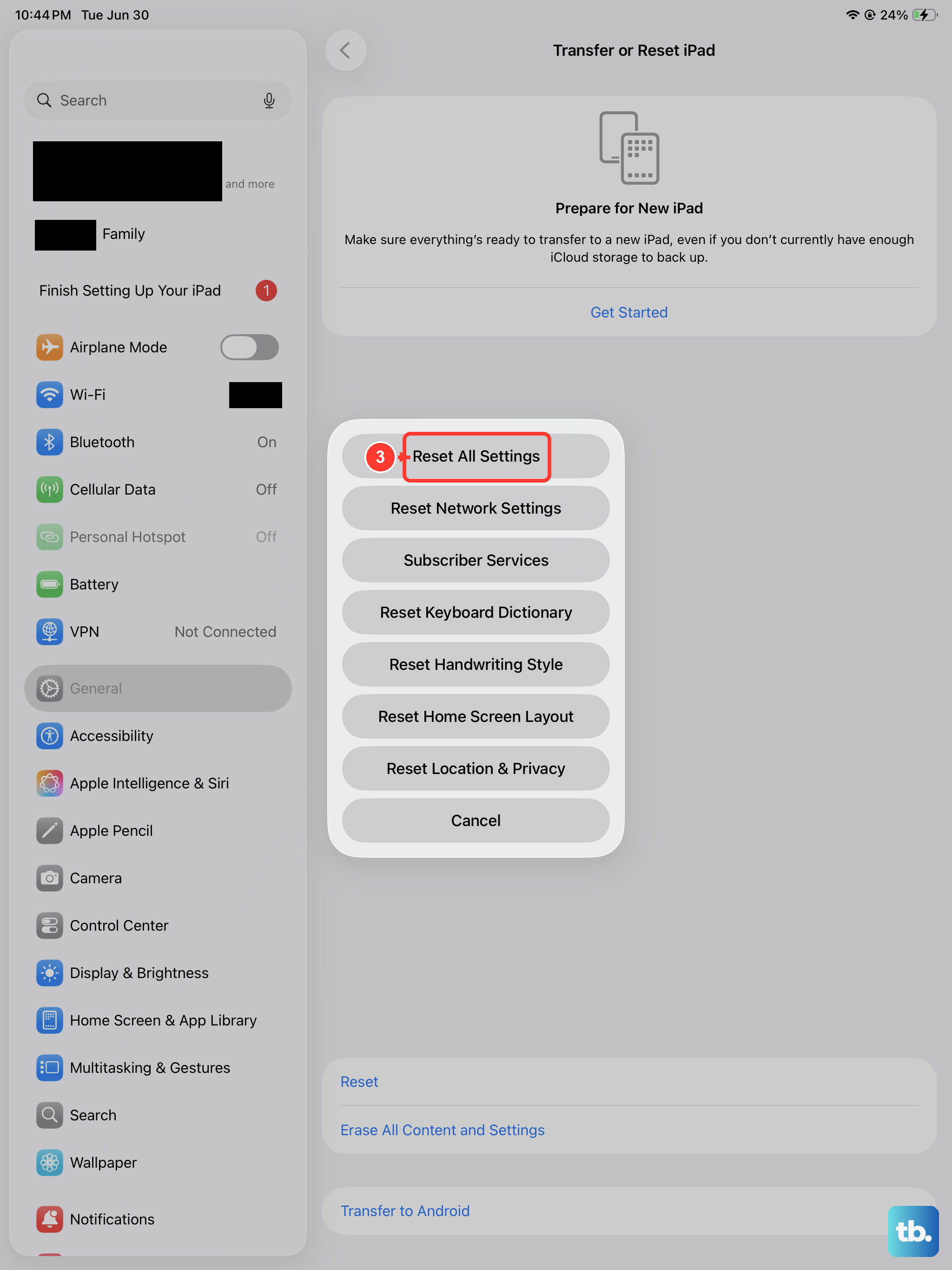
If the lag persists, a deeper software reset can help. This won't erase your personal data like photos or apps, but it will reset all your system settings to default, things like Wi-Fi passwords, wallpaper, and privacy permissions.
You can do this by going to Settings > General > Transfer or Reset iPad > Reset > Reset All Settings. Afterward, you'll need to reconfigure your preferences, but it often resolves persistent performance bugs.
Review Video Settings and Codecs
Sometimes the issue is with the video file itself. If you're playing back a personal video shot in a very high frame rate or a less common codec, the iPad's software might struggle. Try playing a different video from a major streaming service to see if the problem is file-specific.
Also, check within your video apps for a quality or playback setting. Some apps may default to a very high resolution that your current internet speed can't sustain, causing constant buffering. Manually selecting a slightly lower stream quality can provide a smooth experience.