
If your iPad Pro 2026 (M4) feels unusually warm, it's often a sign that the powerful M4 chip is working hard and the device is managing its heat. While some warmth is normal during intensive tasks, excessive or persistent heat can lead to performance throttling, unexpected shutdowns, and long-term battery wear. Let's walk through the most effective ways to cool it down.
Start with the simplest fix: close all your apps and give your iPad a quick restart. Swipe up from the bottom of the screen (or double-click the Home button if that gesture is still around) to enter the app switcher, then swipe up on every app preview to close it. After that, hold down the power button and slide to power off. Wait a minute, then turn it back on. This clears out any stuck processes that might be overworking the processor.
Check for Rogue Apps and Background Activity
Some apps, especially games, video editors, or augmented reality software, can push the M4 chip to its limits. If your iPad gets hot while using a specific app, that's likely the culprit. Try switching to a different app for a while to see if it cools down.
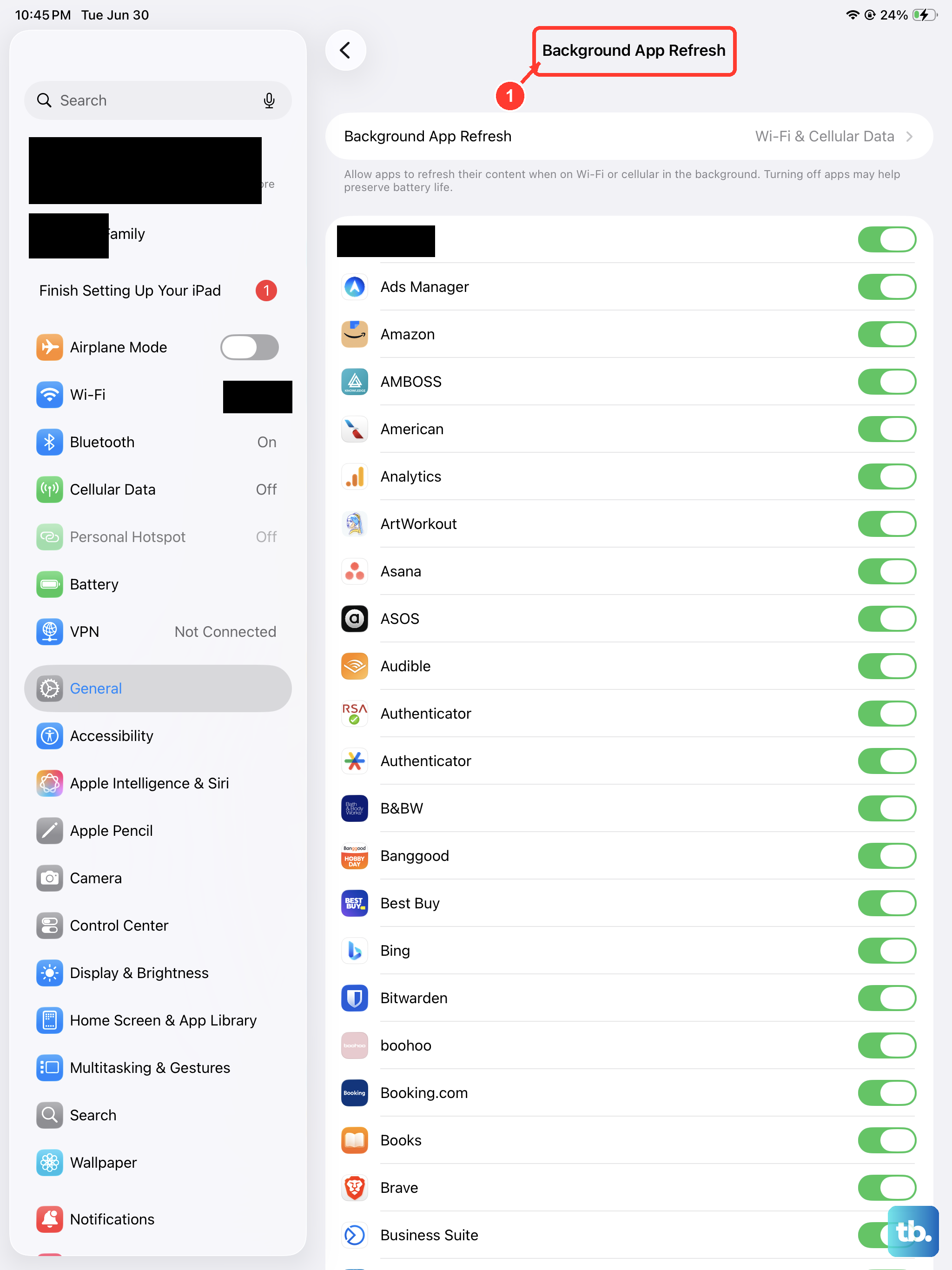
Background app refresh can also keep your iPad working when you're not actively using it. To manage this, go to Settings > General > Background App Refresh. You can turn it off entirely or select "Wi-Fi" or "Wi-Fi & Cellular" to limit it. I'd recommend reviewing the list and disabling it for apps that don't really need live updates.
Manage Display and Connectivity Settings
A super-bright screen generates a surprising amount of heat. Try lowering the brightness manually via Control Center or enable Auto-Brightness in Settings > Accessibility > Display & Text Size. Also, consider reducing the auto-lock time to 2 minutes or less in Settings > Display & Brightness so the screen turns off faster when idle.
Wireless radios are another common heat source. If you're not using them, toggle off Bluetooth and Wi-Fi from Control Center. When you are using Wi-Fi, being far from the router forces the iPad to use more power to maintain a signal, which creates extra heat. Moving closer can help. For cellular models, a weak signal has the same effect.
Update iPadOS and Review Charging Habits
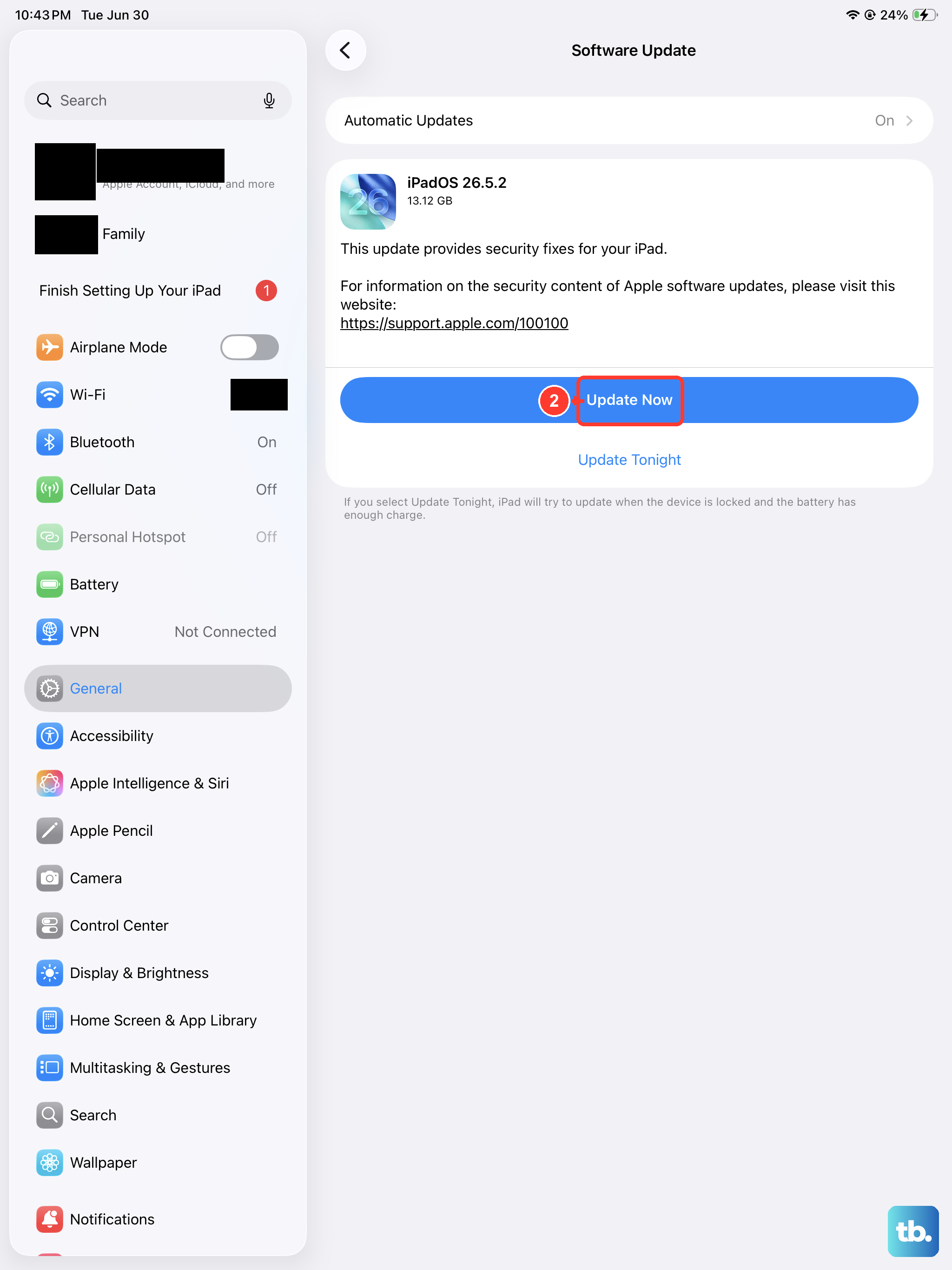
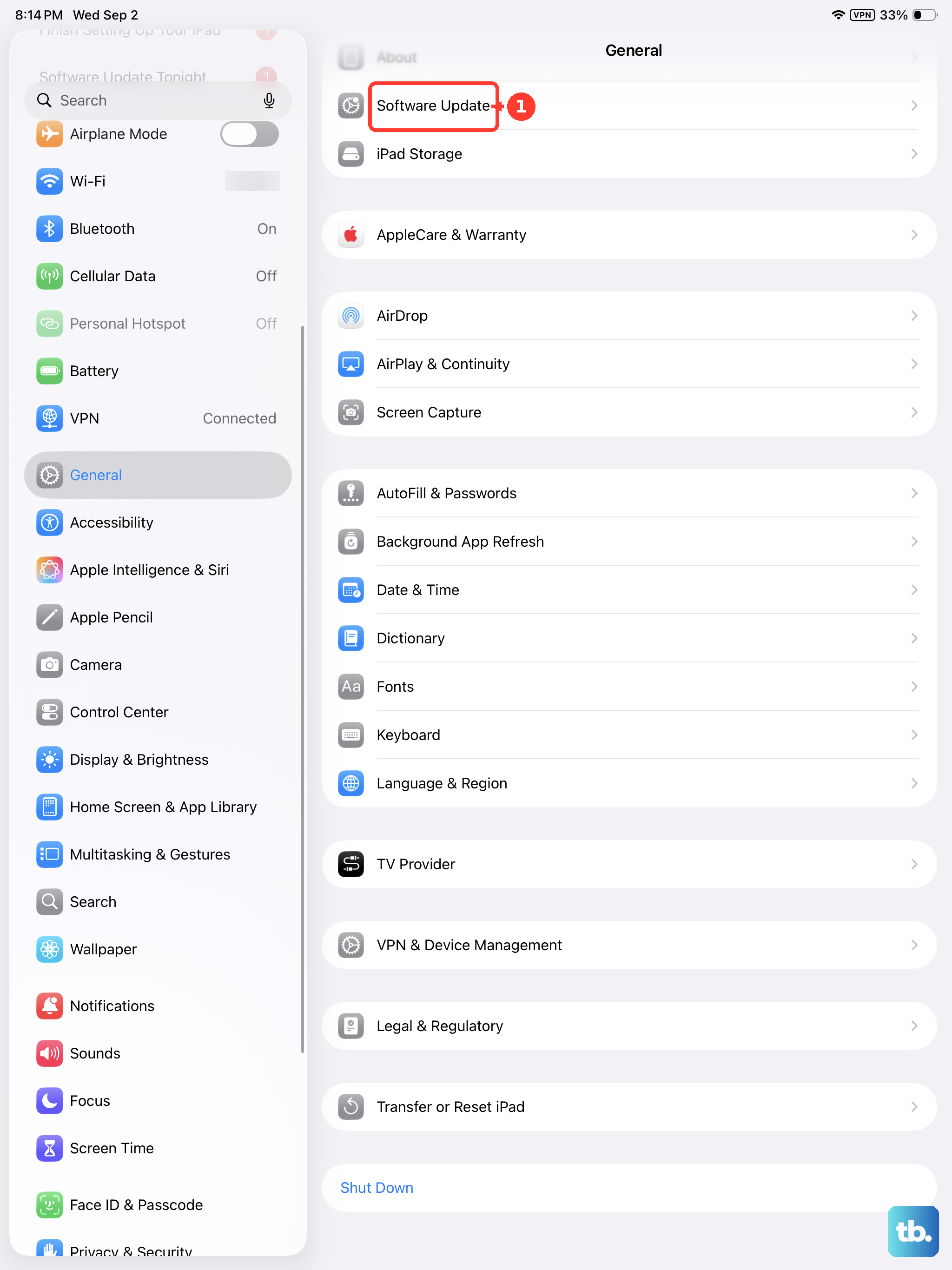
Always make sure you're running the latest version of iPadOS. Go to Settings > General > Software Update. Apple frequently releases updates that include thermal management improvements and bug fixes for the M-series chips. Installing an update can sometimes resolve heating issues directly.
Your iPad will naturally get warm while charging, especially if you're using it at the same time. For the fastest and most efficient charge with the 45W capability, use the official Apple USB-C power adapter or a certified 30W+ USB-C PD charger. While the MagSafe wireless charging is convenient, it's less efficient (around 15W) and will generate more heat than wired charging. I'd save wireless charging for overnight top-ups rather than quick boosts.
Perform a Force Restart and Check Physical Environment
If the device is hot and unresponsive, a force restart can clear deeper system glitches. On the iPad Pro 2026, quickly press and release the Volume Up button, then quickly press and release the Volume Down button. Finally, press and hold the Power button until you see the Apple logo appear on the screen.
Never use your iPad in direct sunlight, on a soft blanket, or propped against a pillow. These surfaces trap heat. Always use it on a hard, flat surface. If you're doing something intensive like rendering video, take breaks every so often to let the heat dissipate. Removing any thick case or cover during these tasks can also help with ventilation.
Finally, pay attention to when the heating happens. If it occurs during very specific tasks like gaming or video exporting, it's likely normal workload heat. If it gets hot during simple browsing or when idle in your bag, that points to a software issue needing the fixes above. In rare cases, a persistent overheating problem that isn't solved by these steps could indicate a hardware fault, which would require contacting Apple Support.











