
When an app on your iPad Pro (M4) suddenly quits or freezes, it can really interrupt your workflow. This is usually a temporary software hiccup, not a sign of a failing device. The quickest thing to try is a simple restart of the app itself.
Double-click the Home button or swipe up from the bottom (depending on your navigation settings) to enter the app switcher. Swipe up on the problematic app's preview to close it completely. Then, tap its icon on the Home Screen to relaunch it. This clears the app from your iPad's memory and often resolves a one-time crash.
Update the App and iPadOS
Developers release updates to fix bugs that can cause instability. Open the App Store, tap your profile icon in the top right, and see if the crashing app has an update pending. Tap "Update" next to it, or "Update All" to get everything current at once.
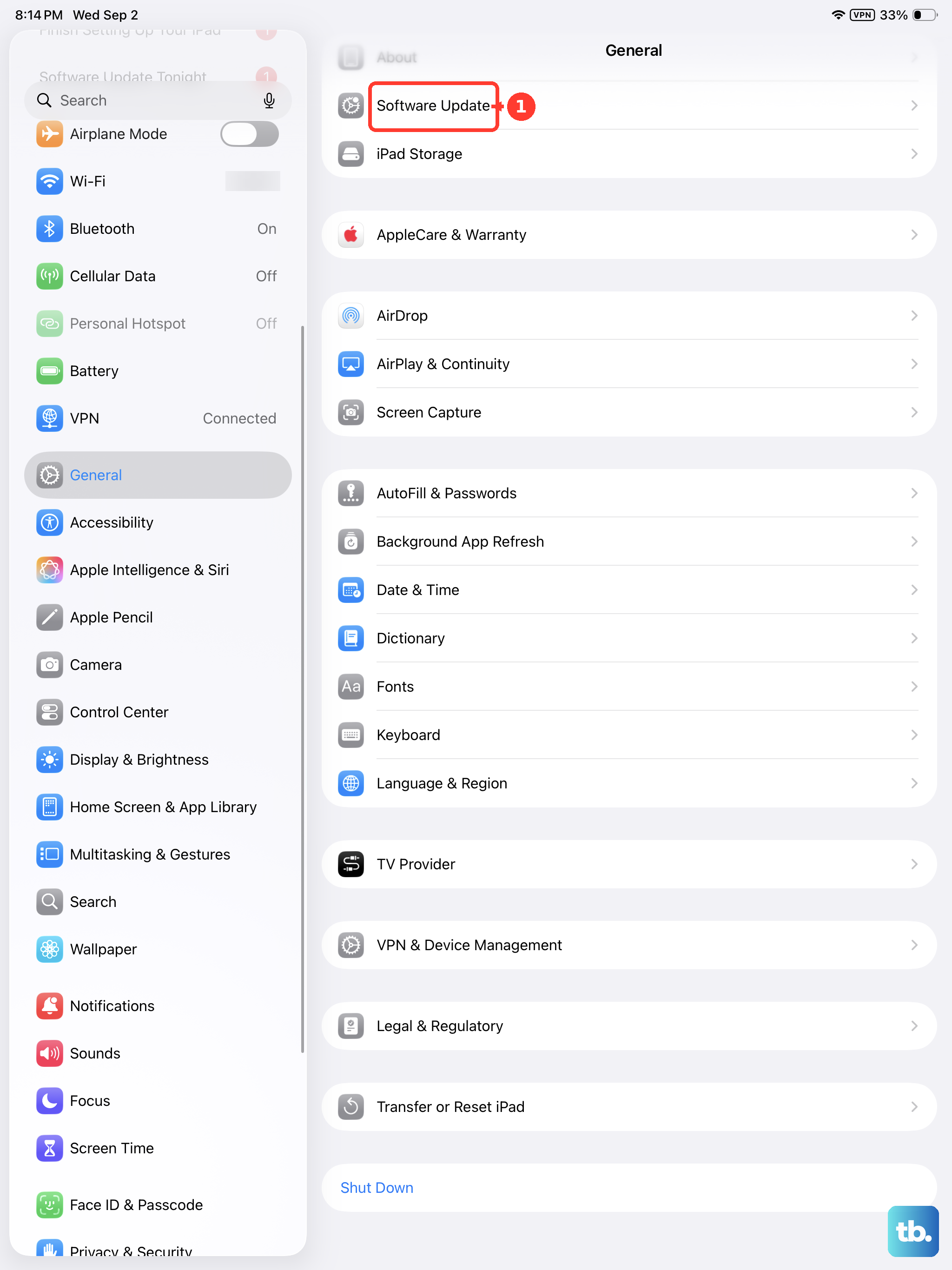
It's also crucial to keep iPadOS itself updated. Go to Settings > General > Software Update. If an update for iPadOS 26 is available, install it. These updates contain important system-level fixes that can improve app compatibility and performance across your entire iPad Pro.
Check Your Available Storage
Your M4 iPad Pro needs free space for apps to operate smoothly. When storage is critically low, apps may crash because they can't save temporary data or download necessary content. You can check this in Settings > General > iPad Storage.
If you're below 1GB of free space, I'd recommend offloading some large files. The "Recommendations" section at the top of the iPad Storage screen often provides easy, one-tap options to clear space by reviewing large attachments or offloading unused apps.
Force Restart Your iPad Pro
If an app is persistently problematic or the system feels sluggish, a force restart can clear out deeper glitches. This is different from a normal restart and doesn't erase your data. On the iPad Pro (M4), you press and quickly release the Volume Up button, then quickly press and release the Volume Down button.
Immediately after, press and hold the Power button. Keep holding it until you see the Apple logo appear on the screen, then you can let go. This process can take about 10 seconds. Once it boots back up, try opening the app again.
Offload and Reinstall the App
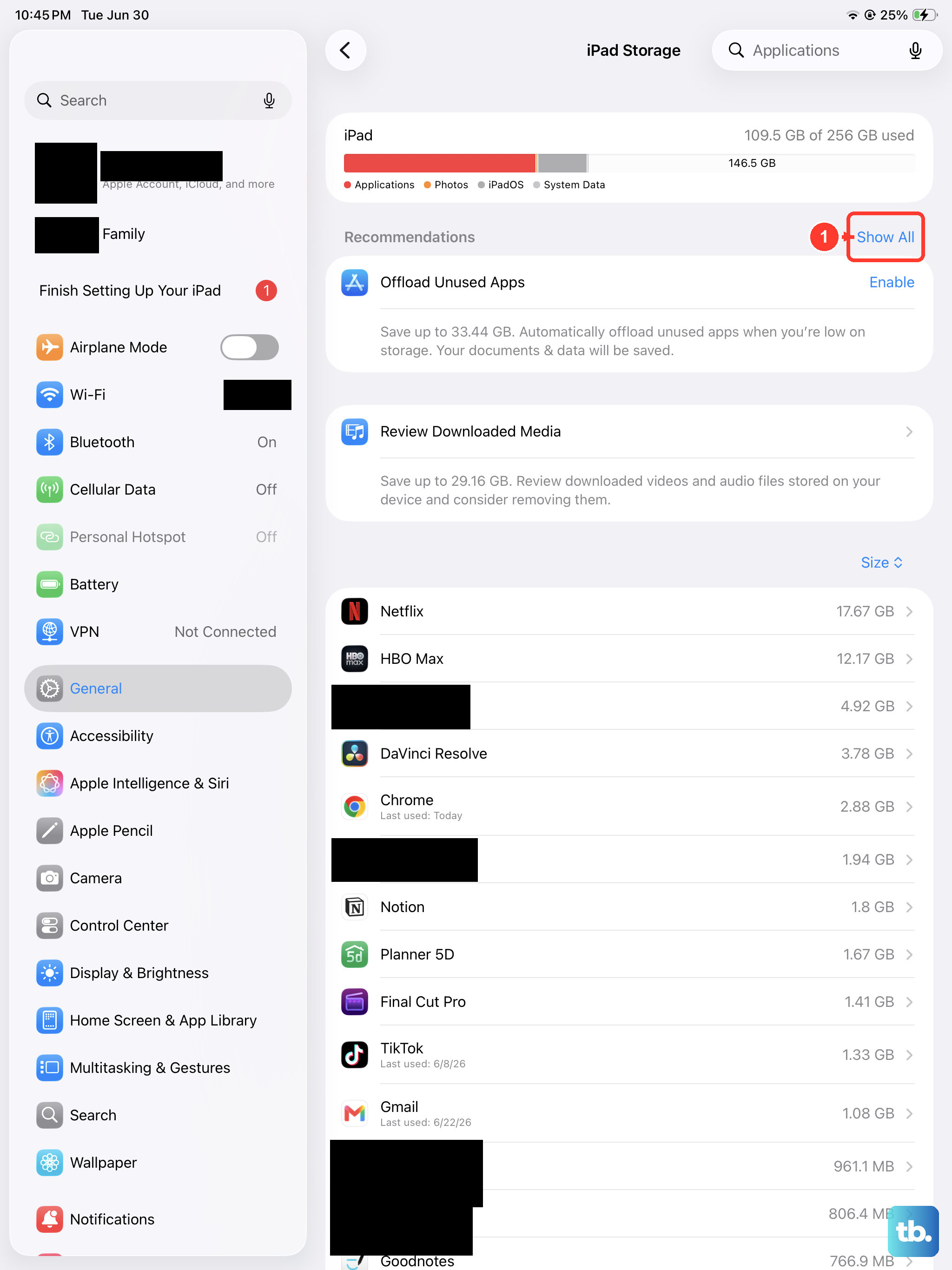
When a single app is the consistent culprit, offloading it is a great next step. This removes the app but keeps its documents and data on your iPad. Go to Settings > General > iPad Storage, tap the problematic app, and select "Offload App."
After it's offloaded, the app icon will remain on your Home Screen with a small cloud icon. Tap it to reinstall the app fresh from the App Store, but with your personal data intact. This often fixes corruption in the app's core files without you losing your settings or login information.
Reset All Settings
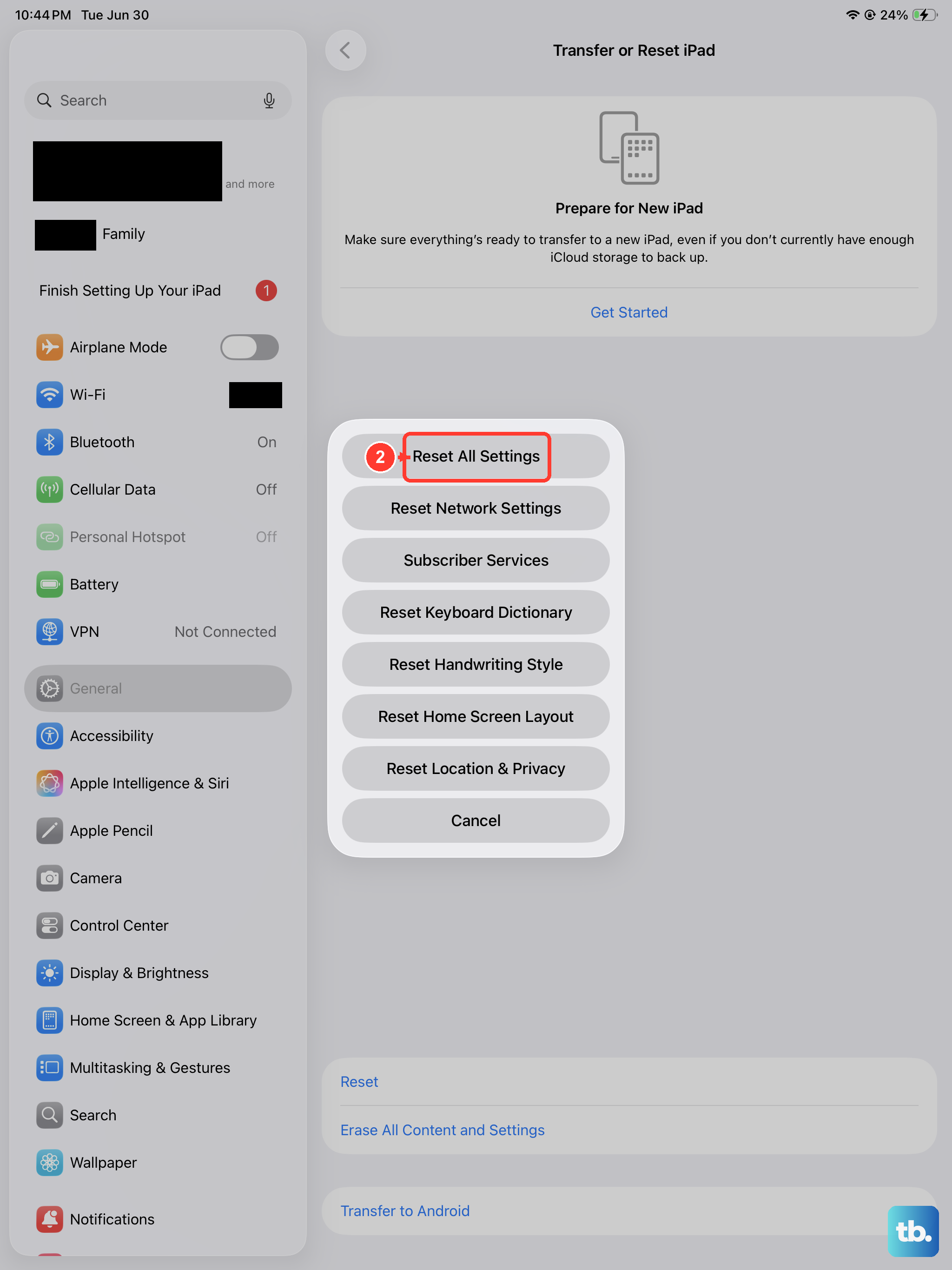
This is a more substantial step if multiple apps are crashing. Resetting all settings will revert your network, privacy, and display configurations back to factory defaults without deleting your personal data, photos, or apps. It can resolve conflicts caused by a misconfigured setting.
To do this, navigate to Settings > General > Transfer or Reset iPad. Tap "Reset" at the bottom, then choose "Reset All Settings." You'll need to enter your passcode and confirm. After the iPad restarts, you'll have to reconnect to Wi-Fi and re-enter some preferences, but your core content will be safe.
Check for Overheating
The powerful M4 chip is efficient, but intensive tasks in direct sunlight or under a thick case can cause thermal throttling. If your iPad Pro feels unusually warm to the touch and apps start crashing, give it a break. Move it to a cooler, shaded location and close any demanding apps.
Let it cool down for a few minutes. Using a case designed for good airflow can help during long sessions. Persistent overheating under normal use could indicate a background process is stuck, which a force restart, as described earlier, would typically resolve.
Ensure a Stable Network Connection
Apps that rely heavily on internet data, like streaming services or cloud-based tools, can crash or behave oddly with a poor connection. If you're on Wi-Fi, try toggling it off and on in Control Center. For a deeper reset, go to Settings > Wi-Fi, tap the "i" next to your network, and choose "Forget This Network." Then reconnect by entering the password again.
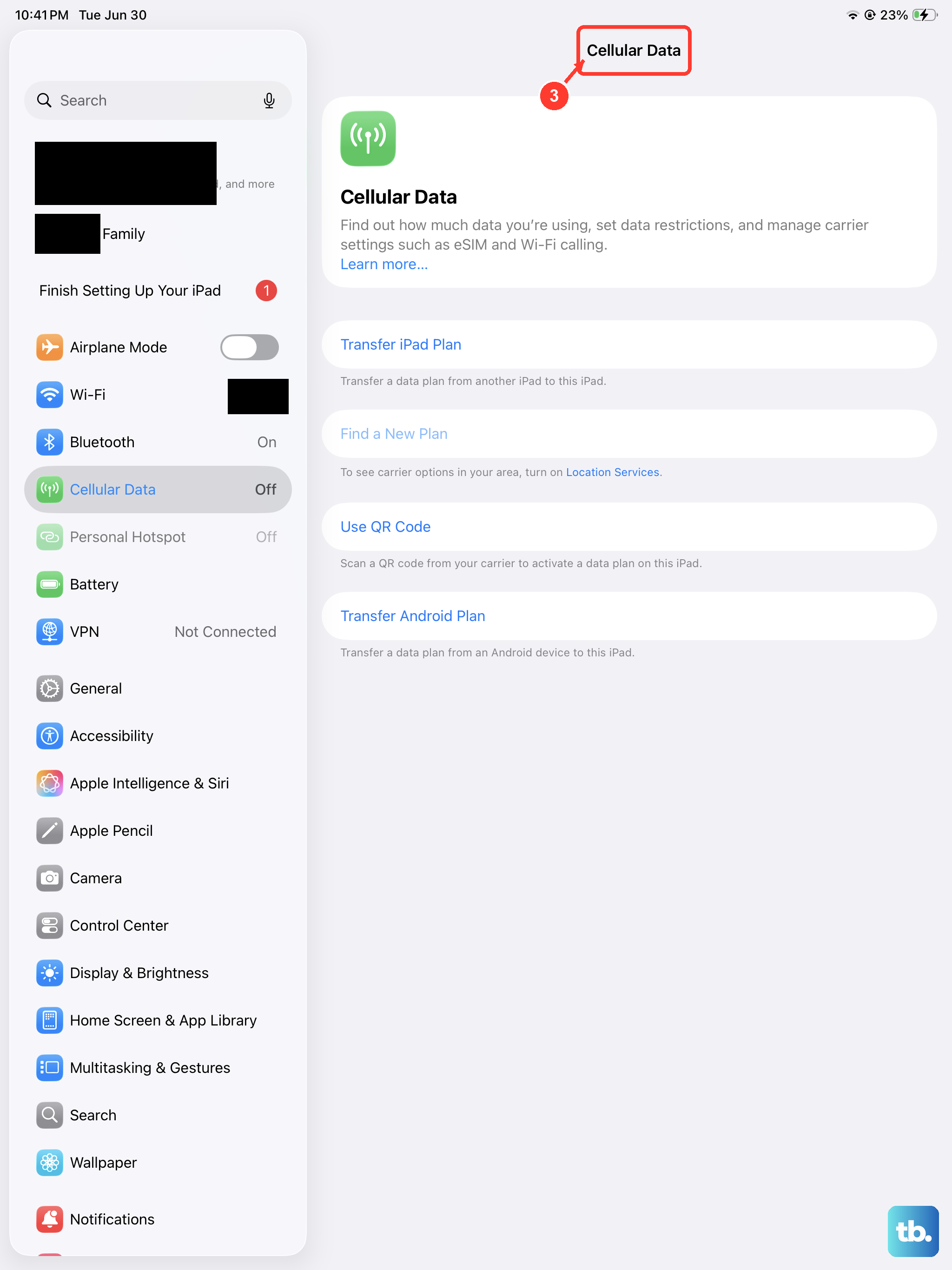
If you're using cellular data on a cellular iPad Pro model, ensure you have a strong signal. You can try enabling Airplane Mode from Control Center for 15 seconds and then turning it off to force the iPad to re-establish its connection to the cellular network.