


When your iPad Pro (M4) goes silent or the audio is barely a whisper, it can really throw you off. Whether you're trying to watch a video, join a call, or just listen to music, sound problems are a major disruption. The good news is that most audio issues on the M4 iPad Pro are software-related and can be fixed without a trip to the store.
It is worth confirming the basics with a quick online speaker test. If neither channel plays a tone, you are looking at a hardware or connection problem rather than a settings issue.
I'd start with the simplest check first. Grab your iPad and press the volume up button on the side. If you see the volume indicator on screen but hear nothing, the issue is likely deeper than just a muted setting. Also, swipe down from the top-right corner to open Control Center and make sure the silent mode icon isn't highlighted.
Check App-Specific and System Volume
iPadOS 26 can manage volume independently for different apps. The sound might be fine in one app but completely off in another. While you're in an app that has no sound, use the physical volume buttons to turn it up. You can also go to Settings > Sound and adjust the slider there for system-wide levels.
Don't forget about the Ring/Silent switch, if your model has one on the top edge. Make sure it's not slid into the silent position. If your iPad uses software-based silent mode, check Control Center for a bell icon with a slash through it.
Disconnect Bluetooth and Audio Routes
This is a very common culprit. Your iPad might be silently sending all audio to a paired Bluetooth device like headphones, a speaker, or a car stereo, even if that device is in another room or turned off. Open Control Center, tap the audio output icon in the top-right (it looks like a triangle with circles), and select your iPad from the list.
For a more thorough check, go to Settings > Bluetooth and toggle the entire Bluetooth switch off. This ensures all audio is forced back to the iPad's internal speakers. Also, physically unplug any headphones or USB-C audio adapters.
Clean the Speaker Grills
The sleek design of the iPad Pro can make its speaker grills a magnet for lint, dust, and pocket debris. Take a look at the grills along the top and bottom edges (or wherever the speakers are located on your model). Use a soft, dry, clean-bristled toothbrush or a soft-bristled artist's brush to gently sweep across the grills.
You can also use a can of compressed air, but hold it upright and use short, gentle bursts from a few inches away. Never insert anything sharp like a pin or paperclip into the grills, as you can easily damage the delicate speaker components behind them.
Force Restart Your iPad
A force restart is different from a normal shut down. It clears the device's memory and can fix temporary software glitches affecting the audio subsystem. For the iPad Pro (M4), press and quickly release the Volume Up button, then press and quickly release the Volume Down button. Finally, press and hold the Power button until you see the Apple logo appear on the screen, then release.
This process won't delete any of your data or settings. It's a safe first step when the sound cuts out unexpectedly or after installing a new app.
Check Focus Modes and Accessibility Settings
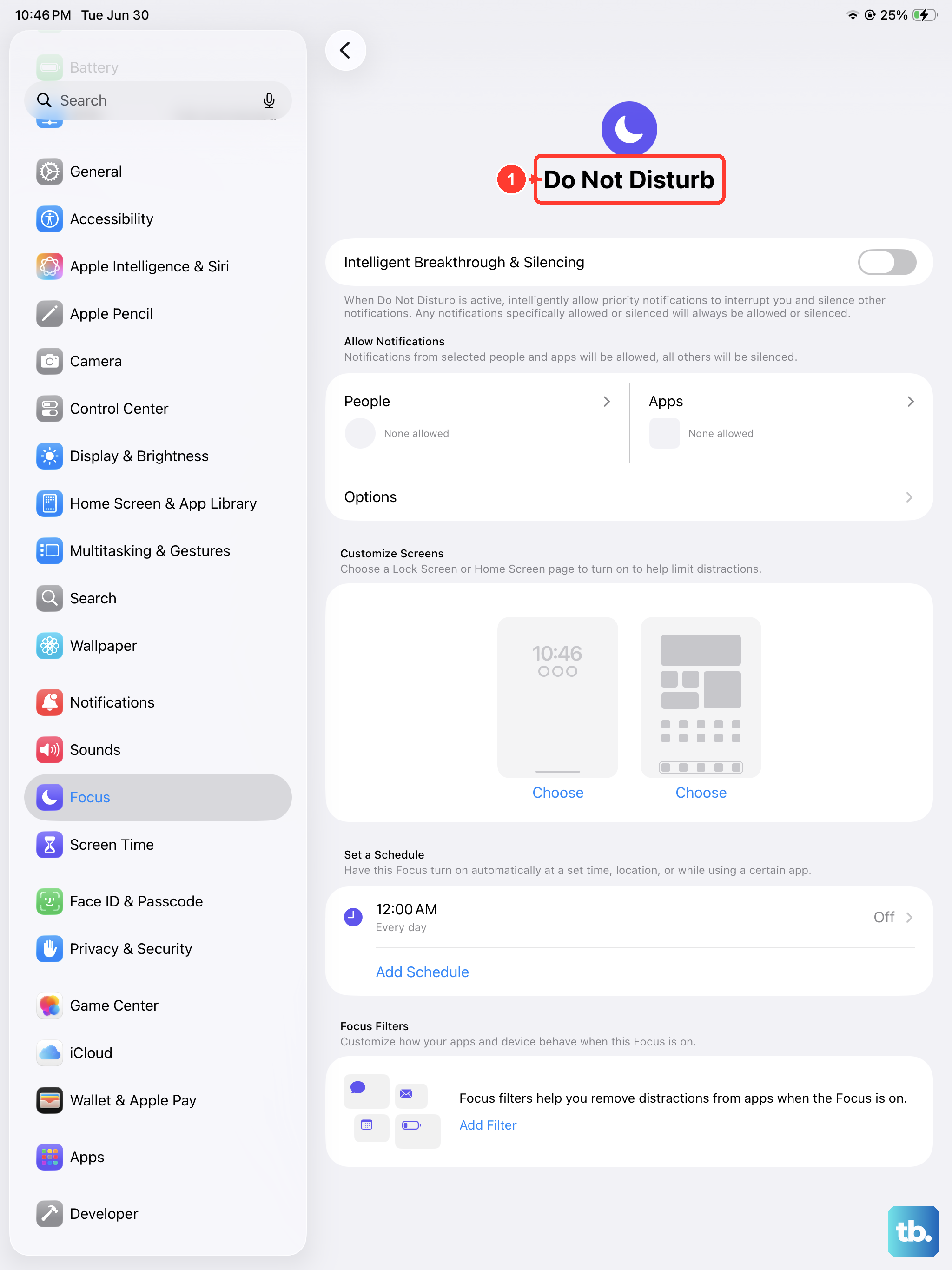
Focus modes like Do Not Disturb or a custom Work focus can sometimes mute all sounds. Swipe down to open Control Center and look for the Focus icon. Tap it to see which mode is active and make sure it's not set to silence all notifications. You can also go to Settings > Focus to review your configurations.
Next, visit Settings > Accessibility > Audio/Visual. Look for settings like "Background Sounds" or "Mono Audio" that might be interfering. Also, ensure the balance slider in the "Headphone Accommodations" or similar section is centered.
Update iPadOS
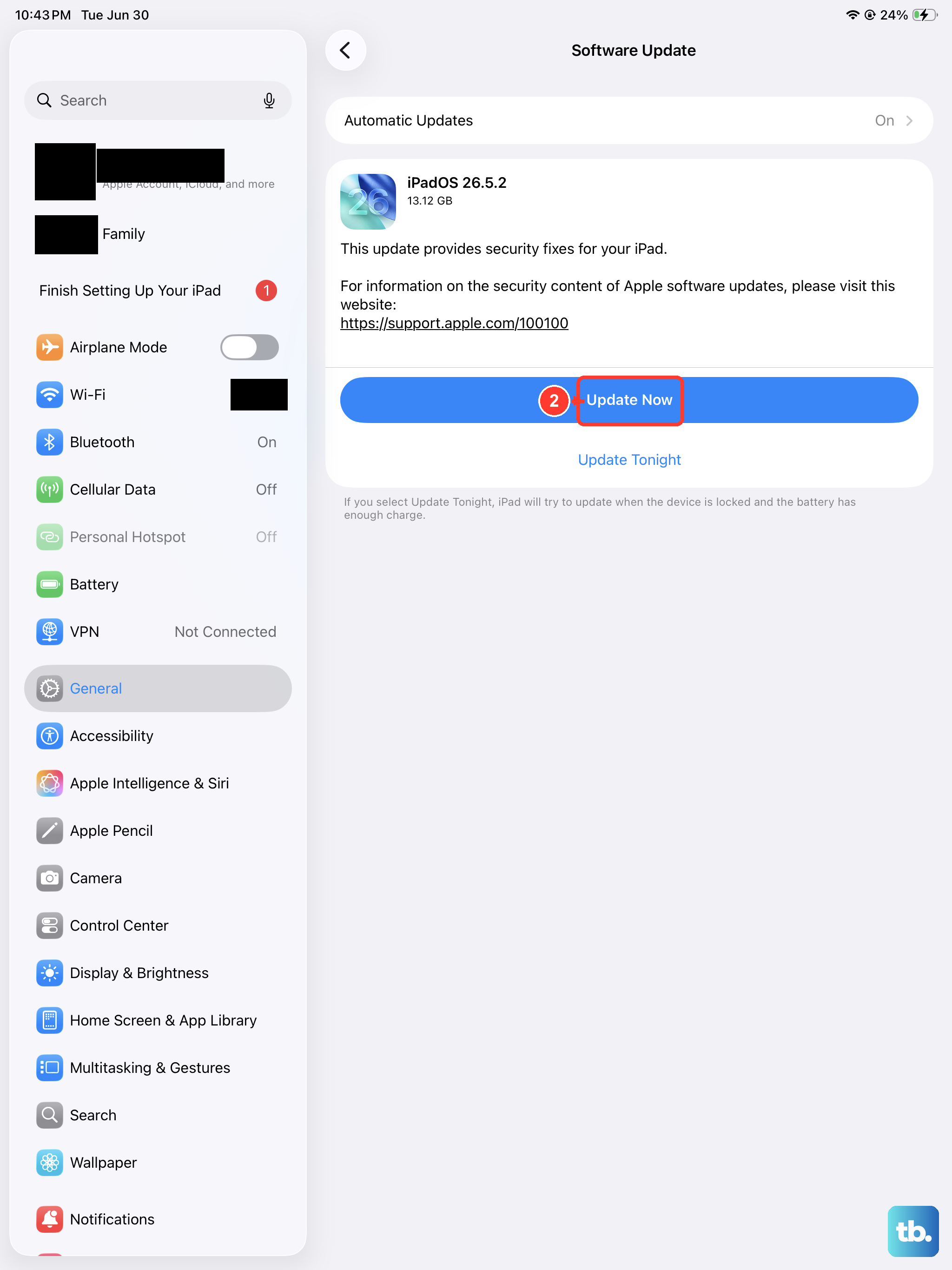
Audio bugs are a common focus in point updates. Apple frequently releases patches for issues that can cause speaker distortion, low volume, or complete audio failure. Connect your iPad to Wi-Fi and go to Settings > General > Software Update.
If an update is available, tap "Download and Install." It's a good idea to plug your iPad into power using a 30W+ USB-C PD charger during the update process to ensure it doesn't run out of battery.
Reset All Settings
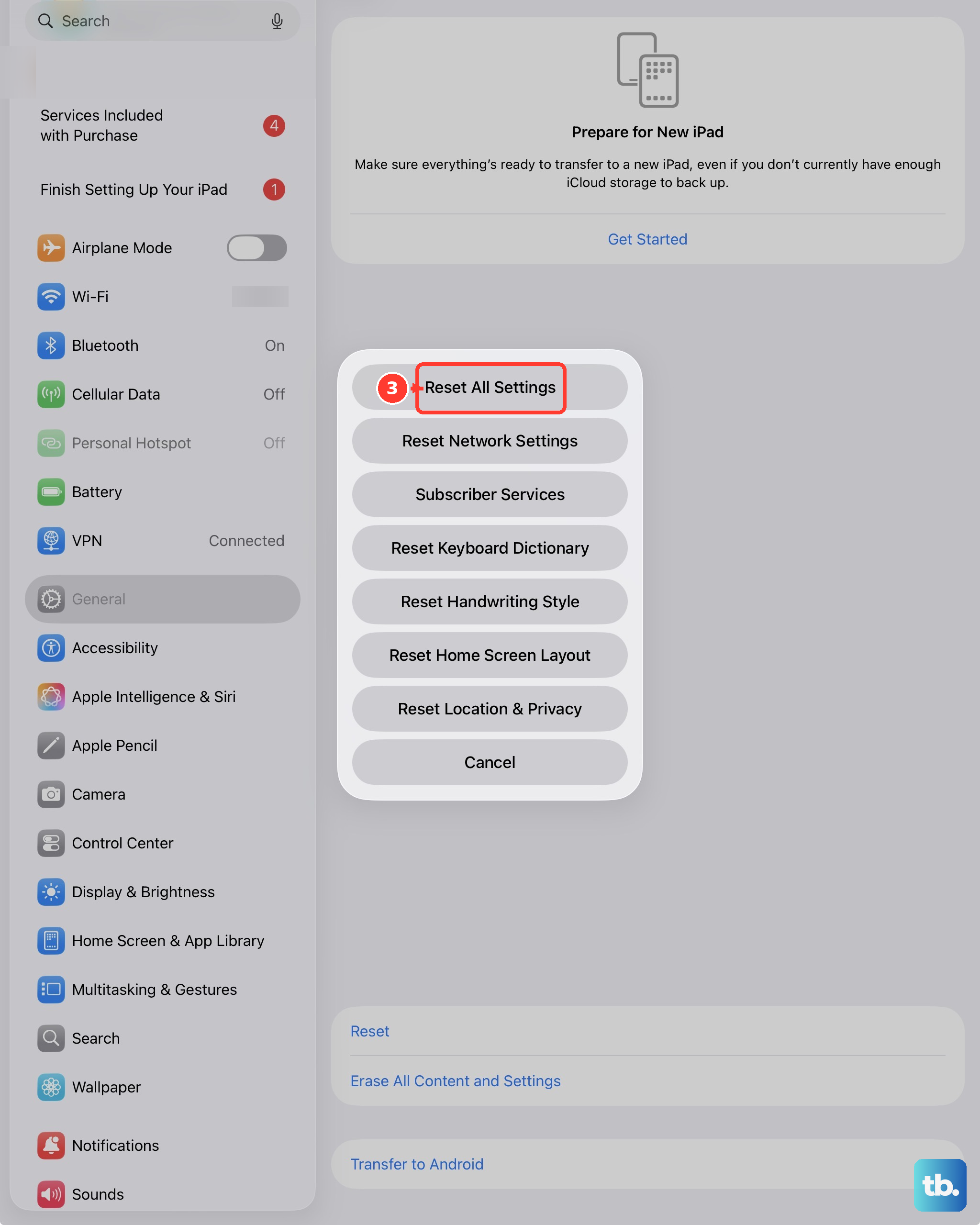
If the problem started after you changed a bunch of settings, this can help. Resetting all settings will return every system preference, like network settings, wallpaper, and privacy permissions, back to their factory defaults without touching your personal data, apps, or media.
Go to Settings > General > Transfer or Reset iPad > Reset. Then, choose "Reset All Settings." You'll need to enter your passcode and confirm. Your iPad will restart, and you'll have to reconfigure things like Wi-Fi passwords and Face ID, but it often resolves persistent audio glitches.
Test in Safe Mode (Isolate App Issues)
If the sound works fine sometimes but not in specific apps, a third-party app could be the cause. To check, you need to restart your iPad in a special diagnostic state. The method for iPadOS 26 might involve pressing a combination of buttons during startup or using a setting in macOS/iTunes if connected to a computer.
Since the exact key combo for your model might vary, a reliable method is to go to Settings > Privacy & Security > Diagnostics and look for a safe mode option, or consult Apple's official support page for the most current instructions. If sound works normally in this mode, you have a problematic app. Try uninstalling recent downloads one by one.