
If your iPad Pro (M4) isn't vibrating for notifications or keyboard taps, it can be surprisingly disruptive. The good news is this is usually a quick software setting to fix, not a hardware problem.
Check the Ring/Silent Switch
First, check the physical switch on the top edge of your iPad. If it's flipped down towards the back cameras, your iPad is in silent mode. Slide it up towards the front camera to enable sound and vibration again. You can also check this in software by going to Settings > Sounds and looking at the "Change with Buttons" toggle.
Force Restart Your iPad
A simple force restart can clear out any temporary software glitches affecting the vibration motor. Press and quickly release the Volume Up button, then press and quickly release the Volume Down button. Finally, press and hold the Power button until you see the Apple logo appear on the screen.
This doesn't erase any data, it just gives the system a fresh start. I'd try this one first if the silent switch is already in the correct position.
Verify Keyboard Haptic Settings
Since the iPad Pro uses haptic feedback for the on-screen keyboard, make sure this feature is turned on. Go to Settings > Sounds and scroll down. Ensure "Keyboard Clicks" is enabled for sound, and more importantly, check that "Haptic Keyboard" is toggled on.
If Haptic Keyboard is off, you won't feel any vibration when typing. Toggle it off and back on again to reset the connection to the Taptic Engine.
Review Notification Vibration Settings
Vibration for alerts is controlled within each app's notification settings. Open Settings and tap Notifications. Select the app that isn't providing haptic feedback, like Messages or Mail.
Tap on the specific notification type (e.g., "Messages" or "New Mail") and make sure "Sounds" is enabled. In iPadOS, enabling notification sounds typically enables the associated vibration pattern. Also, ensure the notification style is set to "Banners" or "Alerts" and not "None."
Test with a System Haptic
You can check if the Taptic Engine is working at all by triggering a system haptic. Go to Settings > Accessibility > Touch > Back Tap.
Set either a Double-Tap or Triple-Tap action to something like "Take Screenshot" or "Control Center." Now, firmly tap the back of your iPad twice or three times. If you feel a vibration, the hardware is functioning and the issue is with app-specific or keyboard settings.
Update iPadOS
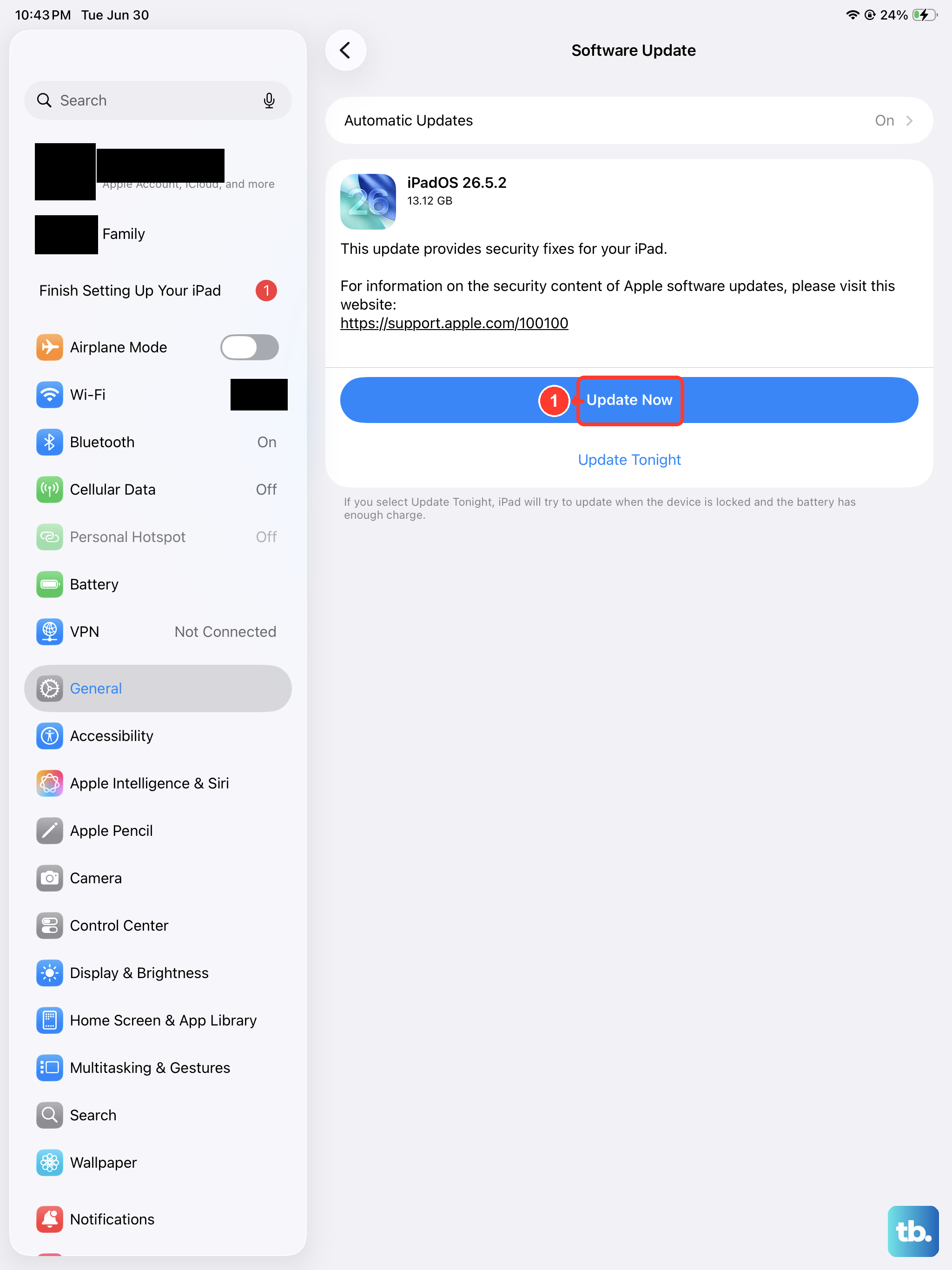
An outdated version of iPadOS 26 could have a bug affecting haptic feedback. Connect your iPad Pro to power and Wi-Fi, then go to Settings > General > Software Update.
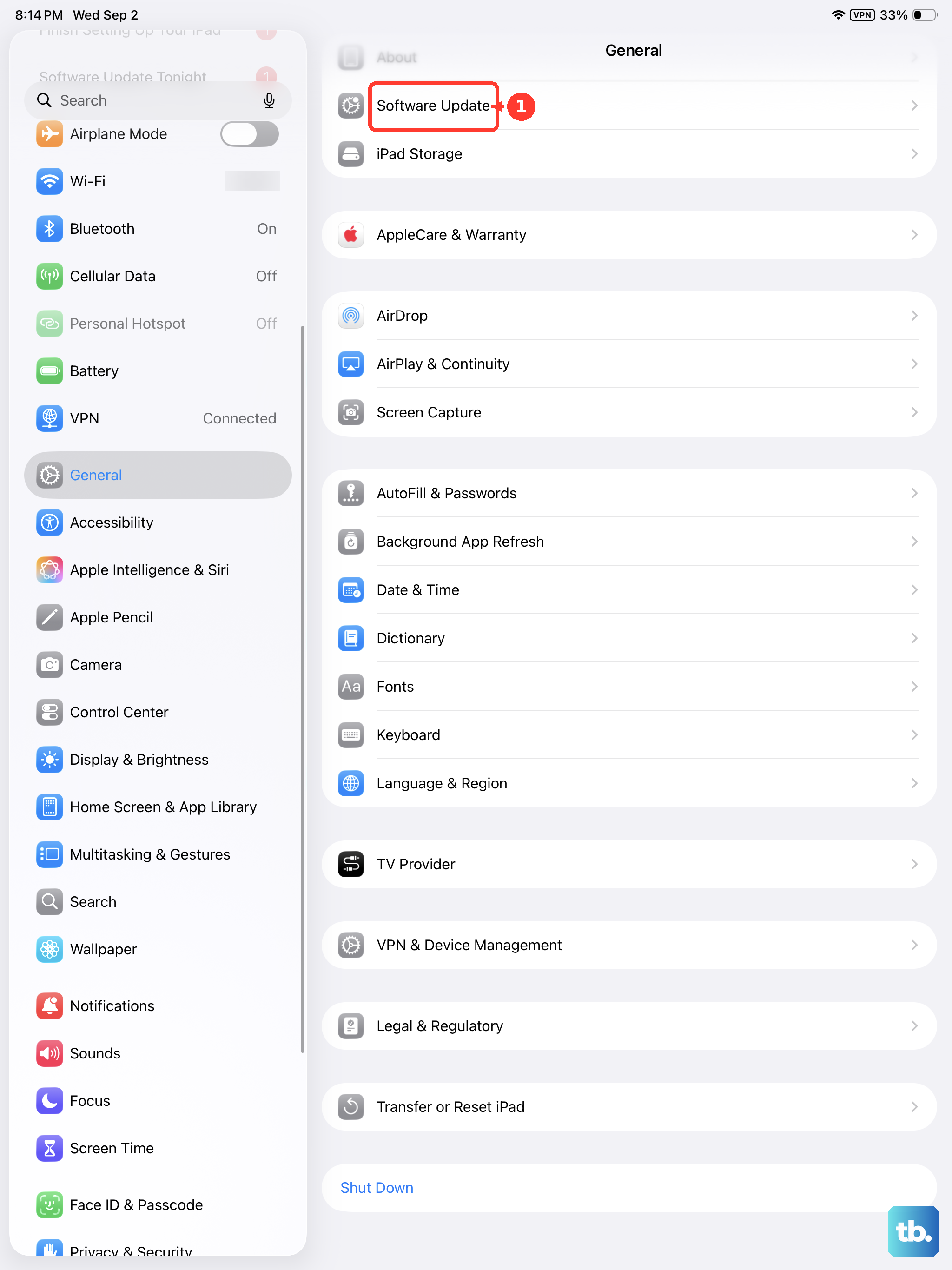
Download and install any available updates. Apple frequently releases patches for minor issues like this, so it's always a good step to take.
Reset All Settings
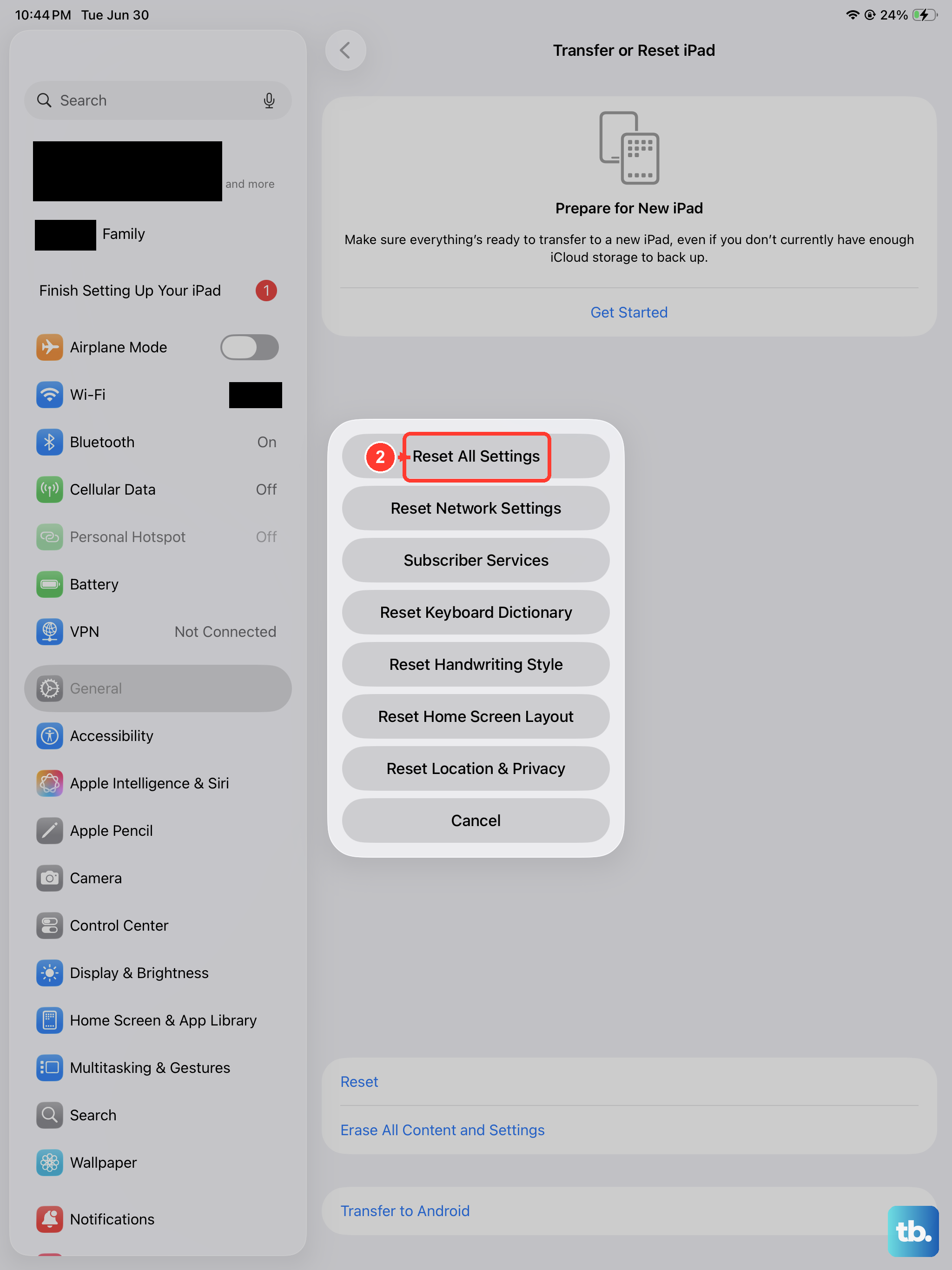
If the vibration still isn't working, you can reset all settings without erasing your personal data. This will revert all preferences, like Wi-Fi passwords, wallpaper, and sound settings, back to their defaults, which can clear out any corrupted configuration causing the problem.
Go to Settings > General > Transfer or Reset iPad > Reset. Choose "Reset All Settings." You'll need to enter your passcode and confirm. After the iPad restarts, you'll need to reconfigure your preferences, but your apps and data will remain.