
When your iPad Pro 2026 (M4) isn't receiving calls, it can leave you feeling disconnected, especially if you rely on it for work or keeping in touch. This issue can stem from a few different places on a cellular iPad, from iPadOS settings to your carrier's network. The fixes are usually pretty straightforward once you know where to look.
I'd start with the simplest check. Swipe down from the top-right corner to open Control Center and make sure the airplane icon isn't highlighted. If it is, tap it to turn Airplane Mode off. A quick restart can also clear out temporary glitches. Press and quickly release the Volume Up button, then the Volume Down button, then press and hold the Power button until you see the Apple logo.
Check Your Cellular Connection
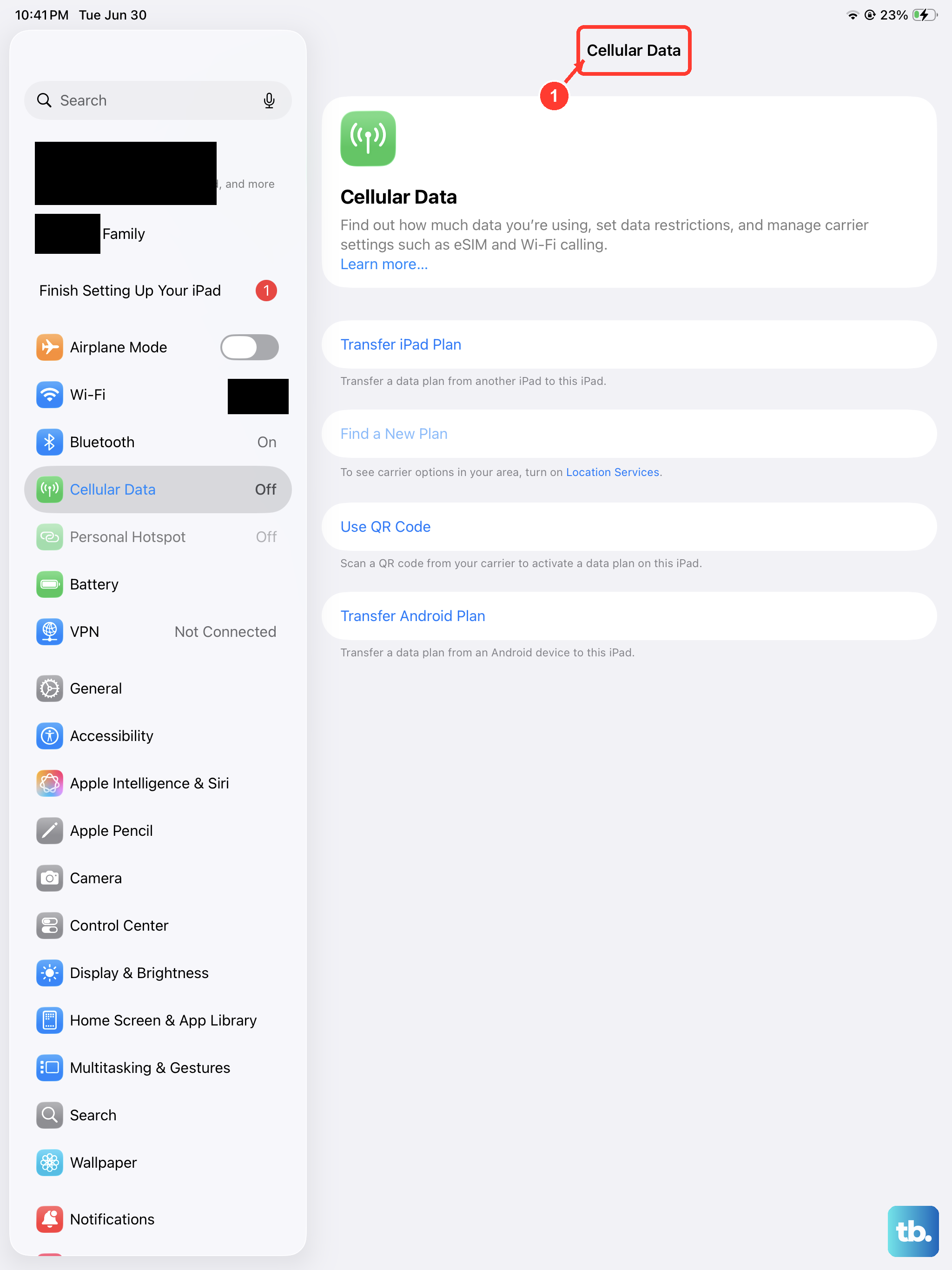
First, confirm your iPad has an active cellular signal. Look at the status bar in the top-right corner. You should see your carrier's name and some signal bars. If you see "No Service" or "Searching," the iPad isn't connected to the network.
Try toggling Cellular Data off and back on. Go to Settings > Cellular Data and flip the switch. If you're in a location with poor coverage, moving to a different area or near a window can sometimes help. Also, ensure your mobile data plan is active and paid up by checking with your carrier.
Review Focus and Do Not Disturb
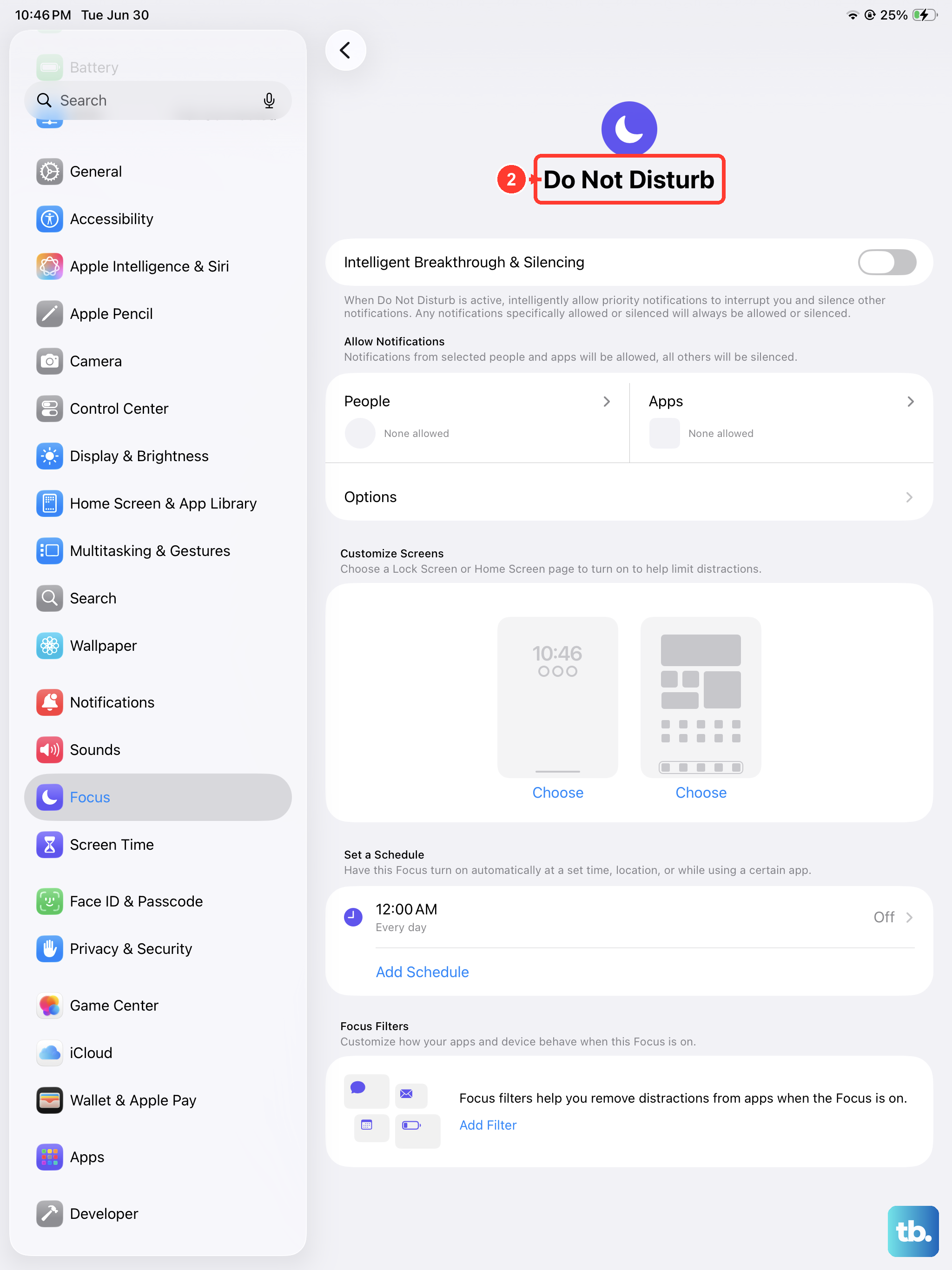
Focus modes in iPadOS 26 are powerful but can easily silence calls if they're not configured correctly. Swipe down to open Control Center and long-press the Focus tile to see which mode is active. If a Focus like Work or Sleep is on, it might be blocking all calls.
You can check the specific settings by going to Settings > Focus. Tap the active Focus and then select "People." Make sure "Allow Calls From" is set to "Everyone" or at least includes the contacts you need to hear from. Sometimes, allowing repeated calls from the same person within three minutes can be a useful bypass.
Verify Call Forwarding Settings
It's possible your calls are being forwarded to another number without you realizing it. This setting is usually managed through your carrier, but you can check on the iPad itself. Open the Phone app, go to the Keypad tab, and dial #21# and then tap the call button.
This will show you the current call forwarding status. To turn off all forwarding, you can dial ##21#. For more control, you'll need to contact your cellular provider directly, as they manage these network-level features.
Reset Your Network Settings
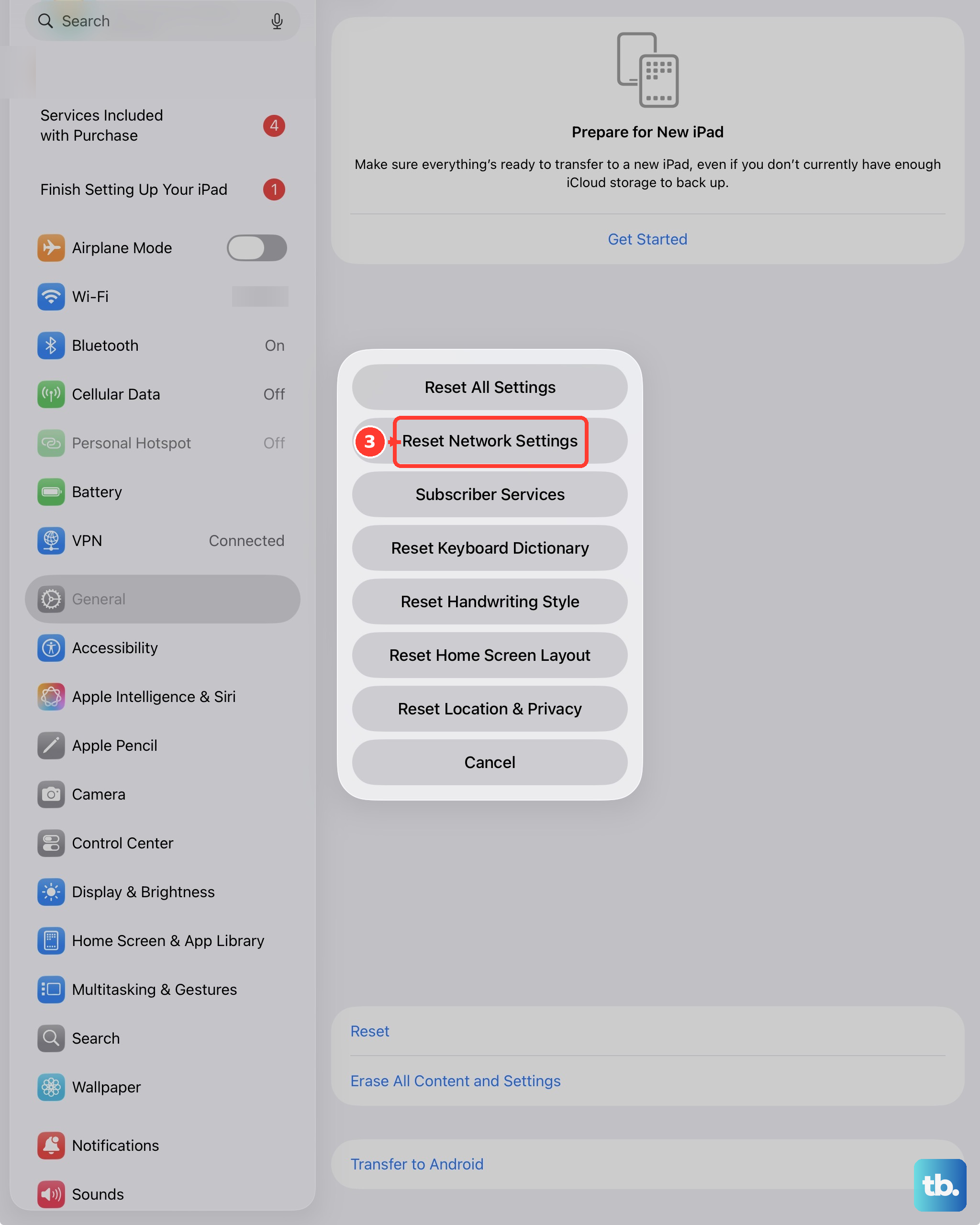
If the connection seems flaky, resetting network settings can clear out corrupted configuration data. This will erase all saved Wi-Fi passwords, Bluetooth pairings, and VPN settings, so be prepared to re-enter those.
Go to Settings > General > Transfer or Reset iPad. Tap "Reset" and then choose "Reset Network Settings." Enter your passcode if prompted and confirm. Your iPad will restart, and you'll need to reconnect to Wi-Fi and re-pair Bluetooth devices.
Update Your Carrier Settings
Carrier updates are small files that help your iPad communicate better with your provider's network. These often install automatically, but it's worth checking manually. Make sure your iPad is connected to Wi-Fi.
Then, go to Settings > General > About. If a carrier settings update is available, a pop-up notification will appear. Tap "Update" to install it. This process only takes a moment and doesn't require a restart.
Check for a Software Update
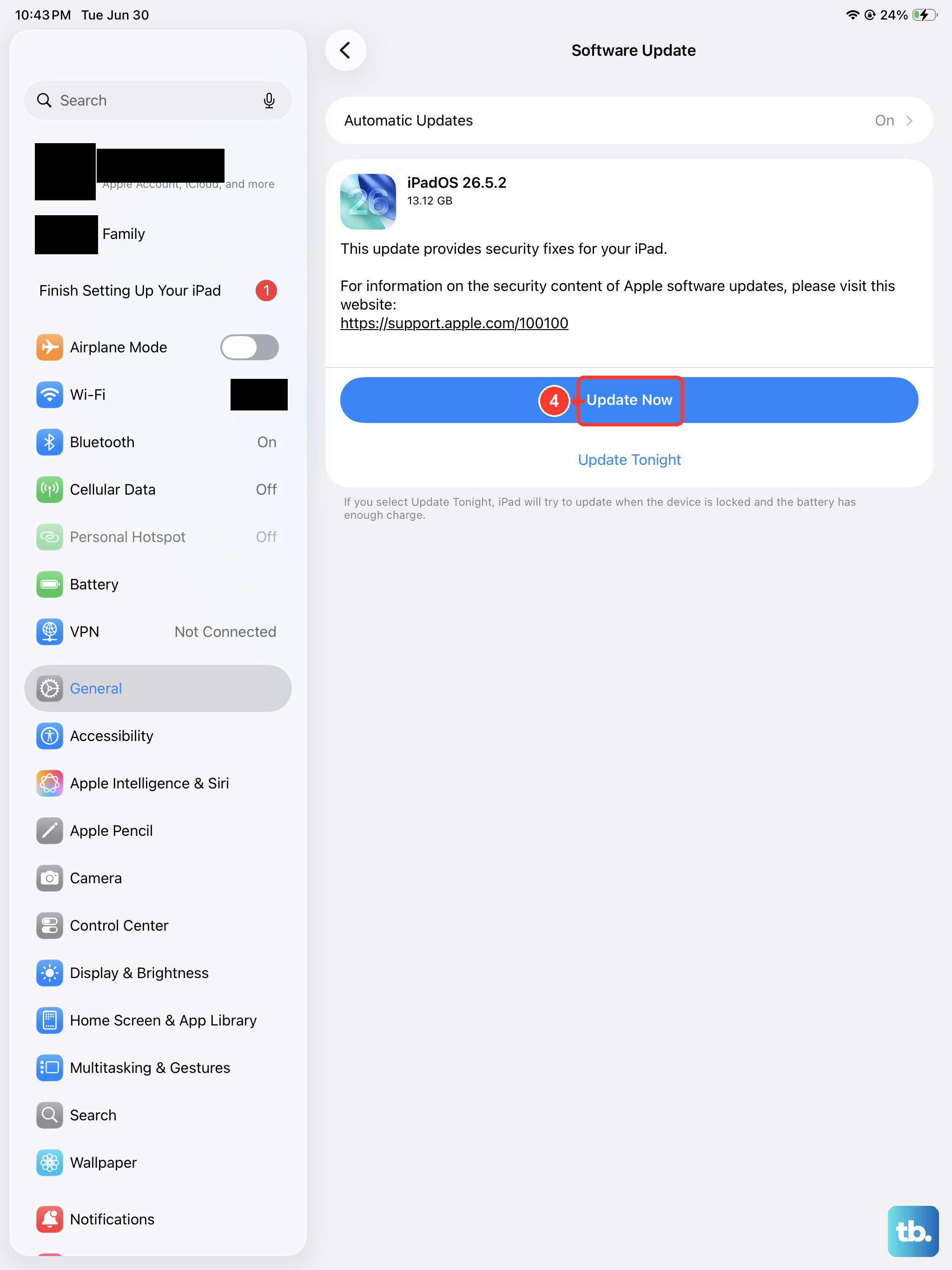
A bug in iPadOS could be causing the call reception problem. Apple frequently releases updates that include fixes for cellular connectivity. Plug your iPad into power and connect to Wi-Fi.
Open Settings > General > Software Update. If an update is available, tap "Download and Install." Keeping your iPad Pro on the latest version of iPadOS 26 is one of the best ways to ensure stability.
Examine Your SIM Card
For iPads with a physical SIM tray, the card itself could be the issue. First, power off your iPad completely. Use the SIM eject tool to open the tray on the device's frame, carefully remove the SIM card, and then reinsert it, making sure it's seated correctly in the tray.
If you have another cellular device, you could test the SIM card in it to see if calls work there. For iPads using an eSIM, this step isn't applicable, but you can try removing and re-adding the eSIM plan in Settings > Cellular Data.
Review Blocked Contacts
It's easy to accidentally block a number. Open the Phone app and tap the "Recents" tab. Find a call from the number you're missing and tap the info icon (a small "i" in a circle) next to it.
Scroll down on the contact card. If you see "Unblock this Caller," it means they are blocked. Tap it to allow calls through. You can also see a full list in Settings > Apps > Phone > Blocked Contacts.
Contact Your Cellular Provider
Sometimes the issue is entirely on your carrier's end. They can check for network outages in your area, verify that your line is properly provisioned for voice calls on an iPad (which sometimes requires a specific data plan), and ensure there are no account holds.
It's also worth asking them to reprovision your line or refresh your connection to their network. This is a common backend fix they can perform while you're on the phone with them, and it often resolves persistent calling issues.











