
When your iPad Pro 2026 (M4) won't send photos, it's usually a quick network or settings hiccup. I'd start by checking your connection and giving the Messages app a quick restart. That solves it most of the time.
Check Your Internet Connection First
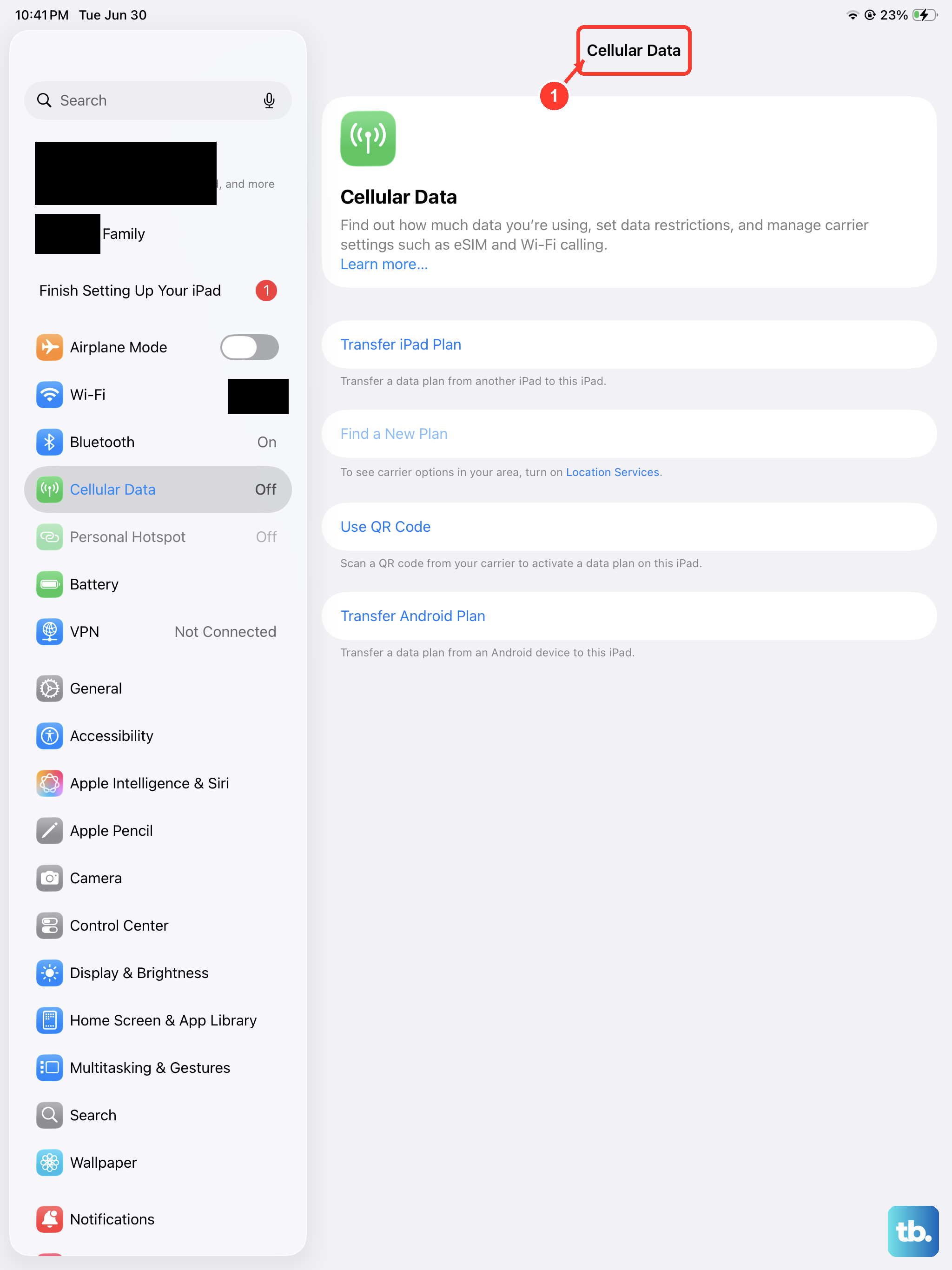
Photos need a solid data connection to send, whether you're on Wi-Fi or cellular. If you're using Wi-Fi, make sure the icon is in the status bar and you have a strong signal. A quick router restart can often clear up any temporary glitches.
For cellular models, check that you have adequate signal bars. Sometimes moving to a different spot in your home or office can make a big difference. Also, ensure Cellular Data is turned on in Settings > Cellular.
Restart the Messages App
If a photo is stuck sending, force quitting the app can clear the jam. On your iPad Pro, swipe up from the bottom of the screen and pause in the middle to enter the app switcher. Find the Messages app card and swipe it all the way up to close it. Then, just tap the Messages icon to reopen it and try sending again.
Verify iMessage is Active
If your messages are sending as green text bubbles instead of blue, iMessage might be turned off or having a connection issue. Head to Settings > Apps > Messages and toggle the iMessage switch off, wait a few seconds, and then turn it back on. This refreshes the connection with Apple's servers.
Also, check your send and receive addresses in the same menu. Under Send & Receive, make sure the correct email or phone number is selected. If you're trying to send to another Apple device, both of you need iMessage enabled.
Enable MMS for Text Message Photos
If you're sending a photo to a non-Apple device (like an Android phone), it will go as an MMS text. You need to make sure this setting is enabled. Go to Settings > Apps > Messages and ensure MMS Messaging is turned on.
While you're there, also check that Send as SMS is enabled. This lets your iPad automatically send as a regular text if iMessage fails or isn't available for the recipient.
Restart Your iPad Pro
A simple restart can fix a surprising number of temporary software glitches. Press and hold the top button and either volume button, then slide the power off slider. Wait about 30 seconds, then press and hold the top button again until you see the Apple logo.
If the iPad is unresponsive, you can perform a force restart. Quickly press and release the Volume Up button, then quickly press and release the Volume Down button. Immediately after, press and hold the top Power button until the screen goes black and the Apple logo appears.
Check Date, Time, and Carrier Settings
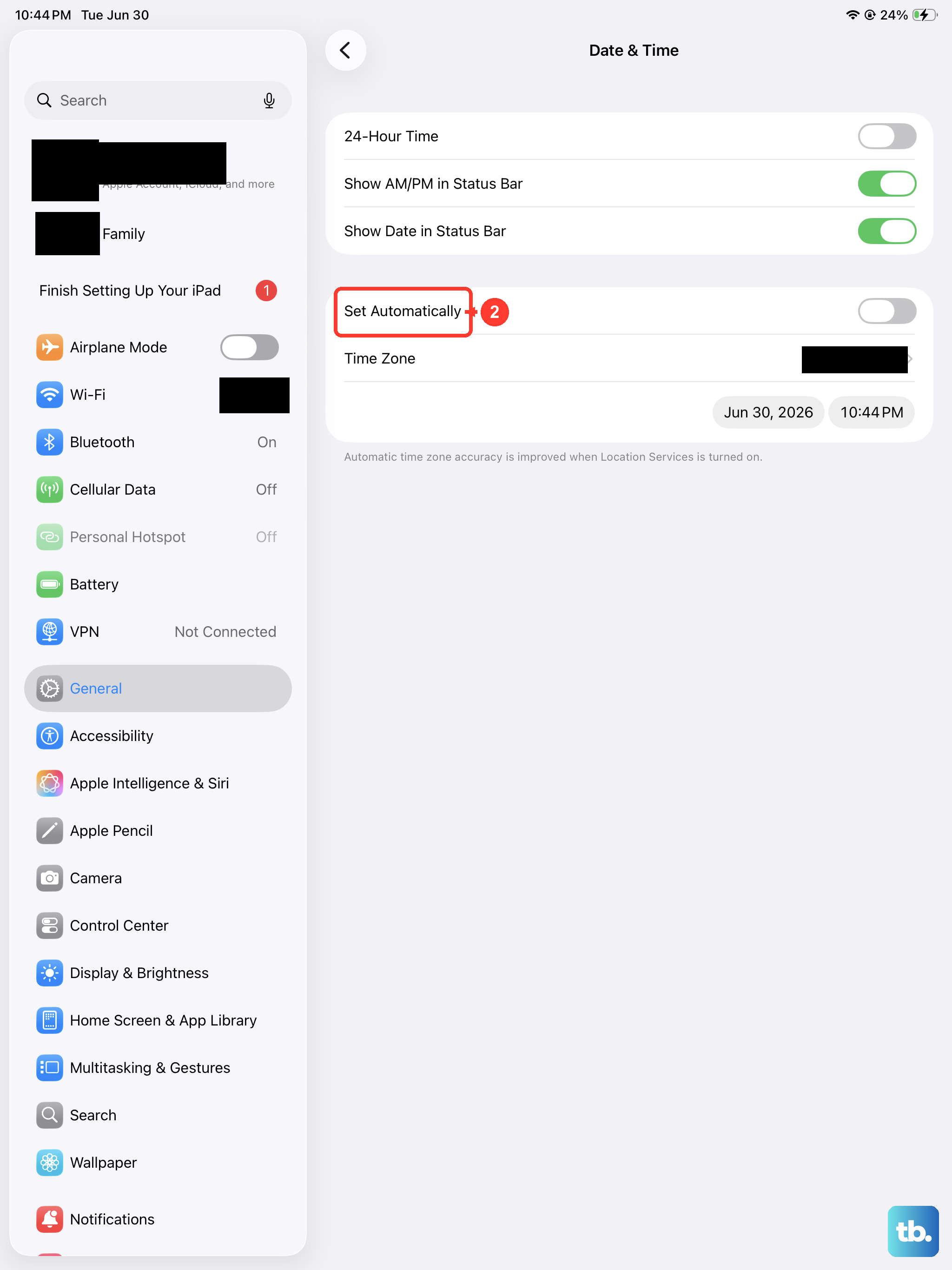
An incorrect date or time can sometimes interfere with message delivery. Go to Settings > General > Date & Time and make sure Set Automatically is turned on.
It's also a good idea to check for a carrier settings update if you have a cellular model. Connect to the internet, go to Settings > General > About. If an update is available, a prompt will appear.
Sign Out and Back Into Your Apple ID
Since iMessage is tied to your Apple ID, refreshing this connection can help. Go to Settings and tap your name at the top. Scroll all the way down and tap Sign Out. You'll need your Apple ID password.
After signing out, restart your iPad Pro. Then go back to Settings, sign in with your Apple ID again, and make sure iMessage is turned back on. This process can resolve authentication issues with Apple's servers.
Disable Low Data Mode and Data Roaming
Low Data Mode, designed to reduce cellular data usage, can sometimes block photo messages. On your iPad Pro, go to Settings > Cellular > Cellular Data Options and turn Low Data Mode off.
If you're traveling, remember that Data Roaming needs to be enabled to use cellular data abroad. You can find this in the same Cellular Data Options menu. Be aware of potential charges from your carrier.
Update iPadOS
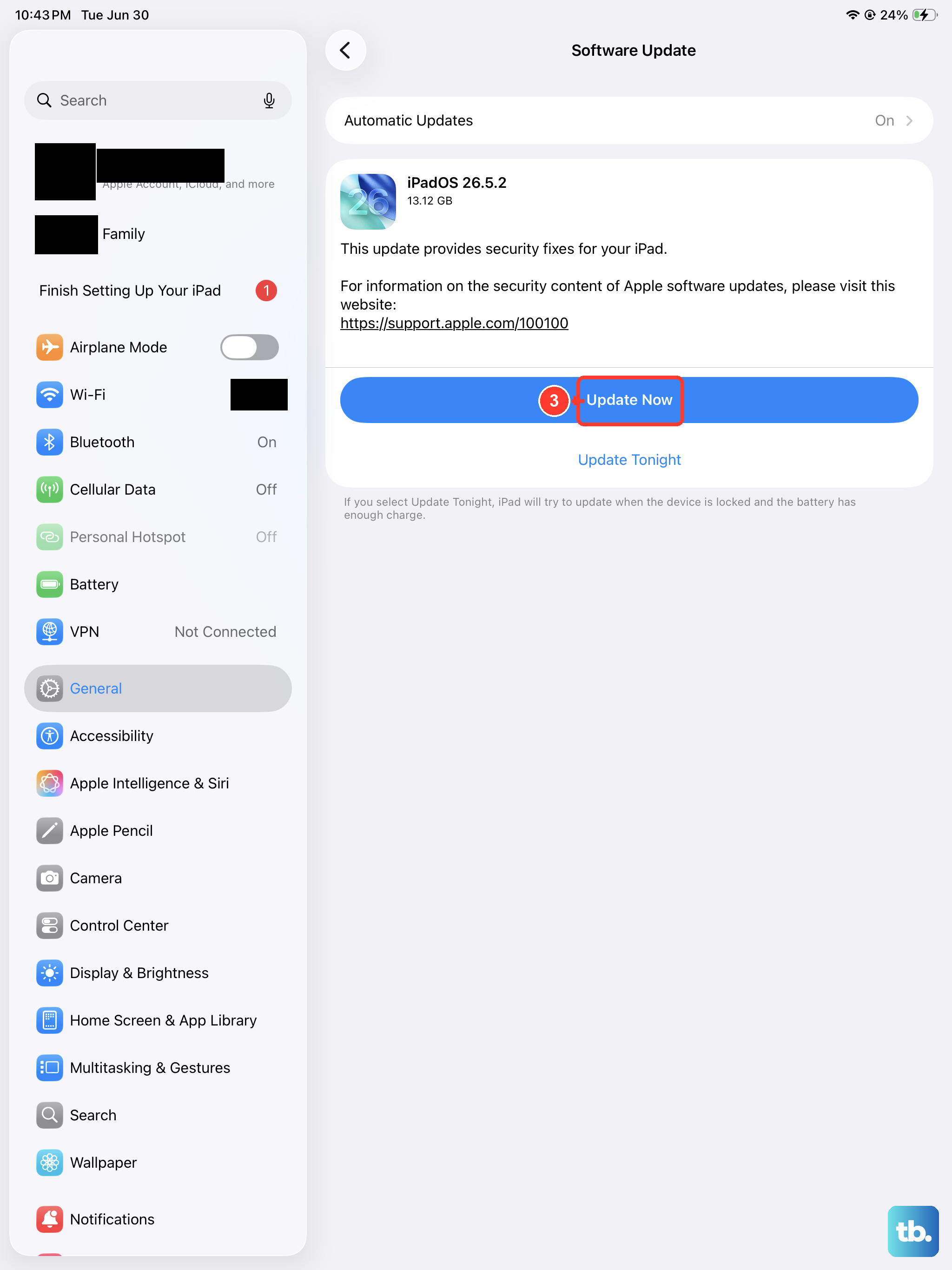
Running the latest version of iPadOS ensures you have all the current bug fixes for the Messages app and cellular connectivity. Plug your iPad in or make sure it has plenty of battery, connect to Wi-Fi, and go to Settings > General > Software Update.
Download and install any available update. I've seen minor point updates specifically address messaging bugs, so this is always worth checking.
Reset Network Settings
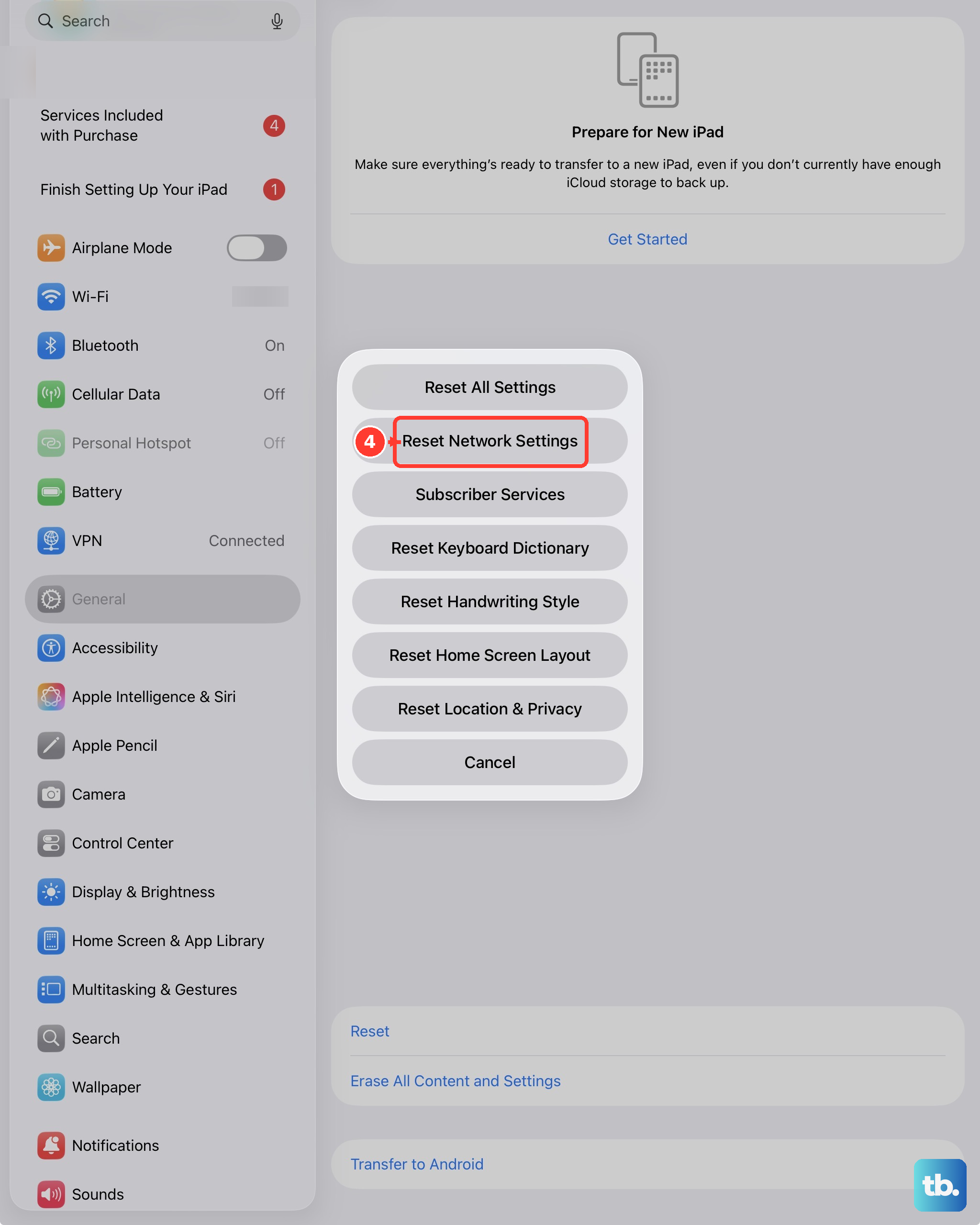
If you've tried everything else and photos still won't send, resetting network settings is a strong next step. This clears all network configurations, including Wi-Fi passwords, VPN settings, and cellular preferences.
Go to Settings > General > Transfer or Reset iPad > Reset. Choose Reset Network Settings and enter your passcode to confirm. Your iPad will restart, and you'll need to rejoin your Wi-Fi networks.











