
When your iPad mini isn't ringing for incoming calls, it can leave you feeling disconnected. This is a common hiccup that can happen for a bunch of reasons, from a simple setting you forgot about to a glitch with your cellular connection. I've found that most of the time, the fix is pretty straightforward and doesn't require a trip to the Apple Store.
Start With These Quick Checks
Before we get into the deeper fixes, run through this short list. One of these often does the trick. First, make sure your iPad isn't in Airplane Mode. You can check by swiping down from the top-right corner to open Control Center and looking for the airplane icon.
Next, give your iPad mini a quick restart. Just press and hold the Top button and either volume button, then slide to power off. Wait a moment, then press the Top button again to turn it back on. This clears out temporary software bugs that can mess with calling.
Finally, take a glance at the cellular signal indicator in the top-right corner. If you only see one bar or the dreaded "No Service," the problem is likely your network connection, not the iPad itself. Moving to a different location might help.
Check Your Focus Modes
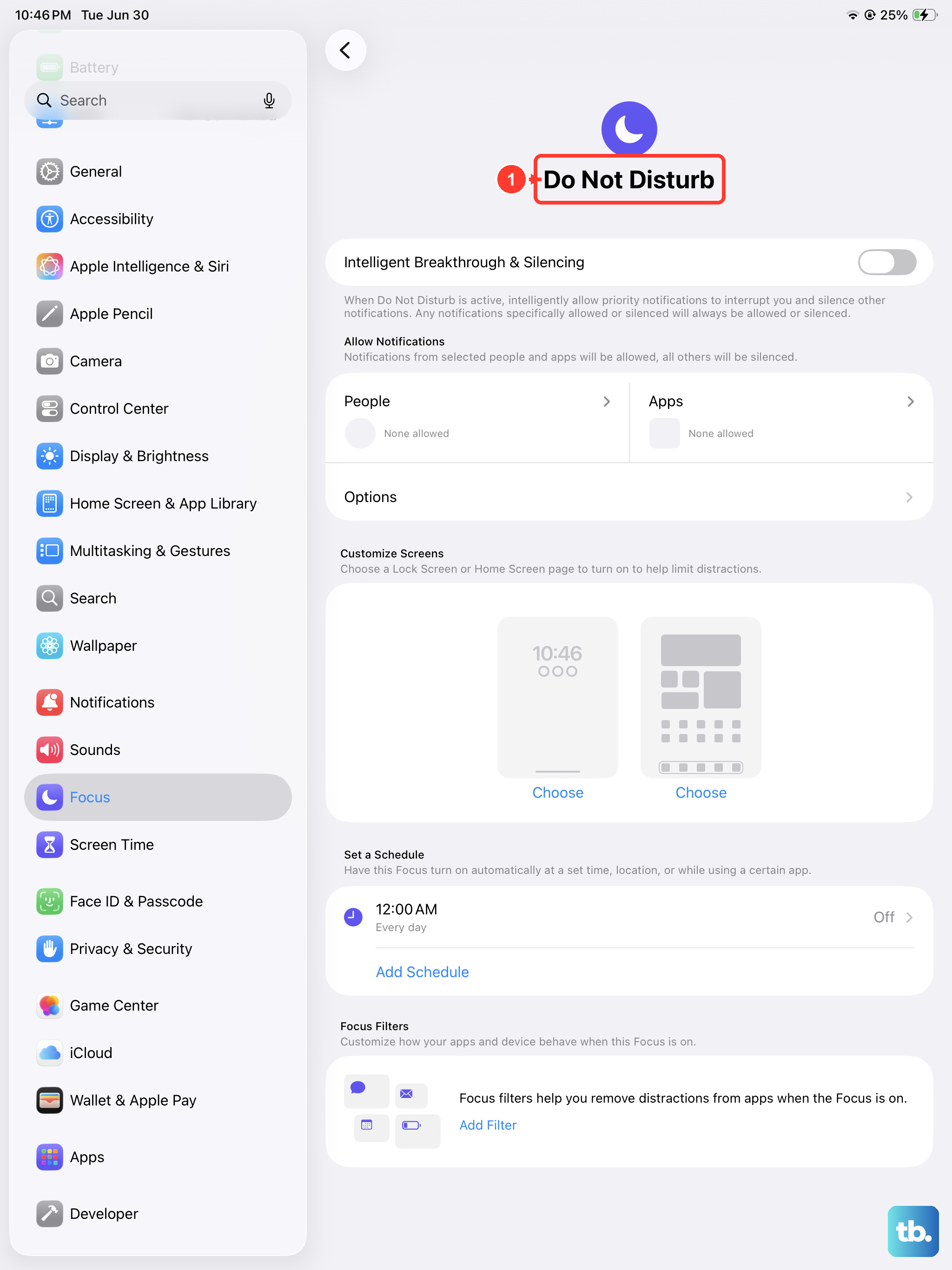
Focus modes on iPadOS, like Do Not Disturb, are great for minimizing distractions, but they can silently block all incoming calls. Swipe down from the top-right to open Control Center and tap the Focus button (it looks like a crescent moon) to see which mode is active.
If you see Do Not Disturb, Sleep, or any other Focus is on, tap it to turn it off. You can also go into Settings > Focus to see a list of all your modes and check their specific settings, making sure none are configured to silence calls from everyone.
Verify Your Cellular Data Settings
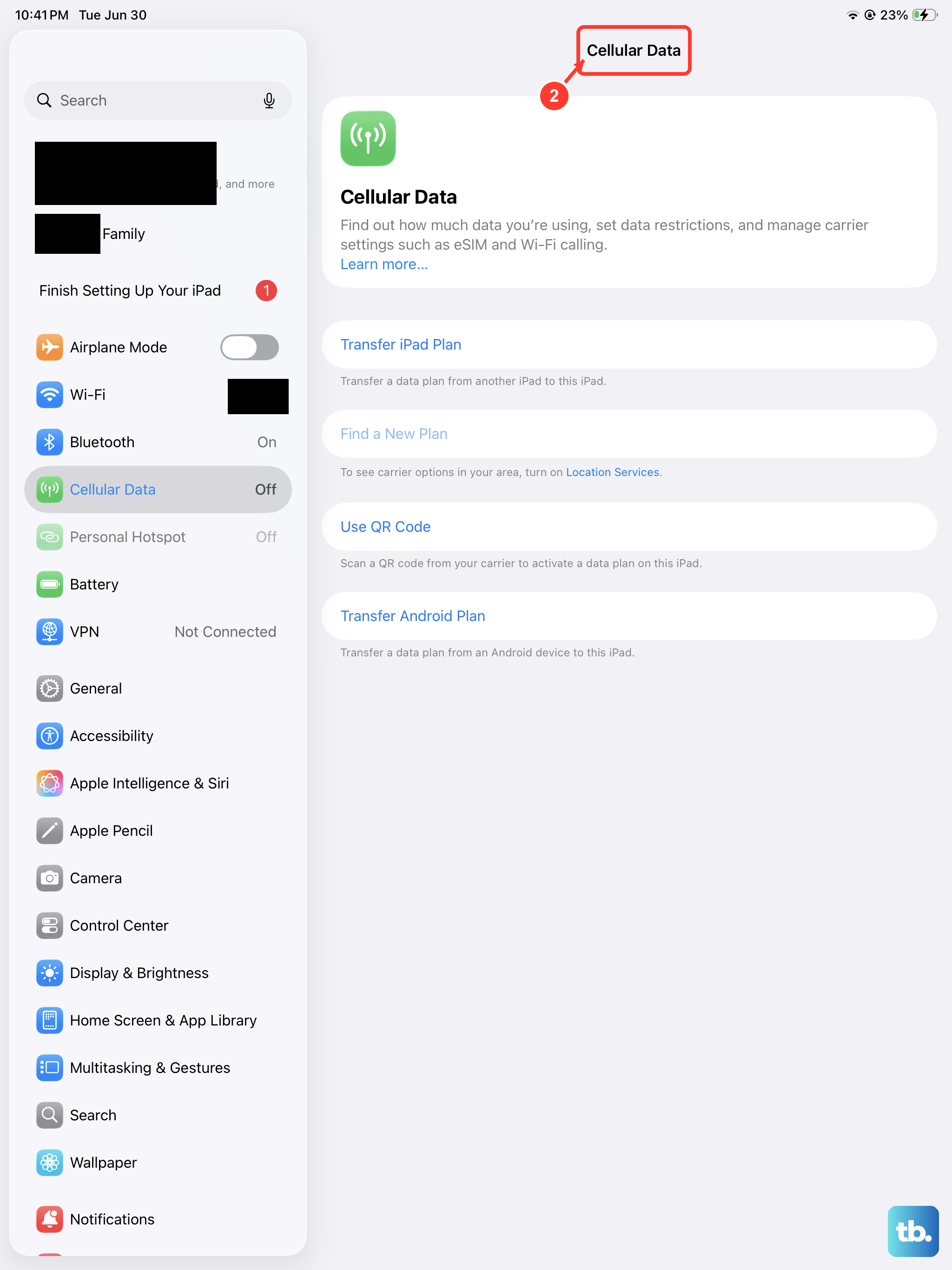
Since the iPad mini uses cellular data for calls over LTE or 5G, let's make sure everything is switched on correctly. Open Settings > Cellular Data. First, ensure the main Cellular Data toggle is green and on.
Scroll down a bit and look for the Cellular Data Options menu. Tap it, then tap Voice & Data. For the best call reliability, I'd recommend selecting 5G Auto or LTE. The "Data Only" mode on some carriers can prevent calls from coming through.
Review Call Forwarding and Blocking
It's possible calls are being sent somewhere else without you knowing. On your iPad mini, open the Phone app and tap the Keypad tab. Here, you can check for active call forwarding by dialing #21# and then the call button.
This will show you if your calls are being forwarded to another number. To disable all forwarding, you can dial ##21#. Also, check your blocked contacts list by going to Settings > Apps > Phone > Blocked Contacts to make sure the right people can get through.
Reset Your Network Configuration
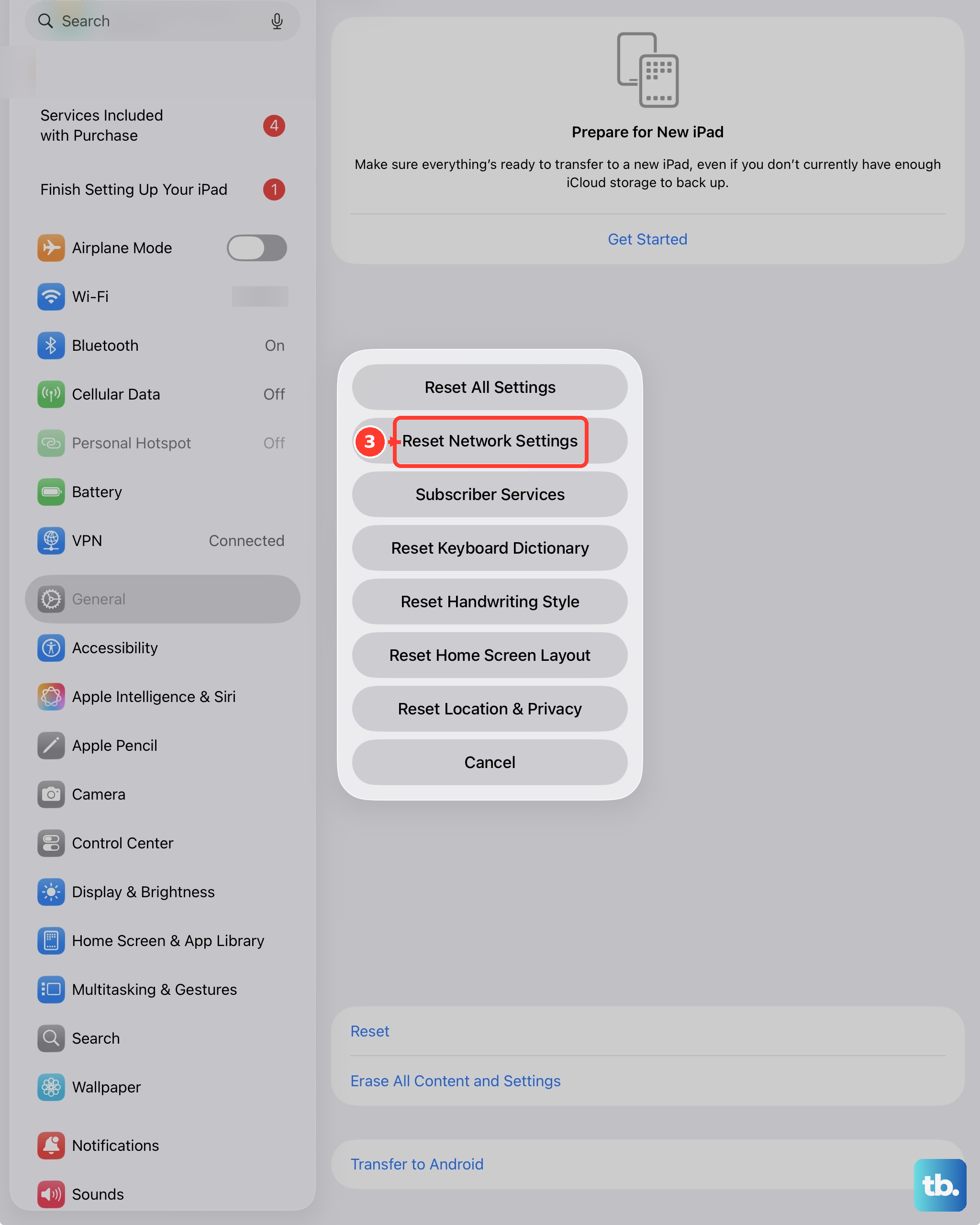
If you're still having issues, resetting your iPad's network settings can clear out any corrupted configuration data that's causing problems. This is a safe step, but it will erase saved Wi-Fi passwords and any custom network settings.
Go to Settings > General > Transfer or Reset iPad. Tap Reset, and then select Reset Network Settings. Enter your passcode if prompted and confirm. Your iPad will restart, and you'll need to reconnect to Wi-Fi and re-pair Bluetooth devices.
Update Your iPadOS Software
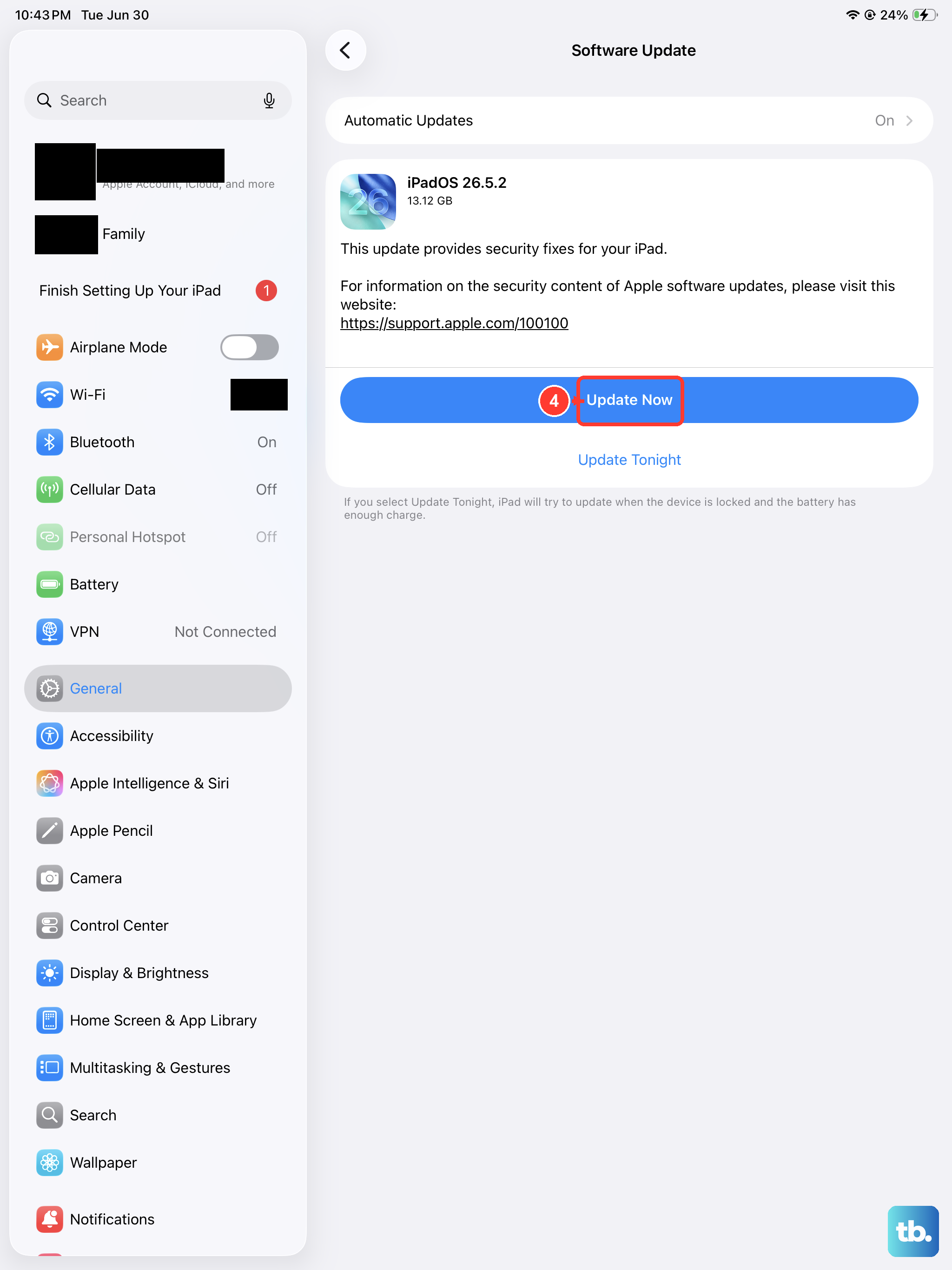
Running outdated software can lead to all sorts of bugs, including call issues. Apple regularly releases updates that fix these kinds of problems. Connect your iPad to power and Wi-Fi, then go to Settings > General > Software Update.
If an update for iPadOS 26 (or newer) is available, tap Download and Install. Keeping your iPad mini updated is one of the easiest ways to ensure stability and security for features like cellular calling.
Check for a Carrier Settings Update
Separate from the main iPadOS update, your mobile carrier occasionally pushes small configuration files to your device. These updates can improve network connectivity and calling features. You usually get a prompt to install them, but you can check manually.
With a SIM or eSIM active, go to Settings > General > About. If a carrier settings update is available, a pop-up will appear asking you to update. This process only takes a few seconds and doesn't require a restart.
Re-insert Your SIM Card
For iPad minis with a physical SIM tray, the card can sometimes become loose or the contacts can get dirty. You'll need a SIM eject tool or a small paperclip. Gently push it into the tiny hole on the SIM tray on the side of your iPad to pop it out.
Carefully remove the SIM card, give the gold contacts a gentle wipe with a soft, dry cloth, and then re-insert it. Make sure it's seated correctly in the tray before sliding it back into the iPad. Wait a minute for it to reconnect to the network.
Try a Force Restart
A standard restart is good, but a force restart is more thorough for clearing system-level glitches. It's different on the iPad mini. Quickly press and release the Volume Up button, then quickly press and release the Volume Down button.
Immediately after, press and hold the Top button. Keep holding it until you see the Apple logo appear on the screen, then let go. This doesn't erase any data, it just gives the system a fresh start, which can resolve stubborn call reception issues.
Contact Your Cellular Carrier
If you've tried everything here, the issue might be on your carrier's end. It's worth giving them a call from another phone. They can check for outages in your area, verify that your line is properly provisioned for data and voice on your iPad, and ensure there are no account blocks.
They can also help you re-provision your connection or check if your eSIM needs to be re-downloaded. Sometimes, they can run a diagnostic on their side that instantly fixes the problem.