


Is your iPad mini stuck in one orientation and refusing to flip when you turn it? It's a common hiccup where the screen rotation lock seems to engage on its own. The issue can stem from a simple software toggle to a more stubborn app or system glitch.
Here are the most effective ways to get your iPad mini's screen rotating freely again, starting with the quickest fix.
Toggle the Rotation Lock in Control Center
The fastest thing to check is the Rotation Lock. It's easy to tap this icon in Control Center by accident, which will lock your screen in its current orientation. When it's on, you'll see a small lock icon inside the button.
Swipe down from the top-right corner of your screen to open Control Center. Look for the icon that looks like a circular arrow around a lock. If it's highlighted or looks "pressed in," tap it once to turn Rotation Lock off.
You should feel a brief haptic feedback when you toggle it. Try rotating your iPad mini now to see if it responds.
Check the App's Orientation Support
Not every app supports both portrait and landscape modes. Some are designed to work in one orientation only. If rotation works fine in Safari or Mail but not in a specific game or streaming app, the app itself is likely the culprit.
Try opening a few different apps to test. I'd start with Apple's own apps like Notes or Safari, as they reliably support rotation. If the problem is isolated to one app, check its settings within the app or look for an update in the App Store, as developers sometimes add orientation support later.
Force Restart Your iPad mini
A force restart is different from a normal power off and on. It clears the device's memory and can fix temporary software glitches affecting the sensors without deleting any of your data or settings.
On the iPad mini (7th generation), press and quickly release the Volume Up button, then press and quickly release the Volume Down button. Immediately after, press and hold the Top button. Keep holding it until you see the Apple logo appear, then release. This whole process takes about 10-15 seconds.
Once it boots back up, test the rotation in an app you know supports it.
Update to the Latest iPadOS
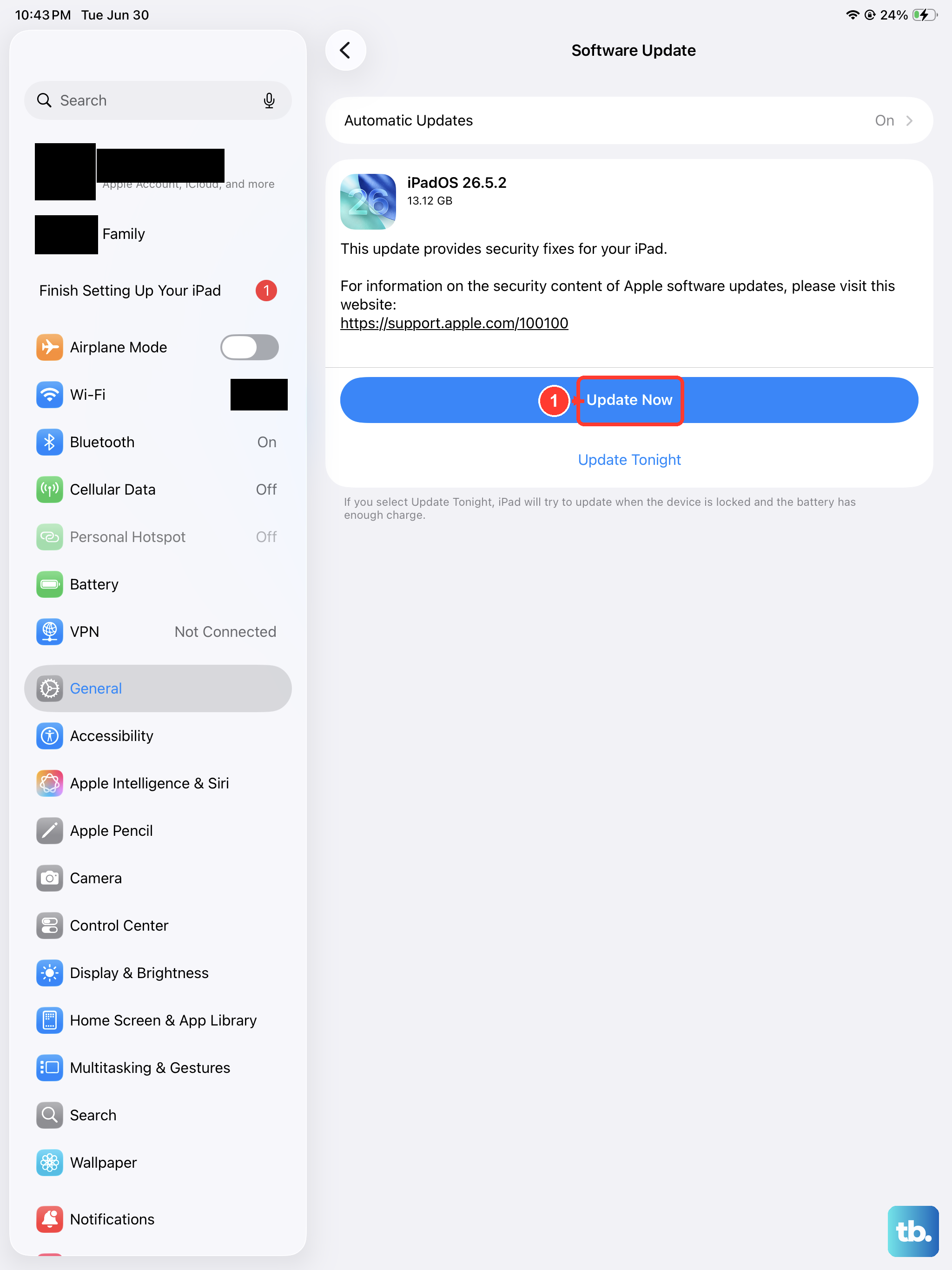
Software bugs in iPadOS can occasionally cause sensor issues, including problems with auto-rotation. Apple frequently releases updates that include performance improvements and bug fixes.
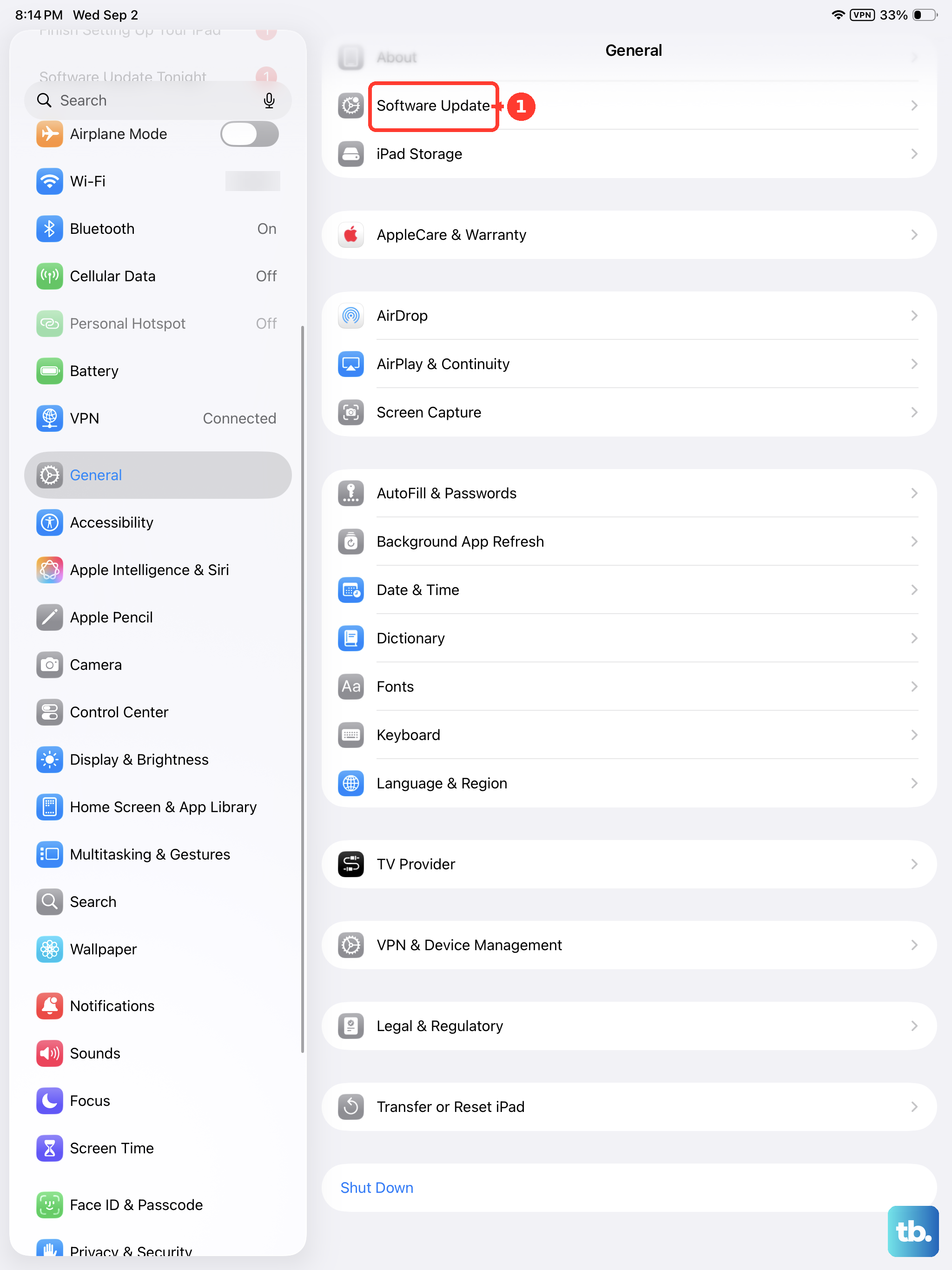
Go to Settings > General > Software Update. Your iPad mini will check for any available updates. If one is listed, tap Download and Install. It's a good practice to keep your device updated to ensure any known issues are addressed.
Check for Guided Access or Other Accessibility Settings
Guided Access is a helpful accessibility feature that locks the iPad into a single app and can disable certain areas of the screen. If it's enabled, it might also be preventing the screen from rotating.
To check, go to Settings > Accessibility. Scroll down and tap Guided Access. Make sure the switch at the top is turned off. You can also quickly triple-click the Top button to see if a Guided Access session starts; if it does, enter your passcode and tap End in the top-left corner.
Also, under Settings > Accessibility > Touch, ensure AssistiveTouch is not configured in a way that interferes with normal operation.
Reset All Settings
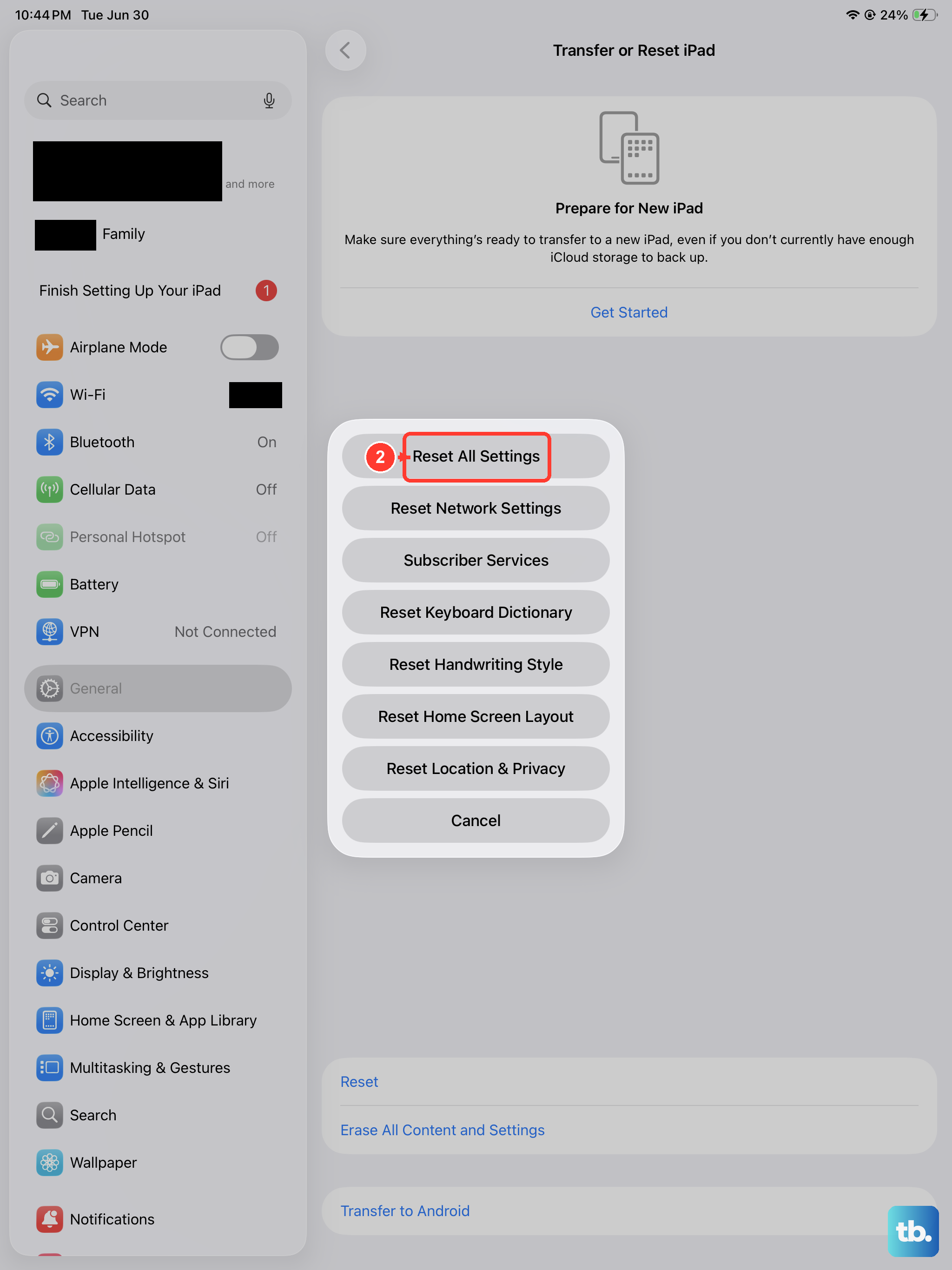
This is a more thorough step that will reset all your system settings, like network preferences, wallpaper, and privacy permissions, back to their defaults. It won't delete any of your personal data, photos, or apps, but you will have to reconfigure things like Wi-Fi passwords and notification preferences afterward.
If a misconfigured setting is causing the conflict, this can clear it. Go to Settings > General > Transfer or Reset iPad. Tap Reset and then choose Reset All Settings. Enter your passcode if prompted and confirm. After the iPad mini restarts, test the rotation.
Check for Physical Obstructions or Cases
It sounds simple, but a bulky case or a magnetic accessory can sometimes interfere with the iPad's sensors. The iPad mini uses an accelerometer and gyroscope to detect movement, and strong magnets or pressure on the frame might affect this.
Try removing your iPad from its case temporarily and test the rotation. If you use a magnetic folio cover, ensure it's fully folded back and not creating a magnetic field near the device's edge where sensors are located. Some third-party cases with built-in magnets or stands aren't always perfectly calibrated.
Consider a Hardware Diagnostic
If you've tried all the software fixes and the screen still won't rotate in any app, there's a small chance it could be a hardware issue with the internal motion sensors. This is rare but possible, especially if the iPad has been dropped or exposed to moisture.
Since the iPad mini is a newer model, it would be covered under Apple's standard one-year warranty or AppleCare+ if you have it. You can use the Apple Support app to run remote diagnostics or schedule an appointment at an Apple Store or authorized service provider to have the hardware checked.