
When the microphone on your iPad Air (2026) stops working, it can really throw a wrench in your day. You might find people can't hear you on FaceTime calls, your voice memos are silent, or Siri just stares back blankly. The first thing I'd do is figure out exactly which microphone is acting up, as your iPad has a few of them.
Start by confirming the basics with a free microphone test. It shows a live level meter and lets you hear a short playback, so you know in seconds whether any signal is coming through.
You'll find one near the top edge for FaceTime and video calls, and another built into the rear camera array for recording videos. A quick test in the Voice Memos app is the easiest way to start. Open it, tap the red record button, and speak normally for about ten seconds. Play it back. If you hear nothing or your voice is muffled, you've confirmed the issue.
You can also try asking Siri a question by saying "Hey Siri" or holding the top button. If she doesn't respond or consistently mishears you, that's another clue. For a more complete check, open the Camera app, switch to video mode, and record a short clip while talking. Play it back with the volume up to check the audio quality.
Remove Any Case or Cover
This is a surprisingly common fix. Some iPad cases, especially bulky or folio-style ones with front covers, can partially block the microphone ports. The top microphone, in particular, is in a vulnerable spot. Take the case off completely and run the Voice Memos test again. Sometimes, that's all it takes.
Also, give the microphone openings a visual inspection. Look at the tiny grilles along the top edge and near the rear cameras. Use a soft, dry brush, like a clean makeup brush or a new, soft-bristled toothbrush, to gently dislodge any lint or dust. Don't use compressed air, as you could force debris further inside.
Check for Connected Audio Devices
Your iPad will automatically route audio input and output to any connected Bluetooth device. If you have AirPods, a headset, or even a Bluetooth speaker paired and nearby, the iPad might be trying to use that microphone instead of its own. Swipe down from the top-right corner to open Control Center and tap the Bluetooth icon to turn it off temporarily.
Then, test your iPad's microphone again. Also, check if you have any wired headphones with a microphone plugged into the USB-C port. Unplug them, as the iPad will prioritize that external mic. After testing, you can turn Bluetooth back on if needed.
Restart Your iPad Air
A simple restart clears out temporary software glitches that can affect hardware like the microphone. On your iPad Air (2026), press and hold the top button and either volume button until the power off slider appears. Drag the slider, wait about 30 seconds for it to fully shut down, then press and hold the top button again until you see the Apple logo.
If the touchscreen isn't responding, you can force restart it. Quickly press and release the volume up button, then quickly press and release the volume down button. Immediately press and hold the top button. Keep holding it until you see the Apple logo, then let go. This doesn't erase any data.
Review App Permissions in Settings
Apps like Zoom, Teams, or recording software need explicit permission to use your microphone. If you denied this permission accidentally or an update reset it, the app won't be able to hear you. Go to Settings > Privacy & Security > Microphone.
You'll see a list of all apps that have requested microphone access. Make sure the toggle is switched on (green) for the app you're having trouble with. If the app isn't on the list at all, it hasn't asked for permission yet; you'll usually get a prompt the next time you try to use the mic feature within that app.
Close and Reopen the Problem App
If the microphone works in some apps but not others, the issue is likely with that specific app. To fully close it, swipe up from the bottom of the screen and pause in the middle to enter the app switcher. Find the app's preview and swipe it up and off the top of the screen to close it.
Wait a few seconds, then tap the app icon to reopen it fresh. This clears the app's temporary memory and can resolve conflicts. It's a good step to try before moving on to more system-wide fixes, especially after you've checked the app's permissions.
Install the Latest iPadOS Update
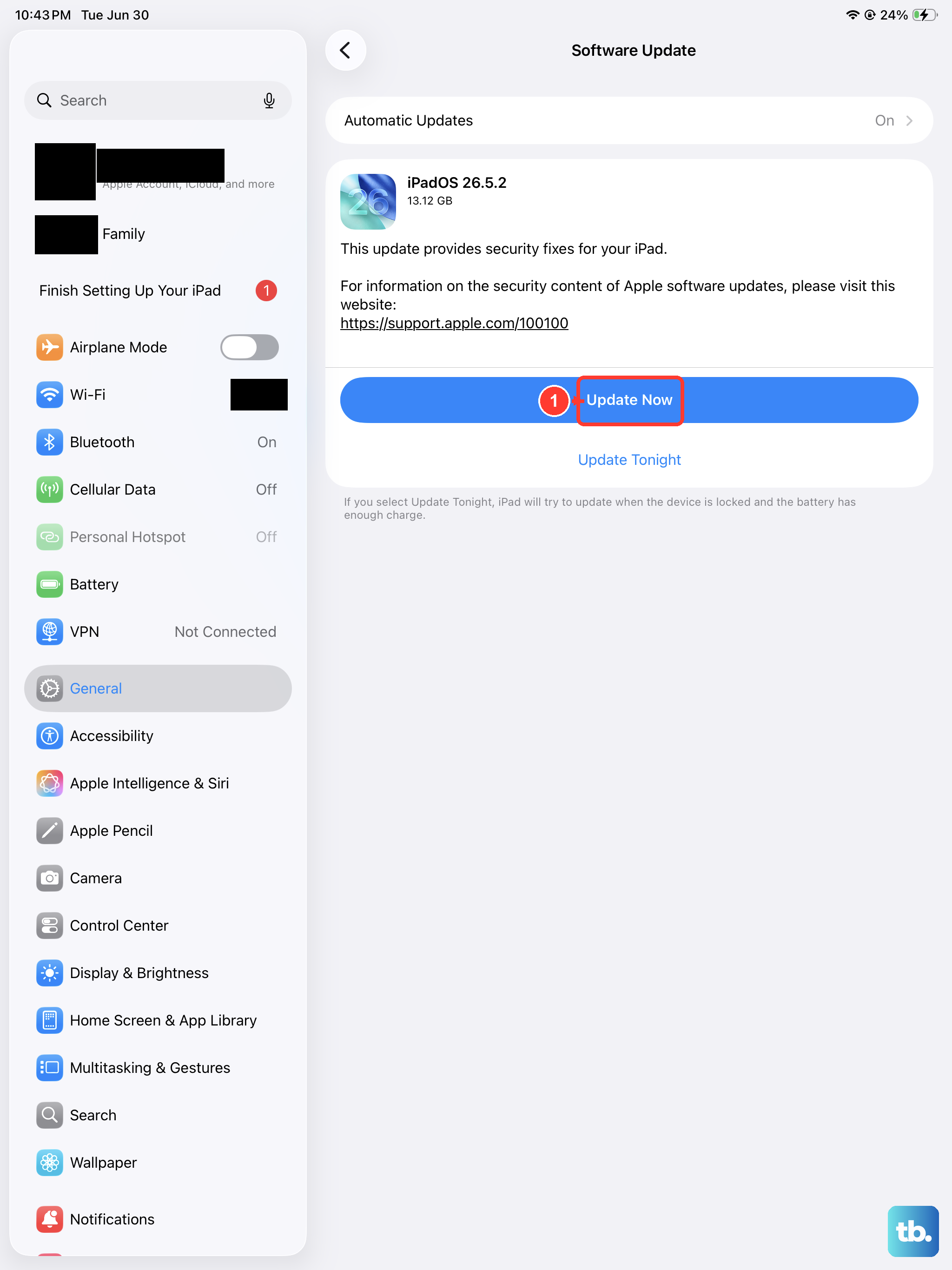
Apple regularly releases iPadOS updates that include bug fixes for hardware and audio issues. A problem with the microphone drivers could be something they've already patched. Connect your iPad to Wi-Fi and plug it into power using a 30W or higher USB-C PD charger for a reliable update.
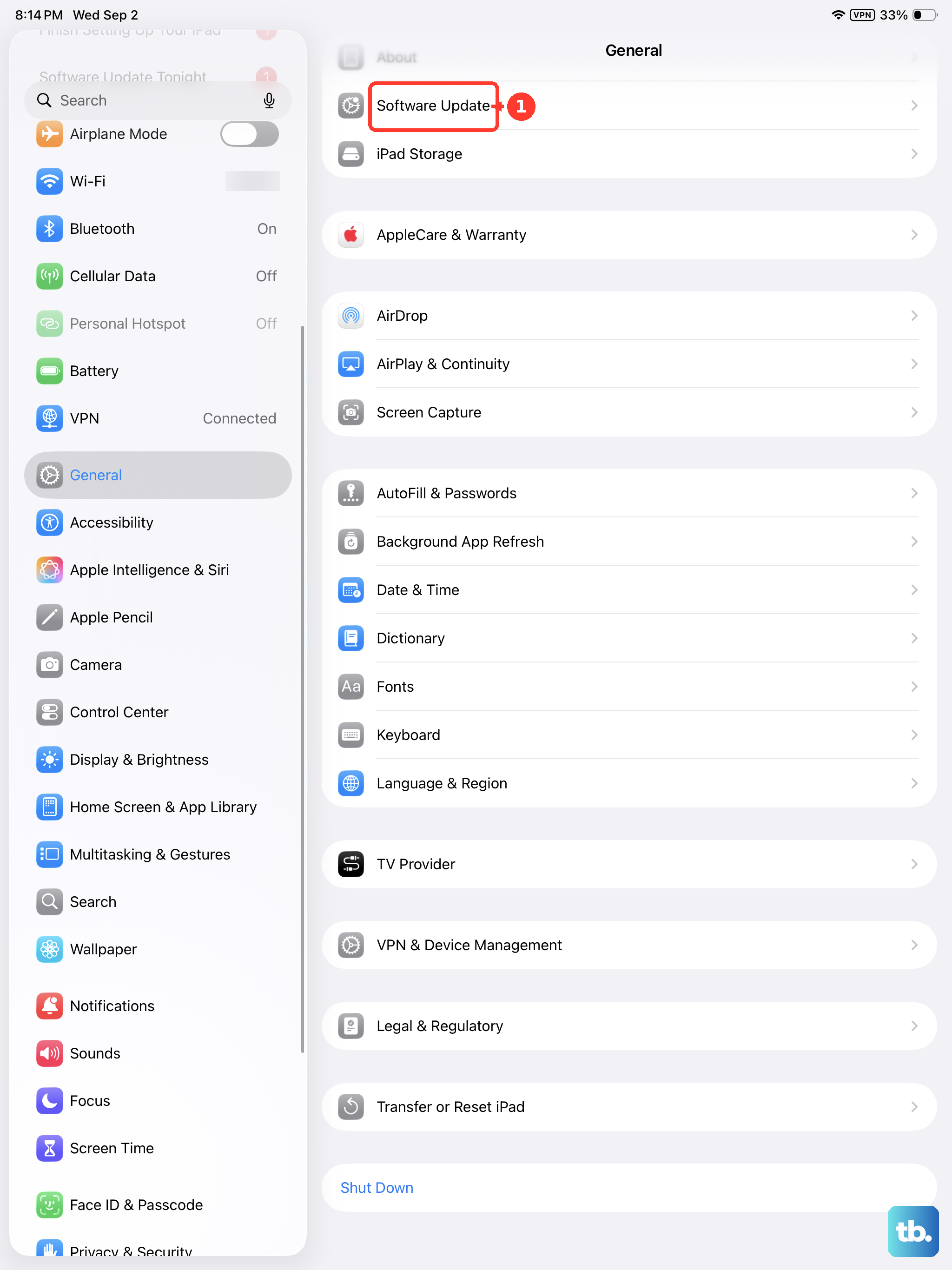
Then, go to Settings > General > Software Update. If an update is available, tap "Download and Install." I've seen minor point updates, like going from iPadOS 26.0 to 26.1, resolve exactly this kind of intermittent hardware problem.
Reset All Settings on Your iPad
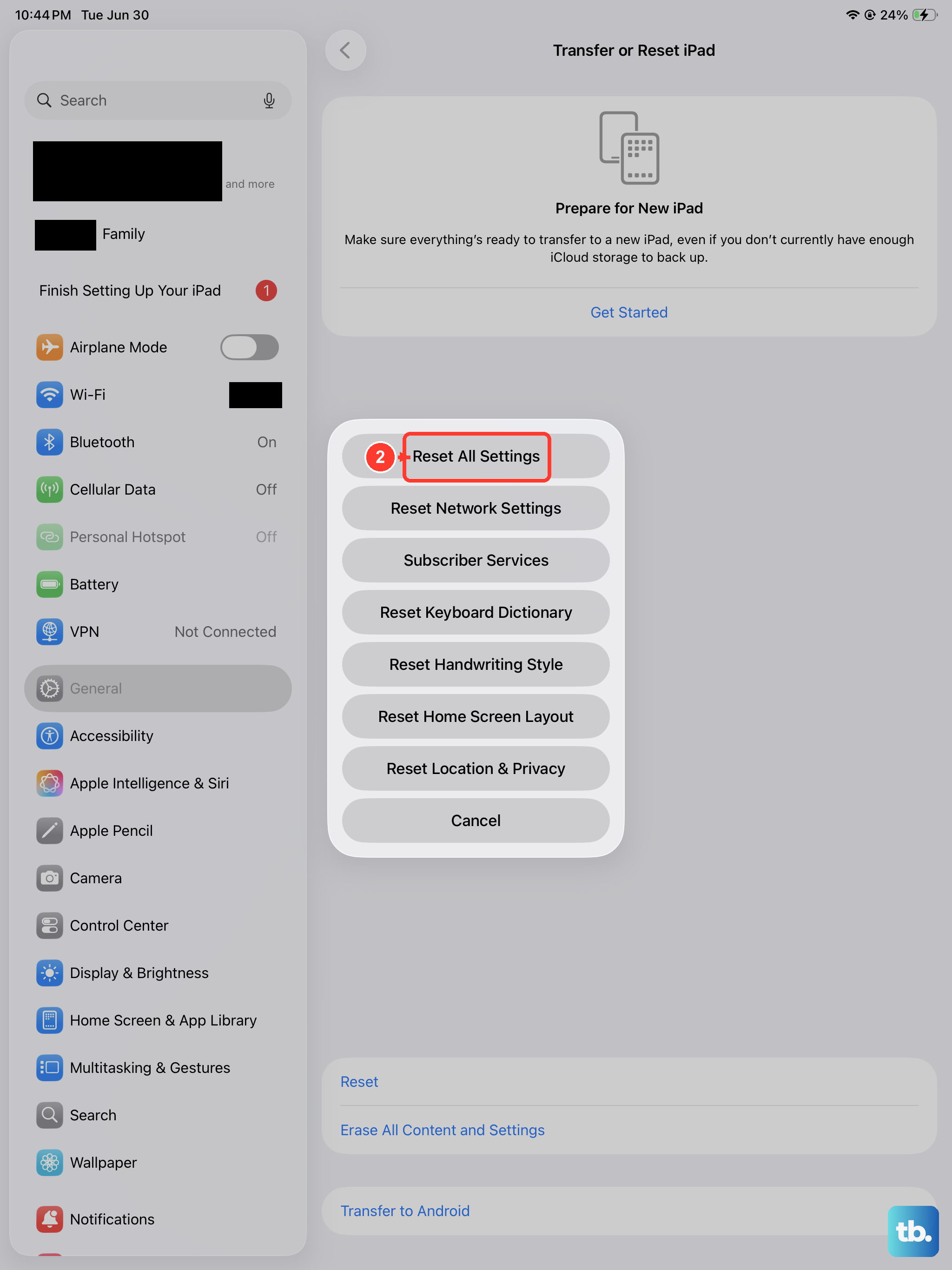
This is a more significant step, but it won't delete your personal data like photos, apps, or documents. What it does is reset every system setting back to its factory default. That includes network settings, privacy permissions, keyboard dictionaries, and home screen layout.
To do this, go to Settings > General > Transfer or Reset iPad. Tap "Reset" at the bottom, then choose "Reset All Settings." You'll need to enter your passcode. After the iPad restarts, you'll have to reconnect to Wi-Fi and re-customize some preferences, but it can clear out any corrupted settings causing the microphone to fail.
Check for Audio Settings in Specific Apps
Some video conferencing and recording apps have their own internal audio settings. For example, in an app like FaceTime, you can tap the screen during a call to see if the microphone is muted (a line through the mic icon). In apps like GarageBand or Voice Memos, check for an input source selector to ensure it's set to the iPad's internal microphone and not an external device.
If you use your iPad for professional audio, also check the Sound settings in Settings > General. While there's no system-wide noise cancellation toggle like on older iPhones, ensuring the balance slider is centered can sometimes help if audio is only coming from one channel during playback tests.