


When your iPad Air (2026) isn't ringing for incoming calls, it can feel like you're missing out on everything. This is a surprisingly common hiccup with tablets that have cellular capability, and it usually comes down to a setting that got flipped or a software quirk. The good news is you can almost always get it working again with a few simple checks.
I'd start with the quickest fix first. Toggle Airplane Mode on and off. Swipe down from the top-right corner of the screen to open Control Center and tap the airplane icon. Wait about ten seconds, then tap it again to turn it off. This forces your iPad to re-establish its connection to the cellular network, which can clear up temporary glitches.
Check Your Focus Modes
Focus modes on iPadOS are powerful for minimizing distractions, but they can also silence calls without you realizing it. Swipe down from the top-right to open Control Center and look at the Focus tile. If you see anything other than "Focus Off," like "Do Not Disturb" or "Work," tap it to see which notifications are allowed.
You can also go into Settings > Focus to review your settings. Tap on each Focus mode and make sure "Allow Calls From" is set to "Everyone" or at least your contacts. Sometimes a recent update can tweak these permissions.
Verify Your Cellular Data Settings
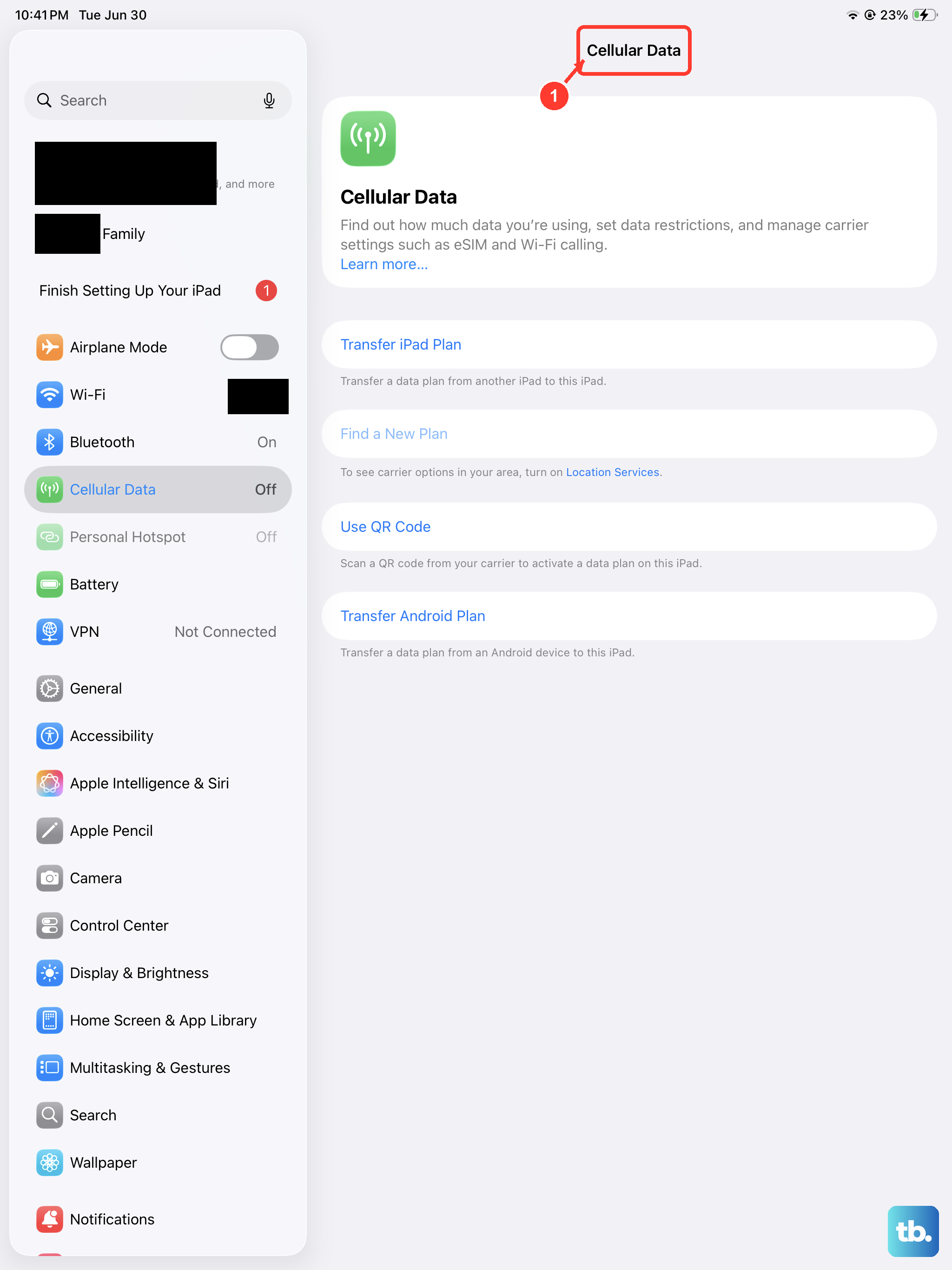
If you're using a cellular model, the next stop is your mobile data settings. Open Settings and tap Cellular Data. First, make sure the "Cellular Data" switch at the top is turned on. It sounds obvious, but it's worth a check.
Scroll down to the "Cellular Data Options" section and tap on it. Ensure that "Voice & Data" is enabled. Also, look for a setting called "Allow Cellular Data Switching" and try turning it off. This setting can sometimes cause conflicts when your iPad is trying to intelligently manage connections between WiFi and cellular.
Review Call Forwarding and Blocking
Call forwarding could be silently sending your calls elsewhere. On your iPad, open the Phone app, tap the "Keypad" tab, and dial #21#. This is a universal code that will check the status of any unconditional call forwarding. If it's active, you'll need to contact your cellular carrier to have them disable it from their end.
Also, check your blocked contacts list. In the Phone app, tap "Contacts," then "Blocked Contacts" at the bottom. Make sure no one you're expecting calls from is accidentally on that list.
Restart and Update Your iPad
A simple restart clears out temporary software bugs that can affect calling. Press and quickly release the Volume Up button, then quickly press and release the Volume Down button. Immediately press and hold the Top button until you see the Apple logo, then let go.
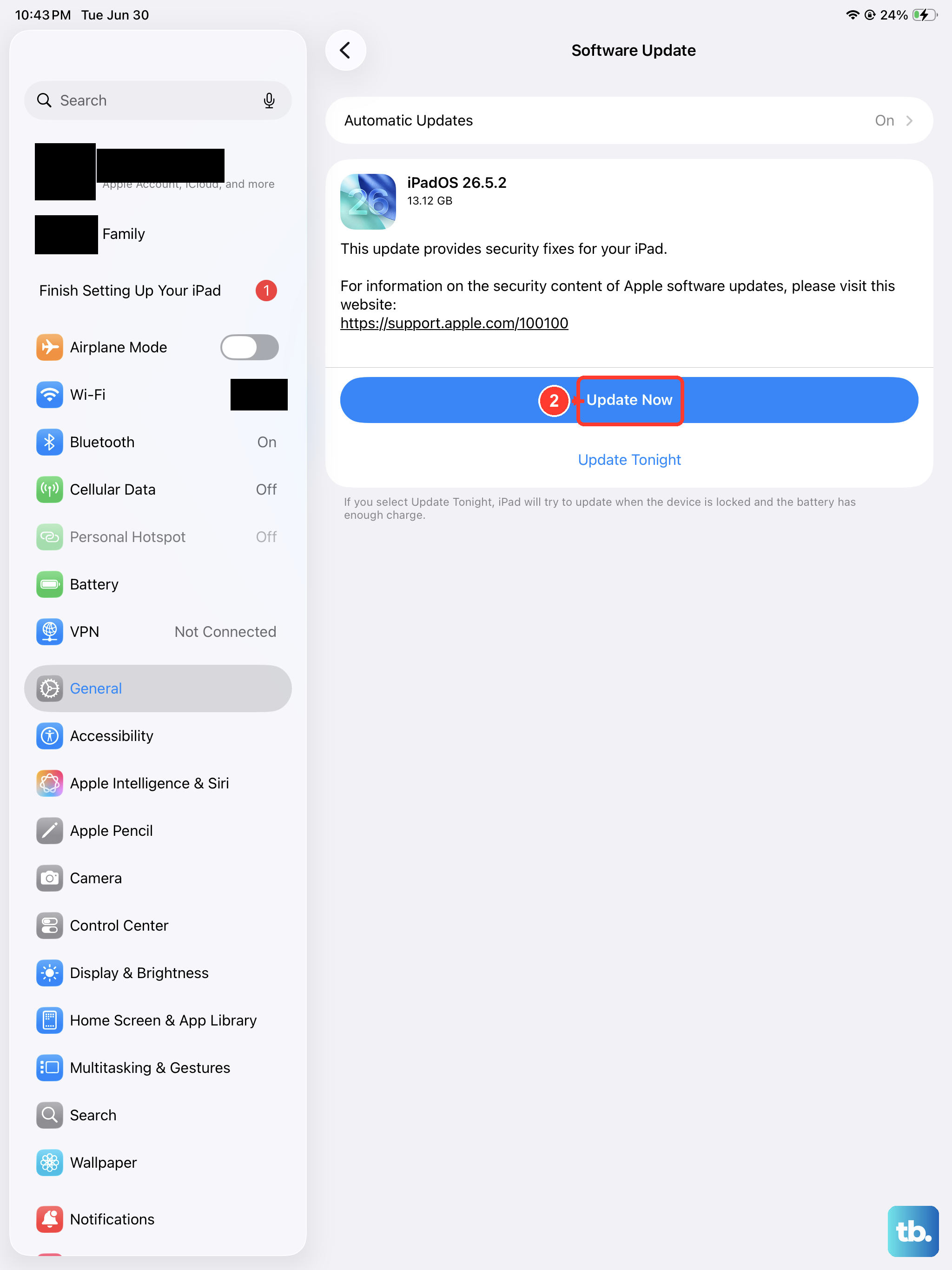
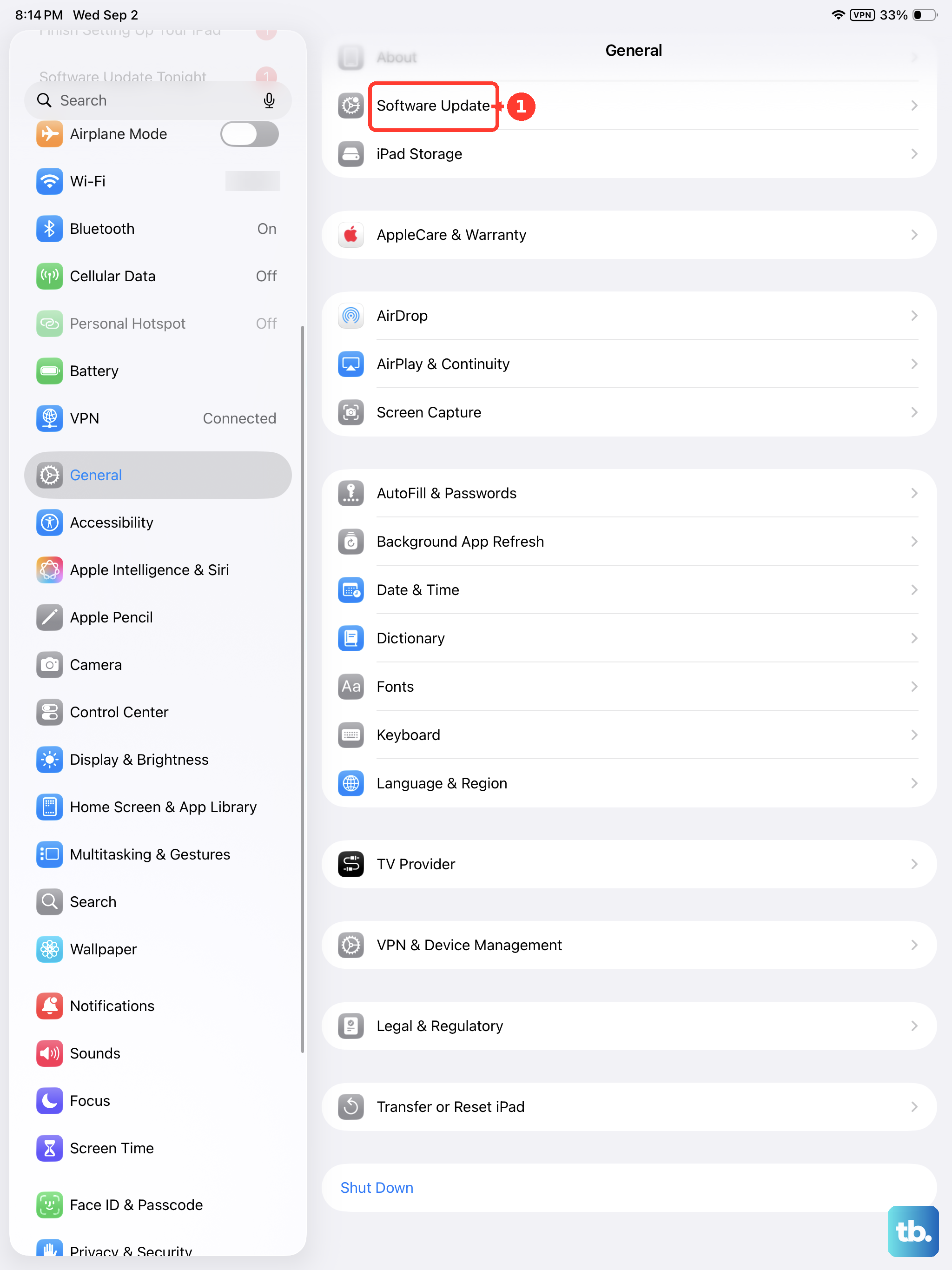
After it restarts, check for an iPadOS update. Go to Settings > General > Software Update. Apple frequently releases updates that fix connectivity bugs. If there's an update available, install it and see if that resolves the call issue.
Reset Your Network Settings
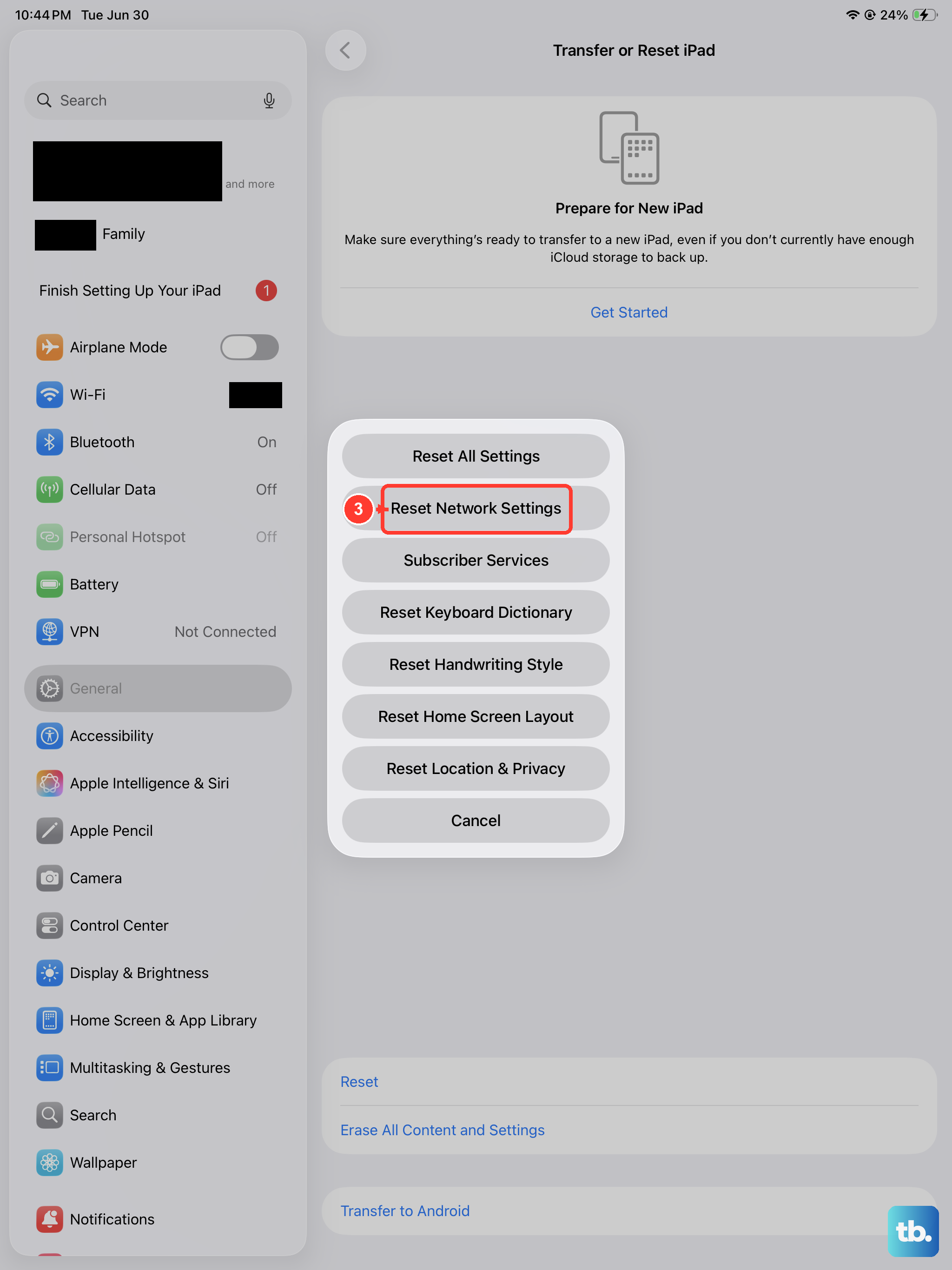
If calls are still not coming through, resetting your network settings is a strong next step. This will erase all saved WiFi passwords, Bluetooth pairings, and cellular network preferences, but it often fixes stubborn connection problems.
Go to Settings > General > Transfer or Reset iPad. Tap "Reset" at the bottom, then choose "Reset Network Settings." Enter your passcode if prompted and confirm. Your iPad will restart, and you'll need to reconnect to WiFi and re-pair Bluetooth devices.
Check with Your Carrier
The issue might not be with your iPad at all. There could be a service outage in your area, or there might be a problem with your specific account or SIM card. Use another phone to call your cellular provider's customer service.
Ask them to verify that your line is active and that there are no blocks or restrictions on it. You can also ask them to reprovision your connection on their network, which is like refreshing your account from their side. If you have access to another compatible device, you could also try moving your SIM card to it to see if the problem follows the SIM.
Sign Out and Back Into iCloud
Since calls on your iPad are often linked to your iPhone via Continuity features like "Calls on Other Devices," an issue with your iCloud account can break the chain. Try signing out of iCloud and back in. First, go to Settings and tap your name at the top.
Scroll all the way down and tap "Sign Out." You'll be asked if you want to keep a copy of your data on the iPad; you can choose to keep it. After signing out, restart your iPad, then go back to Settings and sign in with your Apple ID again. This can re-sync all the calling and messaging services.
Finally, double-check the "Calls on Other Devices" setting. On your iPad, go to Settings > Cellular (or just Settings on WiFi-only models) and look for "Calls on Other Devices." Make sure it's enabled. On your paired iPhone, you also need to go to Settings > Cellular > Calls on Other Devices and ensure your iPad is listed and turned on.