
Seeing a "SIM Not Activated" message on your iPad (11th generation) can stop you from getting online right when you need to. This usually means your cellular iPad can't connect to your carrier's network because the SIM or eSIM isn't fully set up in their system.
The message might look slightly different depending on your carrier, but it all points to the same core issue. Your iPad is ready to go, but the carrier hasn't finished linking your account to the device. I'd start with the simplest fix first, as it often clears up temporary glitches.
Restart Your iPad
Begin by giving your iPad a fresh start. This forces it to re-establish a connection with the cellular network from scratch. Just press and hold the top button and either volume button until the power off slider appears.
Slide to power off, wait about 30 seconds, then press the top button again to turn it back on. Once it boots up, check if you have service. If the problem persists, the next step is to check the most likely cause.
Verify Activation with Your Carrier
For a new cellular plan or a newly transferred line, the SIM or eSIM might not be activated yet. This is the most common reason for this error. You'll need to contact your carrier's customer support directly.
Have your account information and the SIM card number (ICCID) or eSIM details ready. They can check their system to see if the activation process was completed or if there's a hold-up on their end. Sometimes, they just need to refresh your connection on their network servers.
Reinsert the Physical SIM Card
If you're using a physical nano-SIM card, it might not be making a proper connection. First, turn off your iPad using the method described above. Locate the SIM tray on the side of your iPad (11th gen).
Use the SIM eject tool that came in the box or a small paperclip to open the tray. Carefully remove the SIM card, inspect the gold contacts for any dust or debris, and gently blow on the tray. Reinsert the SIM card, ensuring it's seated correctly in the tray, then push the tray back in and power on your iPad.
Toggle Airplane Mode
This is a quick way to reset all the iPad's radio connections, including cellular. Swipe down from the top-right corner of the screen to open Control Center. Tap the airplane icon to turn on Airplane Mode.
Wait for about 15 seconds. You should see the cellular bars disappear. Then, tap the airplane icon again to turn Airplane Mode off. Give it a moment to search for the network again. This can often kickstart a stalled connection.
Check for a Carrier Settings Update
Your iPad uses small files from Apple, in partnership with your carrier, to configure network settings. Sometimes these need an update. Make sure your iPad is connected to Wi-Fi for this.
Go to Settings > General > About. If a carrier settings update is available, a prompt will appear on this screen. Tap "Update" if you see the option. This process only takes a moment and doesn't affect your personal data.
Manually Select Your Network
Your iPad usually picks the best network automatically, but sometimes it needs a nudge. Open Settings and tap Cellular. Tap Network Selection.
Turn off the "Automatic" switch. Your iPad will search for available networks. After a moment, a list will appear. Select your carrier's name from the list. Then, go back and turn "Automatic" selection back on. This manual handshake can resolve provisioning issues.
Reset Your Network Settings
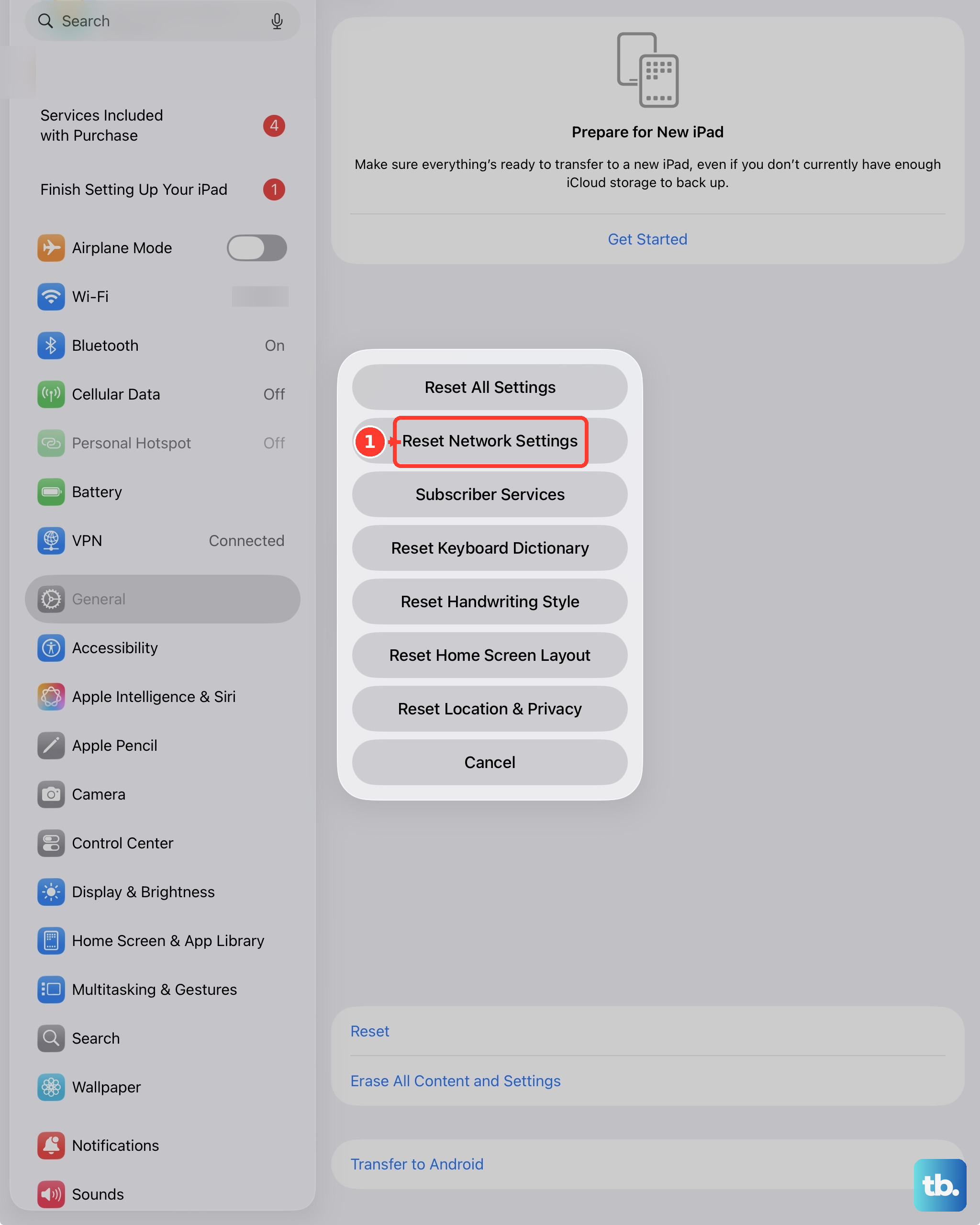
This step will clear all your saved network configurations, including Wi-Fi passwords, VPN settings, and cellular preferences. It's a deeper reset that can fix persistent provisioning errors.
Go to Settings > General > Transfer or Reset iPad. Tap Reset, then choose Reset Network Settings. You'll need to enter your passcode and confirm. Your iPad will restart. Afterward, you'll need to rejoin Wi-Fi networks and check if the cellular service is now active.
Try Your SIM in Another Device
To rule out a problem with the SIM card itself, test it in another compatible cellular device, if you have one available. This could be another iPad, an iPhone with a nano-SIM tray, or even a cellular hotspot.
If the SIM card also shows as not activated in the other device, the issue is definitely with the carrier or the SIM. If it works perfectly in another device, the problem may be isolated to your iPad's hardware or software, though this is less common with activation errors.
Contact Your Carrier for a Replacement SIM or eSIM
If you've tried everything and your service is still not active, the SIM card might be faulty or the eSIM profile could be corrupted. Your carrier's support team is the only one who can help here.
Explain the troubleshooting you've already done. They can often deactivate the current SIM or eSIM on their end and issue a new one. For a physical SIM, they can mail a replacement or you can visit a store. For an eSIM, they can usually push a new profile to your iPad remotely, which you can install in Settings > Cellular.