


When your iPad (11th generation) starts restarting on its own, it's more than just an annoyance. It can interrupt your work, cut a video call short, or lose your place in a document. These random restarts are usually tied to a software hiccup, but there are several straightforward steps you can take to get things stable again.
Before you dive into any fixes, it's a smart move to make sure your data is backed up. You can do this easily through iCloud by going to Settings > [Your Name] > iCloud > iCloud Backup and tapping "Back Up Now." Alternatively, connect your iPad to a Mac or PC and back it up using Finder or iTunes.
Perform a Force Restart
This is almost always the first thing I'd try. A force restart clears the iPad's memory and can knock out a temporary software glitch that's causing the restarts. For your 11th generation iPad, the process is quick.
Press and quickly release the Volume Up button. Then, press and quickly release the Volume Down button. Finally, press and hold the Top button (the one on the top edge) and keep holding it until you see the Apple logo appear on the screen. You can let go once you see the logo.
Update Your Apps and iPadOS
Outdated software is a classic culprit for instability. Start by making sure all your apps are current. Open the App Store, tap your profile icon in the top right corner, and scroll down to see pending updates. You can tap "Update All" to handle them in one go.
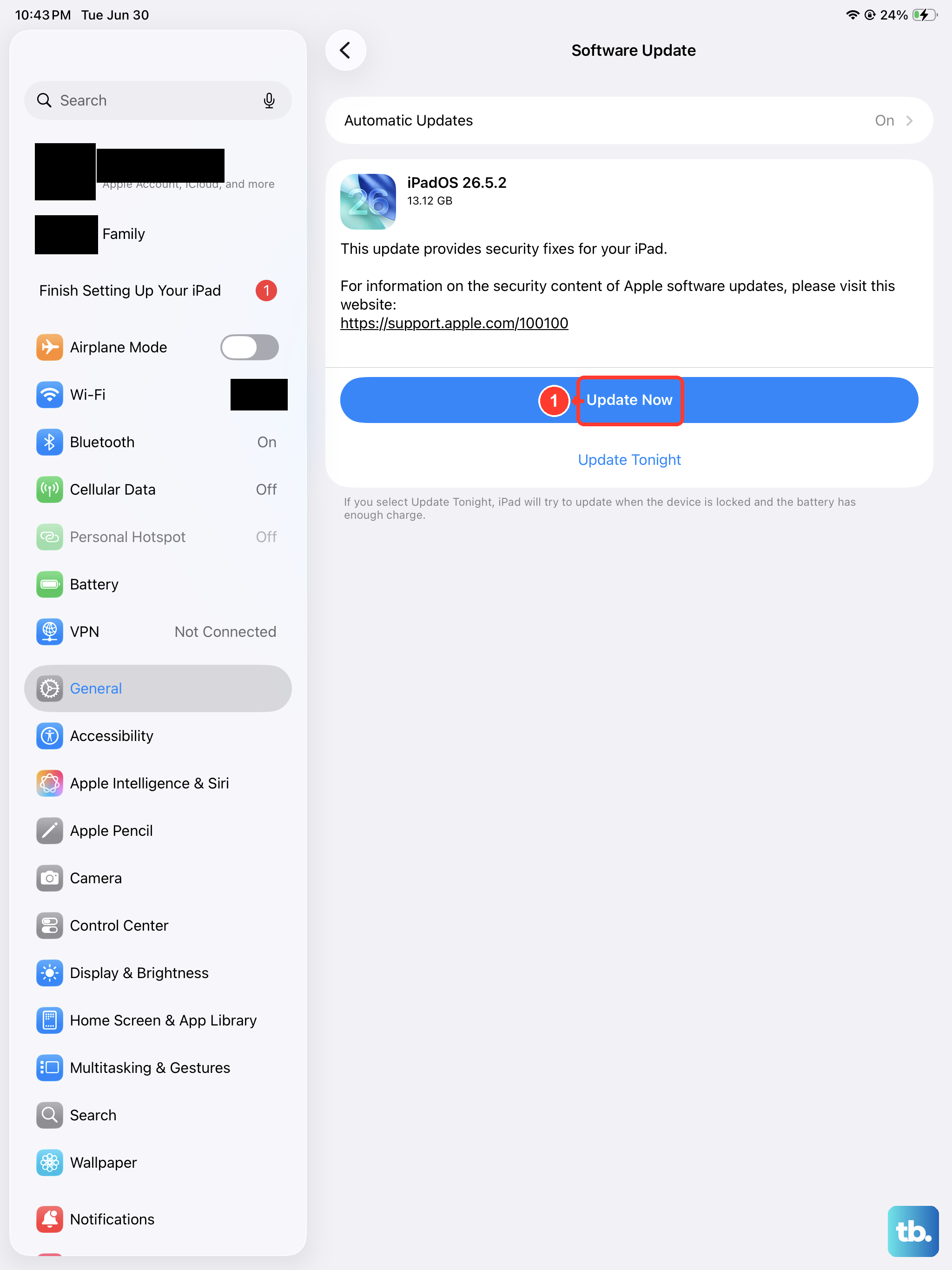
Next, check for a system update. Apple regularly releases iPadOS updates that include bug fixes for issues just like this. Go to Settings > General > Software Update. If an update is available, download and install it. It's best to do this while your iPad is connected to power and Wi-Fi.
Check for Problematic Apps
Sometimes, a single misbehaving app can cause system-wide trouble. Think about if the restarts started happening after you installed a new app. You can try closing all your open apps first. On an iPad without a Home button, swipe up from the bottom of the screen, pause in the middle, and then swipe up on each app preview to close it.
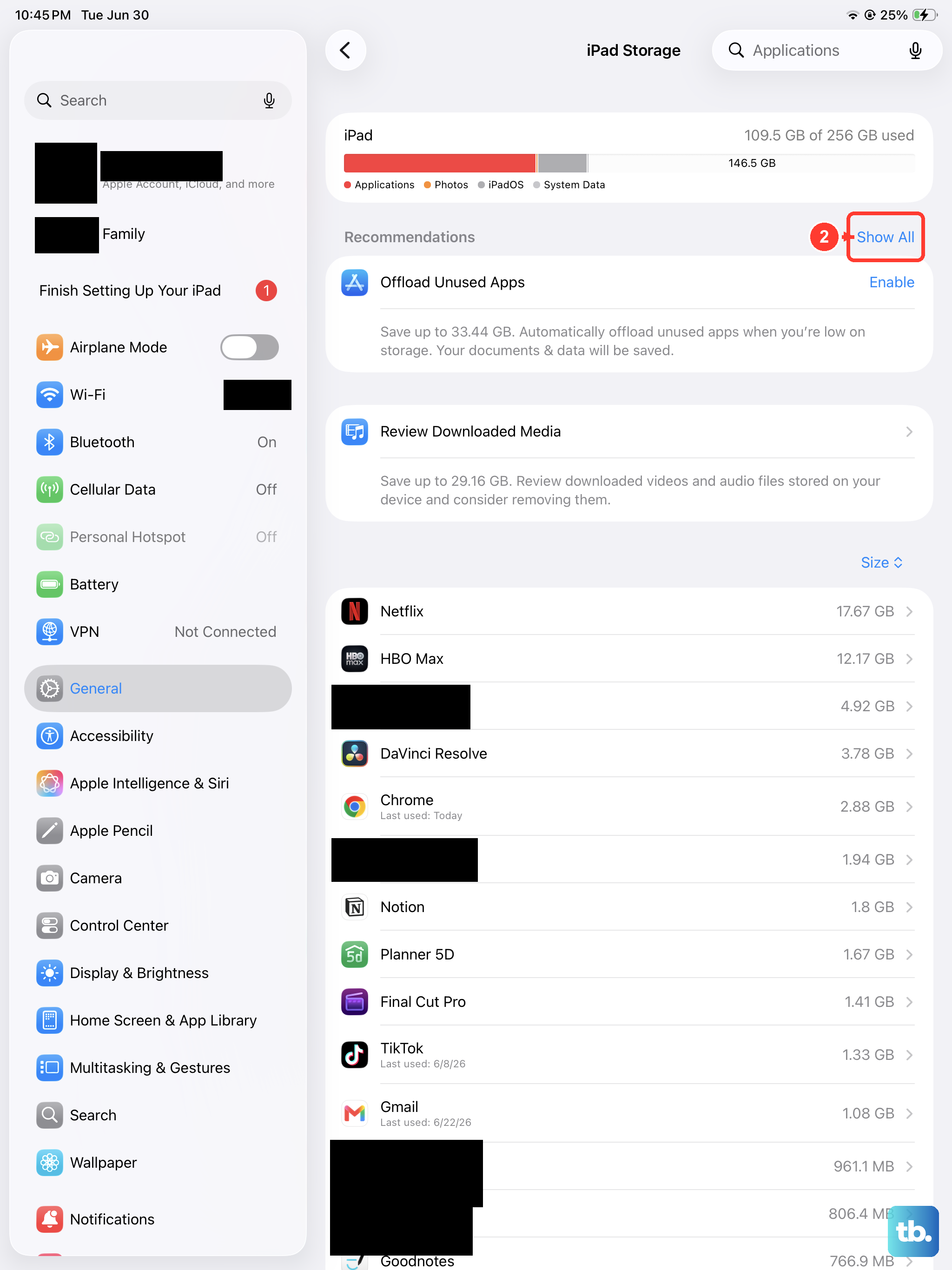
If the problem seems app-related, you can try offloading the suspect app. This removes the app but keeps its documents and data. Go to Settings > General > iPad Storage, tap on the app in question, and select "Offload App." You can always reinstall it from the App Store later to see if a fresh install helps.
Review iPad Analytics Data
Your iPad keeps detailed logs of crashes and system errors, which can point you directly to the problem. To view them, navigate to Settings > Privacy & Security > Analytics & Improvements > Analytics Data.
Look through the list for entries that start with "panic-full" or "ResetCounter." These often indicate a full system crash. You might also see logs named after specific apps, which would tell you that app is crashing frequently. This info can be really useful if you need to contact support.
Free Up Storage Space
Running critically low on storage can make your iPad unstable. The system needs free space to operate properly. Head to Settings > General > iPad Storage to see a breakdown.
The system will often provide recommendations here, like reviewing large attachments or offloading unused apps. Aim to keep at least a few gigabytes free. Using iCloud Photos or moving files to an external drive connected via USB-C can help free up significant space on the device itself.
Reset All Settings
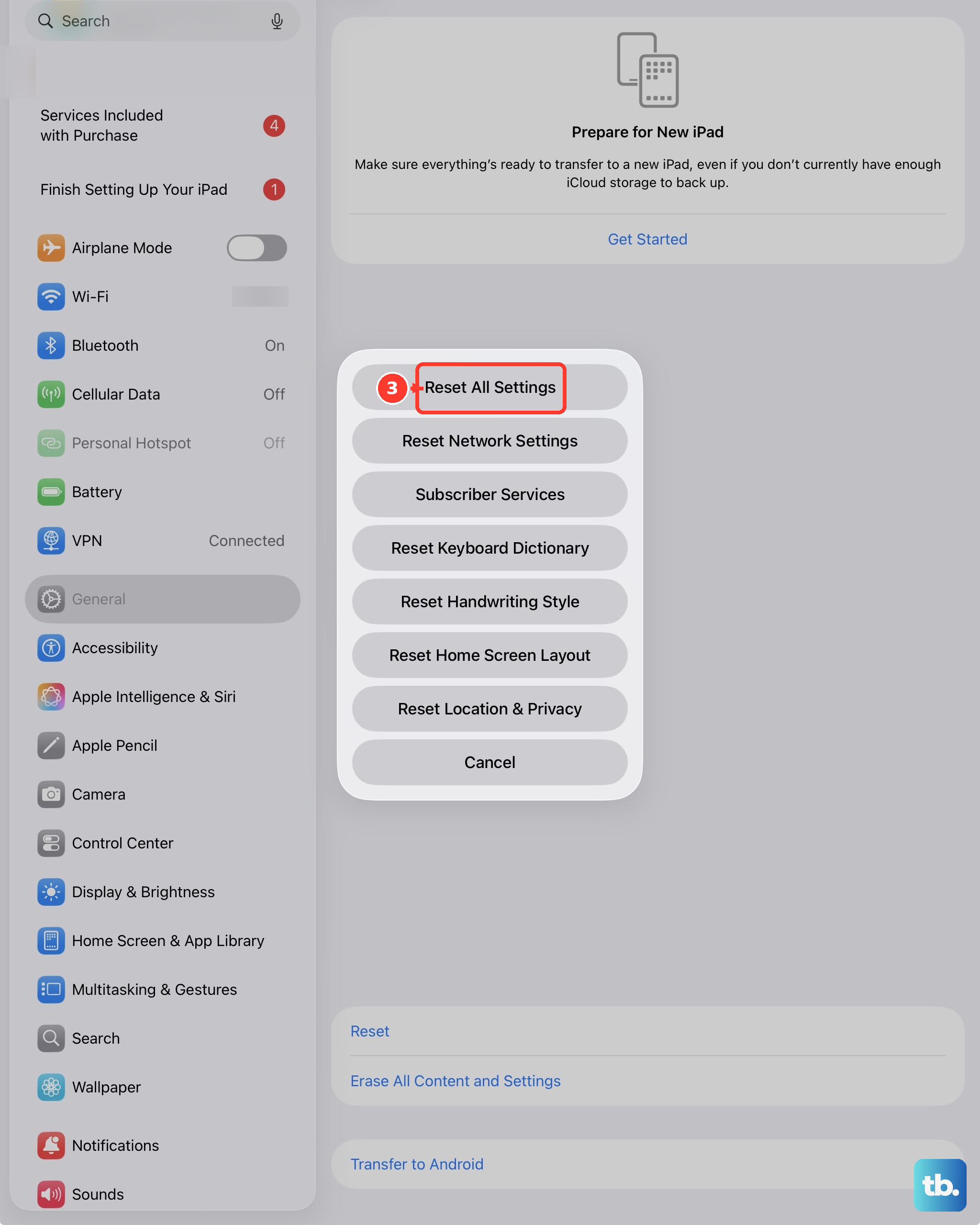
If the restarts continue, the next step is to reset all your iPad's settings. This won't erase your personal data like photos or documents, but it will revert all system settings back to their defaults. That includes Wi-Fi passwords, wallpaper, and privacy permissions.
To do this, go to Settings > General > Transfer or Reset iPad. Tap "Reset" and then choose "Reset All Settings." You'll need to enter your passcode to confirm. After the iPad restarts, you'll have to reconnect to Wi-Fi networks and reconfigure some preferences, but it often resolves deeper software conflicts.
Perform a Factory Reset
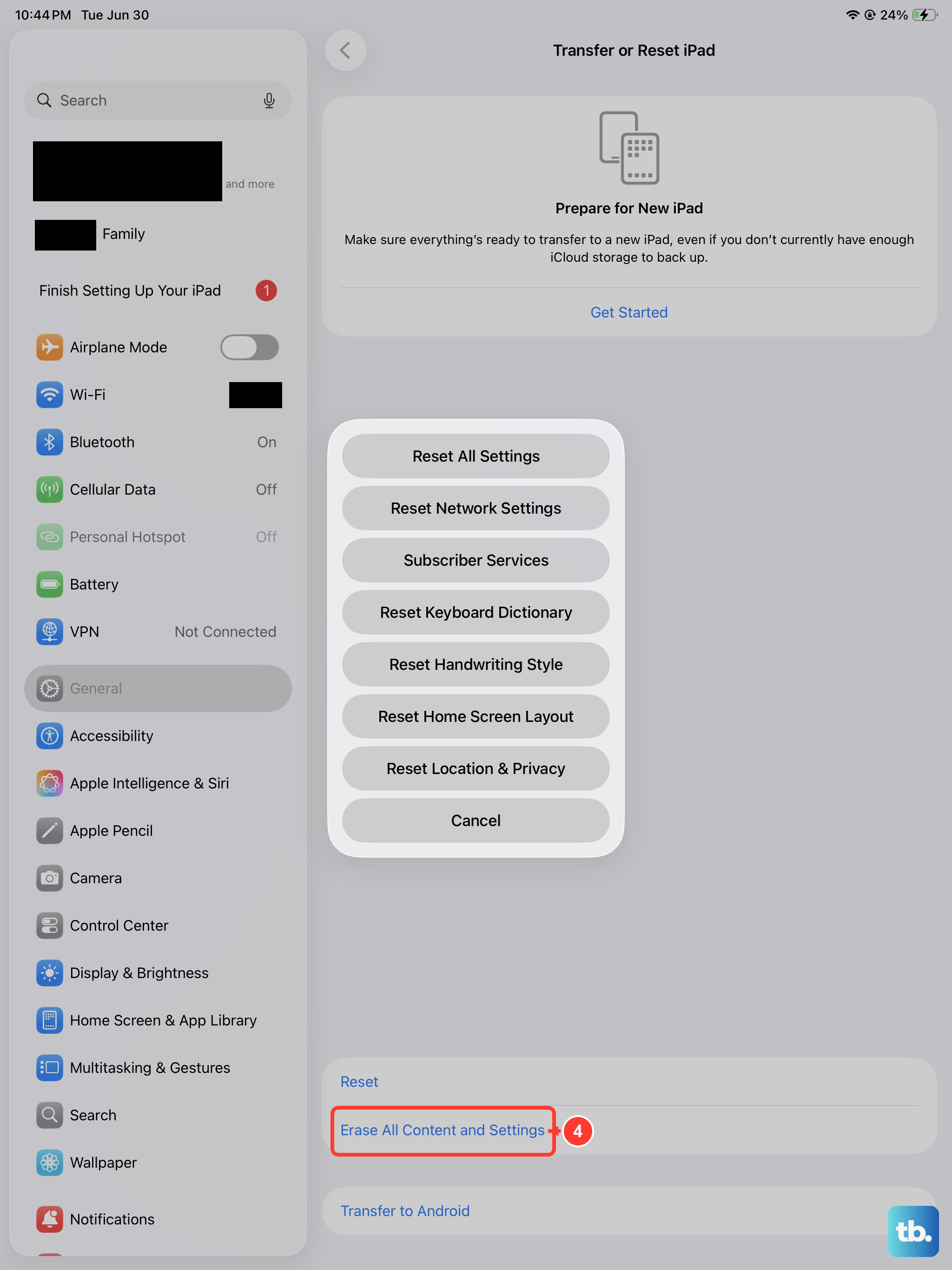
This is a more significant step, so ensure your backup is absolutely current. A factory reset erases everything on your iPad and installs a fresh copy of iPadOS. It's the most effective way to rule out a complex software issue.
You can start the process from Settings > General > Transfer or Reset iPad. Tap "Erase All Content and Settings." If you're asked, choose to back up to iCloud one last time, then proceed. After the erase is complete, you can set up the iPad as new to test it, or restore from your backup.
Restore via Recovery Mode
If your iPad is stuck in a restart loop and you can't access the settings, you'll need to use recovery mode. This requires a computer with Finder (on a Mac with macOS Catalina or later) or iTunes (on a PC or older Mac).
First, connect your iPad to the computer with a USB-C cable. Then, quickly press and release the Volume Up button, press and release the Volume Down button, and immediately press and hold the Top button. Keep holding the Top button even after the Apple logo appears, until you see the recovery mode screen (a cable pointing to a computer).
On your computer, you'll get an option to Update or Restore. Choose "Restore." This will download and install a fresh copy of iPadOS. Remember, this will erase all data on the iPad, so it's only for situations where you can't get into the device normally.