
When the microphone on your iPad (11th generation) stops working, it can throw a wrench into your video calls, voice notes, and commands to Siri. The first thing to do is confirm the problem isn't just with one app.
Before changing any settings, it helps to know whether the microphone registers anything at all. Run a quick online mic test in your browser, speak normally, and watch the level meter. If it moves, the hardware works and the fixes below will take care of the rest.
Test Your iPad Microphone
Open the Voice Memos app and record a quick clip. Speak clearly and play it back. If the audio is muffled or missing, you've got a wider issue.
You can also try asking Siri a question by holding down the Top button. If Siri doesn't hear you, that's another sign. For a more thorough check, open the Camera app, switch to video mode, and record a short clip with your voice to test the audio playback.
Remove Your iPad Case
This is a surprisingly common fix. Some cases, especially rugged or folio-style ones, can partially cover the microphone ports. Take the case off completely and run the Voice Memos test again.
The iPad (11th generation) has microphone openings in a few key spots. You'll find them along the top edge and sometimes near the rear camera array. Give these areas a visual check while the case is off.
Restart Your iPad
A simple restart clears out temporary software glitches that might be interfering with audio input. To restart, press and hold the Top button and either volume button until the power off slider appears.
Slide to power off, wait about 30 seconds, then press the Top button again to turn it back on. Once it boots up, test the microphone immediately before opening other apps.
Disconnect Bluetooth Audio Devices
If your iPad is connected to AirPods, a Bluetooth headset, or even a speaker, the system might be routing all audio input through that external device. This would leave the built-in mics inactive.
Go to Settings > Bluetooth and tap the info icon (i) next to any connected audio device, then choose "Disconnect." You can also just toggle Bluetooth off temporarily from the Control Center to test.
Check for App-Specific Microphone Permissions
Apps like Zoom, FaceTime, or recording software need explicit permission to use your microphone. If you denied this accidentally, the app won't hear you.
To check, open Settings, scroll down to Privacy & Security, and tap Microphone. You'll see a list of all apps that have requested access. Make sure the toggle is green for the app giving you trouble.
Force Close and Reopen the Problem App
If the microphone only fails in one specific app, that app's process might have gotten stuck. To force close it, swipe up from the bottom of the screen and pause in the middle to enter the app switcher.
Find the app's preview and swipe it all the way up off the top of the screen. Then, tap the app icon on your Home Screen to launch it fresh. This clears its temporary memory and often resolves odd bugs.
Update iPadOS
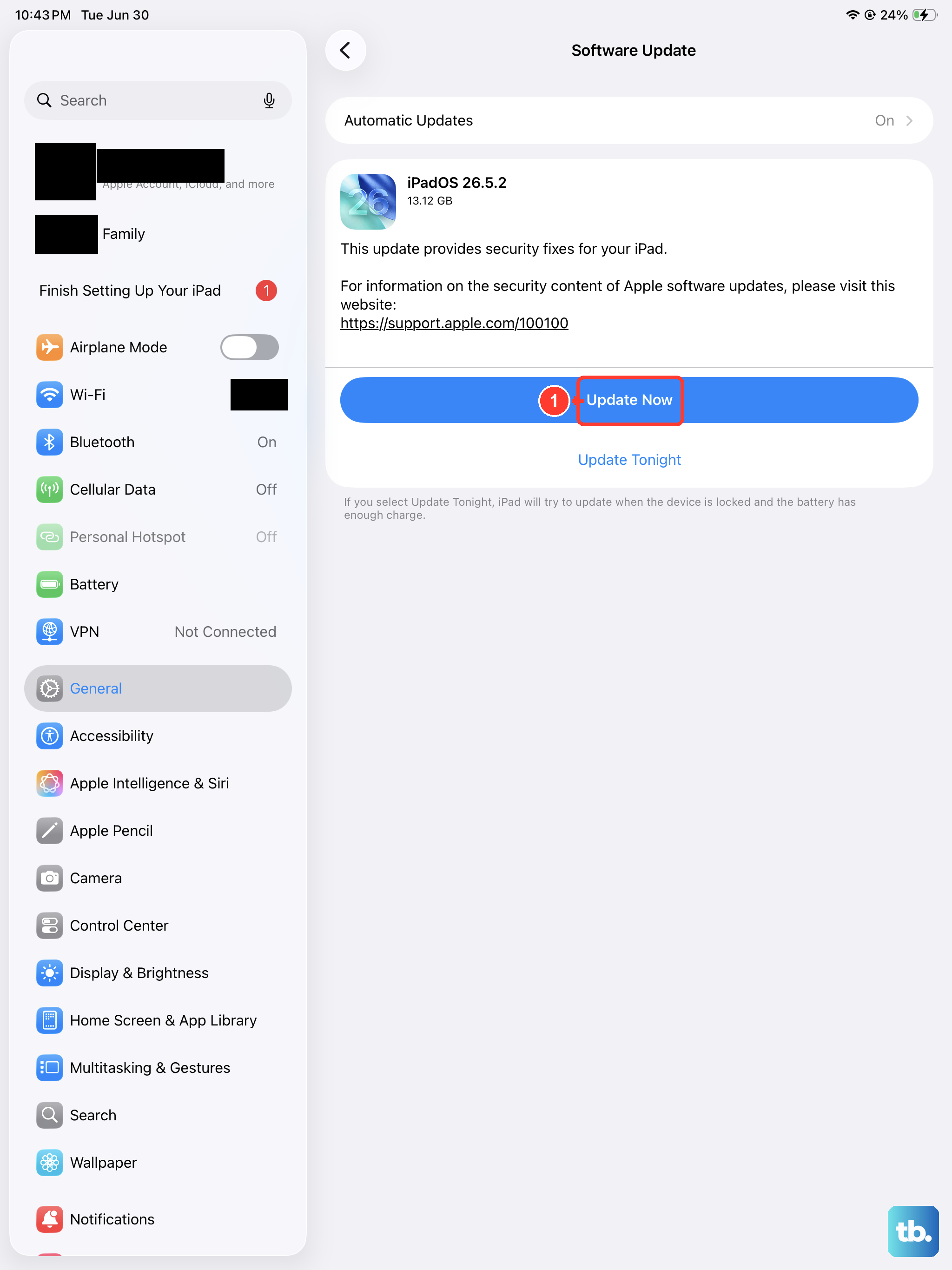
Apple frequently releases updates that patch bugs, including audio-related ones. Running an outdated version of iPadOS could be the root of your microphone problem.
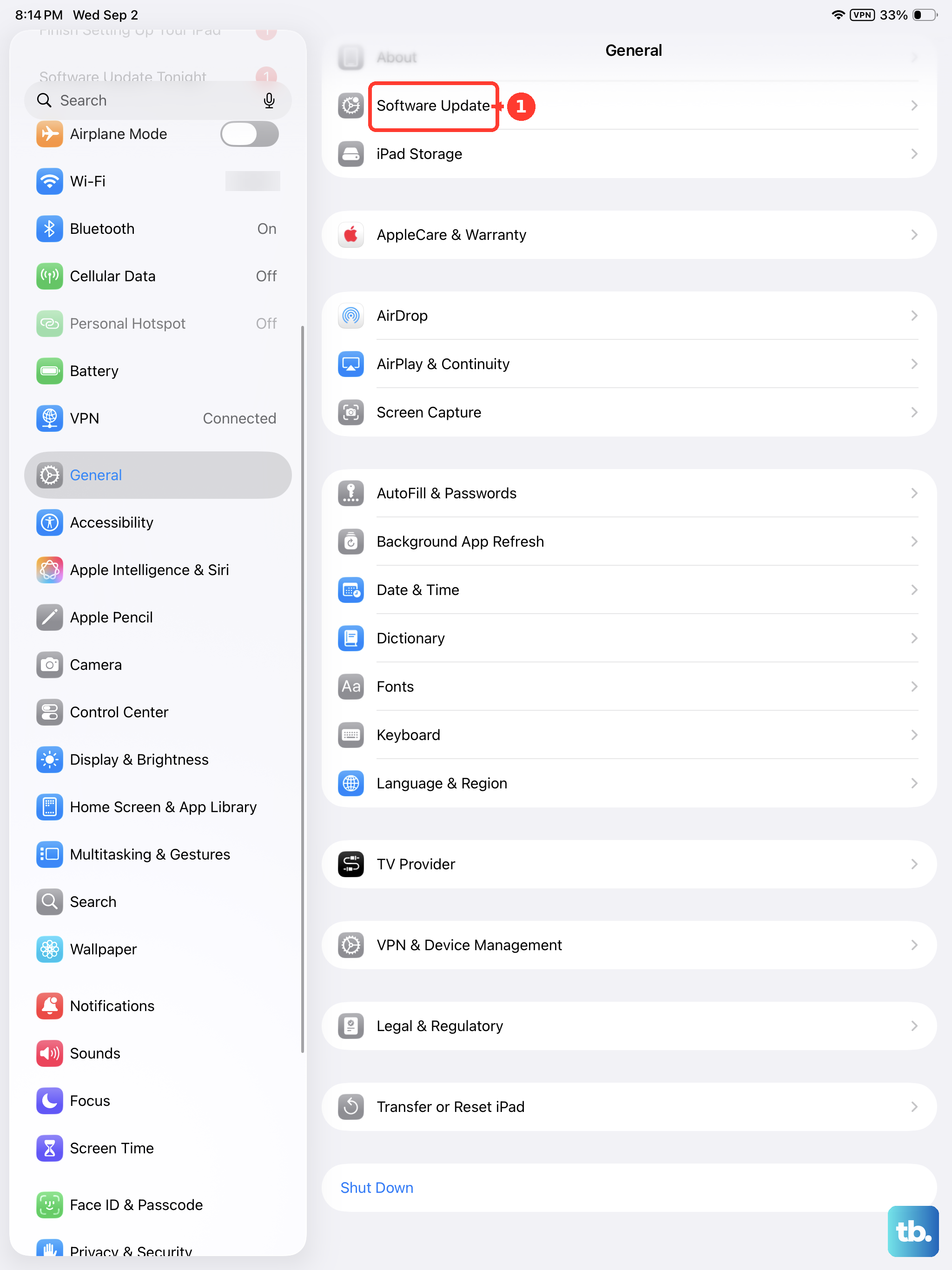
Go to Settings > General > Software Update. If an update is available, I'd recommend installing it. Make sure your iPad is connected to power and Wi-Fi first, as the process can take a few minutes.
Perform a Force Restart
This is different from a normal restart and can clear more persistent system hiccups. On the iPad (11th generation), you press and quickly release the Volume Up button, then press and quickly release the Volume Down button.
Finally, press and hold the Top button. Keep holding it even after the power off slider appears, until you see the Apple logo, then you can let go. Your iPad will reboot. This doesn't erase any data.
Reset All Settings
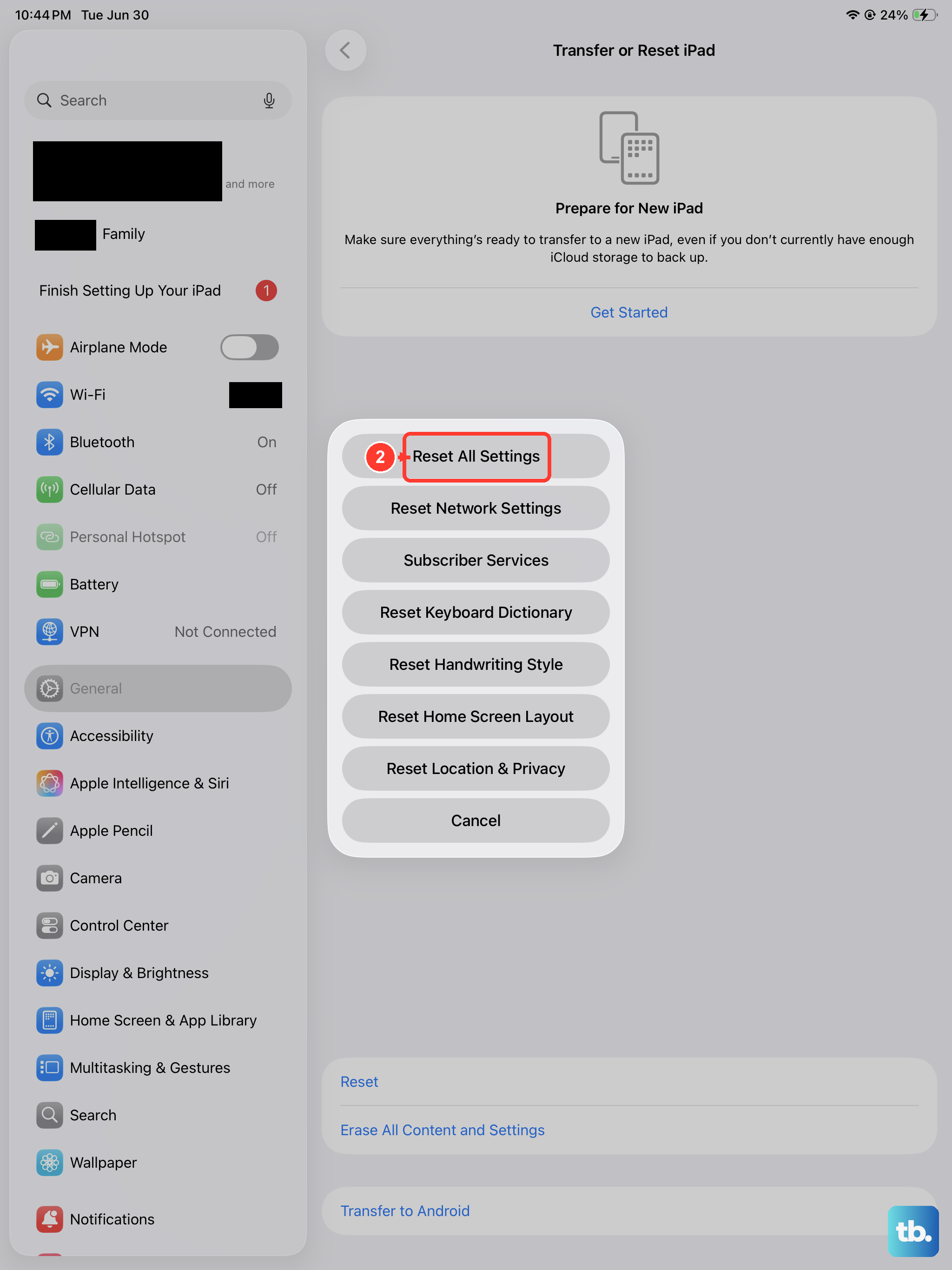
This is a more significant step that resets every system setting on your iPad back to factory defaults. That includes network settings, privacy permissions, keyboard dictionaries, and home screen layout, but it won't touch your personal data or apps.
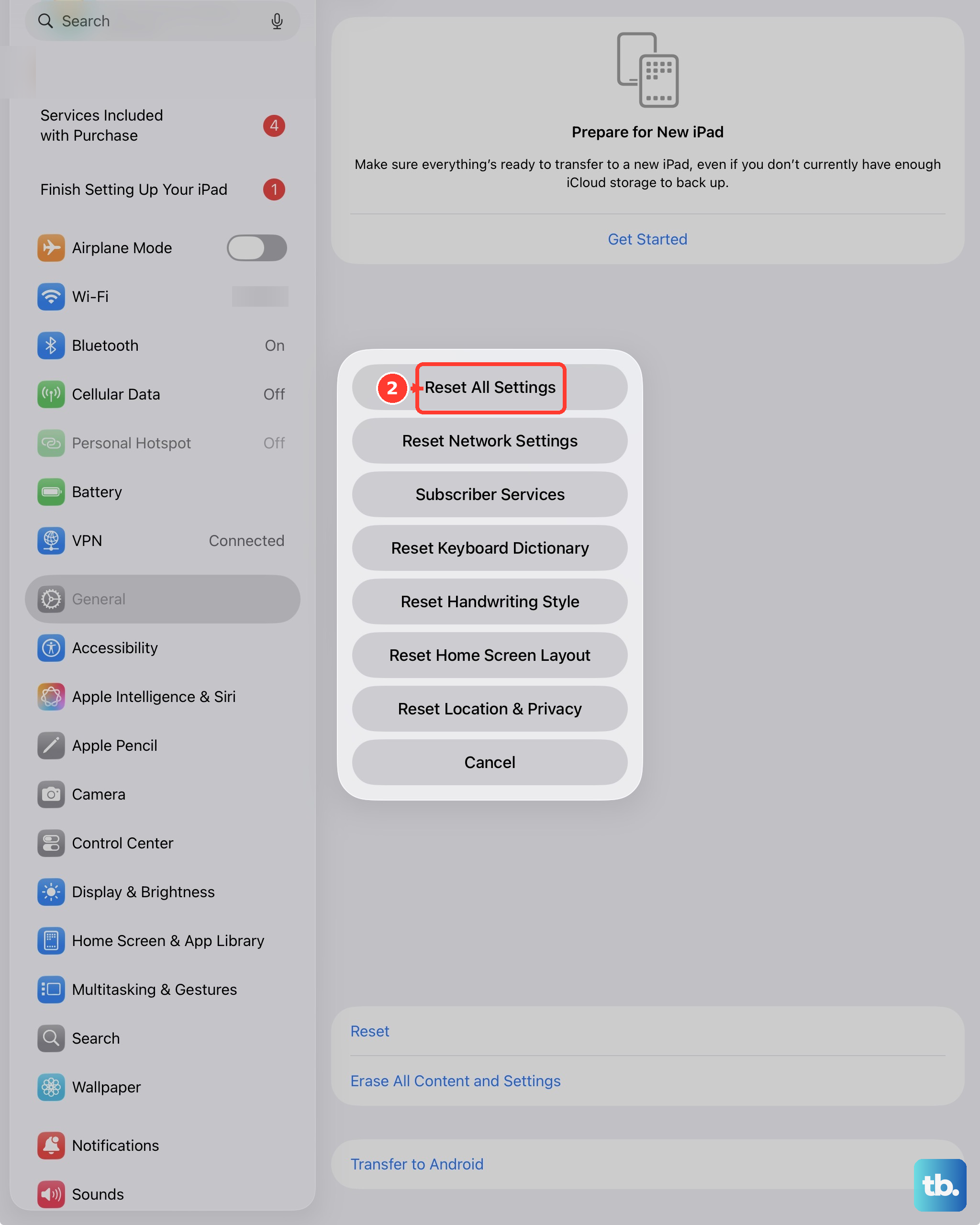
It can fix conflicts caused by a misconfigured setting. Go to Settings > General > Transfer or Reset iPad > Reset, and choose "Reset All Settings." You'll need to re-enter Wi-Fi passwords and reconfigure some preferences afterward.
Check for Physical Damage or Debris
Carefully inspect all the microphone ports. Use a bright light to look for any packed lint, dust, or other blockage. You can try gently cleaning the openings with a soft, dry, clean brush, like a new makeup brush or a soft-bristled toothbrush.
Avoid using compressed air, as it can push debris further in or damage the internal components. Also, check for any signs of liquid damage or physical dents near the microphone areas, as these can indicate a hardware problem.











