
If your iPad (11th generation) is completely black and won't respond when you press the top button, don't panic just yet. A completely drained battery or a temporary software hang is often the culprit, and both are usually easy to resolve.
I'd start with the most common fix, which is a force restart. This is different from just turning it off and on, as it clears the device's memory and can kick it out of a frozen state.
Force Restart Your iPad
To force restart your iPad (11th generation), quickly press and release the Volume Up button, then quickly press and release the Volume Down button. Immediately after, press and hold the Top button. Keep holding it until you see the Apple logo appear on the screen, then you can let go.
This process can take up to 15 seconds, so keep holding that top button even if you see the screen flash black. If the Apple logo shows up, you're in business and your iPad should finish booting normally.
Check Your Charging Setup
If the force restart didn't work, your iPad's battery is likely completely empty. Plug it into a power source using the USB-C cable and a compatible power adapter. For the fastest charge, I recommend using Apple's 20W USB-C Power Adapter.
Let it charge undisturbed for at least an hour. A completely dead battery needs a little time to wake up before it can even show the charging symbol. Try a different USB-C cable and wall adapter if you have them, as a faulty cable is a very common reason for no charge.
Make sure the USB-C port on the bottom of your iPad is clean and free of lint. A small piece of debris can prevent the cable from seating properly and block the connection.
Update or Restore via a Computer
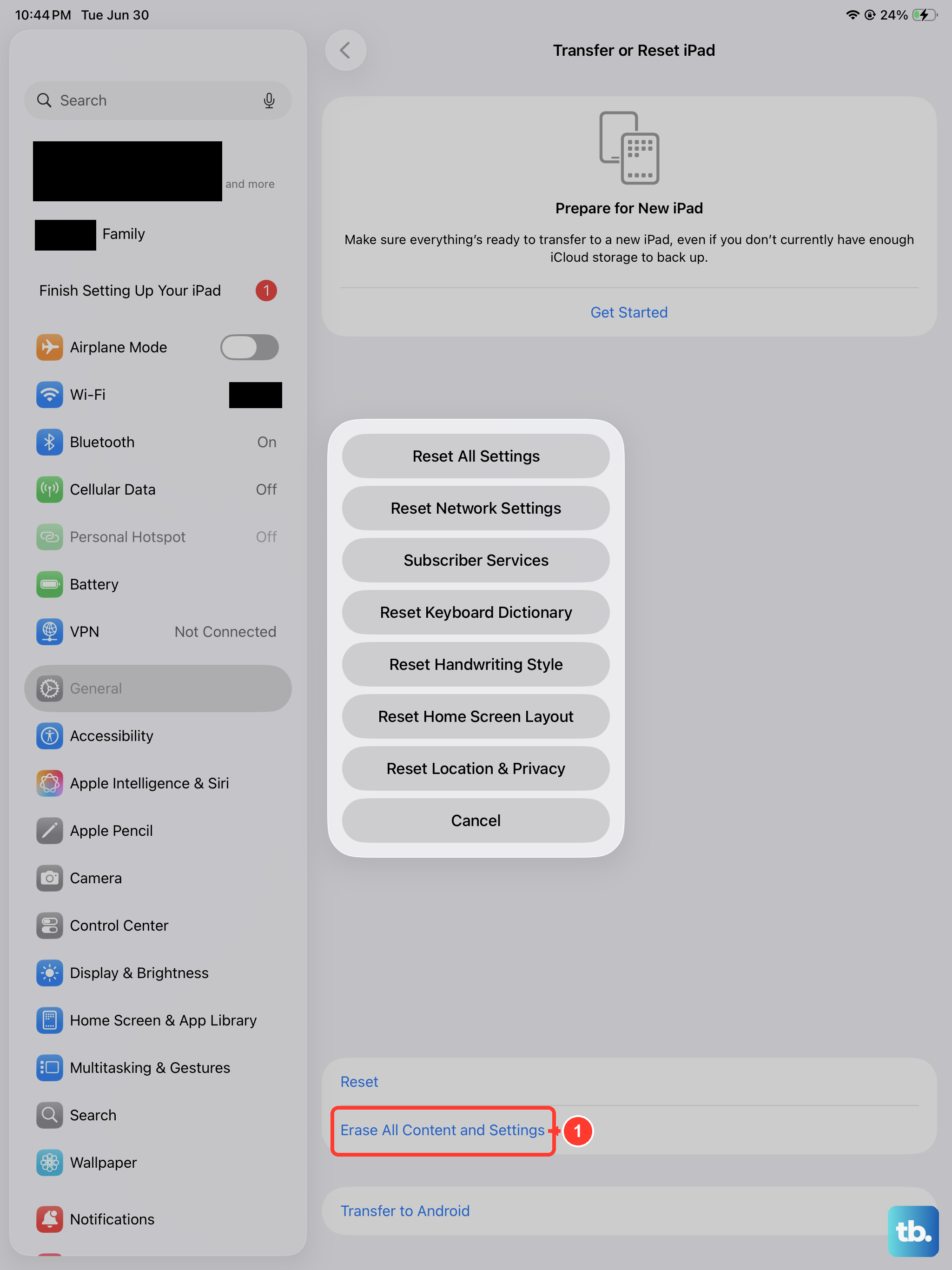
If the iPad shows a cable pointing to a computer icon or gets stuck on the Apple logo, the operating system may be corrupted. You'll need a Mac or PC with the latest version of iTunes (on Windows) or Finder (on macOS Catalina or later).
Connect your iPad to the computer with a USB-C cable. Open Finder or iTunes and look for your device. If the computer recognizes it, you'll see an option to Update or Restore. Always try Update first. This reinstalls iPadOS without erasing your data.
If the update fails or isn't available, you'll need to choose Restore. This will install the latest version of iPadOS and erase all content and settings on the device. You can restore your data from a backup afterward if you have one in iCloud or on your computer.
Check for Physical or Liquid Damage
Think back to whether the iPad was dropped, exposed to moisture, or experienced any physical trauma. Even a small amount of liquid can cause a short circuit that prevents the device from powering on.
Look closely at the USB-C port for any signs of corrosion, bent pins, or debris. Also inspect the screen and enclosure for any cracks or damage you might have missed. Physical damage typically requires a professional repair to fix the internal components.
Keeping your iPad in a protective case like a Smart Folio can help prevent this kind of damage from happening in the first place. It's a simple step that can save you a major headache later on.
Let the Battery Warm Up or Cool Down
Lithium-ion batteries don't perform well in extreme temperatures. If your iPad has been left in a very cold car or in direct, hot sunlight, the battery might temporarily disable itself as a safety measure.
Bring the device to a room-temperature environment and let it sit for 30 to 60 minutes. Then, try charging it again and attempt the force restart procedure. The battery needs to be within its normal operating temperature range to function.
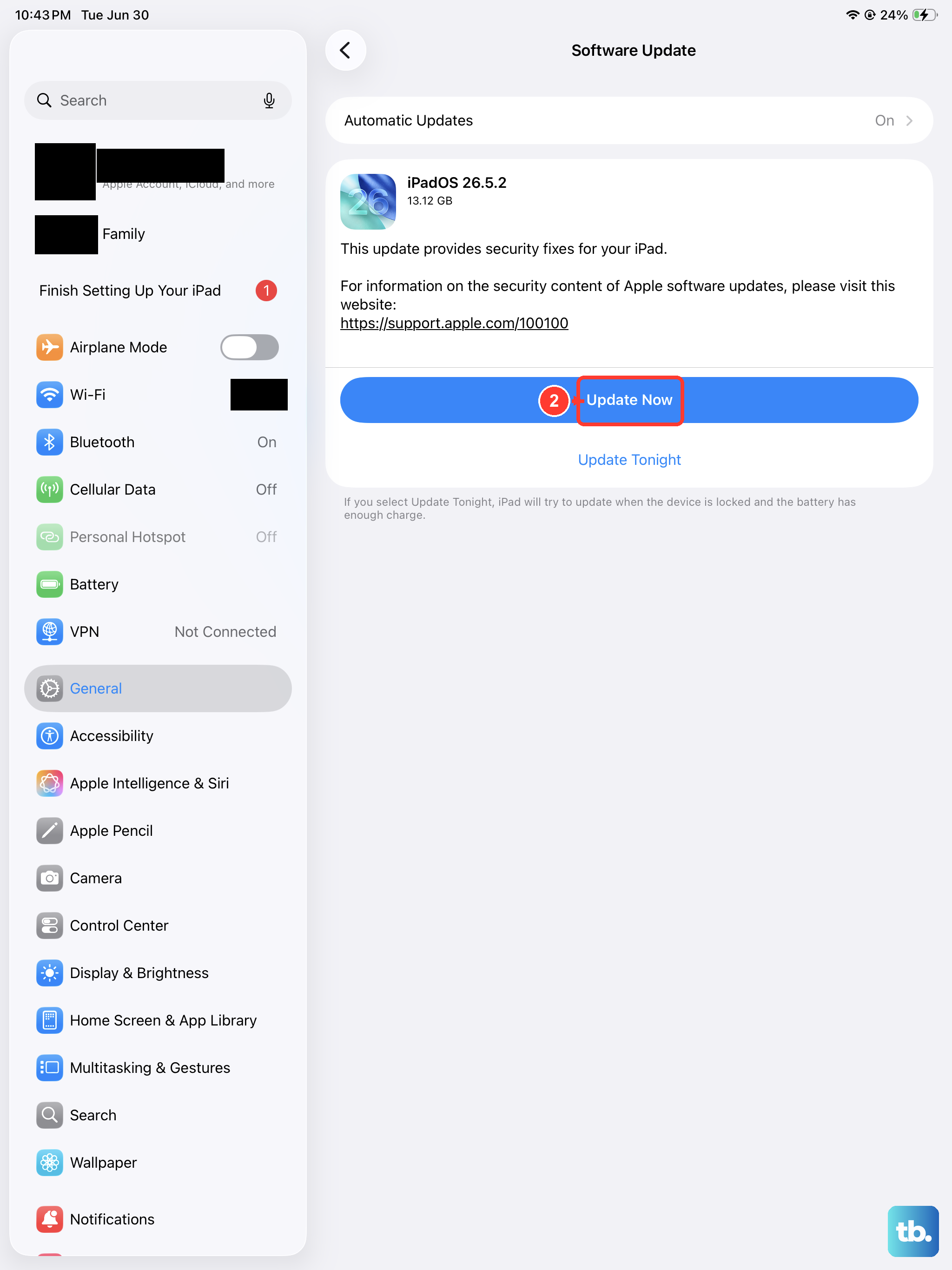
Regularly updating to the latest version of iPadOS also helps with overall battery management and system stability. Apple's software updates often include optimizations that improve power efficiency.