When apps on your iPad (11th generation) start closing unexpectedly or freezing, it can really interrupt your workflow or entertainment. This is usually a temporary software hiccup rather than a sign of a failing device. I'd start with a quick restart, as that resolves a surprising number of these random crashes right away.
To restart your iPad, press and hold the Top button and either volume button until the power off slider appears. Drag the slider, wait about 30 seconds for the device to fully power down, then press and hold the Top button again until you see the Apple logo. If the screen is unresponsive, you can force restart it instead.
For a force restart, quickly press and release the Volume Up button, then quickly press and release the Volume Down button. Finally, press and hold the Top button until the Apple logo appears on the screen. This doesn't erase any data, it just gives the system a hard refresh.
Update the App and iPadOS
Out-of-date software is one of the most common reasons apps crash. Developers are constantly pushing updates to fix bugs and ensure compatibility with the latest iPadOS. Head to the App Store and tap your profile icon in the top right corner to see all pending updates.
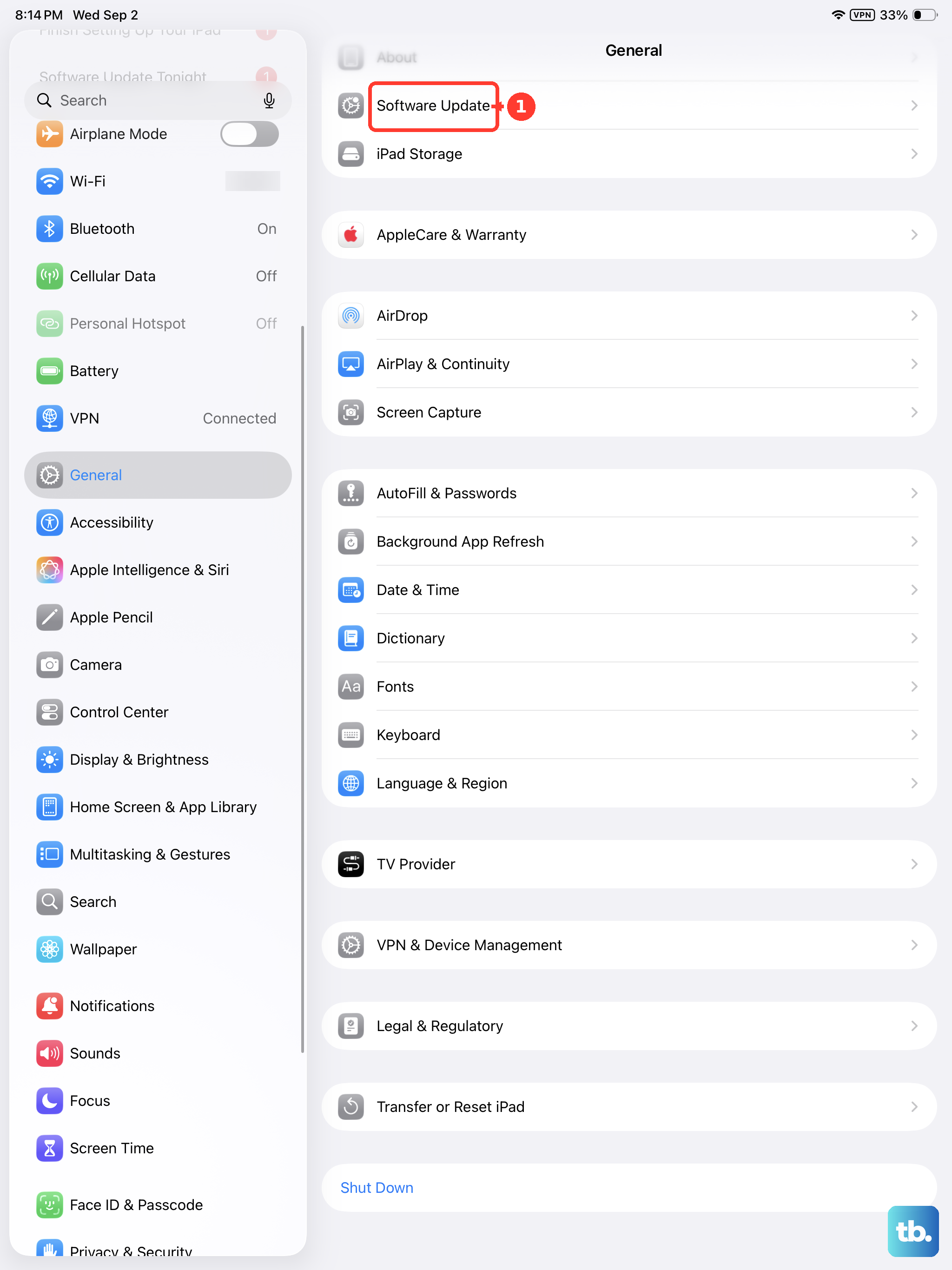
It's just as important to keep iPadOS itself current. Apple's updates often include performance improvements and stability patches that affect all apps. Go to Settings > General > Software Update to check for and install any available system updates. I've found that keeping both the apps and the OS updated prevents a lot of headaches.
Check Your iPad's Available Storage
Apps need free space to create temporary files and cache data. If your iPad's storage is completely full, apps can start crashing because they have no room to operate. You can check this quickly in Settings > General > iPad Storage.
The graph at the top shows what's using your space. If you're critically low, consider offloading unused apps, which removes the app but keeps its documents and data, or deleting old videos and photos. Even freeing up a few gigabytes can make a noticeable difference in app stability.
Close and Reopen the App
Sometimes an app just gets stuck in a bad state. To fully close it, swipe up from the bottom of the screen and pause in the middle to enter the App Switcher. Find the app's preview and swipe it up and off the top of the screen to close it. Wait a moment, then tap its icon on the Home Screen to launch it fresh.
This is different from just switching away from the app. Fully closing it ensures it starts from a clean slate the next time you open it, which can clear out any corrupted temporary data that was causing the crash.
Delete and Reinstall the Problem App
If one specific app keeps failing, its installation files might have become corrupted. Deleting and reinstalling it gives you a fresh copy. Touch and hold the app's icon on the Home Screen, then tap Remove App. Choose Delete App to remove it and its data, then confirm.
Remember, deleting the app will also erase any documents or data stored solely within that app, unless it uses iCloud or another cloud service. After deleting, open the App Store, search for the app, and tap the download cloud icon to reinstall it. This often fixes persistent crashing issues.
Reset All Settings
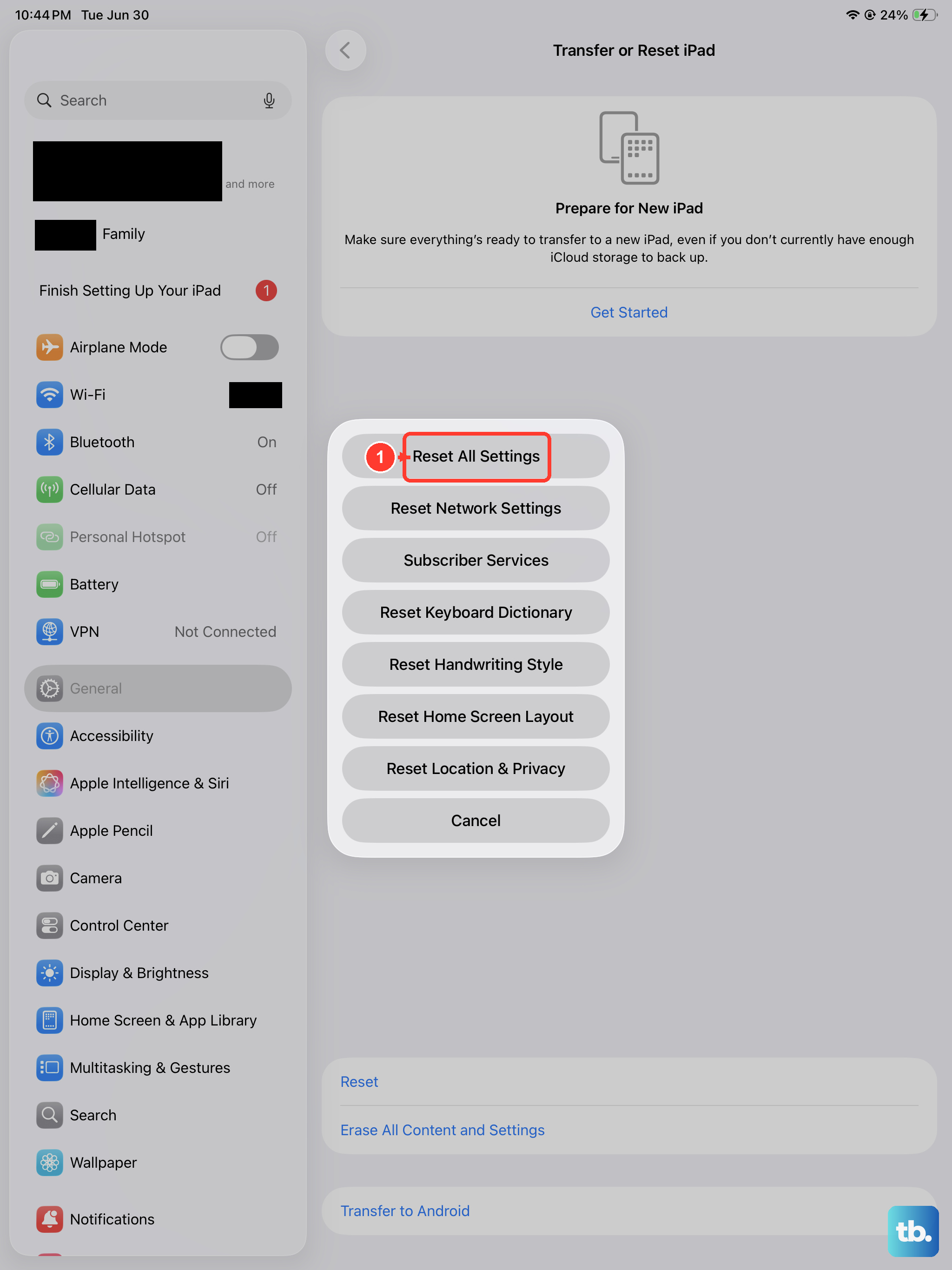
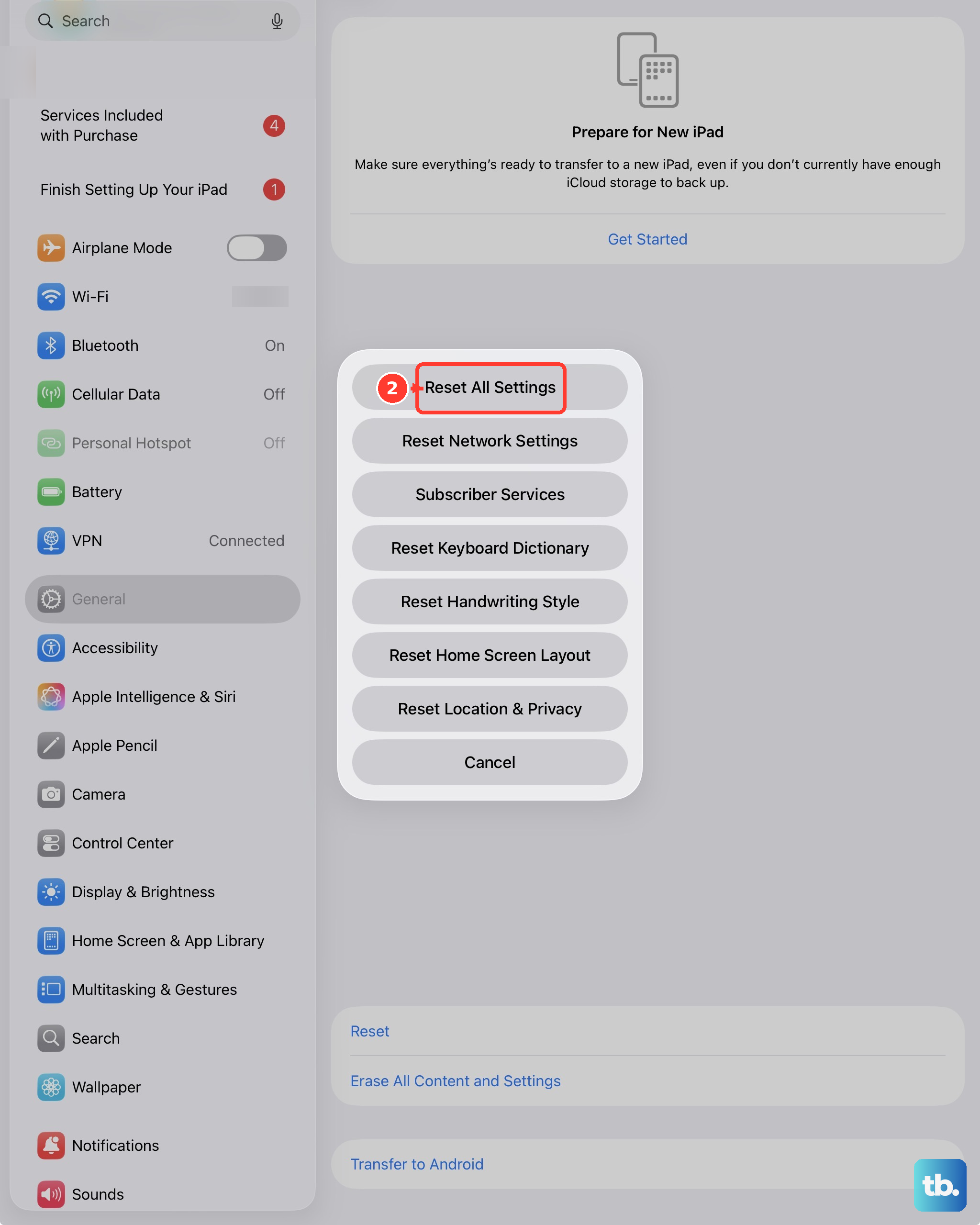
This is a more substantial step if crashes are widespread. Resetting all settings reverts things like your network preferences, privacy settings, and Home Screen layout back to factory defaults, but it won't touch your personal data or media.
Go to Settings > General > Transfer or Reset iPad. Tap Reset and then choose Reset All Settings. You'll need to enter your passcode and confirm. After the iPad restarts, you'll have to reconnect to Wi-Fi networks and re-customize some settings, but it can eliminate deeper software conflicts causing apps to crash.