


When your iPad mini's autocorrect starts suggesting bizarre words or refusing to help at all, it can really slow you down. This is usually a software hiccup in iPadOS 26, and there are a few straightforward ways to get it back on track. I'd start with the simplest fix first.
Restart Your iPad mini
Before diving into settings, give your iPad a fresh start. A simple restart clears out temporary glitches that can confuse the keyboard. Just hold the top button and either volume button, then slide to power off. Wait a minute, then press the top button again to turn it back on.
If the screen is unresponsive, you can force restart it. Quickly press and release the volume up button, then quickly press and release the volume down button. Finally, press and hold the top button until you see the Apple logo appear on the screen.
Check Your Keyboard and Language Settings
Sometimes the issue is just a misconfigured setting. Open the Settings app and go to General > Keyboard. Here, make sure Auto-Correction is toggled on. While you're there, tap on Keyboards to see which ones are active.
If you have multiple keyboards enabled, like a third-party one or a different language, it can cause conflicts. Tap Edit in the top right and remove any keyboards you don't actively use. Then, go back to the main Keyboard settings and tap Text Replacement.
Look through your text replacements. An old, incorrect shortcut here could be overriding normal autocorrect behavior. Swipe left on any entries you want to delete.
Reset the iPad's Dictionary
The iPad learns words you frequently use and adds them to a personal dictionary. If that data gets corrupted, it can lead to strange autocorrect suggestions. You can reset it to clear out the bad data.
Go to Settings > General > Transfer or Reset iPad. Tap on Reset at the bottom. From the list of options, choose Reset Keyboard Dictionary. You'll need to enter your passcode to confirm.
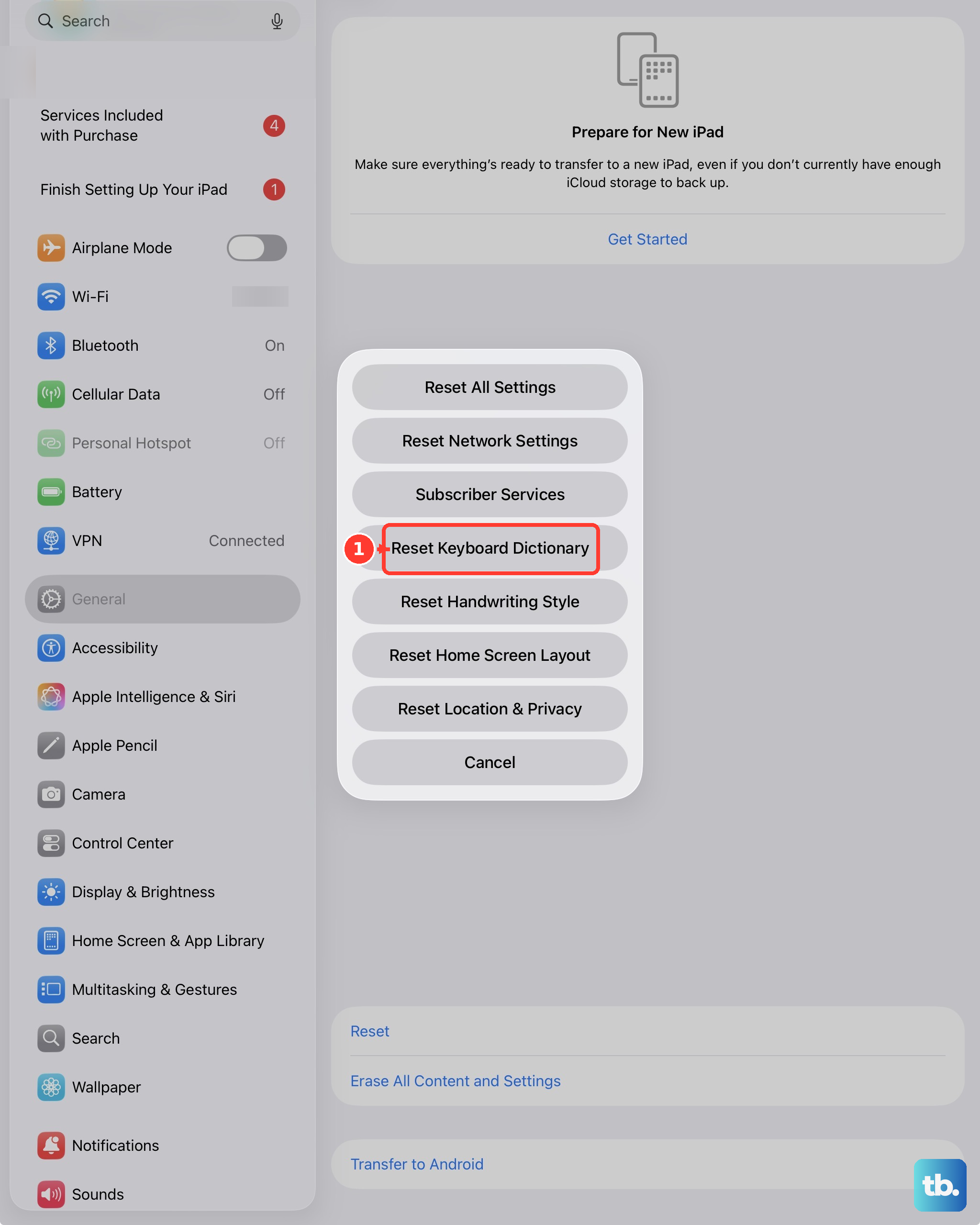
This will erase all the words your iPad has learned, so it will stop suggesting your name, slang, or common typos. It's a clean slate for autocorrect to start learning again from scratch.
Update iPadOS
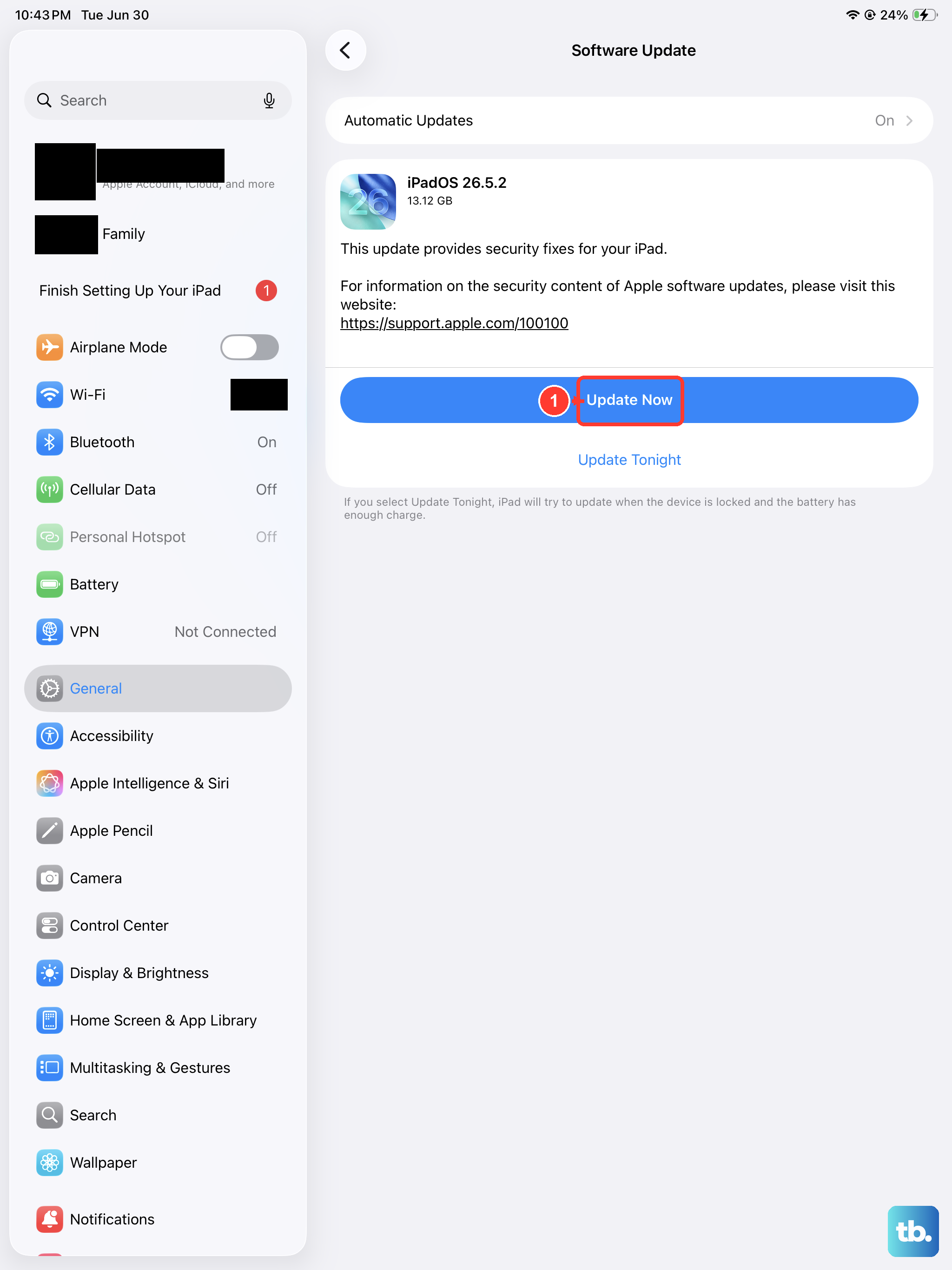
Apple frequently releases updates that fix bugs, including ones related to the keyboard and system text input. Making sure you're on the latest version of iPadOS 26 is a crucial step.
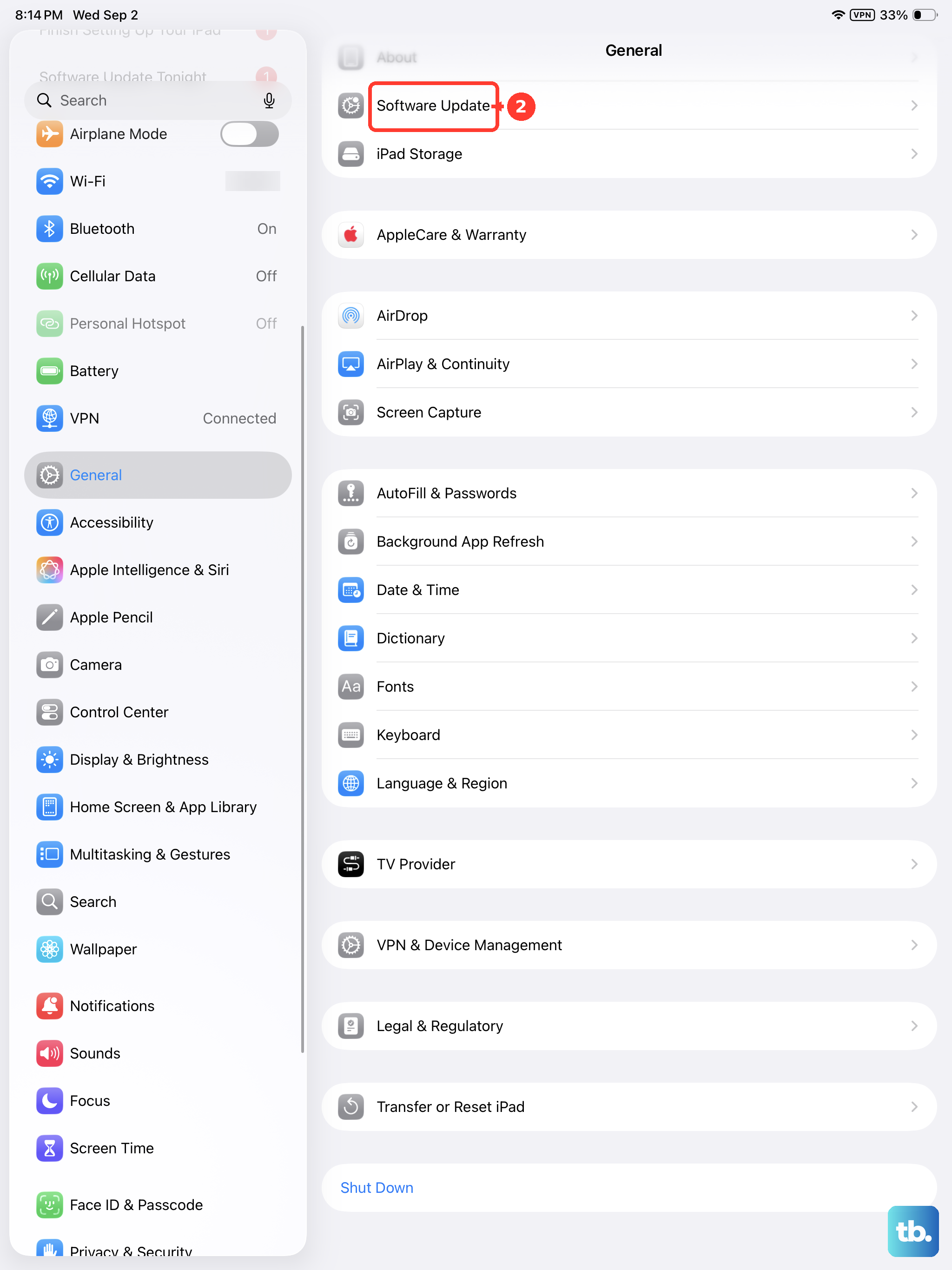
Connect to Wi-Fi and plug in your iPad with an official Apple 20W or higher USB-C charger to ensure the update doesn't get interrupted. Open Settings, tap General, and then select Software Update. If an update is available, tap Download and Install.
Check for App-Specific Issues
Is the problem happening everywhere, or just in one app like Notes or Messages? If it's app-specific, the issue might be with that app's data. Try closing the app completely. Swipe up from the bottom of the screen and hold, then swipe the app's preview up and off the top of the screen to close it.
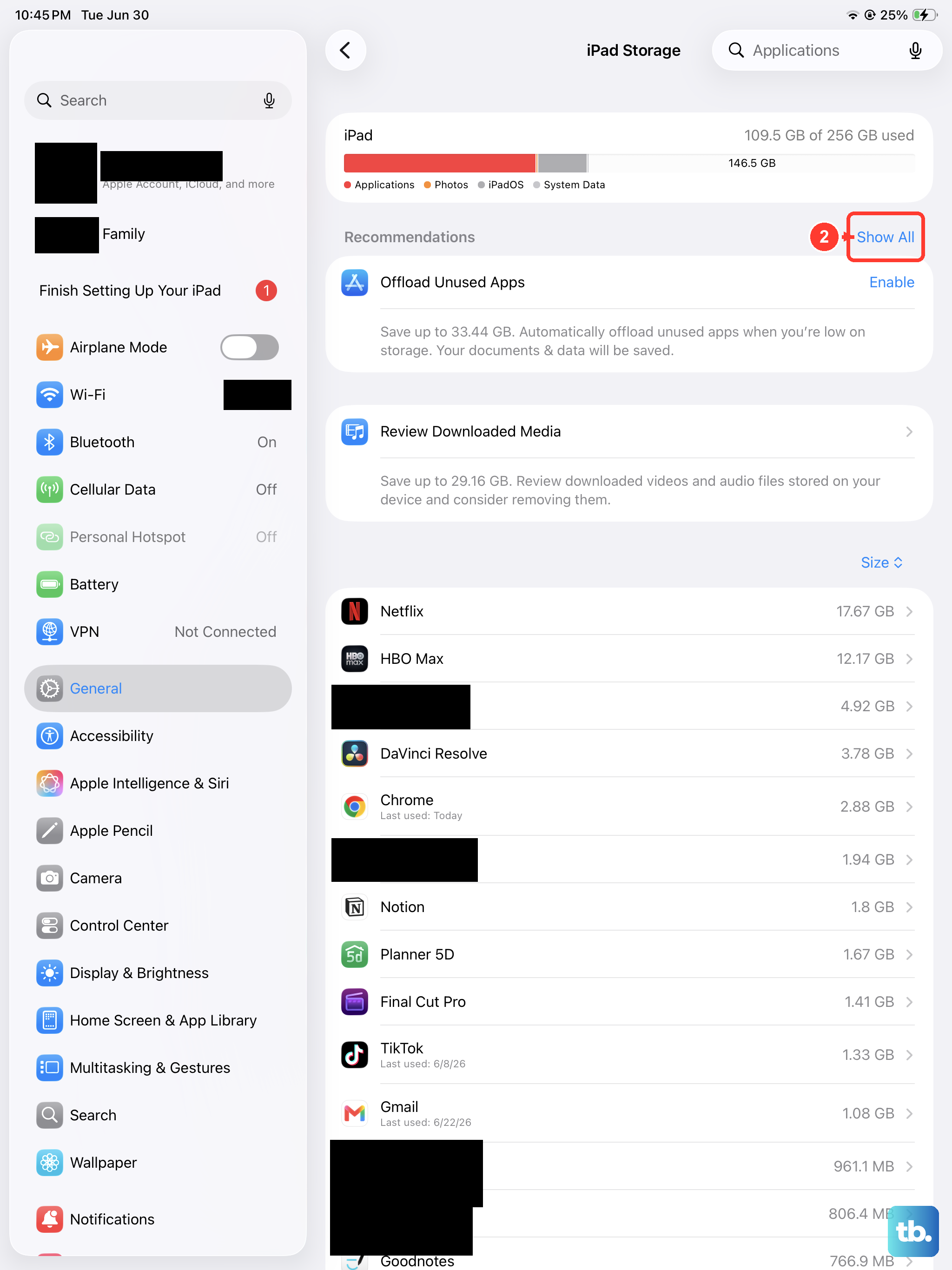
If that doesn't help, you can try offloading the app, which removes the app but keeps its documents and data. Go to Settings > General > iPad Storage, find the app, and tap Offload App. Then, you can reinstall it from the App Store. This often clears up minor corruption without losing your information inside the app.