


If your iPad (11th generation) shows a "Not Registered on Network" error, it means your cellular model can't connect to your carrier's mobile data network. You won't be able to use mobile data for browsing, streaming, or getting online when Wi-Fi isn't available. This error typically pops up when the iPad fails to properly authenticate with cell towers, which can happen for a few different reasons.
Before you try anything more involved, the quickest fix is to toggle Airplane Mode. Swipe down from the top-right corner of the screen to open Control Center and tap the airplane icon. Wait about 15 seconds, then tap it again to turn Airplane Mode off. This forces your iPad to drop its current network connection and attempt a fresh registration, which often clears up temporary glitches right away.
Restart Your iPad
A full restart is a classic fix for a reason. It clears the device's memory and reloads all the system processes, including the cellular radio software. To restart your iPad (11th gen), go to Settings > General > Shut Down. Slide the power off slider, wait a full minute, then press and hold the top button until you see the Apple logo. Once it boots up, give it a moment to search for the network again.
Check Your SIM Card
A loose or dirty SIM card is a common culprit. First, make sure your iPad is powered off completely. Use the SIM eject tool (or a small paperclip) to open the SIM tray on the side of the device. Gently remove the SIM card and inspect the gold contacts for any dust or debris. You can clean them lightly with a dry, soft cloth. Carefully reinsert the SIM, making sure it's seated correctly in the tray, and push the tray back in until it clicks. Power your iPad back on.
Verify Your Carrier Account Status
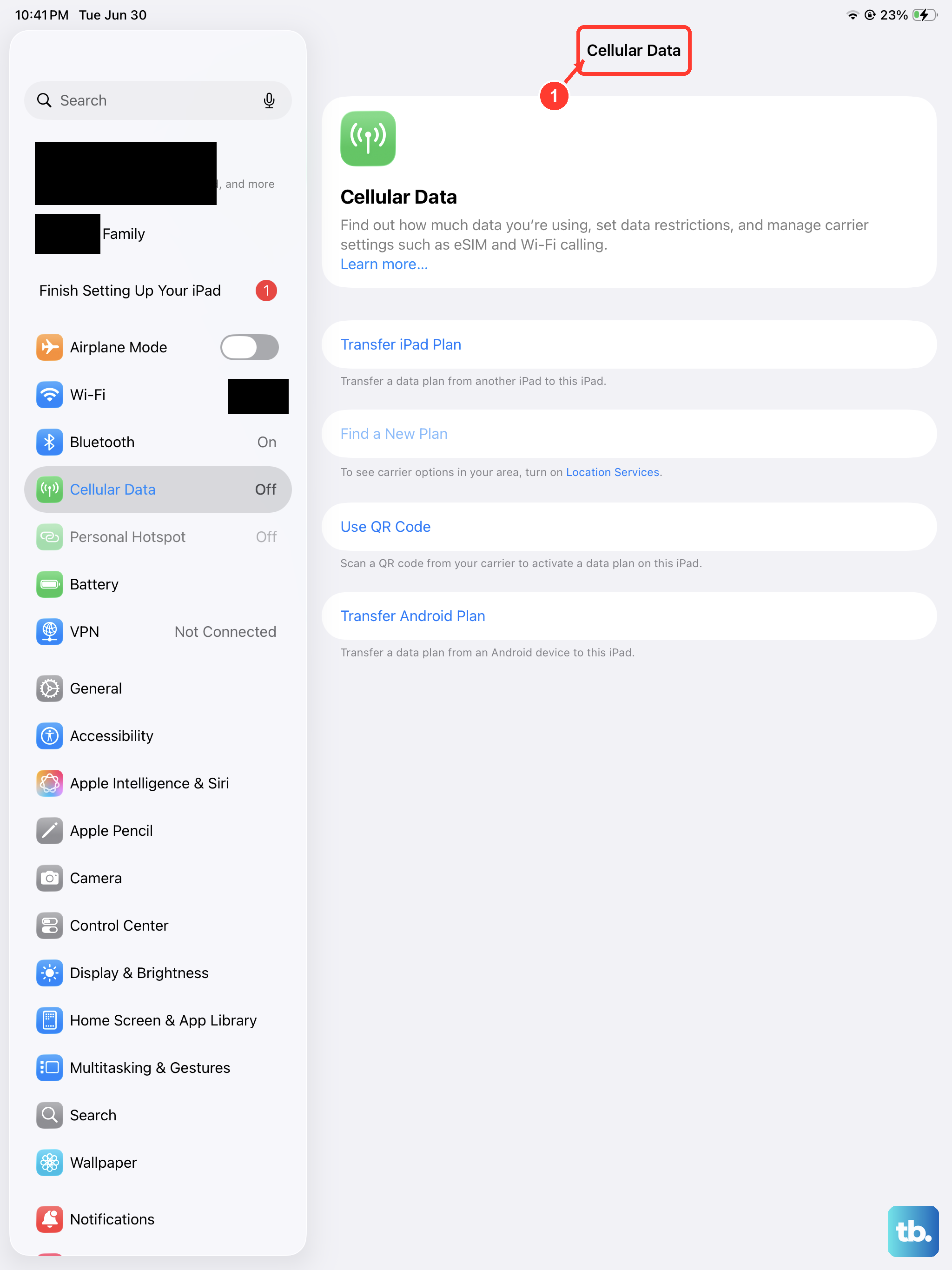
Sometimes the issue isn't with your iPad at all. If your cellular data plan has expired, hit a usage limit, or has an unpaid balance, your carrier will block network access. I'd recommend checking your account status first. You can usually do this by logging into your carrier's website or app from another device, or by calling their customer support. Confirm that the line associated with your iPad's SIM is active and in good standing.
Update iPadOS
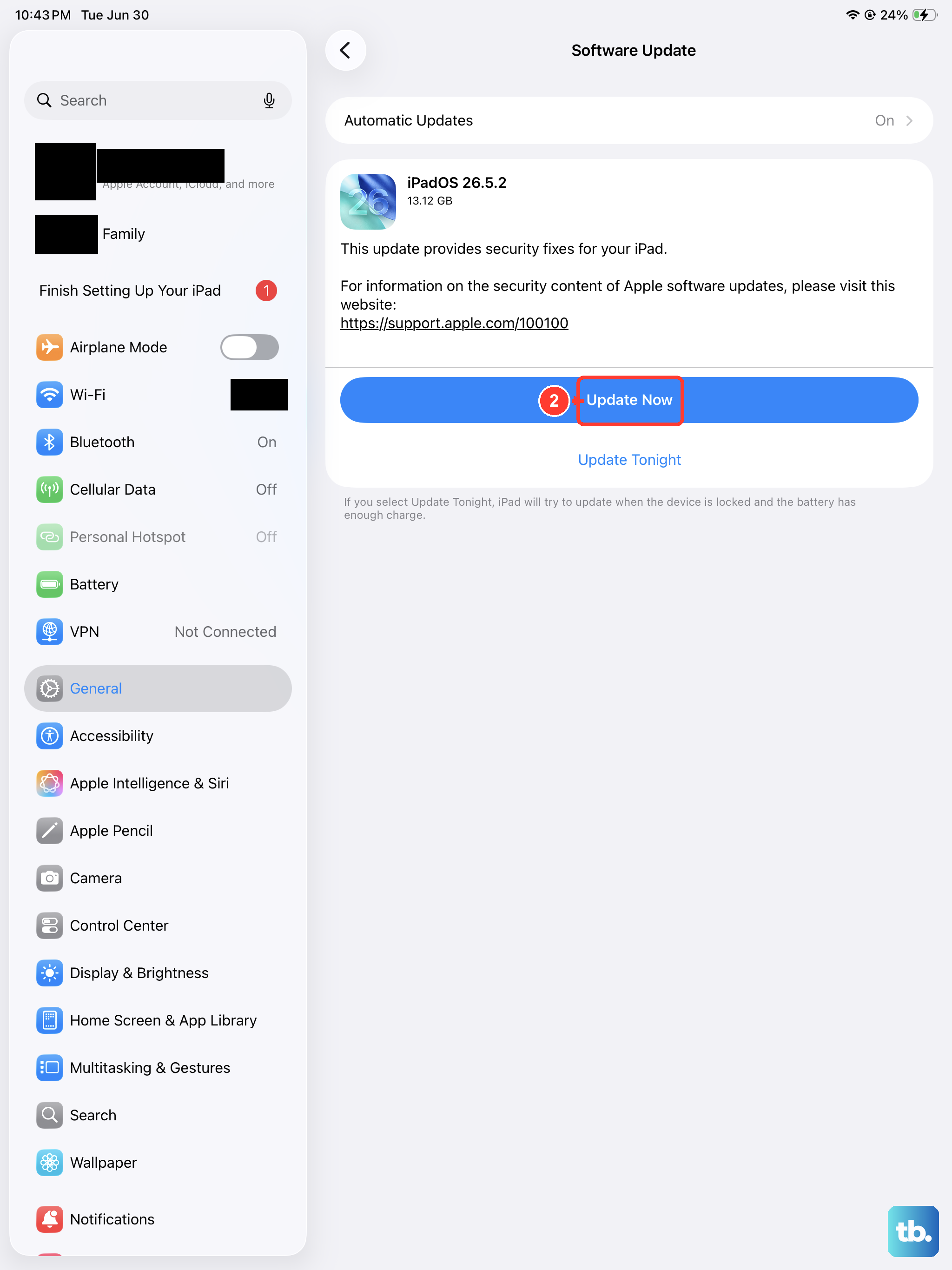
Running outdated software can lead to network compatibility problems, especially as carriers update their systems. Apple releases updates that often include fixes for cellular connectivity. To check, open Settings > General > Software Update. If an update for iPadOS is available, I'd suggest installing it. Make sure your iPad is connected to Wi-Fi and has at least a 50% charge or is plugged in with its 20W USB-C charger first.
Reset Network Settings
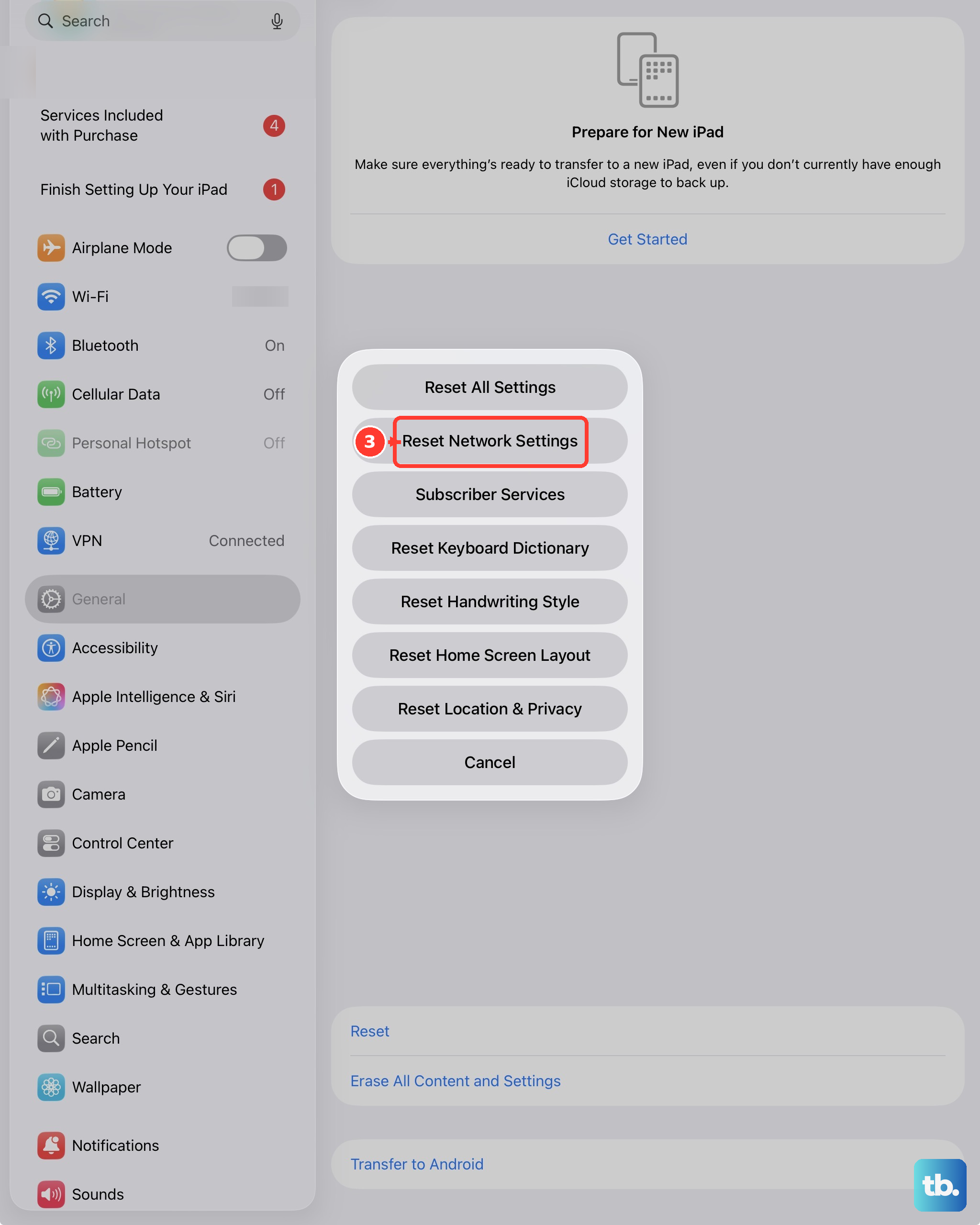
This step clears all your saved network configurations, including Wi-Fi passwords, VPN settings, and cellular network preferences. It's a reliable way to wipe out any corrupted settings that might be causing the registration error. Go to Settings > General > Transfer or Reset iPad > Reset. Then, tap Reset Network Settings. You'll need to enter your passcode and confirm. Your iPad will restart, and you'll have to rejoin Wi-Fi networks afterward.
Manually Select Your Network
Your iPad might be trying to automatically connect to a carrier network that has a weak signal or is undergoing maintenance. You can force it to search for and select your specific carrier. Go to Settings > Cellular > Network Selection. Turn off the "Automatic" toggle. Your iPad will search for available networks. When the list appears, select your carrier's name from the list. Wait a minute to see if the "Not Registered" message disappears.
Try a Different SIM Card
This test helps determine if the problem is with your SIM card or the iPad itself. If you can borrow a working SIM card from a friend or family member (on a different, active account), insert it into your iPad. If the borrowed SIM connects to the network without any error, then your original SIM card is likely faulty or deactivated. You'll need to contact your carrier for a replacement SIM. If the borrowed SIM also fails, the issue is with your iPad.
Perform a Force Restart
A force restart is different from a standard shutdown and can resolve deeper software freezes that affect the cellular modem. On the iPad (11th generation), you do this by quickly pressing and releasing the Volume Up button, then quickly pressing and releasing the Volume Down button. Finally, press and hold the Top button. Keep holding it until you see the Apple logo appear, then release. This doesn't erase any data, it just gives the system a hard refresh.
Contact Your Carrier for Support
Your carrier can run diagnostics on their end. They can check if your iPad's IMEI number is properly provisioned on their network and if there are any known service outages in your area. They may also need to reprovision your line or update your account settings specifically for tablet data plans. It's a good step to take before considering more drastic measures, as they often have access to backend tools you don't.
Restore Your iPad via a Computer
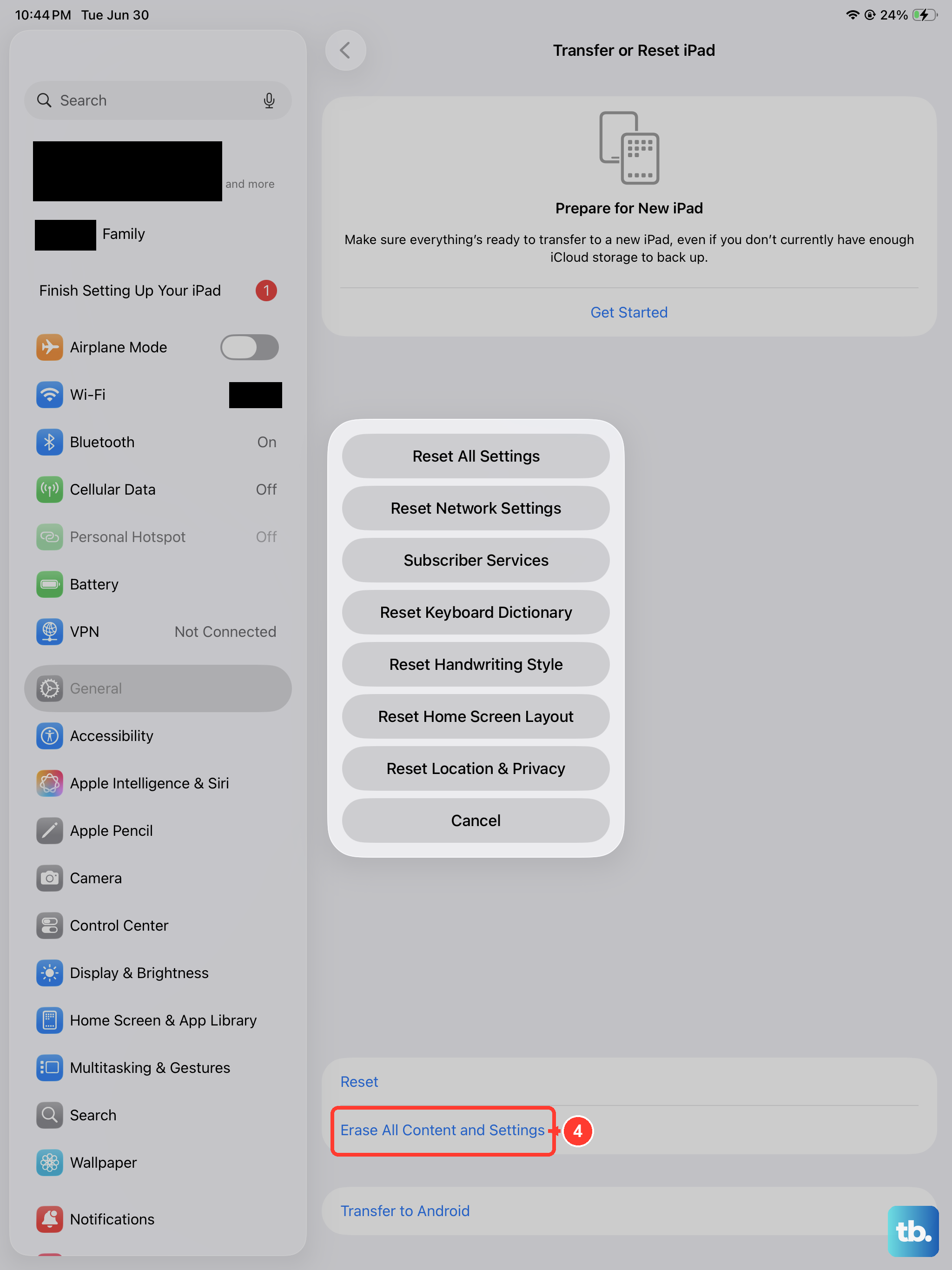
If all else fails, restoring your iPad through a computer installs a clean, fresh copy of iPadOS. This can fix deep-seated software corruption. First, make a full backup of your iPad to iCloud or your computer. Then, connect your iPad to a Mac or PC using a USB-C cable. Open Finder (on Mac) or iTunes (on PC), select your iPad, and choose the option to Restore iPad. This will erase all content and settings and install the latest iPadOS. After it's done, you can set it up as new or from your backup to test the cellular connection.