


Picture messages not downloading on your iPad can be a real hassle, especially when someone is trying to share a photo or video with you. On an iPad, this usually involves iMessage or SMS/MMS texts forwarded from your iPhone. The download can fail for a few common reasons, like a weak internet connection, a settings hiccup, or a temporary software glitch.
Let's walk through the fixes that usually get things moving again on your iPad (11th generation).
Start With a Quick Restart
Before diving into settings, give your iPad a fresh start. A force restart is often the fastest fix for a temporary software hang-up. On your iPad (11th gen), press and quickly release the Volume Up button, then quickly press and release the Volume Down button. Finally, press and hold the Top button until you see the Apple logo appear on the screen.
This doesn't erase any of your data, it just clears the device's memory and reloads the operating system. I'd start with this one, as it solves a surprising number of odd issues.
Check Your Internet Connection
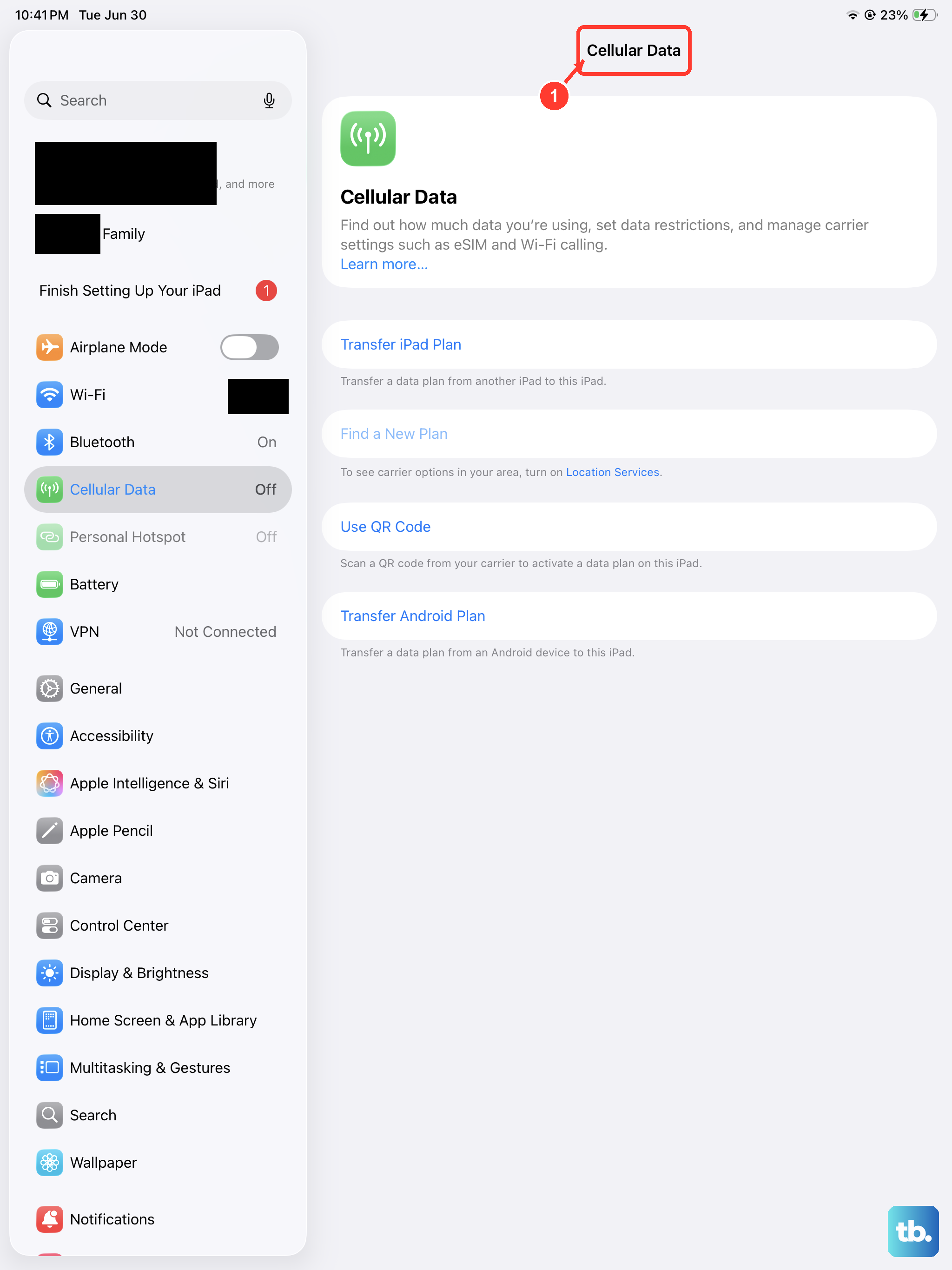
Your iPad needs an active data connection to download picture messages, especially standard MMS messages that come through your cellular plan. First, make sure you're connected to Wi-Fi or that Cellular Data is turned on if you have a cellular model.
Open Safari and try loading a webpage. If it's slow or won't load, your connection is the likely culprit. Try toggling Airplane Mode on and off from the Control Center to reset the radios. For Wi-Fi, you can also try forgetting the network and reconnecting.
Verify iMessage and Text Message Settings
Your iPad's messaging settings are central to this. Open the Settings app and tap Messages. First, ensure iMessage is turned on at the top. This is required for blue-bubble messages between Apple devices.
Next, scroll down to the "SMS/MMS" section. If you use Text Message Forwarding from an iPhone, make sure your iPad is listed and enabled on your iPhone. Also, ensure "MMS Messaging" is toggled on. If it's off, your iPad won't even attempt to download picture messages sent via SMS/MMS.
Ensure Auto-Download for Messages is Enabled
There's a separate setting that controls whether media downloads automatically over cellular data to save your data plan. Go to Settings > Apps > Messages and scroll down to find the "Low Quality Image Mode" option.
If this is on, it might be interfering. More importantly, go to Settings > Cellular (or Mobile Data), scroll down to the "Using Mobile Data For" section, and make sure Messages is toggled on. This permits downloads when you're not on Wi-Fi.
Close and Reopen the Messages App
Sometimes the Messages app itself gets stuck. To fully close it, swipe up from the bottom of the screen and pause in the middle to enter the app switcher. Find the Messages app card and swipe it up and off the top of the screen to close it.
Wait a few seconds, then tap the Messages icon on your Home Screen to relaunch it. This gives the app a clean slate and can often resolve a temporary download failure.
Check Your iPad's Available Storage
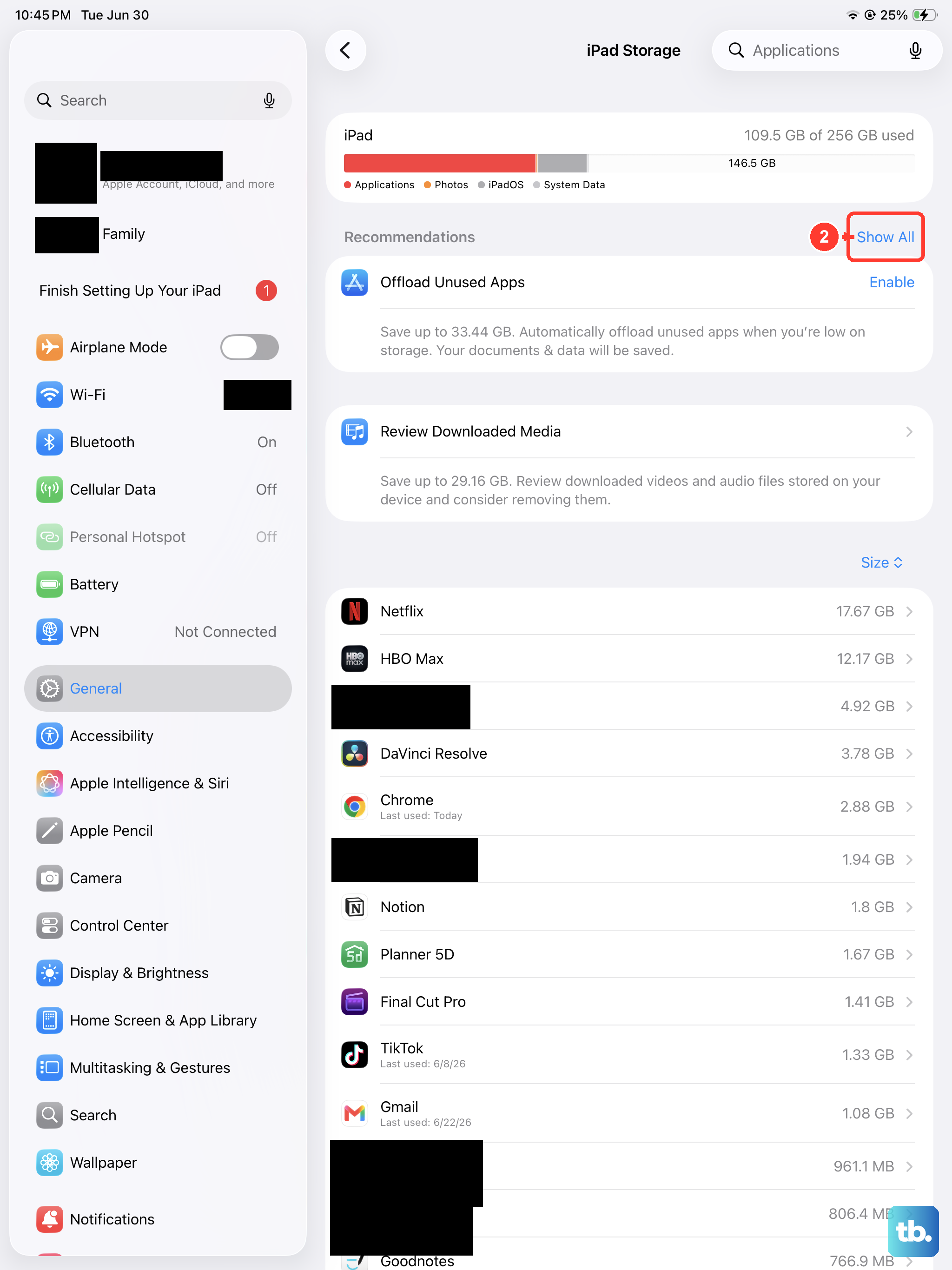
Picture messages, especially videos, take up space. If your iPad's storage is completely full, the system may fail to save new downloads. Go to Settings > General > iPad Storage to see how much free space you have.
If you're critically low, you'll need to free up some room. You can offload unused apps, review large message attachments, or delete old photos and videos. Aim for at least 1-2GB of free space for the system to operate smoothly.
Update iPadOS to the Latest Version
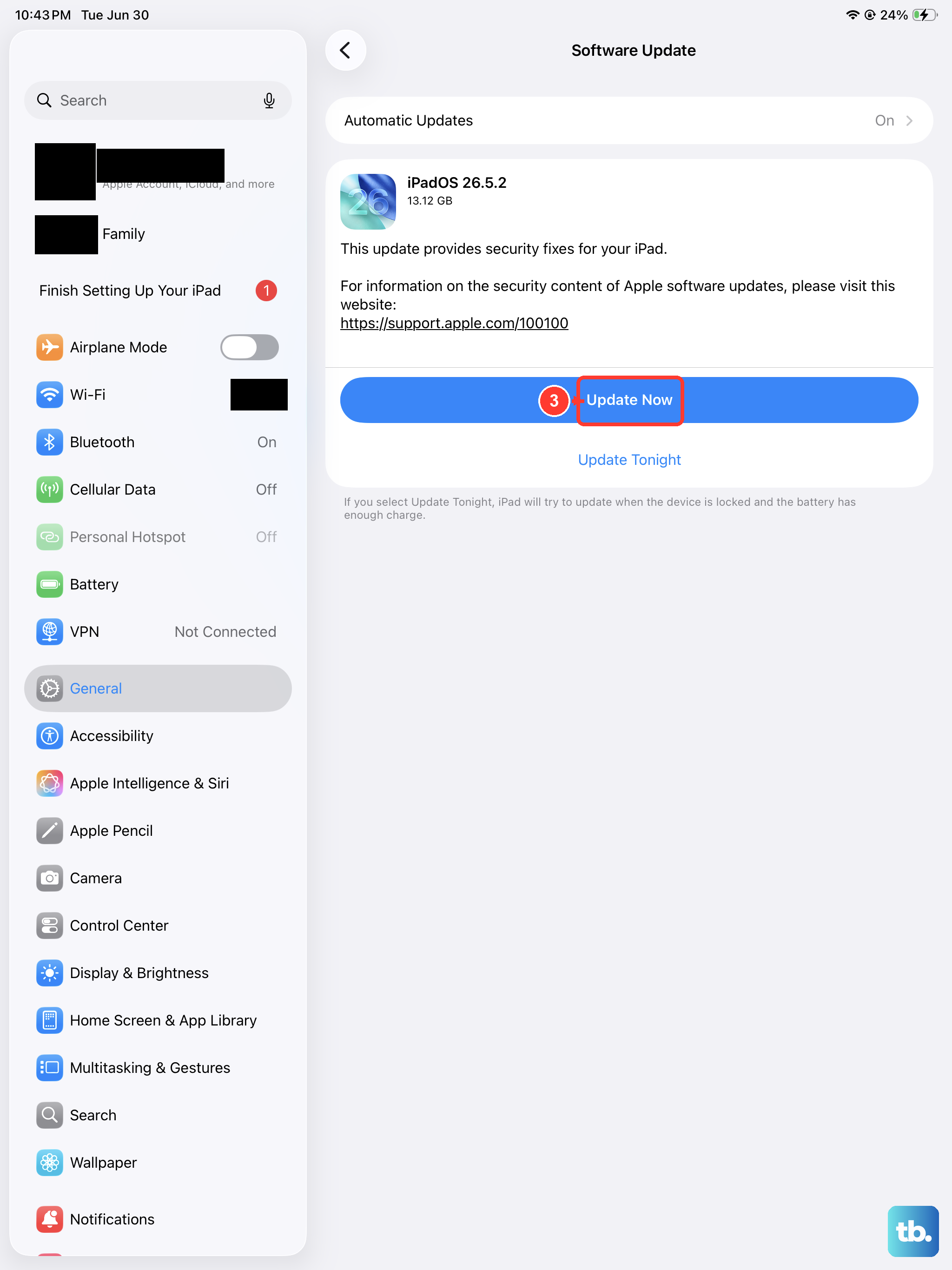
Software bugs can cause message download issues, and Apple often addresses these in updates. Keeping your iPad (11th generation) on the latest version of iPadOS is good practice for both performance and security.
Go to Settings > General > Software Update. If an update is available, tap "Download and Install." I recommend connecting to Wi-Fi and plugging in your iPad with its 20W USB-C charger during this process.
Reset All Network Settings
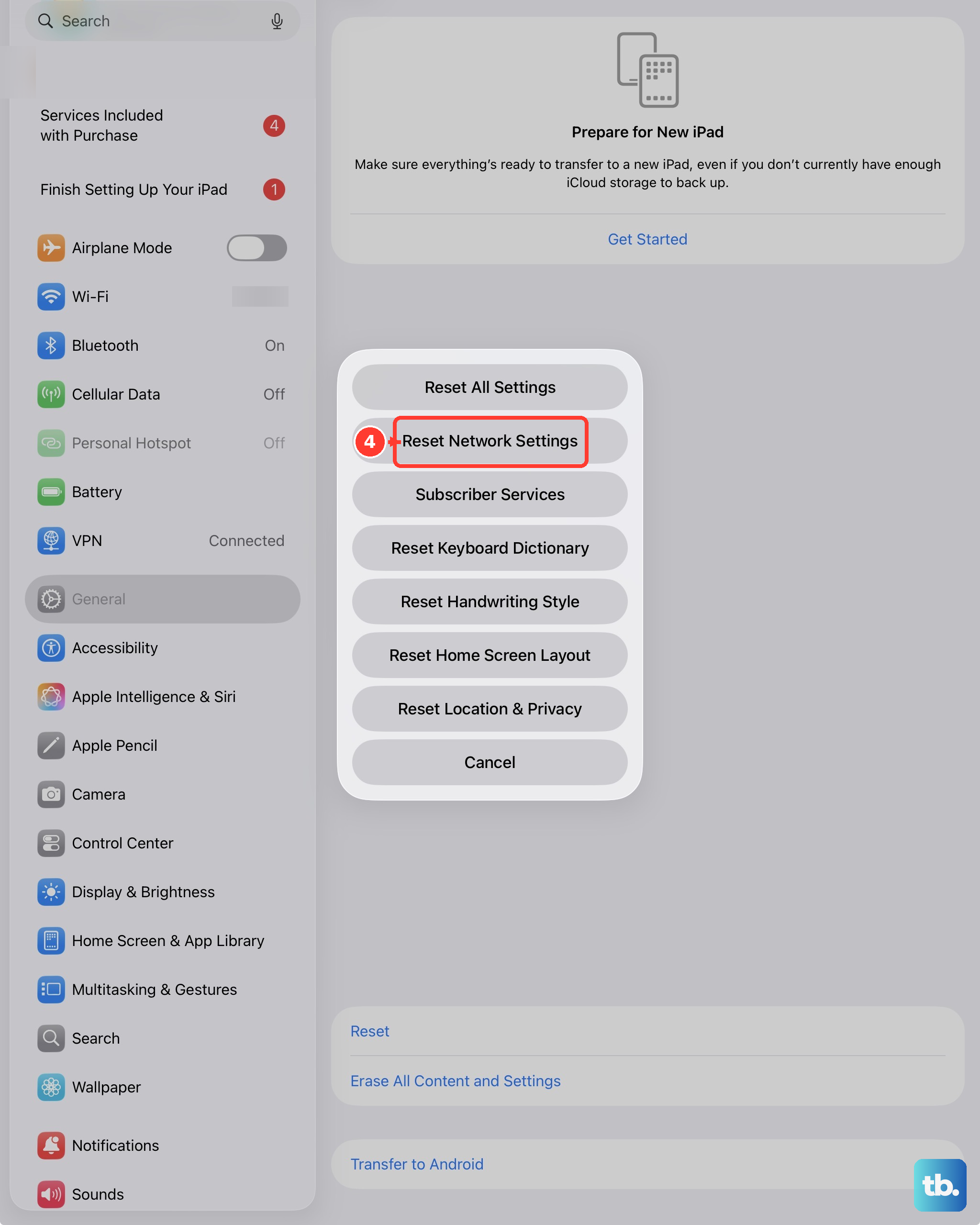
This step clears all your Wi-Fi passwords, cellular settings, and VPN configurations, so you'll need to rejoin Wi-Fi networks afterward. It's a deeper fix for persistent network-related problems.
To do this, go to Settings > General > Transfer or Reset iPad > Reset. Then, tap Reset Network Settings and enter your passcode to confirm. Your iPad will restart, and you can then test if picture messages will download.
Sign Out and Back Into iMessage
A refresh of your iMessage account can clear up account-specific glitches. Go to Settings > Apps > Messages > Send & Receive. Tap your Apple ID at the top and select "Sign Out."
After a moment, sign back in with your Apple ID and password. Once you're signed in, check the "You can be reached by iMessage at" section to ensure your correct phone number and email addresses are selected.