
Seeing "Call Failed" on your iPad 10th Generation can be confusing, especially since you might be using it for FaceTime or Wi-Fi calling. This error typically pops up when the device can't complete a connection over the internet or cellular network. Weak signals, software hiccups in iPadOS 18, or incorrect settings are the usual suspects.
Here are 10 effective ways to fix the call failed error on your iPad, starting with the quickest solutions you can try right now.
Toggle Airplane Mode
The fastest fix is to reset all wireless connections by turning Airplane Mode on and off. This clears temporary network glitches that can cause call failures, whether you're on cellular or Wi-Fi.
Swipe down from the top-right corner of your screen to open Control Center. Tap the airplane icon to turn it on, wait about 15 seconds, then tap it again to turn it off. Your iPad will reconnect to your networks fresh.
Check Your Internet Connection
Since your iPad relies on Wi-Fi or cellular data for calls, a poor connection is the most common culprit. For Wi-Fi, check the signal strength icon. If it's weak, try moving closer to your router or restarting it.
If you're using a cellular model, check the signal bars in the status bar. One bar or no service means you should move to a different location or near a window. I'd start with this check, as it solves the issue most of the time.
Restart Your iPad
A simple restart can fix many software-related issues that might be interfering with calling apps. Press and hold the top button and either volume button until the power-off slider appears.
Slide to power off, wait a full 30 seconds, then press and hold the top button again until you see the Apple logo. This gives the system a clean start.
Check Focus and Do Not Disturb
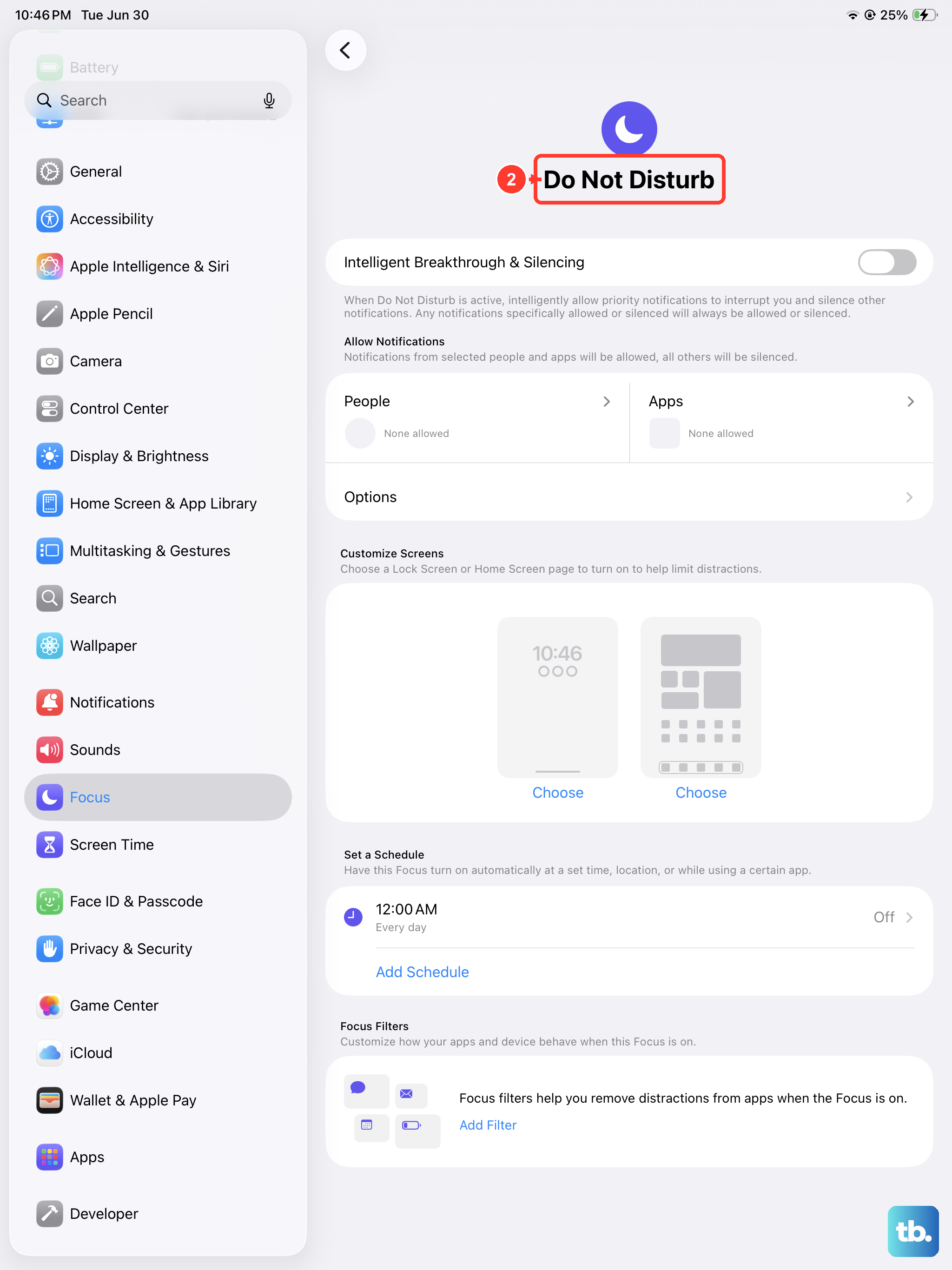
Focus modes and Do Not Disturb can sometimes silence or block incoming call notifications. Make sure these aren't accidentally preventing your calls from coming through.
Swipe down from the top-right to open Control Center. If you see a moon or a Focus icon like Work or Personal highlighted, tap it to turn it off. You can also check in Settings > Focus.
Update the Calling App
Whether you're using FaceTime, WhatsApp, Skype, or your carrier's Wi-Fi calling app, an outdated app can cause failures. Head to the App Store and tap your profile icon in the top-right corner.
Scroll down to see pending updates. If your calling app is listed, tap Update next to it. App updates frequently include bug fixes for connectivity issues.
Verify Cellular Data Settings
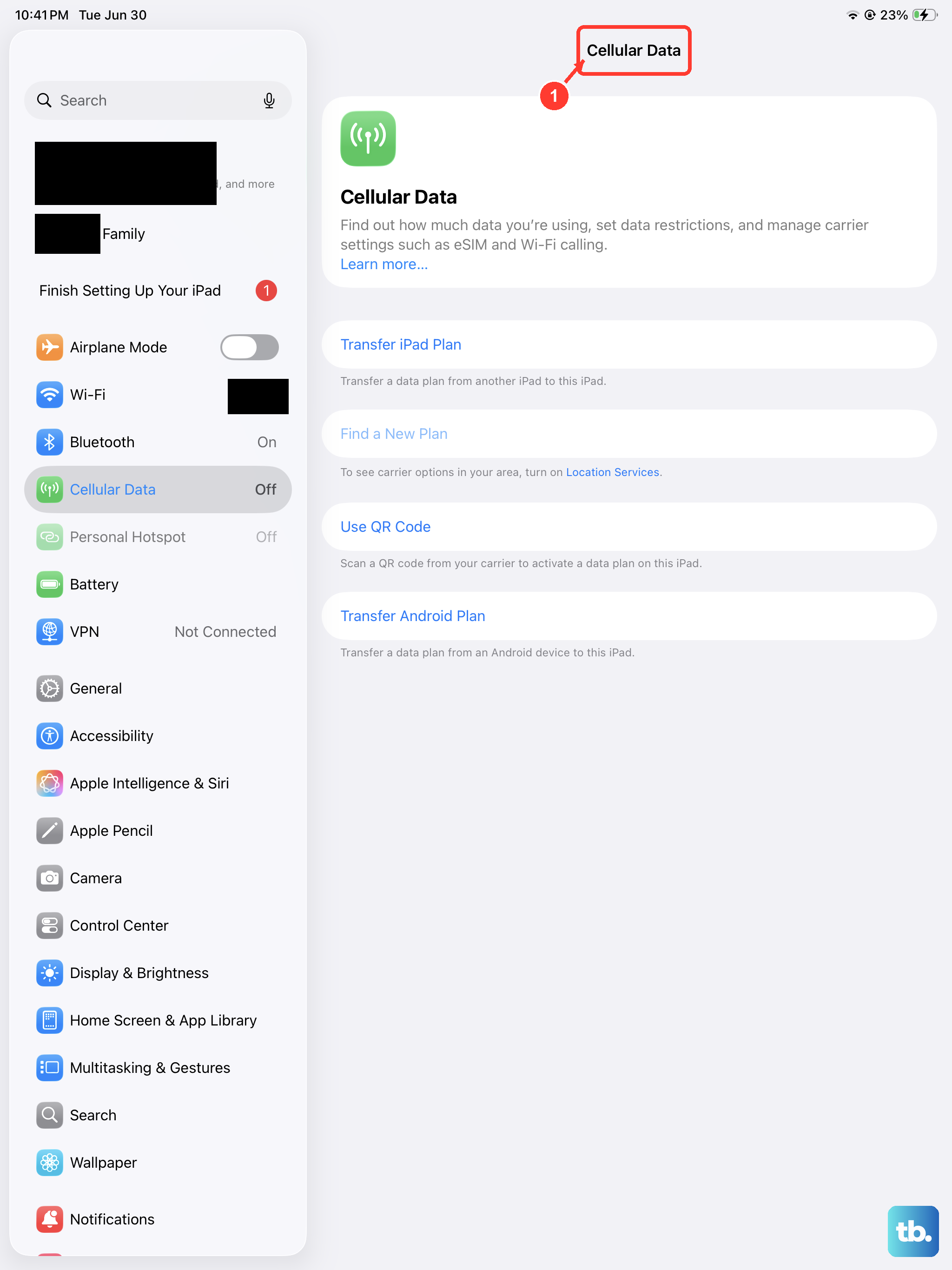
If you have a cellular iPad model and are using it for calls, ensure your mobile data is properly configured. Go to Settings > Cellular (or Mobile Data). Make sure the Cellular Data switch is turned on.
If you're traveling, you may need to enable data roaming. Tap Cellular Data Options and turn on Data Roaming. Be aware this might incur extra charges from your carrier.
Update iPadOS
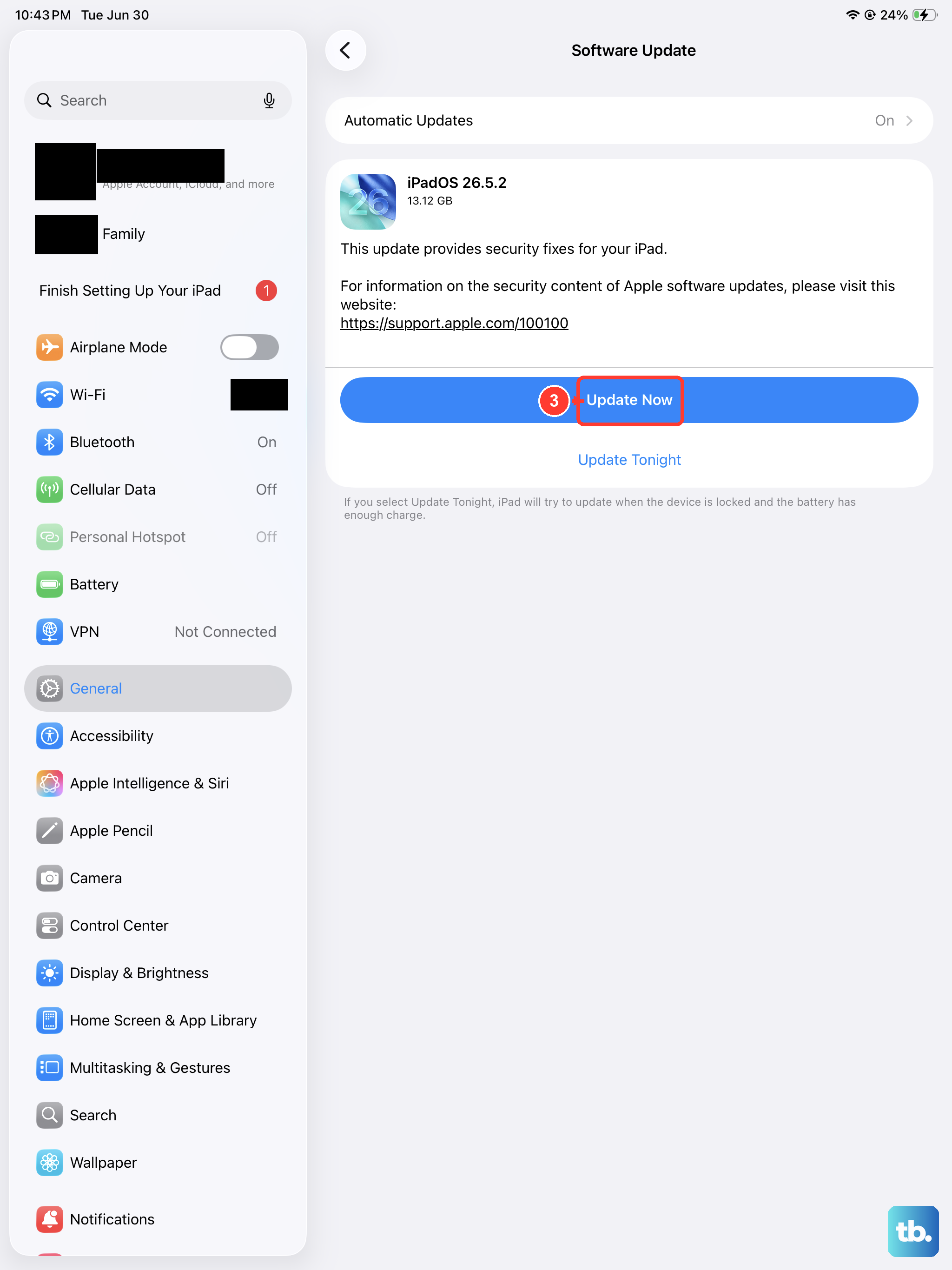
Software updates include critical bug fixes that can resolve calling and network issues. Apple has addressed various connectivity bugs in iPadOS 18 updates.
Connect to Wi-Fi and plug in your iPad with a 20W or higher USB-C PD charger. Go to Settings > General > Software Update. Download and install any available update.
Reset Network Settings
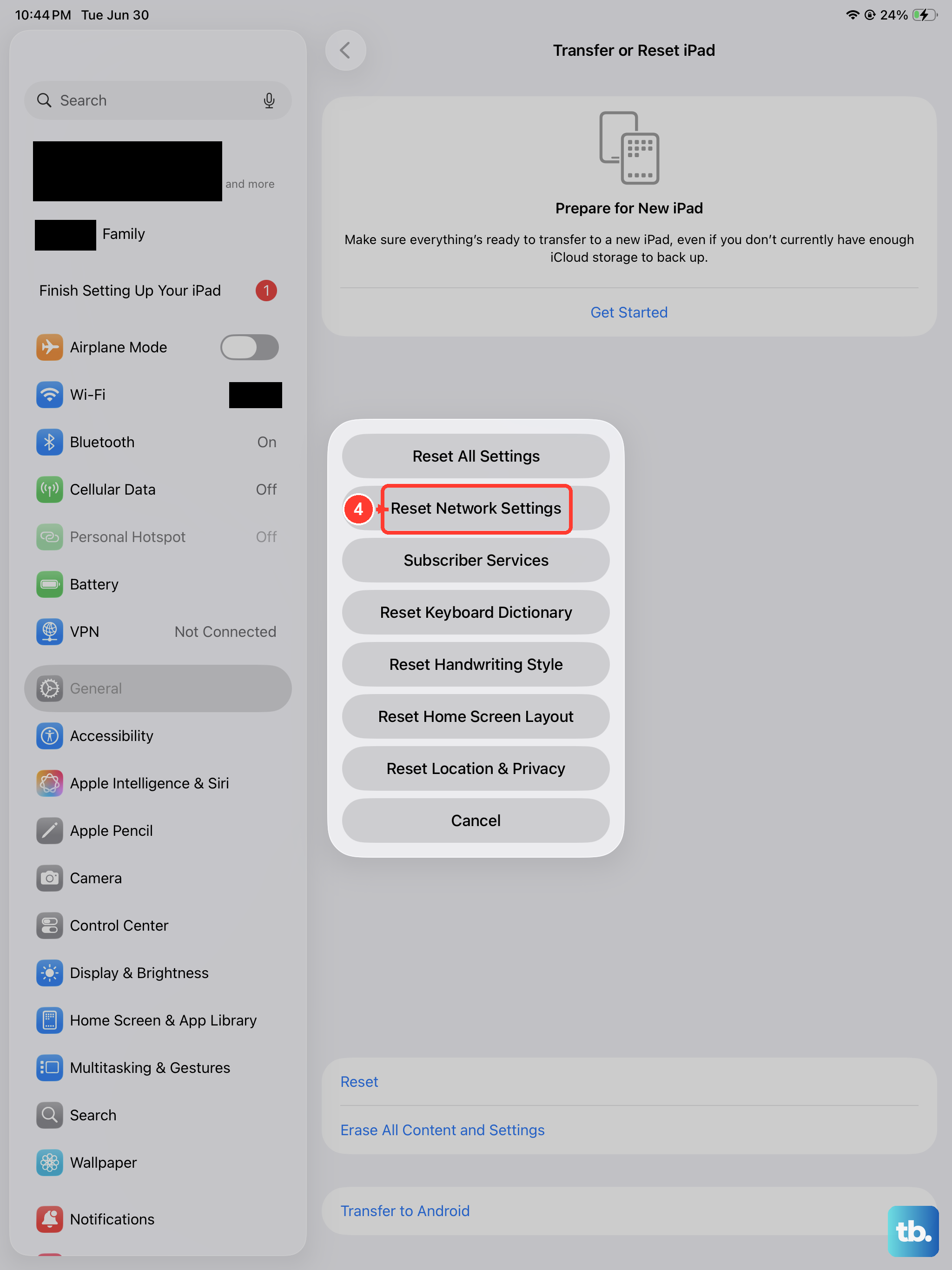
This clears all your saved Wi-Fi networks, passwords, cellular settings, and VPN configurations. It's a strong fix for persistent connection problems without deleting your personal data.
Go to Settings > General > Transfer or Reset iPad. Tap Reset and choose Reset Network Settings. Enter your passcode to confirm. You'll need to rejoin your Wi-Fi networks afterward.
Check for Carrier Settings Updates
If you use a cellular model, your network provider occasionally sends small updates that improve connectivity. These install automatically, but you can check for them.
Make sure you're connected to Wi-Fi. Go to Settings > General > About. If a carrier settings update is available, a prompt will appear on this screen. Just follow the instructions to install it.
Contact Your Service Provider
If you've tried everything and calls still fail, the issue might be with your carrier's network or your account. There could be a service outage in your area, or a problem with your SIM card.
Call your carrier's customer service from another phone. Ask specifically about network status and whether your line is properly provisioned for the data or Wi-Fi calling service you're trying to use. They can also walk you through device-specific settings.