
If your iPad mini (7th generation) is refusing to send picture messages or group chats, it's usually a quick setting that needs adjustment. MMS on an iPad works a bit differently than on a phone, especially since it relies on your connected iPhone or a cellular data plan if you have the cellular model. Let's get those messages moving.
Check Your Connection to Your iPhone
For most iPad users, MMS and SMS forwarding requires a connection to your iPhone. First, make sure both devices are signed into the same Apple ID using iCloud. Then, on your iPhone, go to Settings > Apps > Messages and tap Text Message Forwarding.
You should see your iPad listed here. Make sure the toggle next to it is switched on. If you don't see your iPad at all, try turning iMessage off and back on on both devices. This handshake is essential for the feature to work.
Verify Your iPad's Cellular Data is On
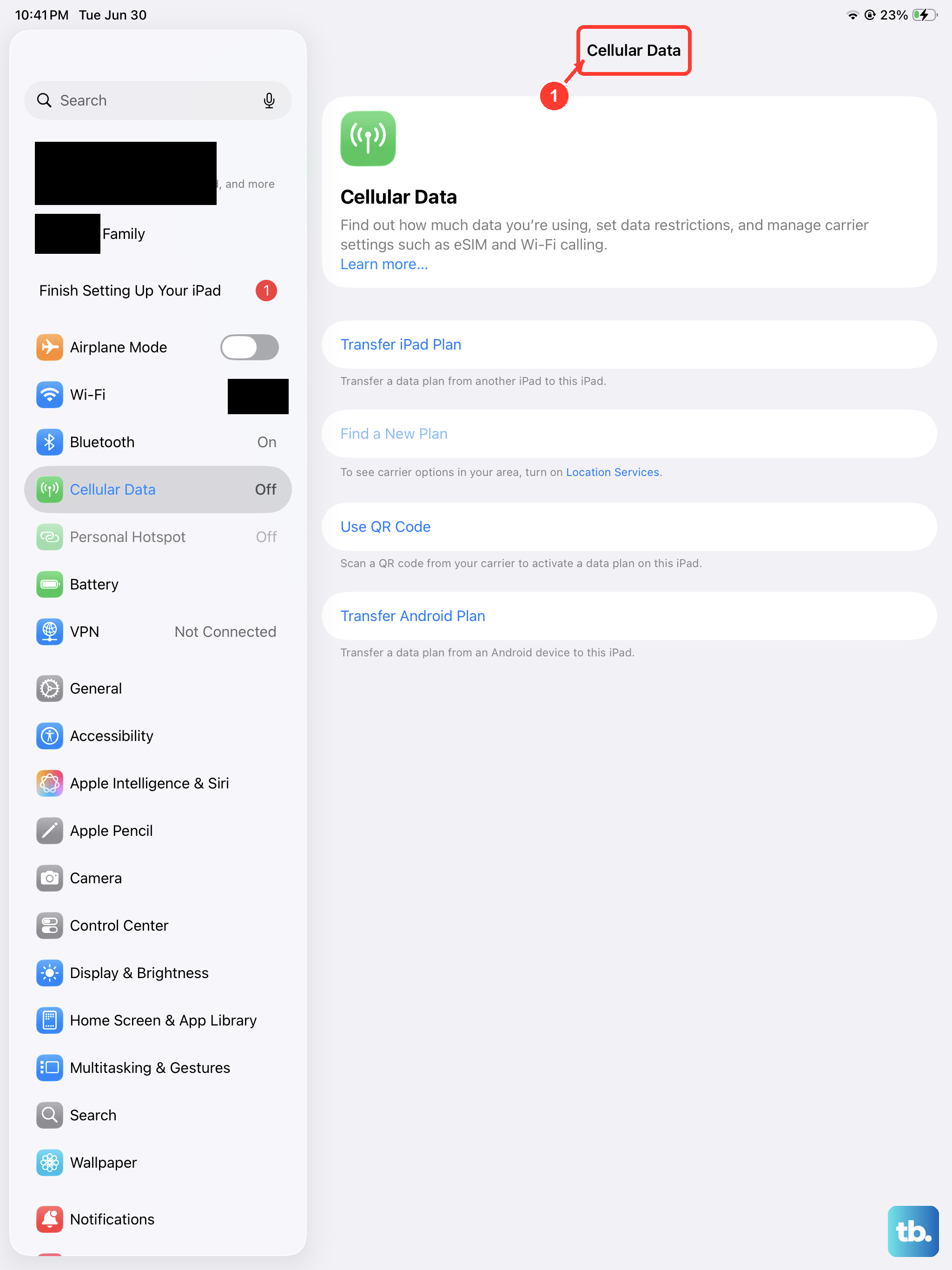
If you have a cellular model iPad mini, MMS requires an active mobile data connection, even if you're on Wi-Fi. Swipe down from the top-right corner to open Control Center and tap the cellular data icon (it looks like a series of radiating arcs) to make sure it's green.
You can also check in Settings > Cellular Data. Ensure the main Cellular Data switch is on. For older iPadOS versions, you might need to enable "Send as SMS" or "MMS Messaging" within the Messages settings here.
Confirm MMS is Enabled in Settings
There's a specific setting for MMS that sometimes gets turned off. On your iPad, open Settings and scroll down to Messages. Scroll within the Messages settings until you see the MMS Messaging option.
Make sure this toggle is enabled. If it's already on, try turning it off, waiting a few seconds, and turning it back on. This can refresh the connection to your carrier's multimedia service.
Restart Your iPad and iPhone
A simple restart can clear out temporary glitches affecting the messaging services on both devices. For your iPad mini, press and quickly release the Volume Up button, then press and quickly release the Volume Down button.
Finally, press and hold the Top button until you see the Apple logo appear. Do the same for your connected iPhone (typically pressing Volume Up, then Volume Down, then holding the Side button). Once both are back on, try sending an MMS again.
Check for Carrier Settings Updates
Your carrier occasionally sends small updates that configure network features like MMS. To check for one, make sure your iPad has an internet connection, then go to Settings > General > About.
If an update is available, a prompt will appear. Tap Update to install it. This doesn't update iPadOS itself, just the carrier configuration, and it can often resolve sending issues.
Update iPadOS to the Latest Version
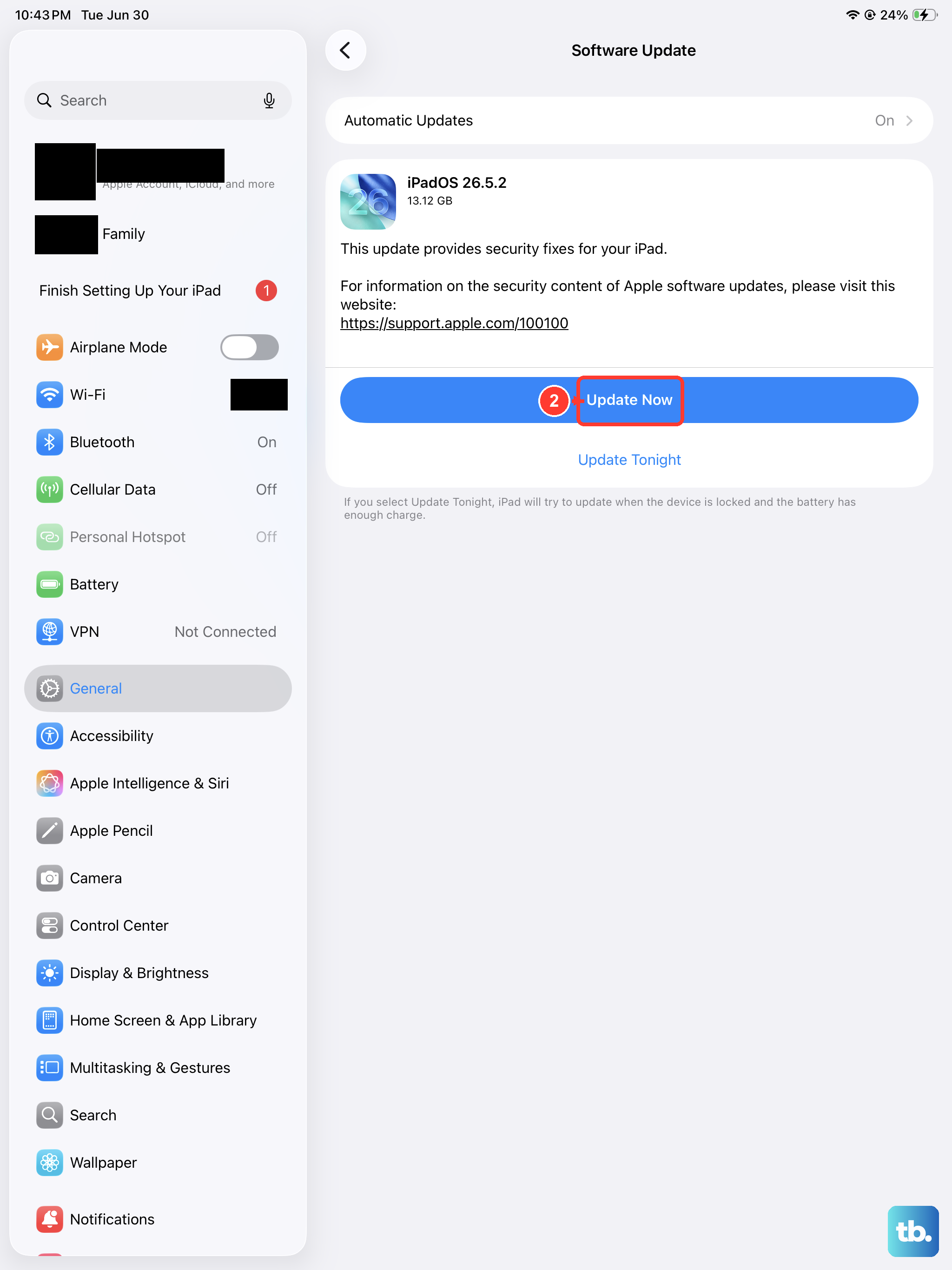
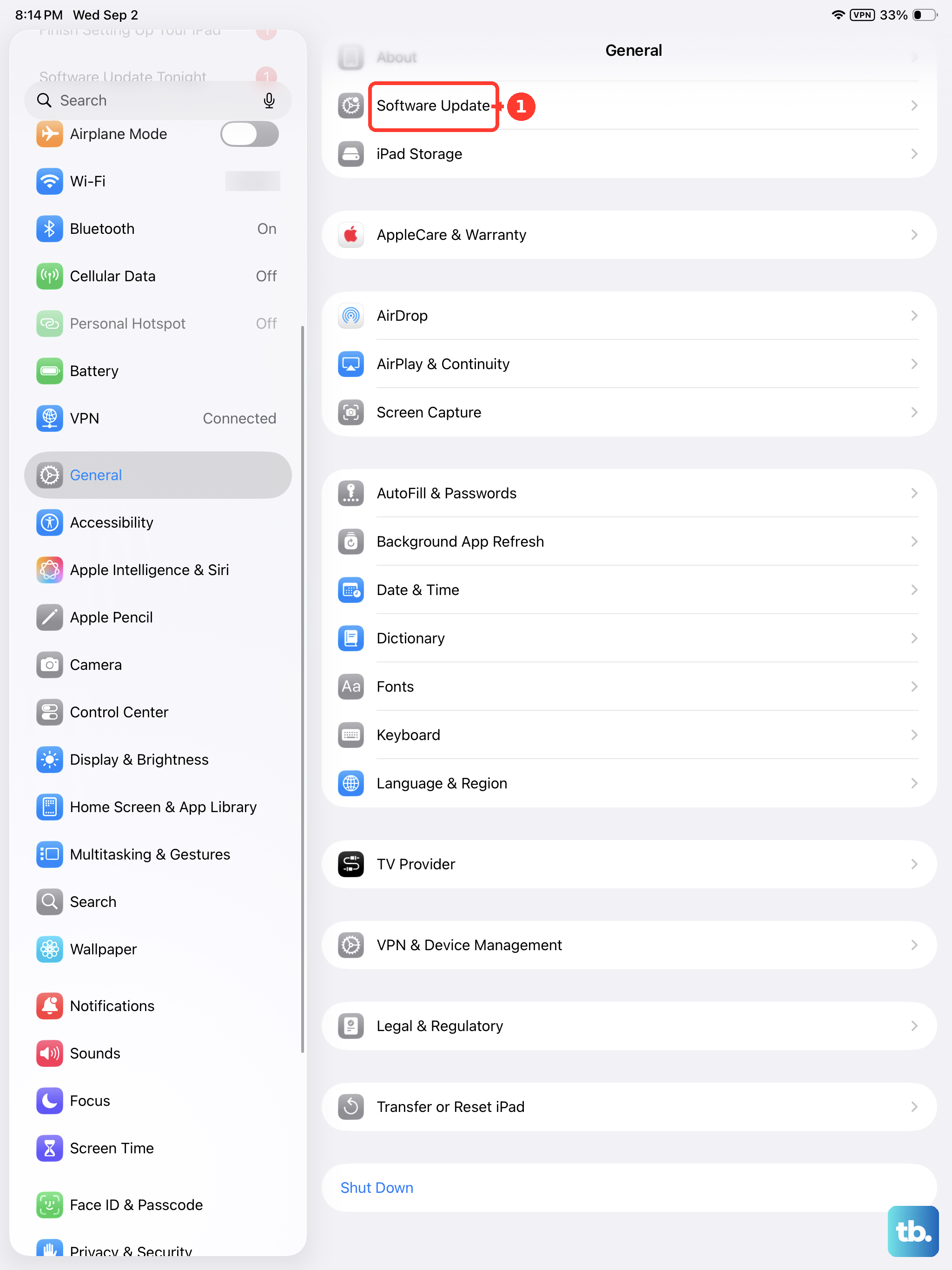
Software bugs in older versions of iPadOS can interfere with messaging. It's a good idea to make sure you're running the latest iPadOS 26 update. Go to Settings > General > Software Update.
If an update is available, tap Download and Install. I'd recommend doing this while connected to Wi-Fi and plugged into power with your official Apple 20W+ USB-C charger to avoid any interruptions.
Reset Your Network Settings
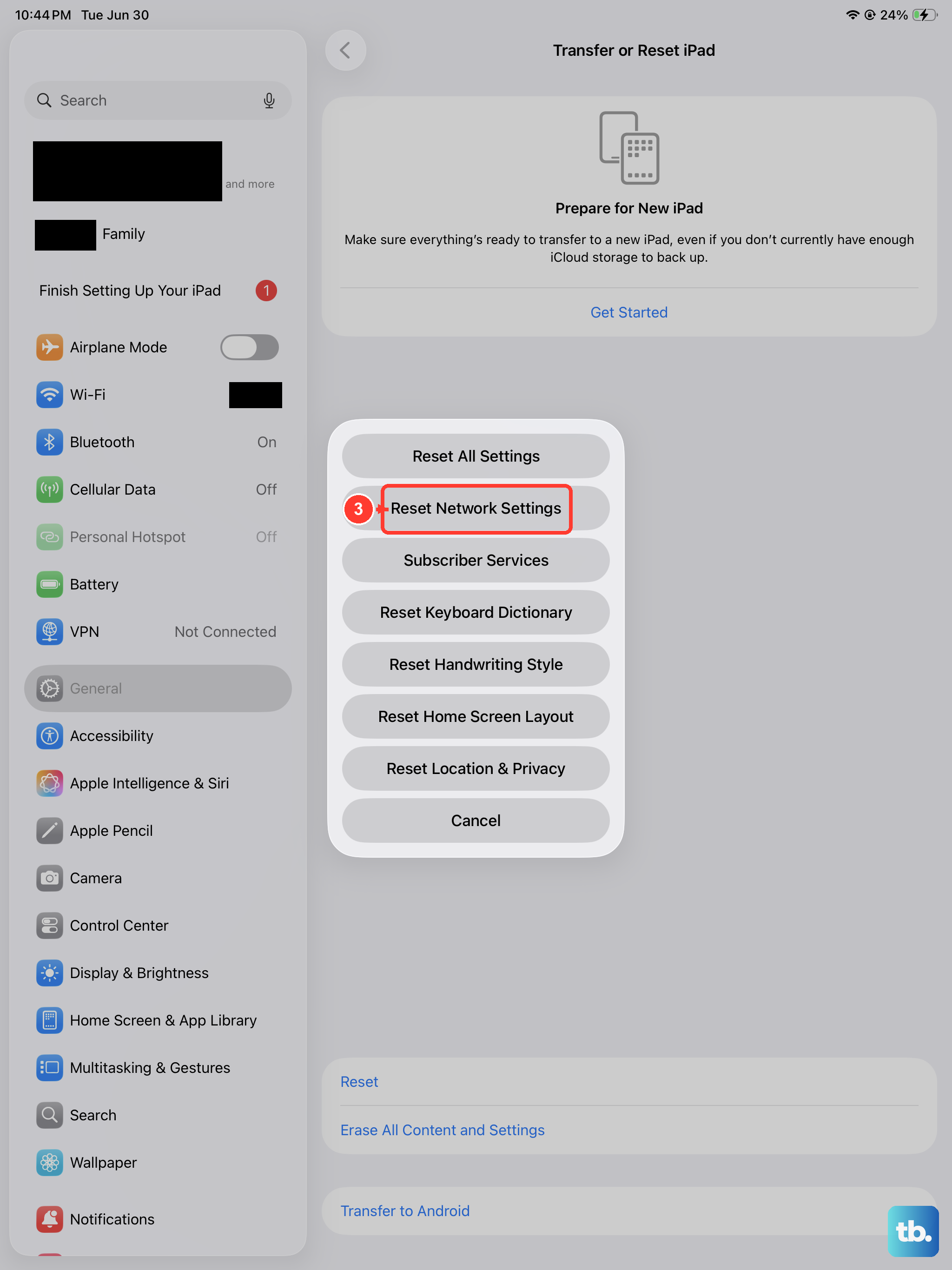
This step clears all your Wi-Fi passwords, cellular settings, and VPN configurations, so you'll need to rejoin Wi-Fi networks afterward. It can fix deeper connectivity issues. Go to Settings > General > Transfer or Reset iPad.
Tap Reset and then choose Reset Network Settings. Enter your passcode if prompted and confirm. Your iPad will restart, and you can then re-test MMS sending.
Sign Out and Back Into iMessage
This refreshes your account's connection to Apple's messaging servers. Go to Settings > Apps > Messages and tap Send & Receive. At the top, tap your Apple ID email address and choose Sign Out.
Wait a moment, then sign back in with your Apple ID password. After it activates, check the list of phone numbers and emails you can be reached at, and make sure the correct ones are selected.
Contact Your Cellular Carrier
If you're using a cellular iPad mini, the issue might be on your carrier's end. They can check if MMS is properly enabled on your specific data plan or SIM card. Sometimes, certain older or budget plans don't include MMS support for tablets.
They can also verify your APN (Access Point Name) settings are correct for multimedia messaging, though on iPadOS these are usually automatically configured when you insert the SIM.