
Missing important FaceTime calls or phone calls on your iPad Pro because it stays silent can be really annoying. You might see the notification pop up on your screen, but never hear the actual ring. The good news is, this is almost always a settings issue that you can fix yourself in a few minutes.
Check the Physical Mute Switch
First, look at the top edge of your iPad Pro. If you see a small switch, slide it. When the switch shows orange, your iPad is muted. Slide it the other way to turn silent mode off and allow sounds to play.
Some newer iPad Pro models might not have this physical switch, using a software toggle instead. You can check this quickly by swiping down from the top-right corner to open Control Center. Look for a bell icon with a line through it; if you see it, tap it to unmute your device.
Turn Off Focus and Do Not Disturb
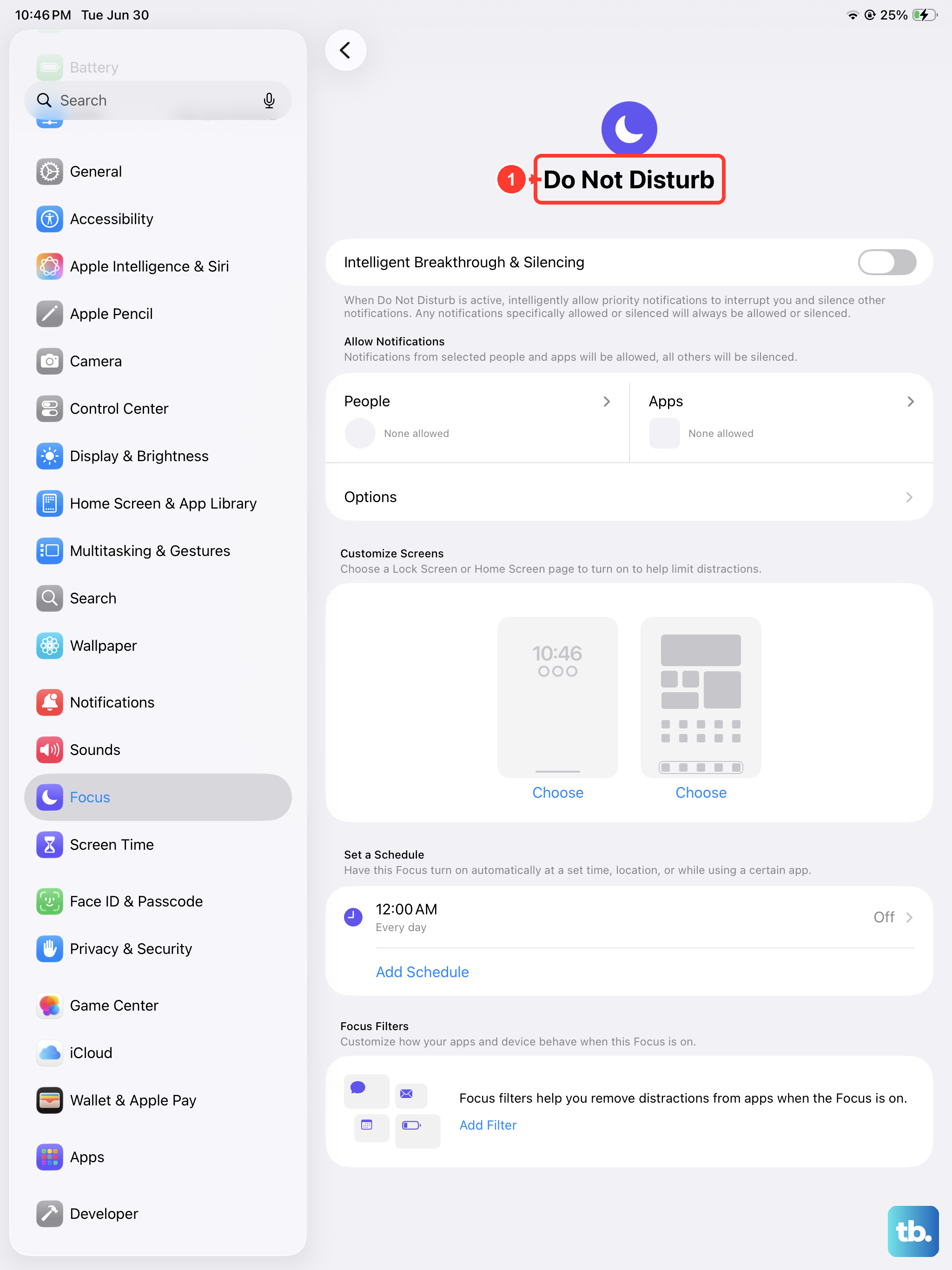
Focus modes, including Do Not Disturb, are a common culprit. These features are designed to silence notifications, including incoming call rings, during certain times or activities.
Open Control Center by swiping down from the top-right corner. If you see a moon icon or a label like "Focus" is active, tap it to turn it off. For a more thorough check, go to Settings > Focus. Here, you can see all your Focus profiles (like Work, Personal, or Sleep) and make sure they are all switched off.
Also, look at the schedules within each Focus. Sometimes a schedule you set long ago is still active and turning it on automatically, which would explain why the ringing stops at certain times of day.
Increase the Ringer Volume
Your iPad's ringer volume is separate from its media playback volume. Even if videos are loud, your call ringtone might be set very low.
Unlock your iPad and press the Volume Up button on the side a few times. You should see a volume indicator appear on screen. Make sure it's turned up most or all of the way. You can also set this permanently in Settings > Sounds. Drag the "Ringer and Alerts" slider to the right to increase the volume.
While you're in the Sounds settings, this is a good time to test your ringtone. Tap on "Ringtone" and select a different one, then have a friend call you to see if it plays. Sometimes a corrupted sound file can cause issues.
Disconnect Bluetooth Accessories
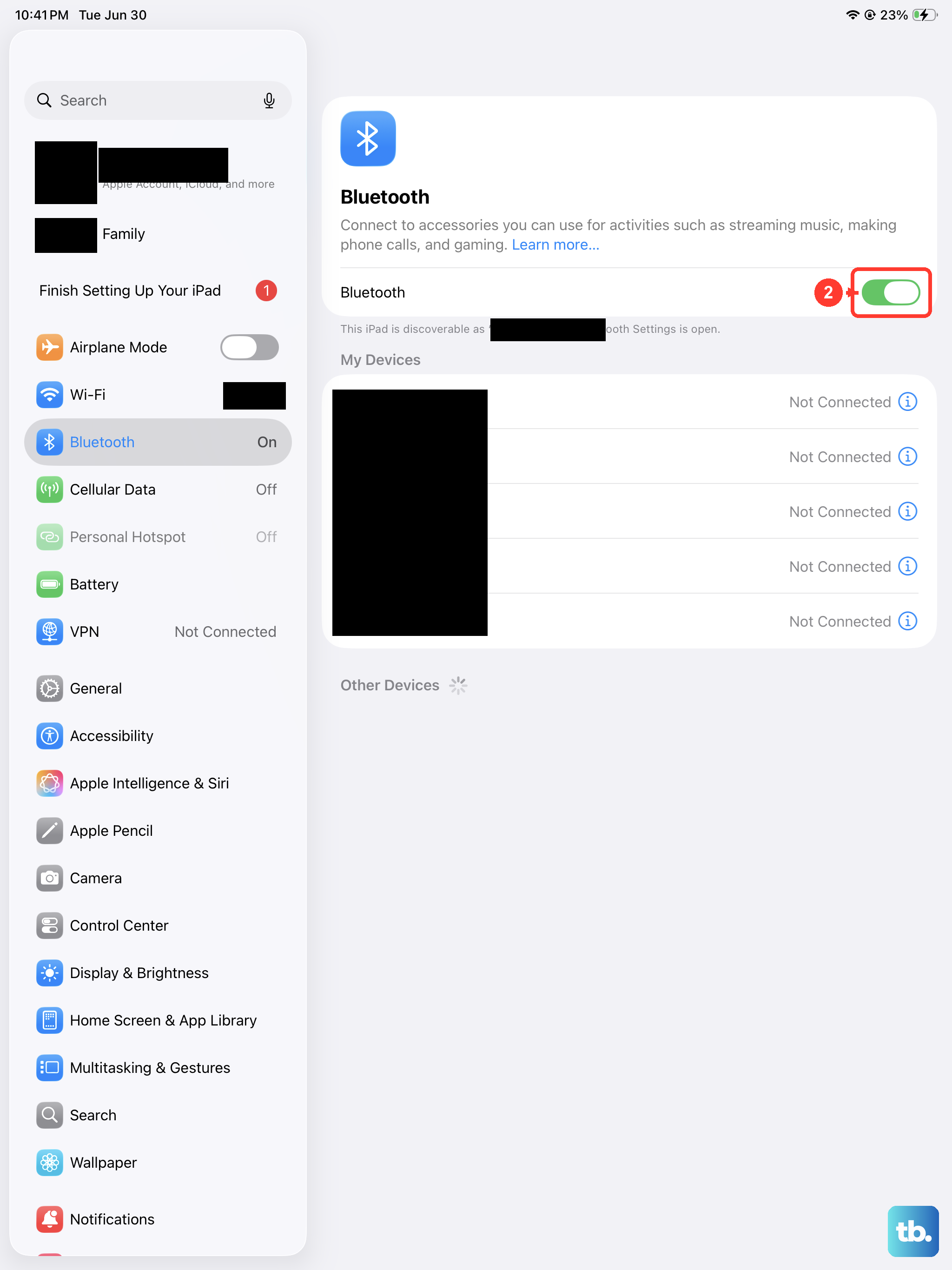
If your iPad Pro is connected to a Bluetooth speaker, headphones, or a car stereo, incoming call audio is often routed to that device instead of the iPad's own speakers. This means your iPad itself won't make a sound.
Go to Settings > Bluetooth and toggle the main Bluetooth switch off. Try a test call now. If it rings, you know a Bluetooth accessory was the issue. You can then turn Bluetooth back on and manage your connected devices more selectively.
Check Your Call Forwarding and Blocking Settings
Two settings can redirect or silence calls before your iPad even gets a chance to ring. First, check for call forwarding. Go to Settings > Apps > FaceTime > Calls on iPad or Settings > Apps > Phone > Call Forwarding (if you use cellular). Make sure call forwarding is turned off.
Next, look at blocked numbers. In Settings > Apps > FaceTime or Settings > Apps > Phone, tap "Blocked Contacts." If someone you're expecting calls from is on this list, you won't hear their calls ring.
Also, look for the "Silence Unknown Callers" option. If this is on, any number not in your contacts will go straight to voicemail without ringing. You can find this in the same FaceTime or Phone settings menu.
Restart Your iPad Pro
A simple restart can clear out minor software glitches that might be interfering with the sound system. To restart your iPad Pro (M4), press and quickly release the Volume Up button, then quickly press and release the Volume Down button. Finally, press and hold the Power button until you see the Apple logo appear on the screen.
This force restart sequence is handy if your iPad is being unresponsive. After it boots back up, try a test call to see if the ringtone plays.
Update iPadOS
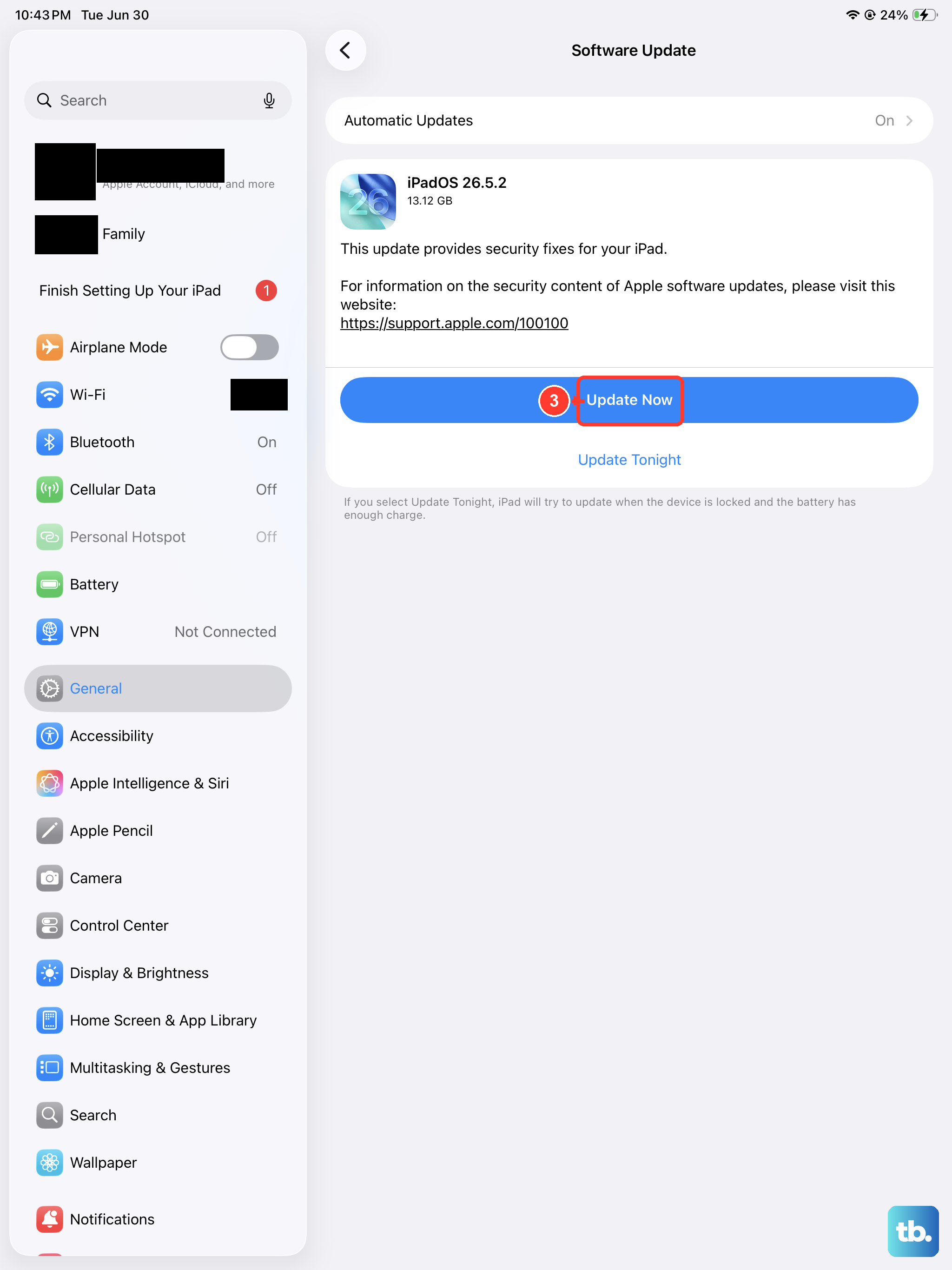
Software bugs can sometimes cause sound and notification issues. Apple typically addresses these in system updates. Make sure your iPad Pro is running the latest version of iPadOS.
Connect to Wi-Fi and plug your iPad into power. Then go to Settings > General > Software Update. If an update is available, tap "Download and Install." I've seen minor updates fix ringing problems on other iPad models, so it's always worth checking.
Reset All Settings
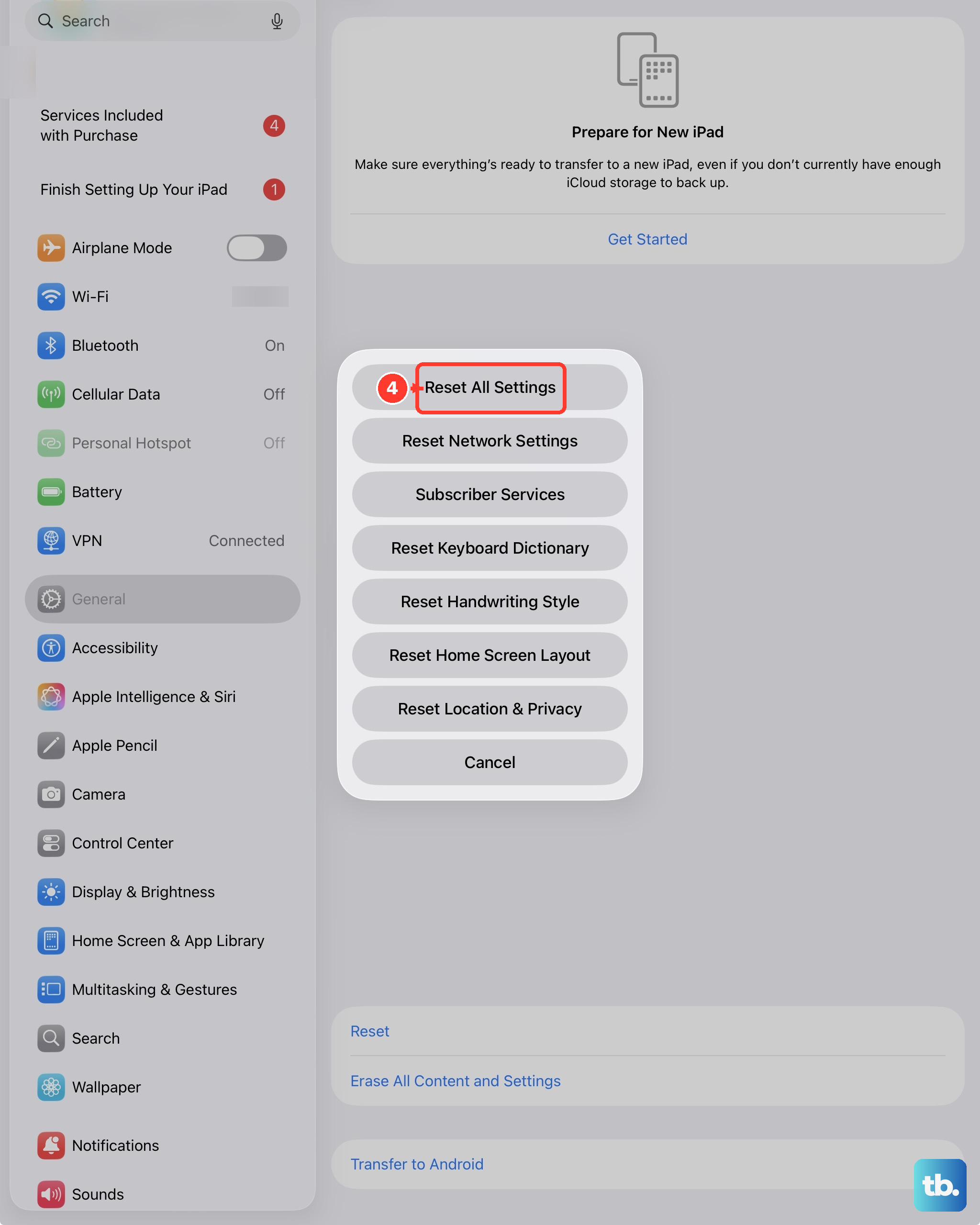
If you've tried everything else and the problem persists, a settings reset can help. This won't delete your apps, photos, or data, but it will revert all your preferences back to their factory defaults.
Go to Settings > General > Transfer or Reset iPad > Reset. Then, tap "Reset All Settings." You'll need to enter your passcode. After the iPad restarts, you'll have to reconfigure things like Wi-Fi passwords and wallpaper, but it often resolves stubborn software conflicts.
Check App-Specific Permissions
If you're only missing calls from a specific app like WhatsApp, Messenger, or Skype, the issue is likely with that app's settings, not your iPad's system. First, make sure the app is updated through the App Store.
Then, go to Settings and scroll down to find the app in your list. Tap on it and look for the "Notifications" permission. Ensure notifications are turned on and that "Sounds" is enabled within the notification style. The app needs explicit permission to play a sound for incoming calls.