
When your iPad mini feels like it's loading the internet through a straw, it's usually something you can fix yourself. I'd start with the simplest solution first, which is to restart your iPad mini. Press and quickly release the Volume Up button, then quickly press and release the Volume Down button. Finally, press and hold the Top button until you see the Apple logo appear. This force restart can clear out temporary software glitches that might be slowing down your connection.
Check Your Wi-Fi Signal Strength
If you're on Wi-Fi, the first thing to do is check how strong your signal is. You can see this by the number of arcs next to the Wi-Fi icon in the top-right corner of your screen. If you only have one or two, you're too far from the router.
Try moving closer to your router to see if the speed improves. Thick walls, large appliances like refrigerators, and even fish tanks can block Wi-Fi signals. For the best performance on your iPad mini, try to be in the same room as your router.
Update iPadOS to the Latest Version
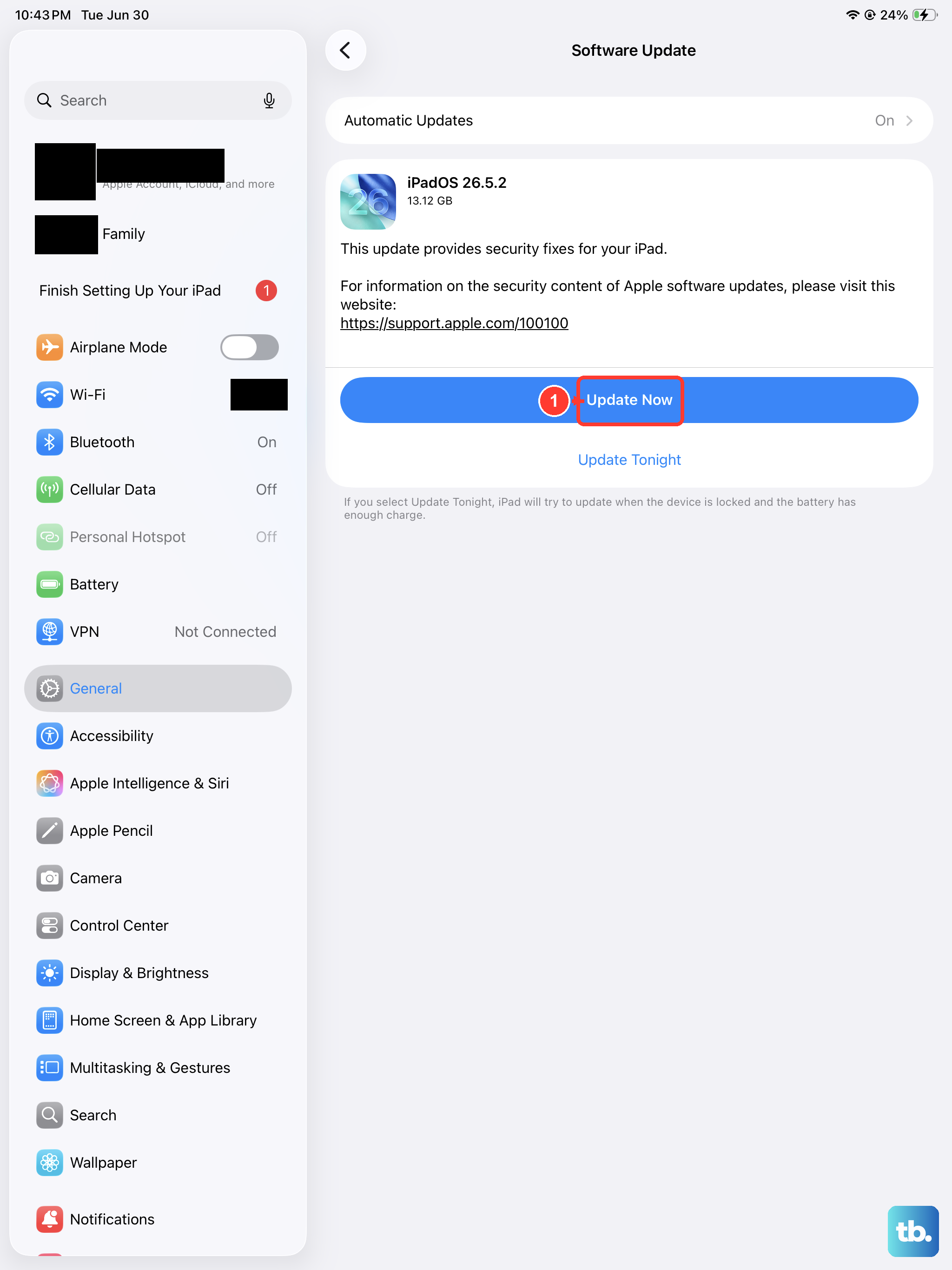
Apple frequently releases updates that include performance improvements and fixes for connectivity bugs. Making sure you're on the latest version of iPadOS 26 is a crucial step.
Go to Settings > General > Software Update. If an update is available, tap "Download and Install." It's a good idea to plug in your iPad mini with its official 30W USB-C charger during this process to ensure it doesn't run out of battery.
Reset Your Network Settings
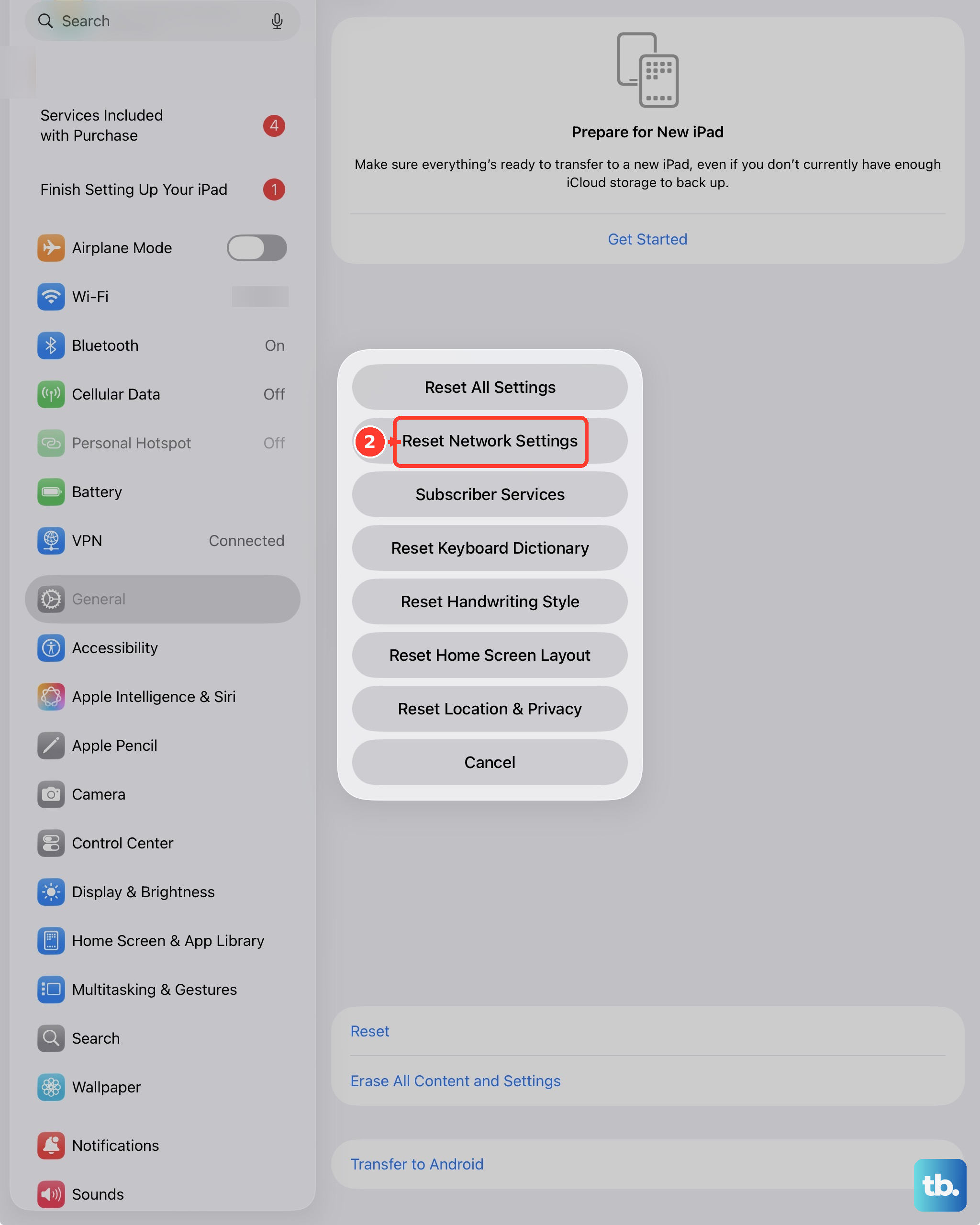
This is a more thorough step that can fix persistent slowdowns. Resetting network settings will erase all saved Wi-Fi passwords, Bluetooth pairings, and cellular settings, so you'll need to rejoin your networks afterward.
To do this, open Settings > General > Transfer or Reset iPad. Tap "Reset" and then choose "Reset Network Settings." Your iPad mini will restart, and you can then reconnect to your Wi-Fi to test the speed.
Manage Your Wi-Fi Assist and Low Data Mode Settings
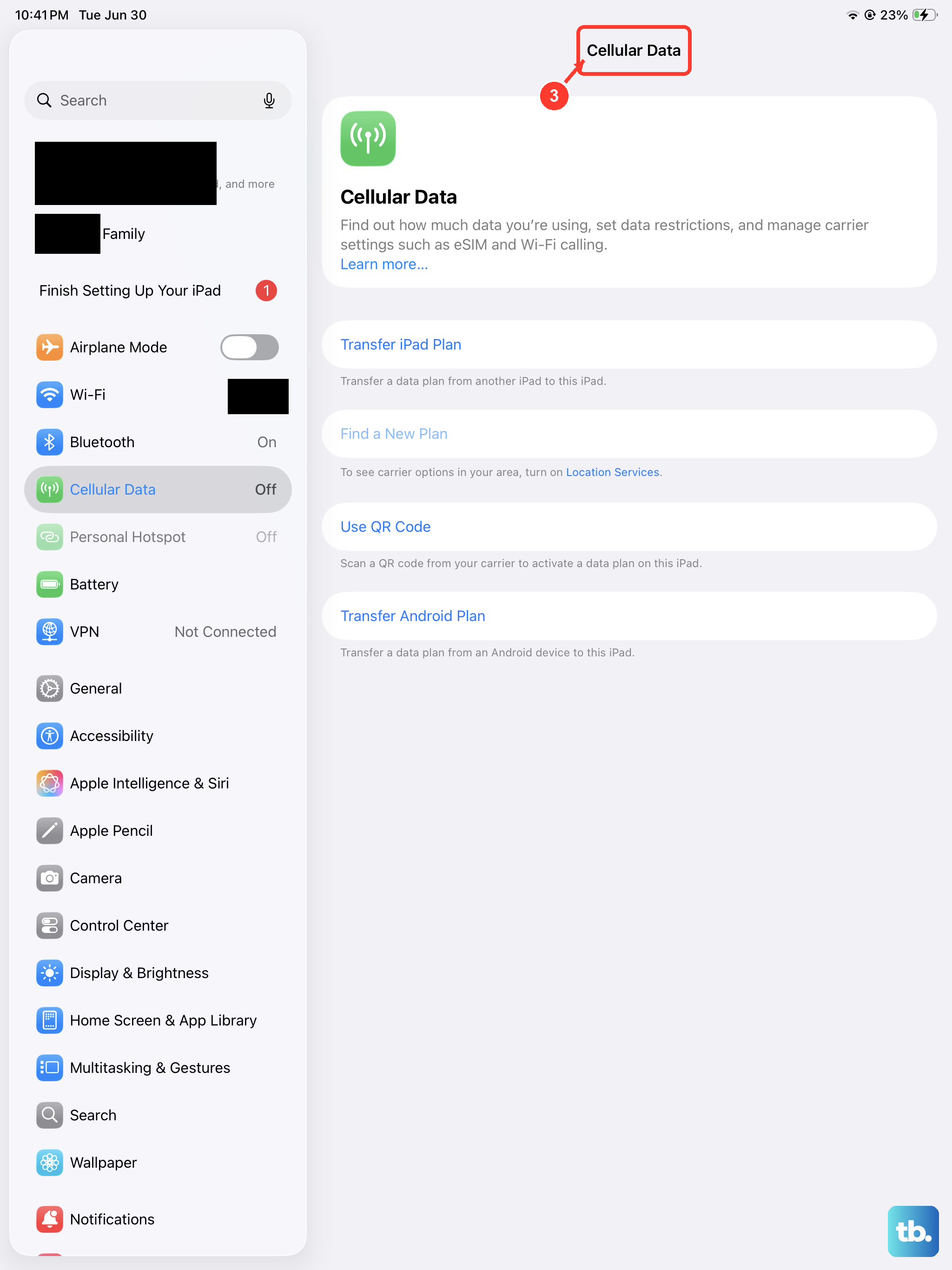
Your iPad mini has a feature called Wi-Fi Assist. When this is on, it automatically uses cellular data if your Wi-Fi connection becomes poor. This is great for staying connected, but if your cellular signal is also weak, it can feel like your internet is slow.
You can check this by going to Settings > Cellular and scrolling all the way to the bottom. Toggle Wi-Fi Assist off to see if your connection stabilizes. Conversely, if you're trying to conserve data on a slow network, you can enable Low Data Mode for a specific Wi-Fi network by tapping the "i" icon next to it in your Wi-Fi settings.
Clear Safari's Website Data and History
Over time, Safari stores a lot of data from websites you visit. This cache can sometimes become corrupted or overloaded, which slows down your browsing. Clearing it out gives Safari a fresh start.
Open the Settings app and scroll down to Safari. Scroll down again and tap "Clear History and Website Data." Confirm your choice. This will log you out of most websites, so have your passwords handy.
Check for Background App Refresh
Apps running in the background can use your internet bandwidth to update content, even when you're not actively using them. This can drain your speed for the task at hand.
You can manage this by going to Settings > General > Background App Refresh. You can turn it off completely or choose "Wi-Fi Only" to prevent apps from using cellular data in the background. For the most control, you can toggle it off for individual apps you don't need updating constantly.
Disconnect Other Devices on Your Network
Your home internet bandwidth is shared. If someone is streaming 4K video on the TV, downloading large files on a computer, or playing an online game, there will be less bandwidth available for your iPad mini.
Ask others in your household to pause their heavy internet activities for a moment while you test your speed. You can also try restarting your router and modem by unplugging them for 30 seconds, which clears their internal memory and can improve performance for all connected devices.
Try a Different DNS Server
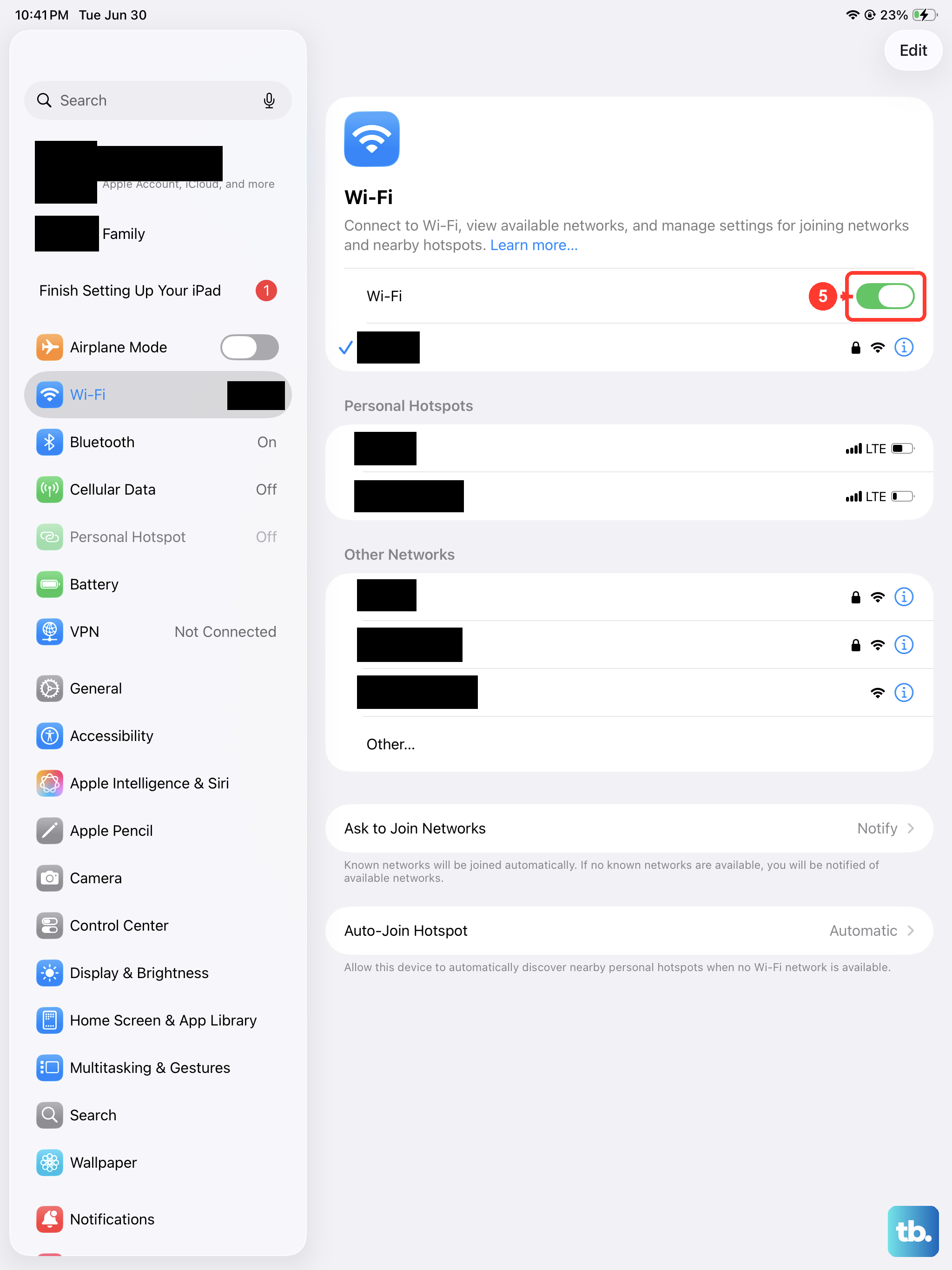
Sometimes, the problem is with the Domain Name System (DNS) server your network is using by default. These servers translate website names into addresses, and a slow DNS can make everything feel sluggish.
On your iPad mini, go to Settings > Wi-Fi and tap the "i" icon next to your connected network. Tap "Configure DNS" and change it from Automatic to Manual. Delete any existing servers and add a new one. Popular, fast options include Cloudflare's (1.1.1.1) or Google's (8.8.8.8).
Test Your Internet Speed
It's helpful to know if the problem is your iPad mini or your actual internet connection. Use a free app like Speedtest by Ookla from the App Store to run a quick test.
Run the test first while standing near your router. Then, run it again in the spot where you normally use your iPad. If the speed is great near the router but terrible in your usual spot, it's a Wi-Fi coverage issue, not a problem with the iPad itself.