
Seeing "No Service" in the status bar of your iPad Pro (M4) can stop you from getting online when you're away from Wi-Fi. It means the cellular modem isn't connecting to your carrier's network, which blocks calls, texts, and mobile data. The good news is this is usually a temporary glitch you can fix yourself.
Start With a Quick Force Restart
This is the single most effective first step for any weird iPad behavior, including cellular issues. It clears out temporary software bugs without deleting any of your data. On the iPad Pro (M4), you force restart by pressing and quickly releasing the Volume Up button, then doing the same with the Volume Down button, and finally pressing and holding the Power button until you see the Apple logo appear.
Hold that Power button until the screen goes black and the logo shows up, then let go. Give it a minute to reboot and see if the cellular bars return.
Check for Basic Connection Blockers
Before diving deeper, rule out the simple stuff. First, swipe down from the top-right corner to open Control Center and make sure Airplane Mode is off (the airplane icon shouldn't be highlighted). If it is on, tap it to turn it off.
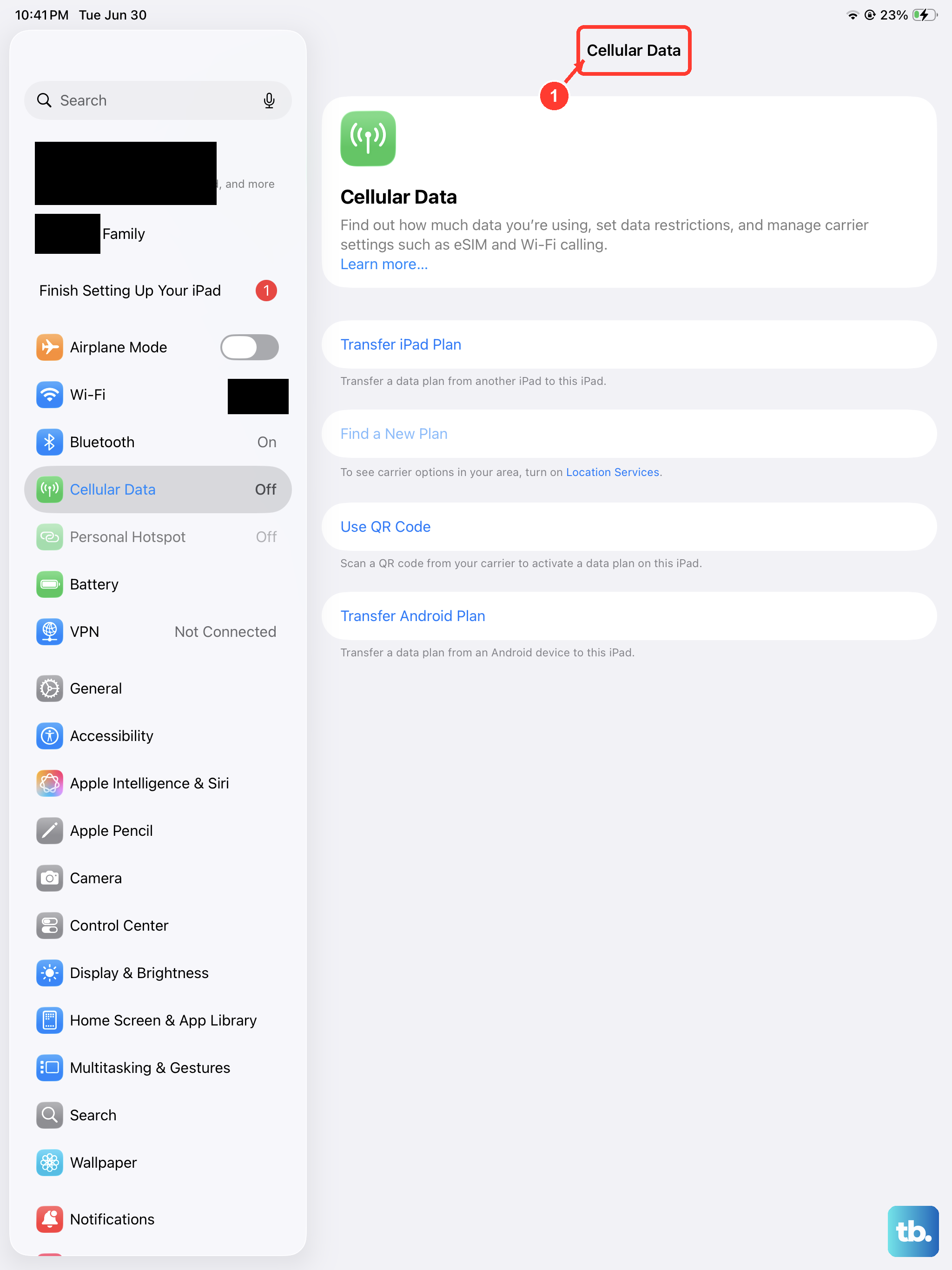
Next, check if Cellular Data is enabled. Go to Settings > Cellular Data and ensure the main "Cellular Data" switch at the top is turned on. Also, verify you're in an area with coverage. Sometimes a walk to a different room or a quick trip outside can make all the difference if you're in a building with poor signal penetration.
Re-seat Your SIM Card or Check eSIM
If your iPad Pro uses a physical nano-SIM, the card might have shifted slightly. You'll need the SIM eject tool that came with your iPad (or a small paperclip). Gently push it into the tiny hole on the SIM tray, pop the tray out, remove the SIM card, and then firmly reseat it.
Blow any dust out of the tray and slot the card back in. If your iPad uses an eSIM, the digital SIM can sometimes deactivate. You'll need to go into Settings > Cellular Data and tap "Add Cellular Plan" to re-scan the QR code or enter details provided by your carrier.
Update Your Carrier Settings
Carrier updates are small files that help your iPad connect properly to your mobile network. These often install automatically, but it's worth checking manually. Make sure your iPad is connected to Wi-Fi for this.
Then, go to Settings > General > About. If a carrier update is available, a pop-up notification will appear on this screen. Just follow the prompts to install it. This process only takes a moment and can resolve compatibility issues.
Reset Your iPad's Network Settings
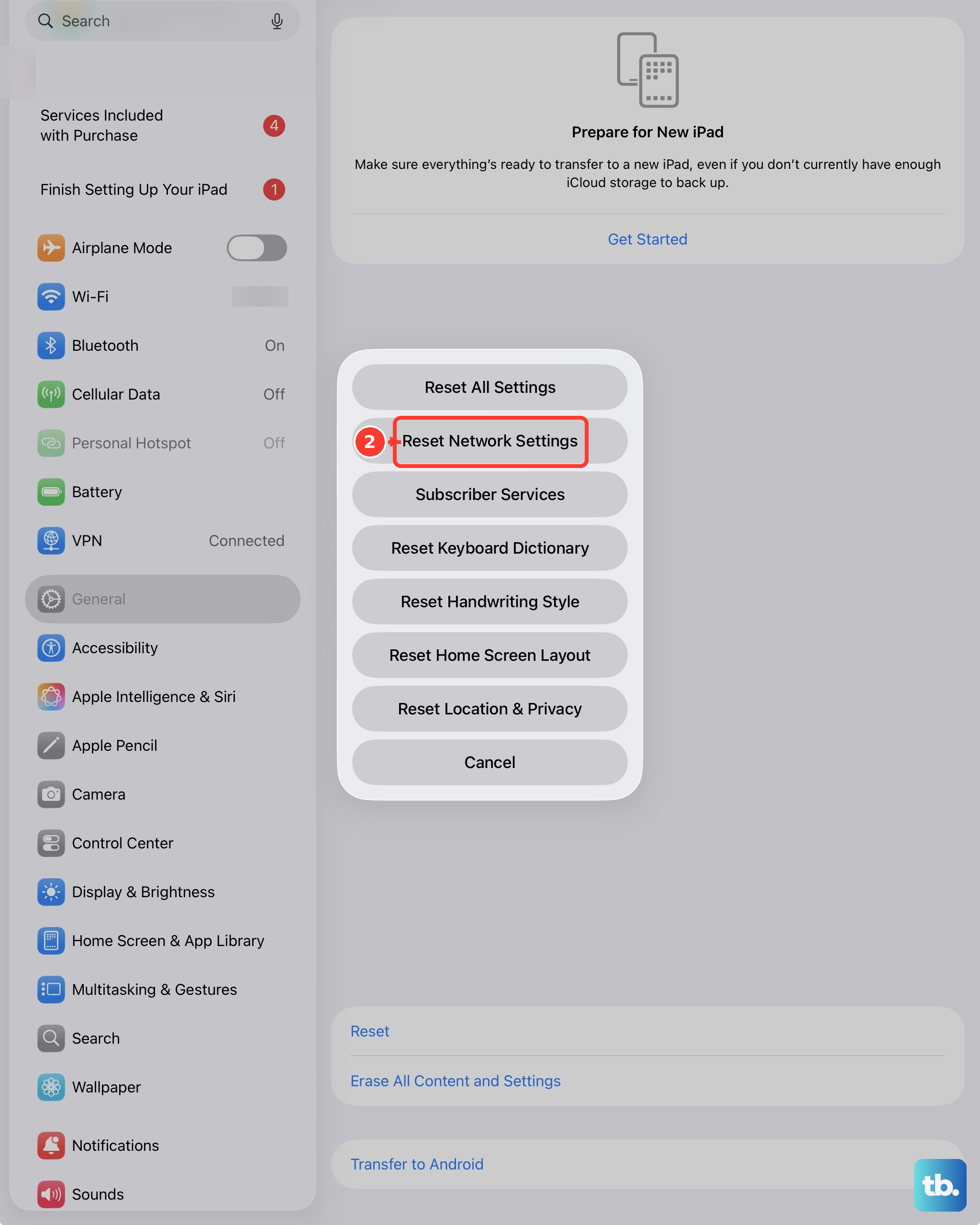
This is a stronger step that wipes all network-related data saved on your iPad and restores it to default. It will erase your saved Wi-Fi networks and passwords, Bluetooth pairings, and any custom VPN or APN settings you've configured.
To do it, open Settings > General > Transfer or Reset iPad. Tap "Reset" at the bottom, and then choose "Reset Network Settings." You'll need to enter your passcode to confirm. After the iPad restarts, you'll need to reconnect to Wi-Fi and re-pair Bluetooth devices, but it often clears up stubborn cellular connection problems.
Check for a Software Update
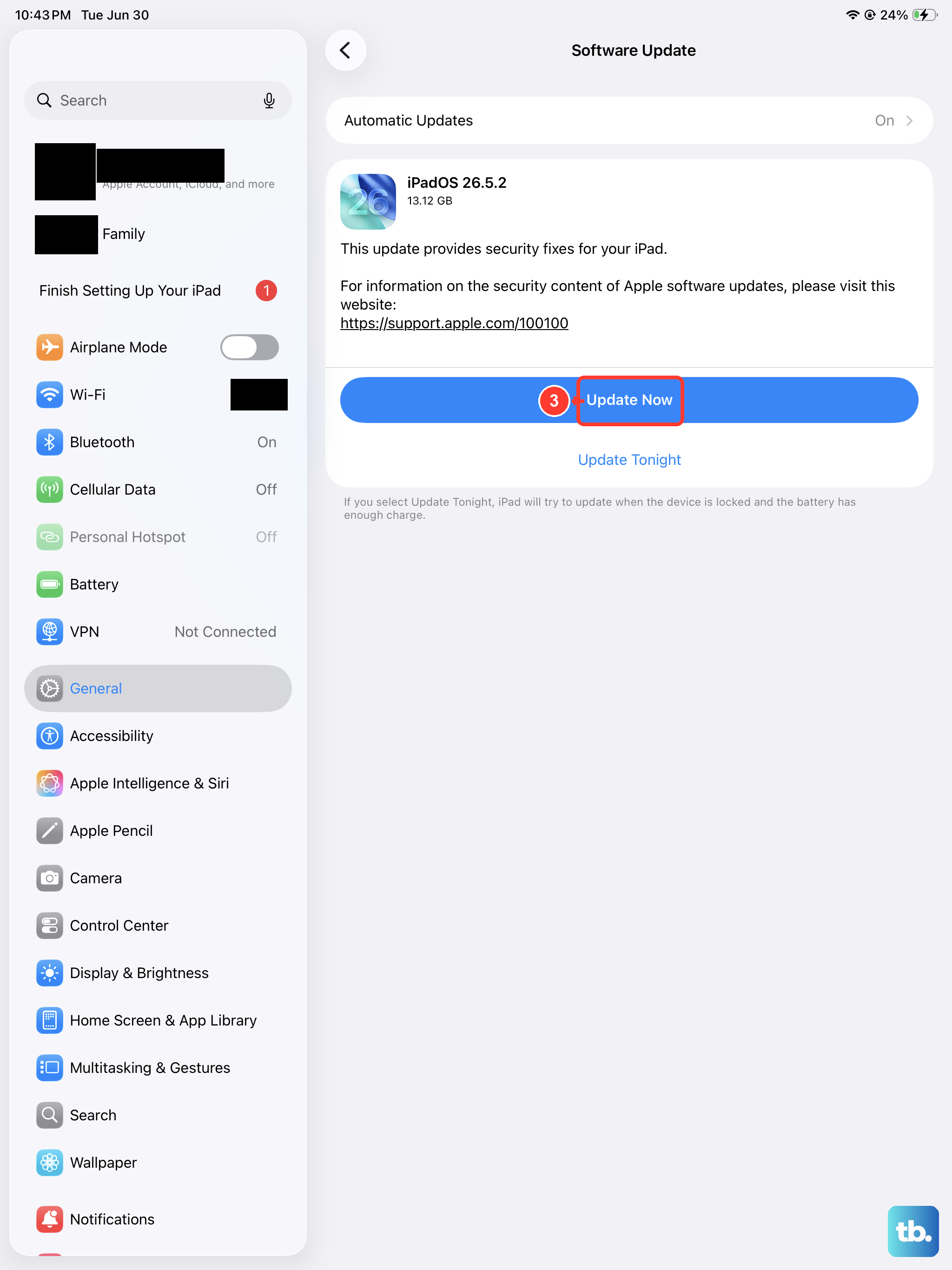
Since you're running iPadOS 26, Apple is continually releasing updates that include bug fixes. A software bug could be interfering with the cellular modem. Connect to a Wi-Fi network and plug your iPad into power.
Then, go to Settings > General > Software Update. If an update is available, tap "Download and Install." I've seen many connectivity issues resolved simply by keeping the iPad's software current.
Manually Select Your Network Carrier
Sometimes your iPad might be trying to latch onto a weak or incompatible network. You can force it to search for and connect specifically to your carrier. Go to Settings > Cellular Data > Network Selection.
Turn off "Automatic." Your iPad will search for a minute and then display a list of available networks in your area. Tap the name of your specific carrier (like Verizon, AT&T, or T-Mobile) from the list. Wait a moment, and check if "No Service" changes to signal bars.
Review Your Data Plan and Contact Your Carrier
It's possible the issue is on your carrier's end, not with your iPad. Your cellular plan might have expired, reached a data cap that throttles service, or there could be a local network outage.
The easiest way to check is to use another phone to call your carrier's customer service. You can also try inserting your SIM card into another compatible cellular device to see if it gets service there. If the SIM works elsewhere, the problem is likely with your iPad. If it doesn't, you'll need a new SIM or to have your carrier refresh your account on their end.