


To get Voice Chat on Roblox, complete an age check showing you are 13 or older in Settings > Account Info, then join a supported experience and select the headphone icon. If you are 13 to 15, your account is a Roblox Select account, and in-game Voice Chat stays off until a linked parent turns it on in parental controls. Voice Chat is off by default, and phone verification alone does not unlock it.
The short version
- Complete Continue with selfie or Continue with ID in Account Info.
- If you are 13 to 15, your account is a Roblox Select account, and in-game Voice Chat stays off until a linked parent turns it on in parental controls.
- Check the experience's description for Voice Chat support before joining.
- Connect with the headphone icon or the in-experience Voice Chat toggle.
- If nobody hears you, unmute Roblox and allow microphone access on your device.
- On consoles, check audio and family permissions too.
| Method | What it does | Time | Use it when |
|---|---|---|---|
| Selfie age check | Estimates your age | A few minutes | You have the selfie option |
| ID verification | Checks your birthday | A few minutes | You have a government photo ID |
| Connect in an experience | Joins Voice Chat | Under a minute | Your account qualifies |
| Unmute Roblox | Lets your mic transmit | Under a minute | Your mic icon has a red slash |
| Computer mic permissions | Allows microphone input | A few minutes | Windows or Mac blocks the mic |
| Phone mic permissions | Allows microphone input | A few minutes | Your phone blocks the mic |
| Console audio controls | Checks mic input and chat audio | A few minutes | You play on PlayStation |
| Family permissions | Reviews account restrictions | A few minutes to review | You are 13 to 15 or a parent manages your account |
Check whether your account qualifies
In-experience Voice Chat requires an age check confirming you are at least 13, availability in your region, and a game that supports voice. If you are 13 to 15, your account is a Roblox Select account, and in-game Voice Chat stays off until a linked parent turns it on in parental controls. Finish those account checks before spending time changing your microphone settings.
Use Roblox's Voice Chat availability list to check your country. If your country is not listed, do not assume ID verification will unlock voice. If voice controls are still missing after either age check, the feature may not be available in your region.
Voice Chat works on computers, phones and tablets, VR headsets, PlayStation 4 and 5, and Xbox. A working headset alone does not meet the account requirements, so confirm eligibility as well as device support.
Check your age with a selfie
Sign in to your Roblox account and open Settings. On desktop, select the gear icon at the top right; on mobile, select More at the bottom right, then Settings. Open Account Info and, under Age Group, select Continue with selfie.
Follow the camera prompts to complete facial age estimation. Roblox uses a facial image and video to estimate your age and assign an age group. In some regions, a parent must approve the selfie check. Roblox may occasionally ask you to check your age again.
If you stated you were over 13 but the estimate is under 13, Roblox gives you a 48-hour grace period before updating your age group. You can skip that wait by accepting the result in Account Info with Accept now under Birthday. If the estimate is wrong, use the correction route instead.
If the result puts you in the wrong age group, use the correction route for the age shown on your account. For an account age over 13, open Settings > Account Info > Continue with ID. For an account age under 13, open Account Info and select the pencil icon beside your birthday to start changing it. Follow any ID-verification or parental-consent prompt shown.
Verify your age with a photo ID
ID verification requires you to be at least 13 and have a government-issued photo ID, such as a passport, driver's license or residency card. Have the document ready before starting. Use this route if you prefer the ID option or need to correct an inaccurate selfie estimate.
Open Settings > Account Info and select Continue with ID beneath your birthday and age group. Select Continue, allow camera access and scan your ID. If the document has a barcode on the back, scan and capture that side when prompted.
Capture the requested photo of yourself and finish the prompts. Return to your original Roblox session to see the status and the pass or fail result. Verification can take a few minutes, so wait for the result before moving on to the voice connection.
Connect in an experience that supports voice
Before joining, review the experience's Description page to check whether it supports Voice Chat. Once inside, select the headphone icon to connect. You can also open the in-experience settings and use the Voice Chat toggle to connect or disconnect.
If the headphone icon is missing, look for the toggle in those settings instead. On PlayStation, use the in-experience settings to join voice. If neither control appears, check your completed age check, parental permission if you are 13 to 15, the experience's voice support and regional availability before changing device permissions.
The creator controls whether an experience offers voice, so an age check cannot add it to a game where it is disabled. Check another experience that supports voice before troubleshooting your device.
When you want to leave voice, open the in-experience settings and change Voice Chat from Connected to Disconnected. Use the microphone control if you only want to mute yourself instead. Start with these current in-experience controls rather than searching for an old account-level Privacy toggle.
Unmute your microphone in Roblox
In a voice-enabled experience, find the microphone icon at the upper left of the screen. A red slash means the microphone is muted. Tap the icon to unmute it; the base becomes solid when it is unmuted.
Check this control when you have connected but nobody can hear you. If Roblox is already unmuted, check the device permissions below. Treat connecting to voice and unmuting your microphone as separate checks so you can identify which part needs attention.
Allow microphone access on your computer
Windows
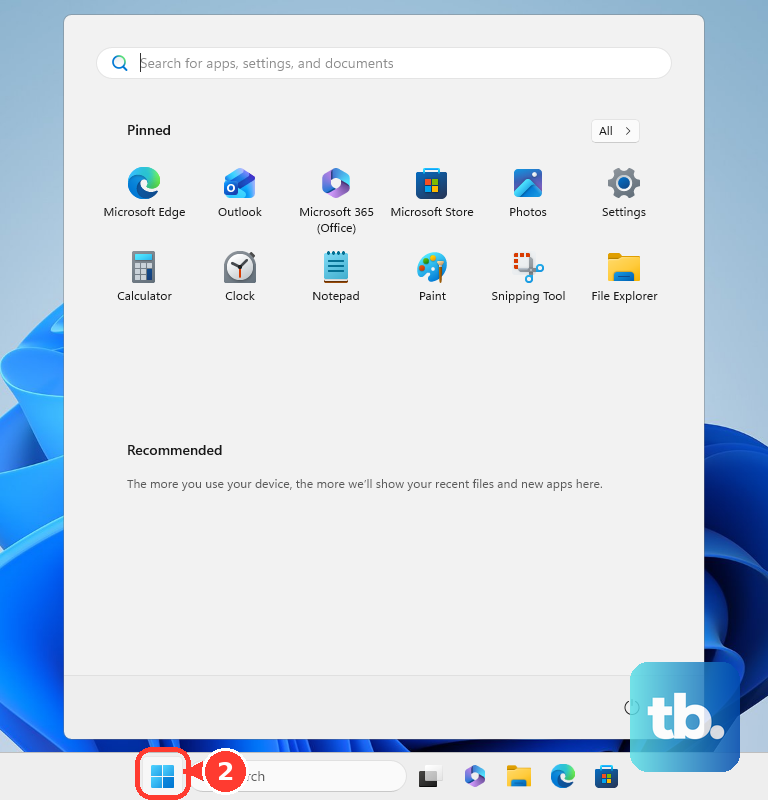
On Windows 11, select Start and open Settings > Privacy & security > Microphone. Turn on Microphone access and Let apps access your microphone. If Roblox appears among the app switches, enable its switch too.
For a desktop Roblox app, also turn on Let desktop apps access your microphone. Check that setting even if there is no individual Roblox switch. Windows handles desktop app microphone access separately from the individual switches for Microsoft Store apps.
On Windows 10, use Start > Settings > Privacy > Microphone. Enable Microphone access for this device and Allow apps to access your microphone, plus Roblox's app switch if listed. For desktop apps, enable Allow desktop apps to access your microphone as well. If the switches are on and Roblox still cannot hear you, test your microphone in Windows 11 to confirm Windows picks up your voice.
Mac
On macOS Ventura 13 and later, open the Apple menu > System Settings > Privacy & Security > Microphone. Turn access on for Roblox in the app list. This gives the app permission to use the microphone; check Roblox's own mute control too.
On macOS Monterey 12, open the Apple menu > System Preferences > Security & Privacy > Privacy. Select Microphone and select the checkbox next to Roblox. Use this older path when your Mac has System Preferences rather than System Settings.
If computer permissions and Roblox's mute control are correct, work through the fixes for Roblox Voice Chat not working on PC. Start with your account's age check, parental permission where required, and the experience's voice support.
Allow microphone access on your phone
On iPhone or iPad, open Settings > Privacy & Security > Microphone. Turn access on for Roblox. The list contains apps that have requested access, so if Roblox is absent, return to its voice controls and allow the microphone request when it appears.
On Android, open Settings > Apps > Roblox > Permissions, then select Microphone. If you cannot find Roblox, open See all apps first. Choose Allow only while using the app if that option is available.
You can also choose Ask every time where offered, but you will need to approve the request whenever you open the app. An allow option grants microphone permission; it does not replace Roblox's account age check. After changing the permission, return to the experience and check its connection and microphone controls.
Check PlayStation audio and Xbox voice options
On PS5, open Settings > Sound > Microphone. Choose your microphone under Input Device and use Adjust Microphone Level so speech reaches the Good range. Press the controller's mute button to unmute your microphone if needed.
If game chat audio is muted on PS5, press the PS button and select Sound in the control center. Turn off Mute Game Voice Chat if it is enabled. That setting affects game chat audio, so check it separately from your microphone's mute button.
On PS4, open Settings > Devices > Audio Devices and select Adjust Microphone Level. The Input Volume bar responds when the microphone works. If it does not respond, try another headset or controller before returning to Roblox.
Roblox in-experience Voice Chat is also available on Xbox, with the same age-check requirement and parental requirement for ages 13 to 15. Xbox Live Party Chat with Xbox friends is another supported option, separate from joining Roblox voice inside an experience.
Review parental and family permissions
Roblox Select covers every user aged 9 to 15, with accounts assigned automatically by age. In-game Voice Chat is off by default for all Select users; a linked parent can turn it on for ages 13 to 15 through parental controls. In-game voice is unavailable for ages 9 to 12, so parental permission cannot enable it for that age group.
If the accounts are not linked yet, open Settings > Parental controls in the child's Roblox account and select Add parent. Enter the parent's email address and follow the linking instructions sent there. Use Roblox's parental account setup instructions to finish linking and access the controls.
After linking, the parent opens Settings > Parental Controls, selects the child's account and opens Communication under Settings you manage to review voice permissions. Look for in-game voice permission for ages 13 to 15. The separate Voice Chat with friends setting controls calls with friends, so do not treat it as the in-game voice switch.
For Xbox child accounts, ask the family organizer to review communication, multiplayer and content permissions in the Xbox Family Settings app. Select the child's profile and press the settings icon to access the controls. The app provides those controls for Xbox One and Xbox Series X|S.
Roblox's Xbox One instructions name two access settings: set You can join multiplayer experiences to Allow and You can see and share content to Everybody. Console menu names may differ on newer Xbox software. These permissions allow access to Roblox experiences and content; they do not replace the Roblox age check or parental voice permission.
Frequently Asked Questions
Why can't I turn on Voice Chat in Roblox?
For in-experience voice, you need an age check confirming you are 13 or older, regional availability and an experience that supports it. If you are 13 to 15, your Roblox Select account also needs a linked parent to enable in-game voice through parental controls.
Can I get Roblox Voice Chat with only phone verification?
No, phone verification alone does not grant Voice Chat access. Complete facial age estimation or ID verification, then connect inside an experience that supports voice.
Where is the Roblox Voice Chat button?
Use the headphone icon inside a supported experience, or connect through the Voice Chat toggle in its settings. On PlayStation, join voice from the in-experience settings.
Why can I hear Voice Chat but nobody can hear me?
Check the microphone icon at the upper left and tap it if it has a red slash. If Roblox is unmuted, review microphone permission on your device and any console microphone controls.
Can I get in-experience Voice Chat without an ID?
Yes, eligible accounts can complete facial age estimation instead of ID verification. Availability still depends on your account and region, and ages 13 to 15 also need parental voice permission.
Does Roblox Voice Chat work on Xbox?
Yes, Roblox supports in-experience Voice Chat on Xbox for eligible age-checked users. Users aged 13 to 15 also need a linked parent to enable in-game voice.
How do I leave Voice Chat without leaving the game?
Open the experience's settings and change Voice Chat from Connected to Disconnected. If you only want to stop transmitting your own voice, mute your microphone instead.